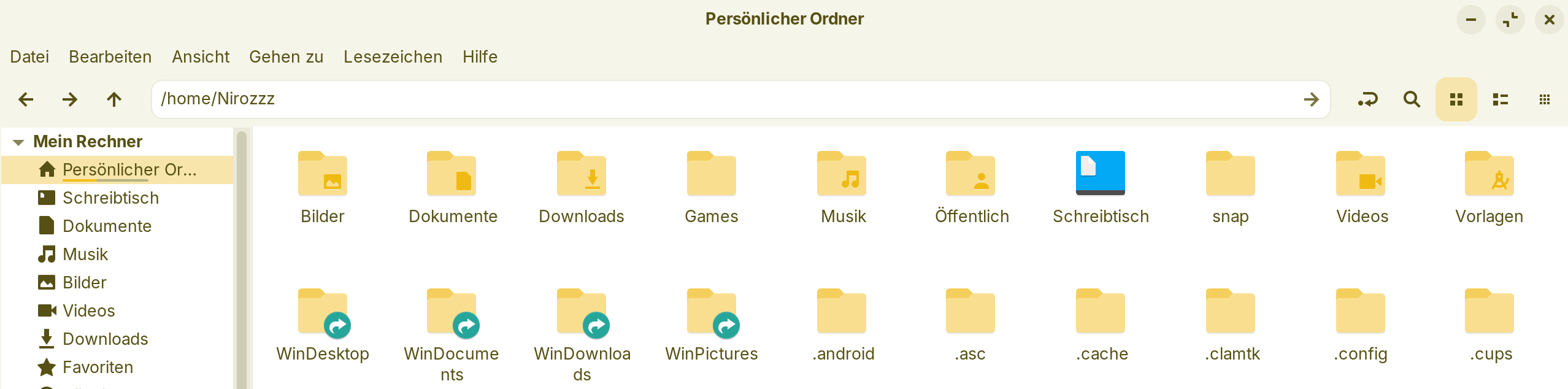
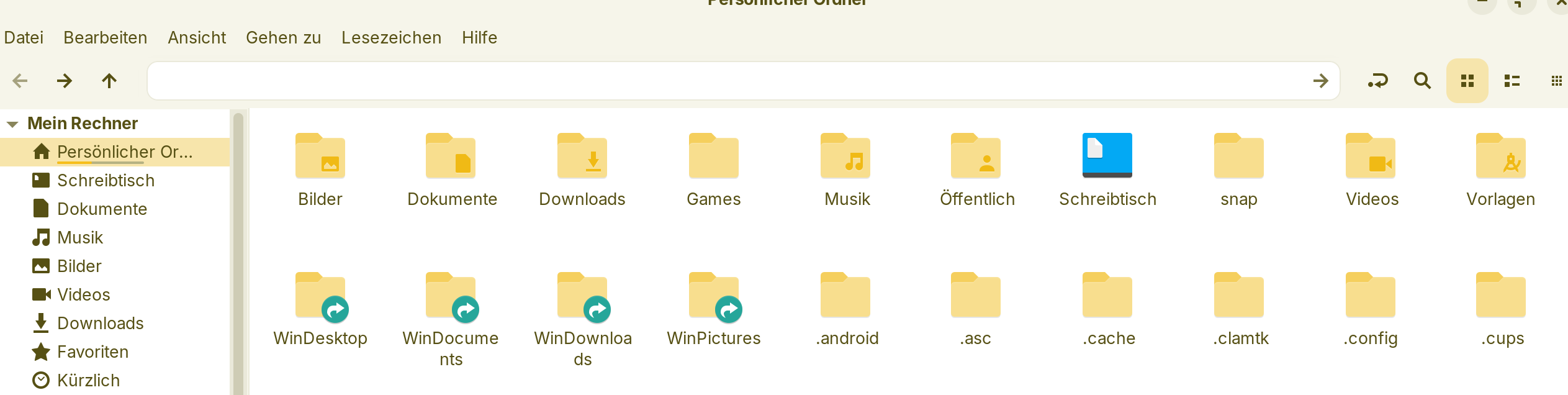
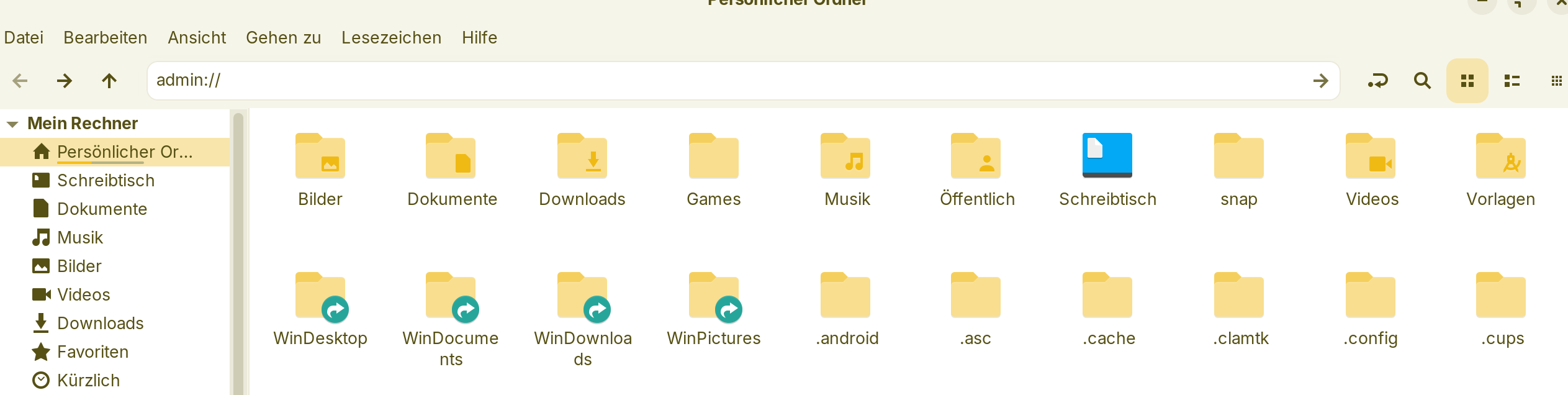
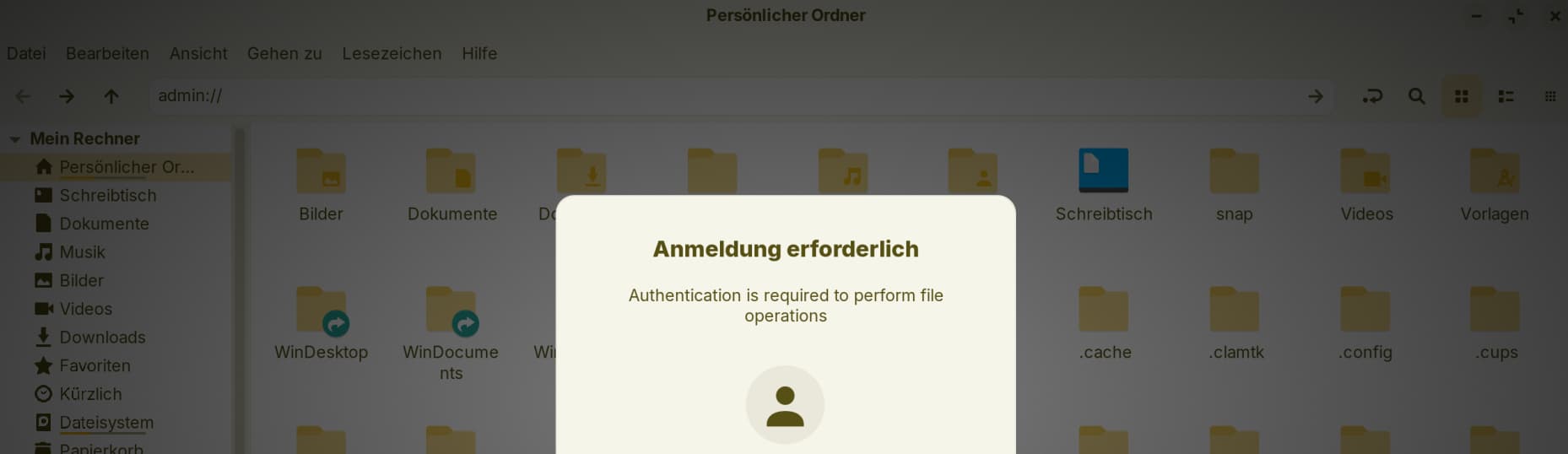
Does this happen when you open the file manager and then press ctrl+ L (small L) and then type admin:// - and not click anywhere else?
I'm wondering if it could help you to install timeshift in the live session to delete some of your old snapshots if you don't find them whis way
.
I'm not using timeshift at the moment, so I'm not sure. First connect to the internet. Then enter in terminal
sudo apt update
(Don't run the command sudo apt upgrade).
sudo apt install timeshift
and then open timeshift. Confirm the snapshottype but don't make a snapshot when you are asked. Then finish the setup. Now you can (perhaps) delete old snapshots when you open timeshift and in the topbar click on places and select your internal drive. When you confirm your internal drive and then click on delete, the app should find all snapshots - I hope.
The "ctrl +L" worked and I got into Administrator Root, strangely it did not require a password (which it required my password on my desktop when I tried it on that system) ...
I'm not seeing a Timeshift folder?
Go to other places and select your internal drive, then go to home and then select the folder with your username. Look if it is there.
Or try it with the installation of timeshift. The app could find your timeshift snapshots when you have selected your right drive.
In a live session you don't need to enter a root password, just click on "sign in" in the password prompt. Then you get the root rights.
I think, it works with the installation of timeshift in the Zorin live session, too. I would first try it before creating a new usb boot stick with Linux Mint, because it is less work.
Then try it with timeshift. When you start it, you are prompted for root rights.
Or when you know the exact paths of the files/folders you want to delete, you could use the terminal to delete them.
Or what can also help you:
Install nautilus-admin
sudo apt install nautilus-admin
then logout and login again and open nautilus normally (don't enter admin://) and go to other places and select your drive and go to the folder you want to have root rights for to delete files. Then right-click on that folder and select "open as administrator". Don't click on the left sidebar now, stay on the right side of nautilus to select the folders and files to not to loose root rights. When you click on the sidebar, you often loose the root rights.
The same does the following:
Go to other places, select your internal drive, then click in the topbar on your drive to show the path and right-click and copy it. It begins with /media/zorin...
Then remove the path of your drive and enter admin://and then paste your copied path.
The line looks now so: admin:///media/zorin/....
Then press enter to open that drive as administrator and on the right (!!!) side of nautilus click on the folders you want to open, e.g. home. Don't use the sidebar on the left side. That are only the folders of the live usb stick.
Boot into Zorin, assuming you can see GRUB, choose advanced options, then select recovery mode. Once their drop to a root prompt and ru n timeshift commands from there.
Perhaps this as @forpli showed step by step will work for you (I use the Nemo file manager instead of the standard Nautilus, so it looks a little different):
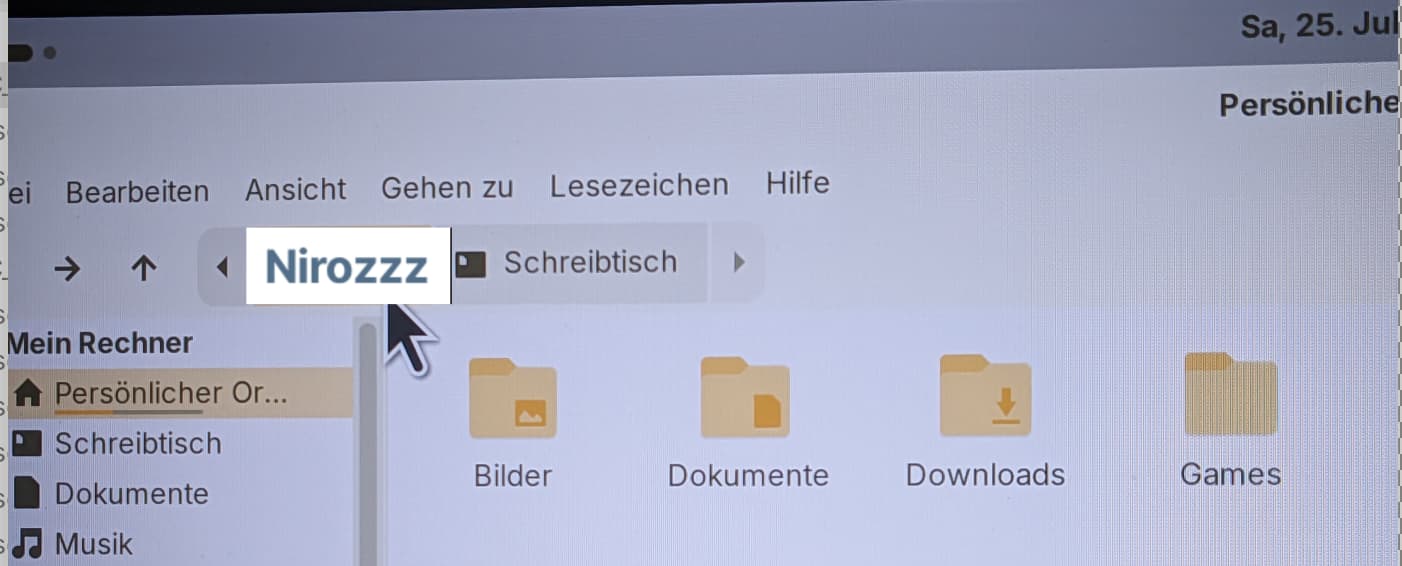
In the file manager, double-click the link to your target directory. Your folder structure will then be displayed as follows: home/Nirozzz (or the username you have on your PC).
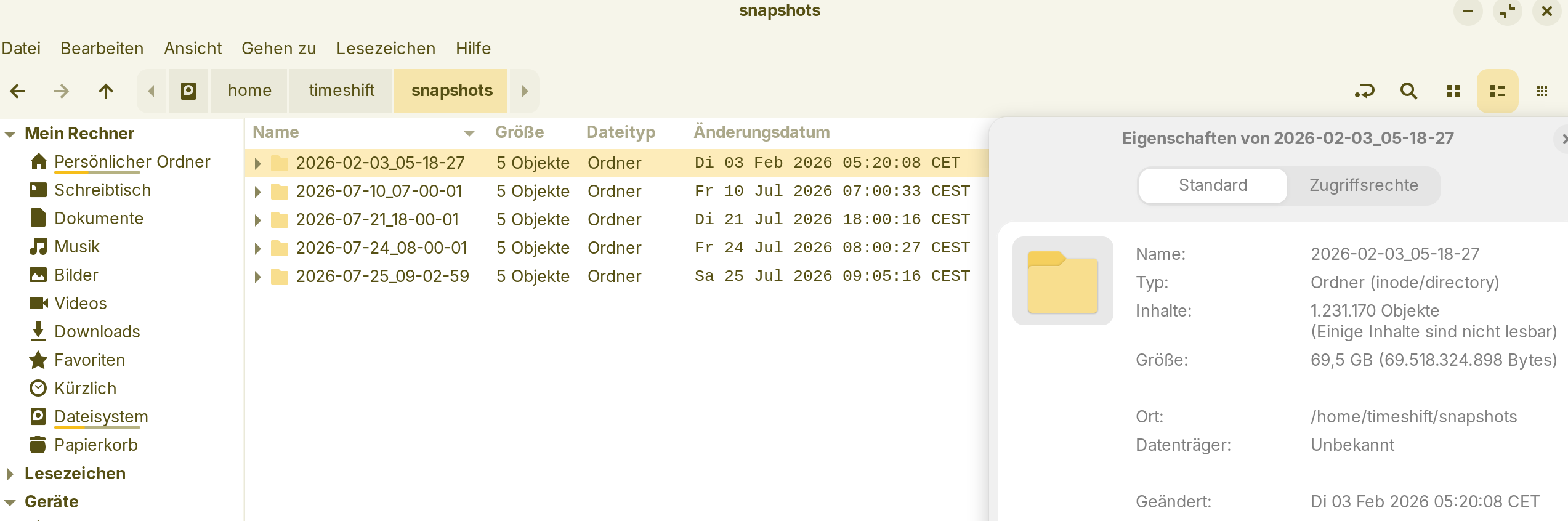
Next, you can go to your Timeshift snapshots (provided you have saved them in your home directory as shown in this photo) and check the size of the snapshots by right-clicking on the properties at the end of the list:
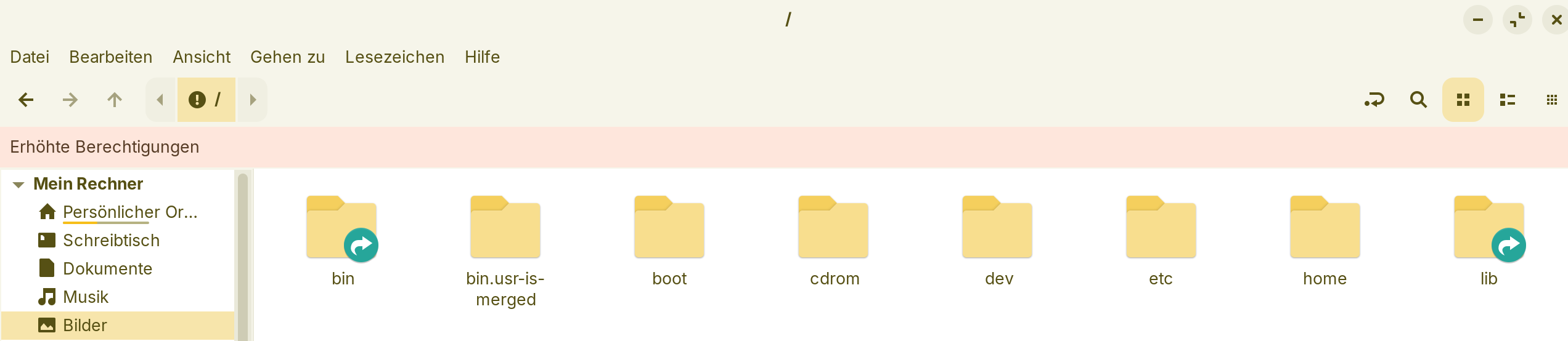
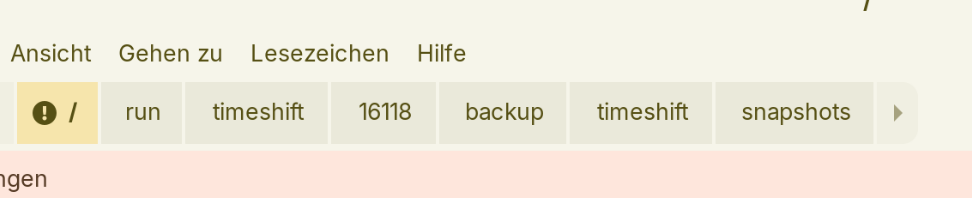
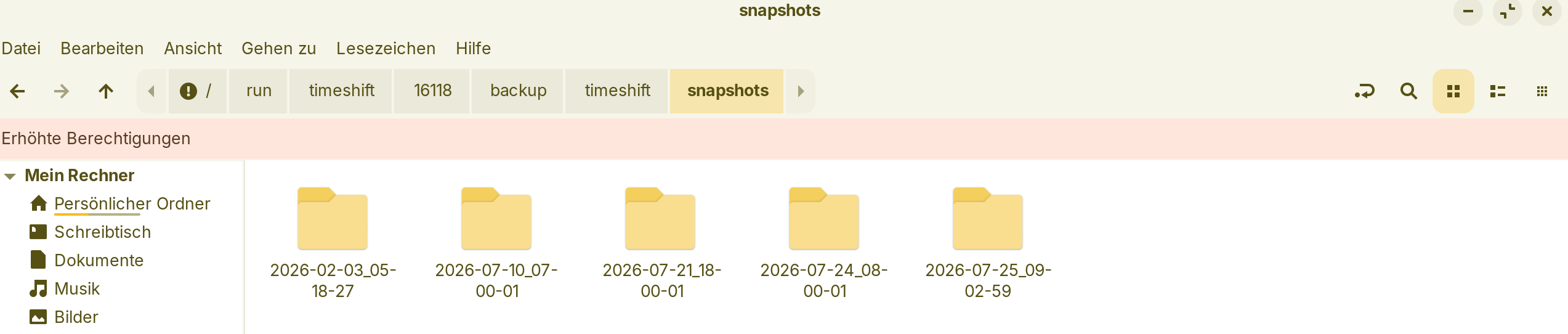
The way to find your timeshift snapshots for sure is by starting within the root directory, from there into the folder "run" and deeper into the folder "timeshift":
...but the folder named with numbers coincidence, so it differs on your system. If you have more number folders at your system in parallel find the one with data in it.
Go there further down to folder "backup" and then to "timeshift" and from there to folder "snapshots":
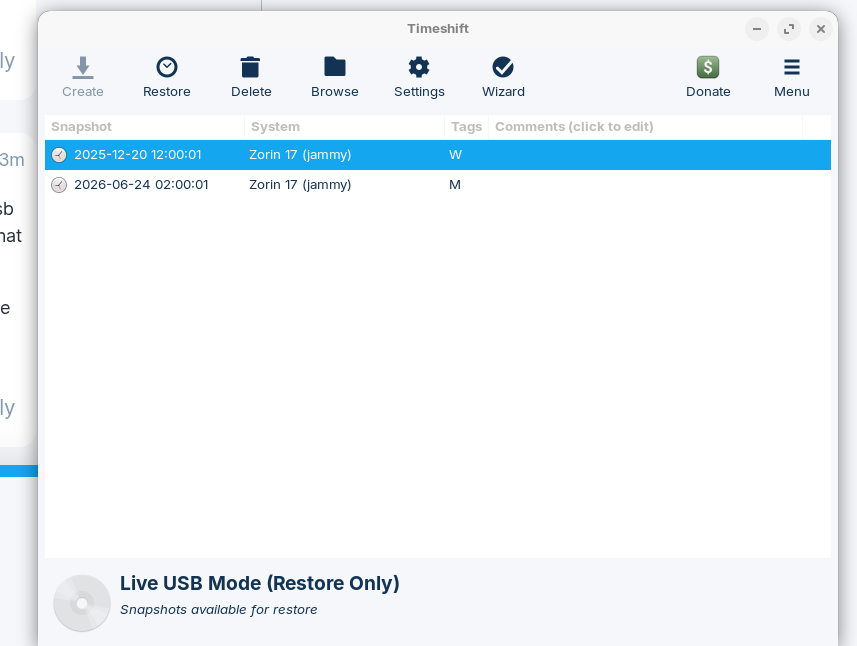
Have you selected your internal drive at tab places of timeshift? When the live usb stick is selected (as it is by default), then the app doesn't find them and shows that no snapshots are installed.
First go to tab places and select your internal drive. Then go to tab delete or browse.