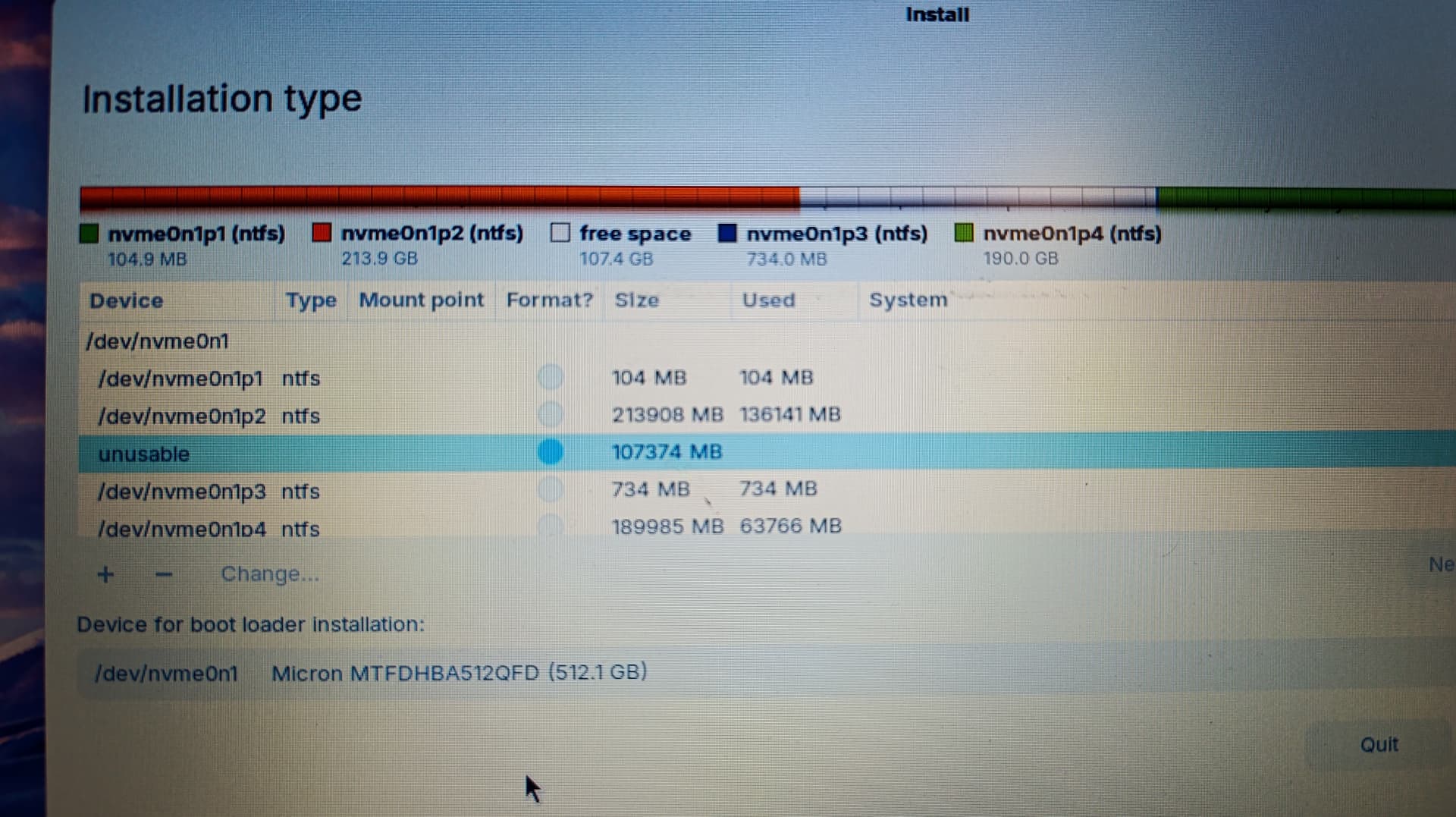
"unusable" partition drive


Hey everyone. I'm trying to have Zorin installed (Dual Boot W11).
I've shrunk the windows drive (100GB) and I'm using a 16GB usb drive.
I'm following the instructions on YouTube videos; But now, I can't install it on the drive.
Please Help!

That "Unusable" partition might have readable data on it. Have you tried wiping that partition, first, then try formatting it to ext4?

1 Like

From long-distant and inexact memory I vaguely recall something similar when I was tweaking my Windows disk. The partition/installer software refused to use a portion of the disk because it was in the middle of other active partitions, which looks to be the case here.
Perhaps copying whatever data are on the P3 & P4 drives to an external disk (or copying them to P2 - there looks to be enough free space), deleting & formatting those 3 bottom partiton spaces, creating new partitions and copying the data back (if needed) and then installing Zorin in the final partition where it is not impeded by being "sandwiched" between Windows partitions?
Oh, and it would be foolish of me not to add in big red flashing letters - back up all your data on an external drive before you touch anything at all to do with disk manoeuvring... :slight_smile:

1 Like

No it's the unallocated part of the partition where the windows is installed. I did exactly what the videos on youtube told me to.

Hi,

from your screenshot, the important part is that the 100 GB space is shown as “unusable”, not as normal free space.

This usually happens when the disk is using the older MBR/Legacy partition scheme and already has four primary partitions. In that situation, the installer cannot create another partition for Zorin, even though you shrank Windows and created space.

Please do not delete or format anything yet.

Your current disk already has these partitions:

/dev/nvme0n1p1
/dev/nvme0n1p2
/dev/nvme0n1p3
/dev/nvme0n1p4

That is probably why the 100 GB area cannot be used.

The safest options are:

  1. Back up all important Windows files first.
  2. Check in Windows Disk Management whether the disk is MBR or GPT.
  3. If it is MBR, you may need to convert the disk to GPT/UEFI before dual booting, or install Zorin on a separate drive.
  4. Do not delete the NTFS partitions unless you are absolutely sure what they contain.
  5. Please post a screenshot from Windows Disk Management so we can see what each partition is used for.

If your Windows installation is still in Legacy/MBR mode, that is probably the main reason the Zorin installer cannot use the 100 GB space.

Best regards,
Daniel

3 Likes

I'm no expert, but I doubt that you're correct. The partitions look (to me) like the Windows boot partition in P1, Windows system in P2, and data in P3 & P4. I may be entirely wrong, but I don't see any way that Windows is installed in the "unusable" space.

1 Like

Hi David,

yes, you are right that Windows is not installed in the “unusable” space. I may not have explained that clearly enough.
What I meant is that the installer shows the 100 GB area as “unusable”, so Zorin cannot create a Linux partition there at the moment.
The existing partitions may indeed be Windows boot/system/data partitions. The issue is not that Windows is inside the unusable space, but that the installer cannot use that free area.
One possible reason could be an older MBR/Legacy partition layout with the maximum number of primary partitions already present. If that is the case, the installer may show the remaining free space as unusable even though it exists.
So the safest next step would be to check in Windows Disk Management whether the disk is MBR or GPT, and also post a screenshot from Windows Disk Management before deleting or formatting anything.

2 Likes

Ha... I recommend that giagligli listens to your advice rather than mine... :slight_smile:
Oh, I was responding to giagligli's comments, not yours. I wasn't questioning your advice - I just happened to be writing my response at the same time as you.

3 Likes

Also, before changing partitions, I would strongly recommend making a backup first.

If you have an external hard drive, copy your important Windows files to it before continuing. For example: documents, photos, videos, music, work files, and anything else you do not want to lose.

You can also use cloud storage if you already use something like Google Drive, OneDrive, or another service. These can normally be accessed again later from Zorin OS through the browser or suitable apps.

Partition changes usually work fine when done correctly, but mistakes can happen. A backup gives you safety before continuing with dual boot or manual partitioning.

So before deleting, formatting, converting MBR/GPT, or changing partitions: backup first. Then continue step by step.

3 Likes

Thank you for helping me!!


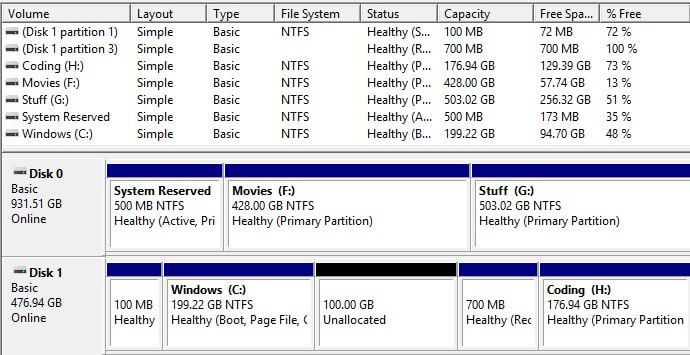
and something interesting! when I want to make a new partition out of that space, surprisingly this error pops up:

"The selected GPT formatted disk contains a partition which is not of type 'PARTITION_BASIC_DATA_GUID', and is both preceeded and followed by a partition of type 'PARTITION_BASIC_DATA_GUID'."

My drives' style is MBR and the bios is on Legacy.

1 Like

Hi,

thank you for the screenshot. This explains the problem much better.

If Disk 1 is really MBR and the BIOS is running in Legacy mode, then the issue is very likely the MBR partition limit.

On Disk 1 you already have four partitions:

100 MB system partition
Windows C:
700 MB recovery partition
Coding H:

With MBR, you can only have four primary partitions. So even though you have 100 GB unallocated space, the installer cannot create another partition for Zorin. That is why the Zorin installer showed the space as unusable.

Please do not format or delete anything yet.

The safest options are:
Back up all important files first.
Then either install Zorin on a separate drive, or change the partition layout carefully.
If you want to install Zorin on Disk 1, you would probably need to remove or move one existing primary partition, or convert the system from MBR/Legacy to GPT/UEFI. But converting MBR to GPT must be done carefully, and I would not recommend doing that without a full backup.
The 100 GB unallocated space itself is not the problem. The problem is that the disk layout does not currently allow another Linux partition to be created there.
So before continuing, I would recommend:
make a full backup of important Windows files
confirm again whether Disk 1 is MBR or GPT in Windows Disk Management
do not delete the recovery or data partitions unless you are sure what they contain
consider using a separate drive for Zorin if possible
This is a partition layout issue, not a broken Zorin installer.
Best regards,
Daniel

2 Likes

The drives are both MBR. I checked them in volume tab of the drives. I personally installed W11 with a usb and remember it was MBR. Instead of shrinking C, can I use the other partition (Coding) as the location for Zorin OS? if it's possible (which I guess it is), what should I exactly do? Format the drive? or make it unallocated?

1 Like

yes, you can probably use the Coding partition for Zorin OS, but only if you do not need the data on it anymore, or after you have backed it up.

Important: formatting it as NTFS is not useful for Zorin. Zorin needs Linux partitions, usually ext4. The safest beginner method is to make the space unallocated and let the Zorin installer create the Linux partition there.

So the steps would be:

First, back up everything important from the Coding H: partition.

Then, in Windows Disk Management, delete the Coding H: partition so that it becomes unallocated space.

Do not delete Windows C:.

Do not delete the 100 MB system partition.

Do not delete the recovery partition unless you fully understand what it is.

After that, boot the Zorin USB again.

When the installer asks where to install Zorin, you can either check if “Install alongside Windows” appears, or use manual partitioning and select only the unallocated space that came from the Coding partition.

For a simple Legacy/MBR setup, you can create one ext4 partition mounted as:

/

You do not need a separate swap partition because modern Linux systems can use a swap file.

The key point is: make it unallocated, not formatted as Windows NTFS.

Also, because your system is MBR/Legacy, you are limited by the old MBR partition rules. Deleting the Coding partition may free one partition slot and allow Zorin to create its Linux partition there.

But please make a backup first. Partition changes can destroy data if the wrong partition is selected.

A simple way to check whether your computer has space for Zorin OS is to boot from the Zorin USB stick and start the installer only up to the installation type screen.
At that point, the installer usually shows your drives, Windows partitions, free space, and whether Zorin can be installed alongside Windows.
This can help beginners understand if the system actually sees usable space for Linux.
But important: do not continue with the installation or change partitions if you are not sure what you are looking at.
If the installer shows “free space” or offers “Install Zorin alongside Windows”, that is usually a good sign.
If it shows the space as “unusable”, or if you only see manual partition options and you are not sure, stop there and ask for help before clicking anything.
The installer can show you a lot of useful information, but partition changes can delete data if the wrong option is selected.
So the safe beginner method is:
boot from the Zorin USB, go only as far as the installation type screen, check what the installer detects, take a photo or screenshot if needed, and ask the forum before continuing.
That way you can check the situation without risking your Windows data.

I backed up the data, and deleted the partition (Coding). and hopefully, I was able to use it here in installation type; however, yet, I couldn't find "Install alongside Windows" option, and in manual mode, no partition is assigned to the boot loader.
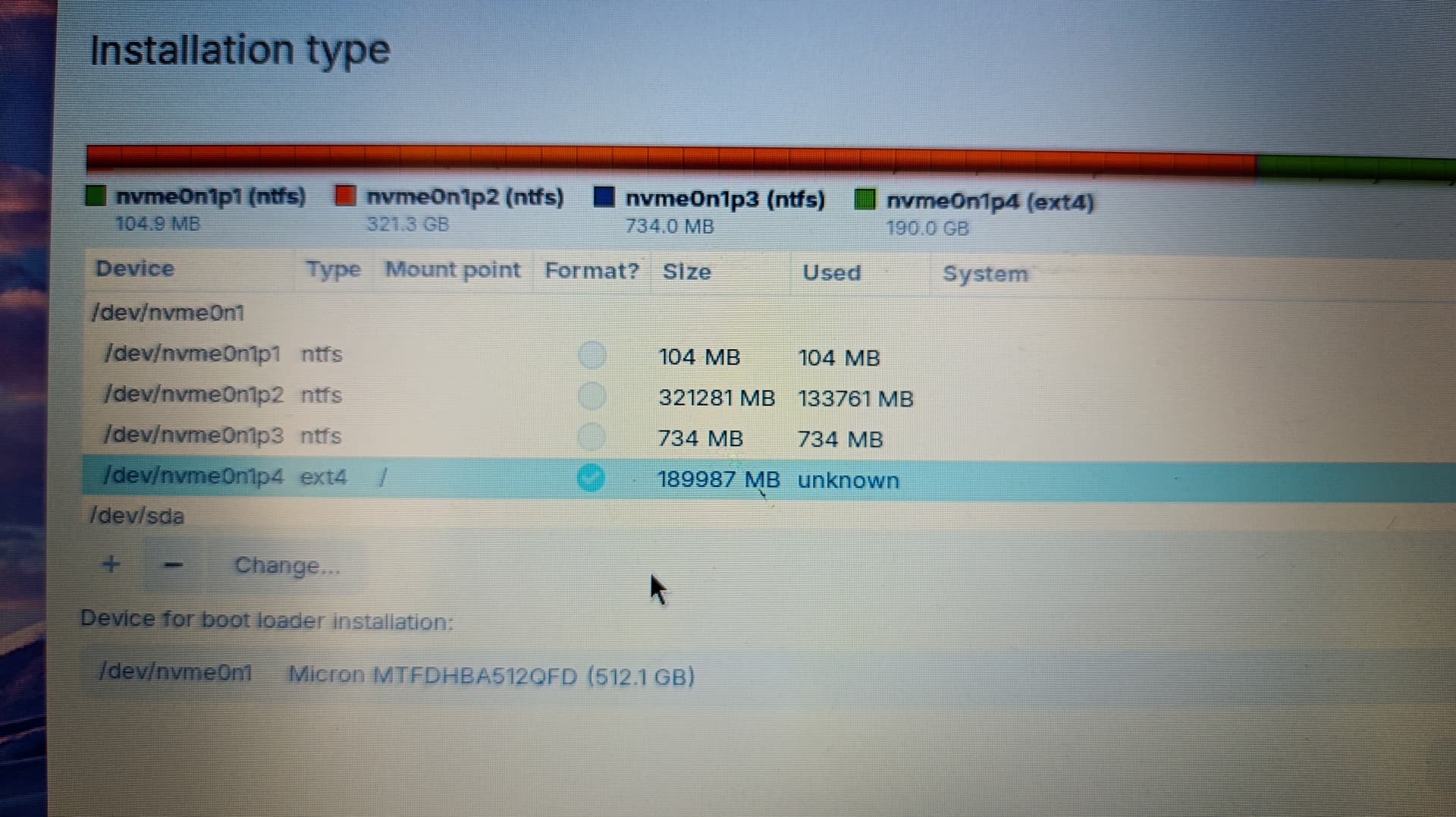
1 Like

@Prof.Dr.Daniel Sry I'm still confused and I don't know what to do. Should I install it on the partition? because I think something is wrong here and I don't see the "bootloader" thing assigned to a partition somewhere in the "system" tab.

**
when I clicked on Install Now, this error popped up:

No EFI System Partition was found. This system will likely not be able to boot successfully, and the installation process may fail.
Please go back and add an EFI System Partition, or continue at your own risk.
Hi,

please stop at that point and do not continue “at your own risk”.

That message is important.

If your Windows installation is really MBR / Legacy, then you normally do not have an EFI System Partition. EFI partitions are used for UEFI/GPT installations, not normal Legacy/MBR installations.

So this error probably means that your Zorin USB was booted in UEFI mode, while your Windows installation is Legacy/MBR.

For a dual boot system, both systems should normally use the same boot mode.

So if Windows is installed in Legacy/MBR mode, you should boot the Zorin USB also in Legacy/CSM mode, not UEFI mode.

When you open your boot menu, you may see two USB entries, for example:

UEFI: USB name
USB name

If your Windows is Legacy/MBR, choose the USB entry without “UEFI”.

Also, the bootloader is not normally assigned to one of the Windows partitions in Legacy mode. In the installer, “Device for bootloader installation” should usually be the whole disk, for example:

/dev/nvme0n1

not a partition like /dev/nvme0n1p1 or /dev/nvme0n1p2.
Because your disk is MBR, you also still have the old four-primary-partition limit. So before installing Zorin, the space must be usable and you may need to delete one partition you no longer need, such as the Coding partition, after backing up everything on it.
Do not format random partitions.
Do not delete Windows C:.
Do not delete the system partition.
Do not continue with the EFI warning unless you intentionally want to convert/reinstall everything as GPT/UEFI.
The safer next step is:
restart, open the boot menu, boot the Zorin USB in Legacy/CSM mode, then check the installation screen again.
If you still see warnings, post another photo before continuing.

Best regards,
Daniel

2 Likes


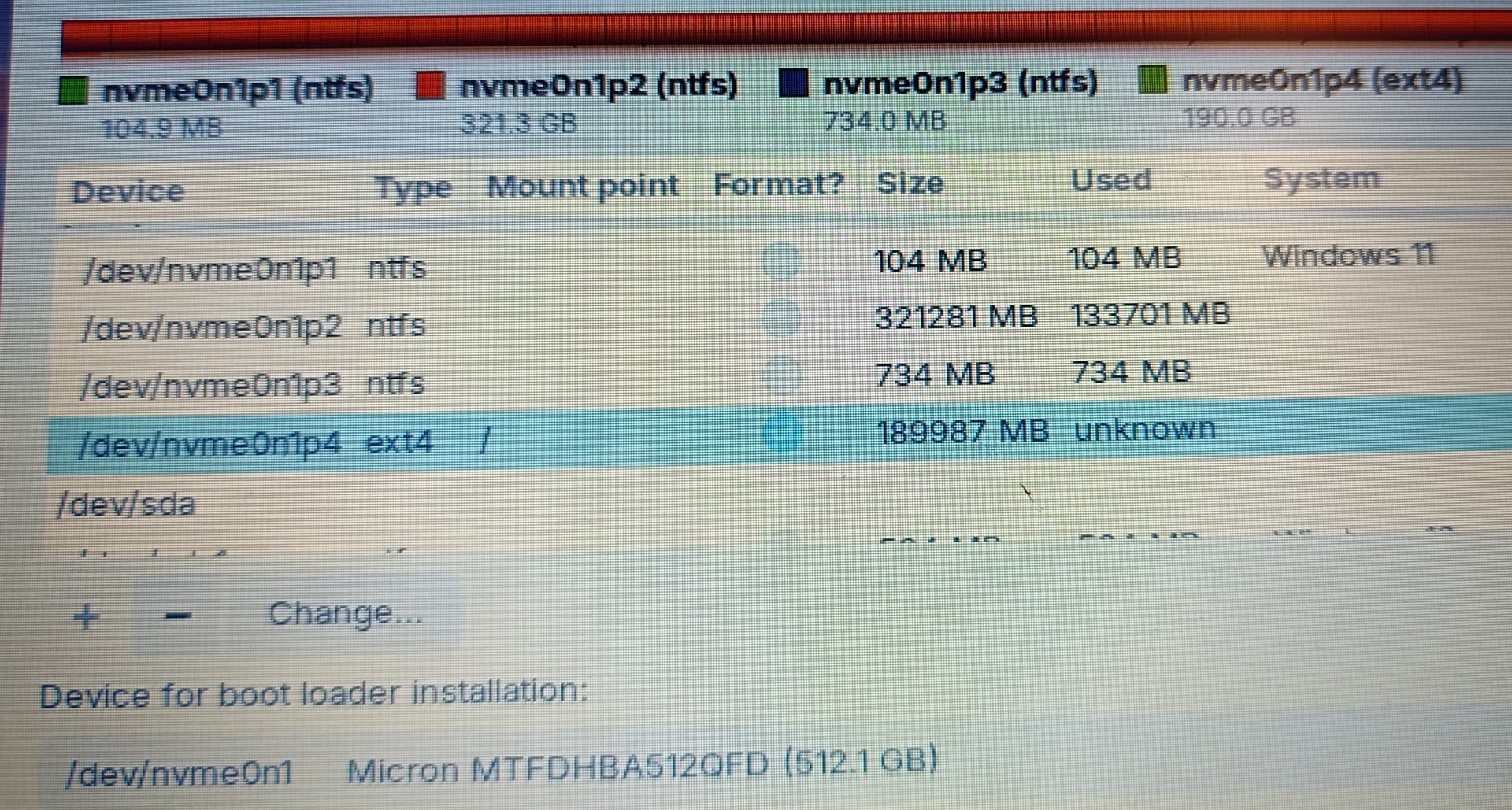
Alright! I changed the boot priority to Legacy first, and fortunately, "Windows 11" tag appeared in the partition table; yet, the ESP is not there. I guess I am left with only one simple option: "MBR to GPT".
Am I not right?

Hi,

good, this is progress.

If you booted the Zorin USB in Legacy mode and the installer now shows the Windows 11 tag, then the installer is finally seeing the system in the same boot mode as Windows.

In a Legacy/MBR setup, you normally do not have an EFI System Partition. EFI partitions are for UEFI/GPT systems. So the missing ESP is not automatically a problem if you are installing in Legacy mode.

From your screenshot, it looks like:

/dev/nvme0n1p1 = small Windows/system partition
/dev/nvme0n1p2 = Windows 11
/dev/nvme0n1p3 = recovery partition
/dev/nvme0n1p4 = ext4 mounted as /

The bootloader target should be the whole disk:

/dev/nvme0n1

not one of the individual partitions.

So if the installer no longer gives the EFI warning, and if you are sure that /dev/nvme0n1p4 is the partition you want to use for Zorin, then this Legacy/MBR installation may work without converting to GPT.

But please check carefully before continuing:

Do not format /dev/nvme0n1p1.
Do not format /dev/nvme0n1p2.
Do not format /dev/nvme0n1p3.
Only the ext4 Zorin partition should be used as /.

Converting MBR to GPT would be the cleaner modern solution, especially for Windows 11 and UEFI systems, but it is also more risky and should only be done after a full backup. It is not something I would do just because the installer previously complained about no EFI partition while booted in the wrong mode.

So the short answer is:

If you want to keep the current Windows Legacy/MBR setup, install Zorin in Legacy mode too.
If you want a modern UEFI/GPT setup, then yes, you would need conversion or a clean reinstall — but backup first.

Best regards,
Daniel

Just an additional note regarding 4 Primary partitions in legacy mode (mbr). This is the maximum per system, even if there is more than one hard drive.

Comment: I find it strange that Windows 11 would install without EFI/UEFI.

2 Likes