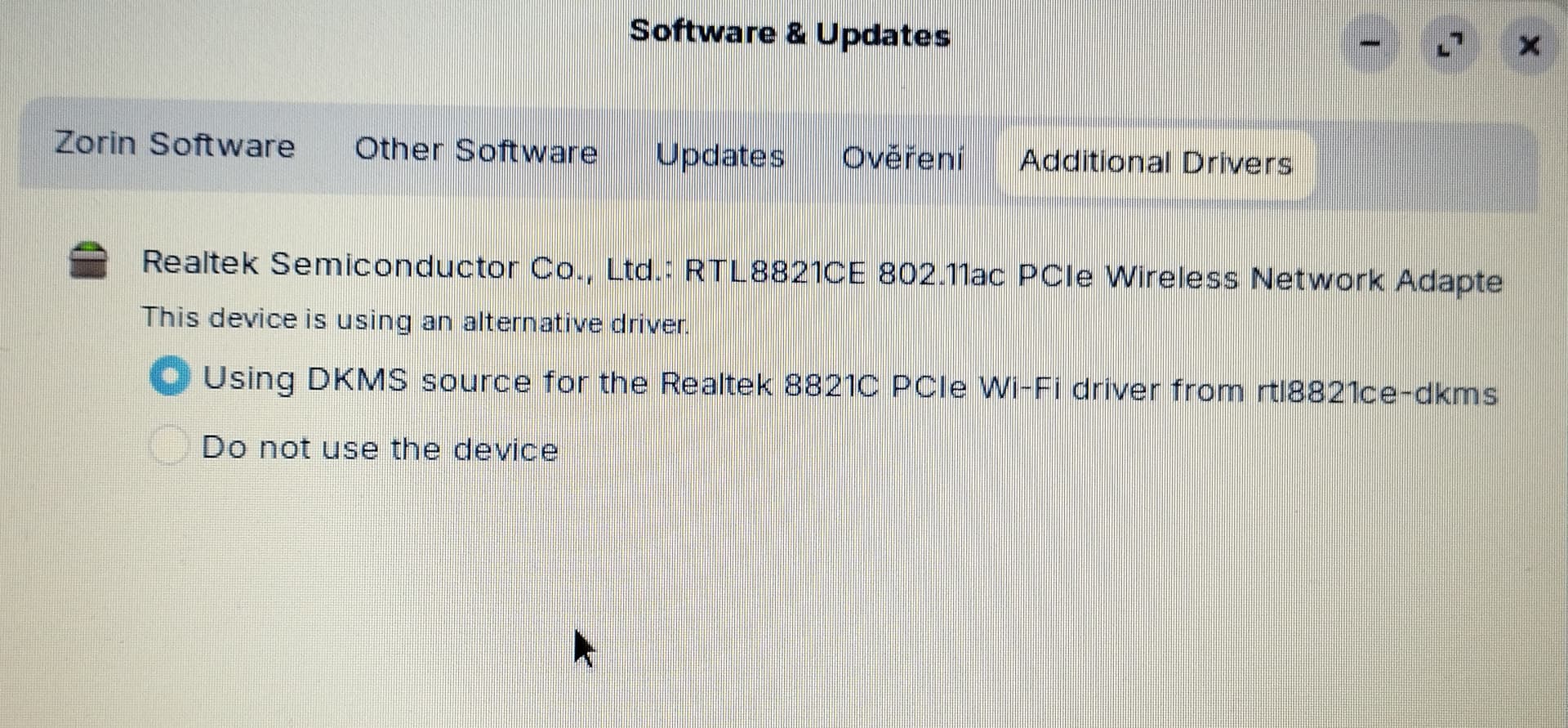
Hi and welcome. My first thought on this was the possibility of power-saving being the culprit. To alter power-saving settings (please note Zorin 17 is based on Ubuntu 22.04):
" To alter Wi-Fi power saving settings in Ubuntu 22.04, the most effective method involves configuring NetworkManager to disable power saving for your wireless adapter. This is particularly important because Wi-Fi power saving can significantly reduce network performance, potentially dropping speeds from 100 Mbps to 20 Mbps.
The primary configuration file is located at /etc/NetworkManager/conf.d/default-wifi-powersave-on.conf . To disable power saving, edit this file and set the wifi.powersave value to 2 , which means "disable powersave". The possible values are:
0 : Use the default value1 : Don't touch existing setting2 : Disable powersave3 : Enable powersave
After making the change, restart the NetworkManager service to apply the settings:
sudo systemctl restart NetworkManager
Alternatively, you can use the nmcli command to modify the power save setting directly for a specific Wi-Fi connection profile. First, list your saved connections:
nmcli connection show
Identify the name of your Wi-Fi connection (e.g., "BELL060") and then run:
sudo nmcli connection modify "BELL060" 802-11-wireless.powersave 2
This command embeds the setting within the connection profile itself, ensuring it persists across reboots, even if other power management daemons like power-profiles-daemon reset the setting.
For a more permanent fix, especially if the above methods are overwritten, you can create a custom configuration file:
sudo mkdir -p /etc/NetworkManager/conf.d
echo -e "[device]\nwifi.powersave = 2" | sudo tee /etc/NetworkManager/conf.d/99-no-wifi-powersave.conf
sudo systemctl restart NetworkManager
You can verify the current power save status using the iw command:
iw wlan0 get power_save
Replace wlan0 with your actual wireless interface name, which can be found using ip a . If the output shows "Power save: on", the setting needs to be adjusted.
AI-generated answer. Please verify critical facts."
To edit a .conf file you need to place sudo nano in front of the path to the file:
sudo nano /etc/NetworkManager/conf.d/default-wifi-powersave-on.conf
Once you have edited the file use the keys Ctrl+ O to write out the changes and press Enter to save the changes, then Ctrl+ X to exit. Please keep us posted.