Wifi not detected after laptop sleep

Hello guy. I have an issue with the laptop - the WiFi is not detected anymore after laptop wakes up from sleep.

Using Zorin OS 18
Laptop model Lenovo idea pad pro 5 14IAH10 (what a mouth full)
The OS is in dual boot with windows 11 (not having this issue under windows)
I have applied almost all suggestion the google's AI but nothing works. The WiFi itself is made by intel and it is WiFi 7.
The laptop is in s2idle
sudo systemctl restart NetworkManager does not work
sudo nano /etc/NetworkManager/conf.d/default-wifi-powersave-on.conf (changed the value from 3 to 2 but with no results)
Also i have used other command suggested by the AI because i'm no tech guru and to be honest Linux is kinda my weak spot. I have briefly used it shortly now and then but you could not say that i'm a true user. I'm toying with the idea to move away from windows, but little stuff like the above mentioned make things hard.
Would appreciate if there is someone that could offer a working solution as i can't really go about rebooting the laptop every time it goes to sleep just to get the WiFi going.

Can you please post the terminal output of

lsmod | grep iwl

while your wlan is working?

intel wifi 7 on those lenovos often dies on s2idle resume for me. NM restart cant wake hung firmware.

-sudo modprobe -r iwlmvm iwlwifi
-sudo modprobe iwlwifi
wait a few secs then check wifi again

if that brings it back, make this resume hook so it reruns after sleep:

sudo tee /lib/systemd/system-sleep/iwlwifi-reset <<'EOF'
#!/bin/sh
case $1 in
post)
/sbin/modprobe -r iwlmvm iwlwifi
/sbin/modprobe iwlwifi
;;
esac
EOF
sudo chmod +x /lib/systemd/system-sleep/iwlwifi-reset

when its broken paste:
lspci -nnk | rg -i network
dmesg | rg -i 'iwl|wifi|firmware' | tail -40

windows fast startup can leave the card weird on dual boot too. turn that off in windows power options if u still boot there.

lsmod | grep iwl
iwlmld 442368 0
mac80211 1892352 1 iwlmld
iwlwifi 647168 1 iwlmld
cfg80211 1519616 3 iwlmld,iwlwifi,mac80211

sry for the delay. I have a kid running around. Also did not expect such a fast answer from the community to be honest. Also, don't know if this helps, it is just extra info:lspci
00:00.0 Host bridge: Intel Corporation Device 7d06 (rev 05)
00:01.0 PCI bridge: Intel Corporation Device 7ecc (rev 10)
00:02.0 VGA compatible controller: Intel Corporation Arrow Lake-P [Intel Graphics] (rev 03)
00:04.0 Signal processing controller: Intel Corporation Device 7d03 (rev 05)
00:06.0 PCI bridge: Intel Corporation Device 7eca (rev 10)
00:06.2 PCI bridge: Intel Corporation Device 7ecb (rev 10)
00:07.0 PCI bridge: Intel Corporation Meteor Lake-P Thunderbolt 4 PCI Express Root Port #0 (rev 10)
00:07.1 PCI bridge: Intel Corporation Meteor Lake-P Thunderbolt 4 PCI Express Root Port #1 (rev 10)
00:08.0 System peripheral: Intel Corporation Device 774c
00:0a.0 Signal processing controller: Intel Corporation Device 7d0d (rev 01)
00:0b.0 Processing accelerators: Intel Corporation Meteor Lake NPU (rev 05)
00:0d.0 USB controller: Intel Corporation Meteor Lake-P Thunderbolt 4 USB Controller (rev 10)
00:0d.2 USB controller: Intel Corporation Meteor Lake-P Thunderbolt 4 NHI #0 (rev 10)
00:12.0 Serial controller: Intel Corporation Device 7745
00:14.0 USB controller: Intel Corporation Device 777d
00:14.2 RAM memory: Intel Corporation Device 777f
00:15.0 Serial bus controller: Intel Corporation Device 7778
00:15.2 Serial bus controller: Intel Corporation Device 777a
00:15.3 Serial bus controller: Intel Corporation Device 777b
00:16.0 Communication controller: Intel Corporation Device 7770
00:19.0 Serial bus controller: Intel Corporation Device 7750
00:19.1 Serial bus controller: Intel Corporation Device 7751
00:1c.0 PCI bridge: Intel Corporation Device 7739
00:1f.0 ISA bridge: Intel Corporation Device 7702
00:1f.3 Multimedia audio controller: Intel Corporation Device 7728
00:1f.4 SMBus: Intel Corporation Device 7722
00:1f.5 Serial bus controller: Intel Corporation Device 7723
01:00.0 Non-Volatile memory controller: Samsung Electronics Co Ltd NVMe SSD Controller SM981/PM981/PM983
02:00.0 Network controller: Intel Corporation Wi-Fi 7(802.11be) AX1775*/AX1790*/BE20*/BE401/BE1750* 2x2 (rev 1a)
03:00.0 Non-Volatile memory controller: SK hynix Device 1f69
58:00.0 SD Host controller: O2 Micro, Inc. SD/MMC Card Reader Controller (rev 01)

I still have access to win 11 so i have logged on disabled fast startup.
Also after sudo modprobe -r iwlmvm iwlwifi i got an error something like iwlmld still in use or something. I acctualy made a proper reply for you but after i hit reply i remembered that the WIFI was off so had to reboot and i didn't save my reply to you.

sudo modprobe -r iwlmvm iwlwifi
[sudo] password for cosmin:
rmmod: ERROR: Module iwlwifi is in use by: iwlmld
modprobe: FATAL: Error running remove command for iwlwifi

Try to run these commands after suspend:

sudo modprobe -r iwlmld
sudo modprobe iwlwifi iwlmld

Another user created this script which helped to stop the Networkmanager before the suspend, remove the kernel modules for intel wifi and after suspend to reload the kernel modules and to start the Networkmanager again:

#!/bin/sh

case "$1" in
    pre)
        /usr/bin/systemctl stop NetworkManager
        /sbin/modprobe -r iwlmld
        /sbin/modprobe -r iwlwifi
        ;;
    post)
        /sbin/modprobe iwlwifi
        /sbin/modprobe iwlmld
        /usr/bin/systemctl start NetworkManager
        ;;
esac

exit 0
1 Like

Welcome to the Forum!

  • Are Secure Boot and Fast Boot in BIOS disabled?
  • Did You checked the ''Additional Drivers'' Tab ind Software & Updates if there is a driver offered?
  • Please post the Output of the Commands sudo lshw -C network and rfkill list please

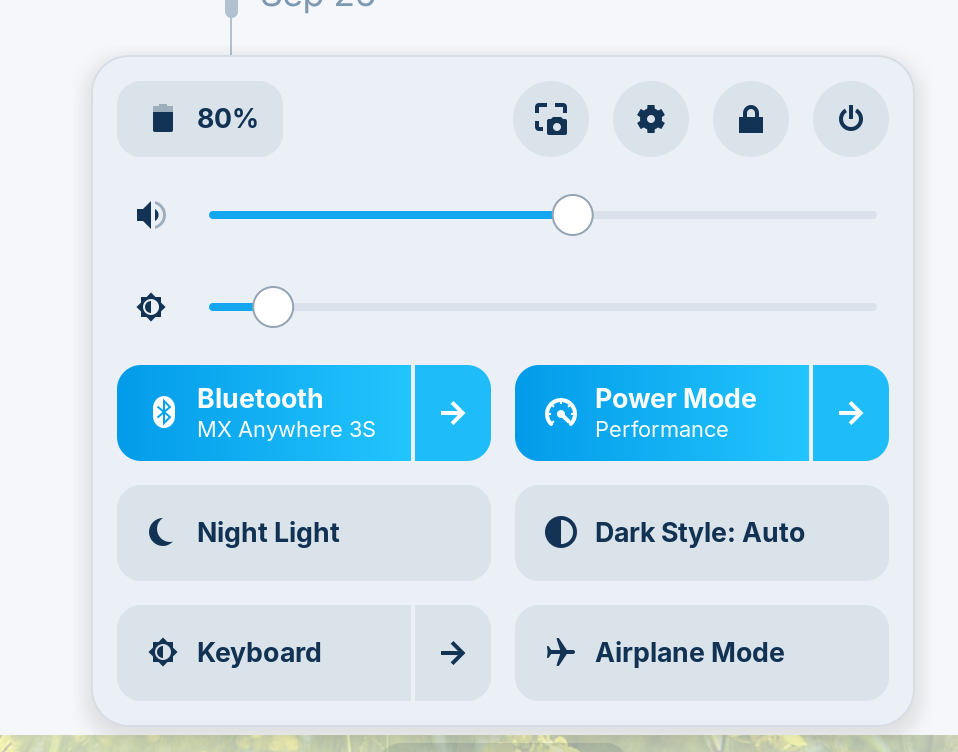
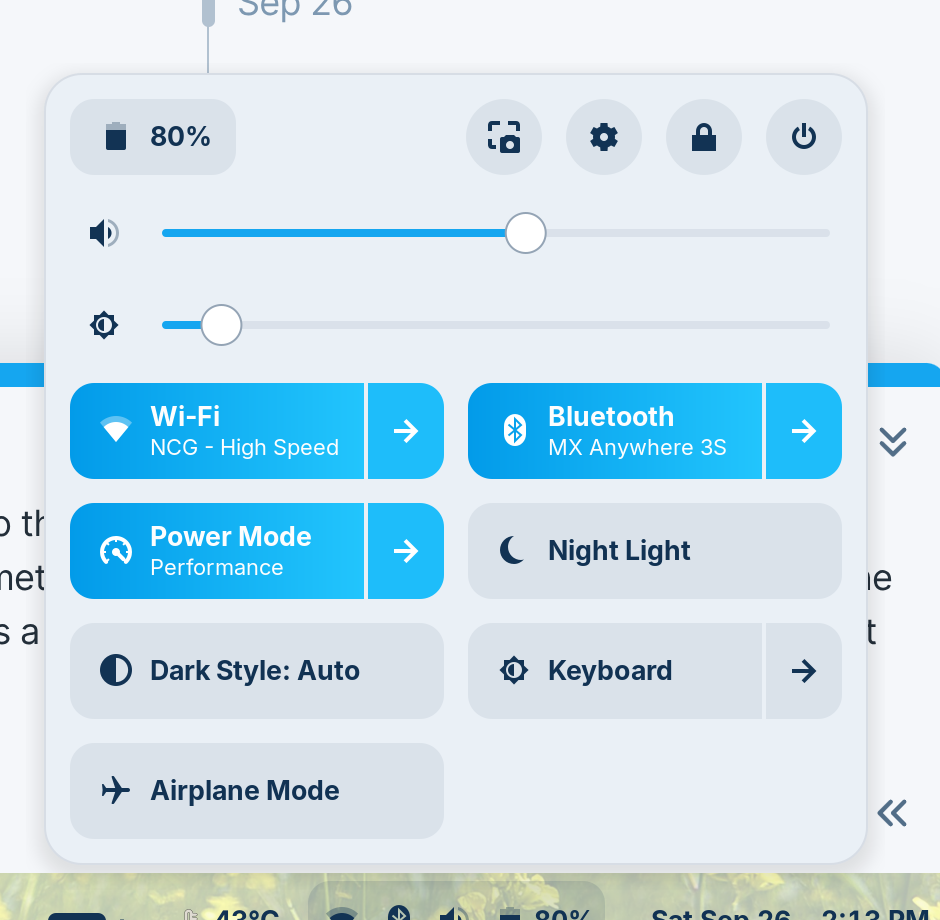
Unfortunately that did not do the trick. While i did not get any errors, nothing happened. Well acctualy something did. The GUI for WiFi has disappeared after the commands. Extra 2 lines was a poor attempt from by behalf to ..do something. But nothing worked.


You can try to change Wifi Power Management

echo -e "[connection]\nwifi.powersave = 2" | sudo tee /etc/NetworkManager/conf.d/default-wifi-powersave-on.conf
sudo systemctl restart NetworkManager

and test

Do you mean this? I did that before posting. I was one of the suggestions the AI gave. It did not do the trick.

If my first suggestion doesn't work it could mean your wifi will not support suspend, I had the problem with my old laptop, so I disabled suspend mode
edit this file

sudo nano /etc/systemd/sleep.conf

Remove “#” at the beginning of the lines above and make this changes

AllowSuspend=no
AllowHibernation=no
AllowSuspendThenHibernate=no
AllowHybridSleep=no

Save the changes and exit the editor (in nano, press CTRL + X, then Y, and Enter)

And in terminal run that

sudo systemctl mask sleep.target suspend.target hibernate.target hybrid-sleep.target

you can set blank in settings and not suspend

1 Like

OK so try the second I gave

well I did try your suggestion. Just to see what will happen, but just by reading the code, while i'm a total noob, I could tell that this might work just because the laptop will not actually go to sleep anymore. Even the screen doesn't turn of while the lead is closed. It is a fix just like when you go to the doctor telling you have horrible nightmares while sleeping and he is telling you well..just don't sleep anymore. This laptop has a huge battery life i used often unplugged it also comes with an oled screen. If i will let it like that, if i will get up and go somewhere on a short notice the battery will take a hit. Even the screen due to burn in. If i close the screen and the screen doesn't even turn off anymore is also not good. Therefore, thank you for the suggestion. But i will revert because it is not the fix i was looking for.

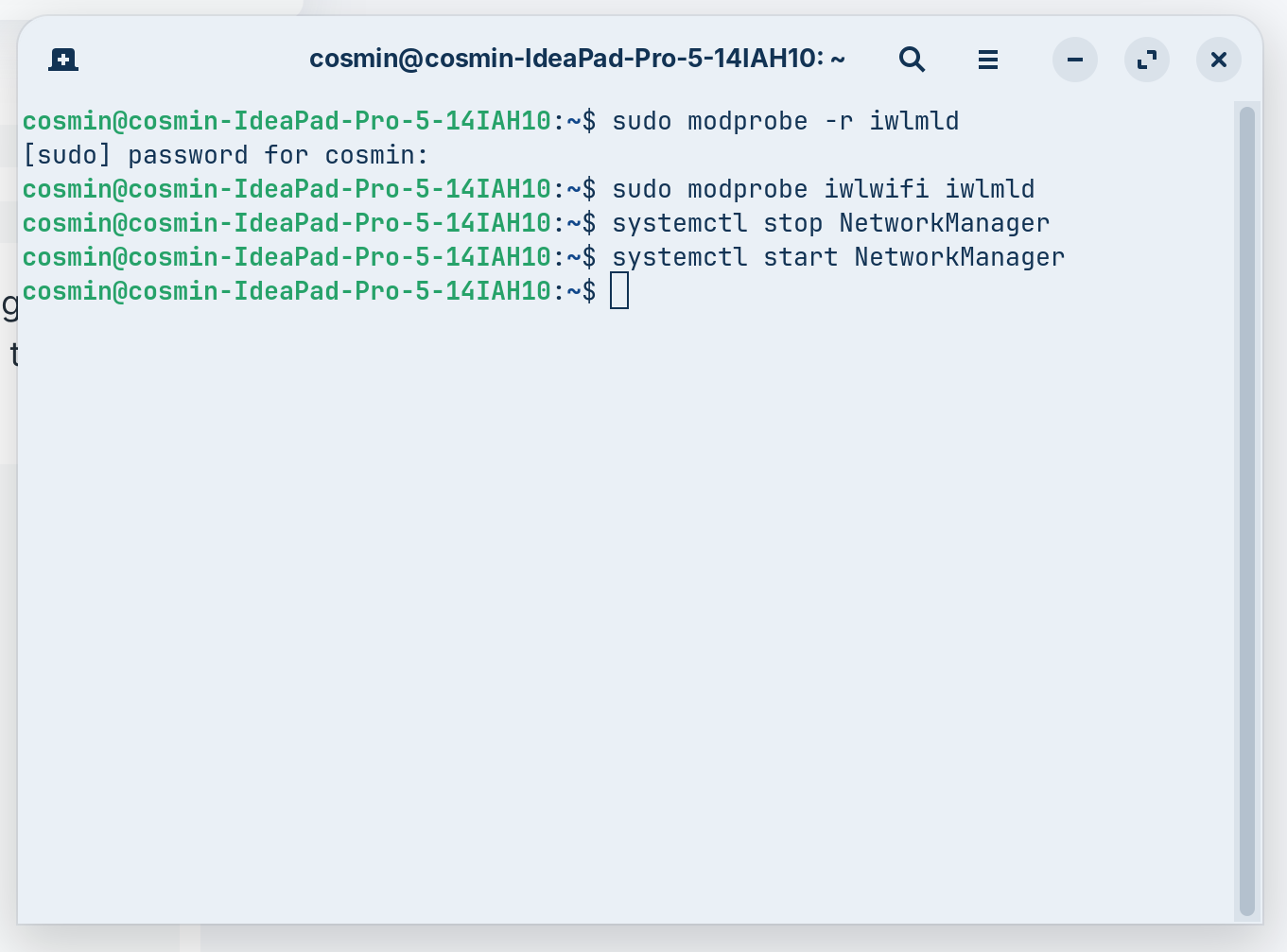
You can test if it helps to run before the suspend

sudo systemctl stop NetworkManager
sudo modprobe -r iwlmld

Then go into suspend

And after the suspend

sudo modprobe iwlwifi iwlmld
sudo systemctl start NetworkManager

So guys. I have found the fix.
The problem was in the d3cold

I did this:
lspci -nn | grep -i network

this was so i can see what is PCI address and device ID, for example in my case my PCI was 02:00.0 and device ID was 272b

cat /sys/bus/pci/devices/0000:002:00.0/d3cold_allowed

for this command i got a result of "1" pointing that this was the problem

echo 0 | sudo tee /sys/bus/pci/devices/0000:02:00.0/d3cold_allowed

this command had a result of "0" pointing that the situation might have been fixed. At this point I have put the laptop to sleep to see if i still have wifi after wake up. (and it did --yeeey)

the below 2 lines of code was to make things permanent even after laptop reboot

echo 'ACTION=="add", SUBSYSTEM=="pci", ATTR{vendor}=="0x8086", ATTR{device}=="0x272b", ATTR{d3cold_allowed}="0"' | sudo tee /etc/udev/rules.d/10-intel-wifi-d3cold.rules

sudo tee /usr/lib/systemd/system-sleep/wifi-d3cold.sh << 'EOF'
#!/bin/sh
case "$1" in
post)
echo 0 > /sys/bus/pci/devices/0000:02:00.0/d3cold_allowed
;;
esac
EOF
sudo chmod 755 /usr/lib/systemd/system-sleep/wifi-d3cold.sh

#after the above line of code i have rebooted the laptop, put it to sleep and woke it up and the wifi was still there, thus a valid solution to my problem.

3 Likes

thank you for the time and help of everybody that was involved. Hopefully this will help others in the future. I will def. save this fix for future cause i don't want to search it from scratch again.
2 Likes