My wife (an accountant) needs a Windows laptop to do some Excel work which needs to integrate with some VBA macros that are already written. LO won't suffice. Her old Windows laptop has died a horrible death involving the patio, one of our cats, and several expletives.
So, one of my Zorin laptops is being volunteered. I don't use this one apart from booting up and updating and for testing a few dev packages before installing on my other laptops, so really not a big deal.
The problem I've stumbled upon is that Win11 does not recognise the main partition which is ext4. So when the Win11 installer gets to its file partitioning screen, it just shows the 537MB EFI system Partition 1 (mounted as /boot/efi), not the 256GB partition 2 (ext4, mounted as /dev/nvme0n1p2).
At which point it says it cannot be installed.
Does any one know how to prep a system for a Win11 installation? Do I need to use a Live distro and partition the drive to something else - do live distros support NTFS? What partitioning scheme is recommended? I am not very skilled with the whole disk partitioning side of things - I tend to let whatever OS is installing do it's thing with default options.
Any advice very welcome. Thanks.
PS - I want to do a real installation, not a VM one, to avoid her having to deal with that. Also I do not want a dual boot solution. Just Win11.
You should just be able to use a live USB of any distro you want and wipe the drive of any partitions. You could just leave it blank and windows should see it at that point. You're correct in that it wouldn't see the ext4 partitions, but if it's just a blank drive it should see that (barring anything else weird going on).
EDIT: Most live USBs offer some form of partitioning, whether that be Gnome Disks, Gparted, or any other program they include. Any of those would get the job done.
If You still have a USB Stick with Zorin on it, start it in the ''Try Zorin'' Mode (that is the Live Mode), search for GParted and then format the Drive like @applecheeks37 already wrote.
I sure hope your laptop is new enough to have a TPM 2.0 security chip on it, Windows 11 requires it. Also, Windows 11 is a serious resource hog, people think Gnome's bad, yeah well, Win11 is worse. Hope your laptop can handle it.
One of the things that truly annoys me about most business's, is they do everything with Windows, without the thought of of ever using Linux. I mean, why does something as simple as a spreadsheet, have to be done with Windows, spreadsheets are not a complex thing.
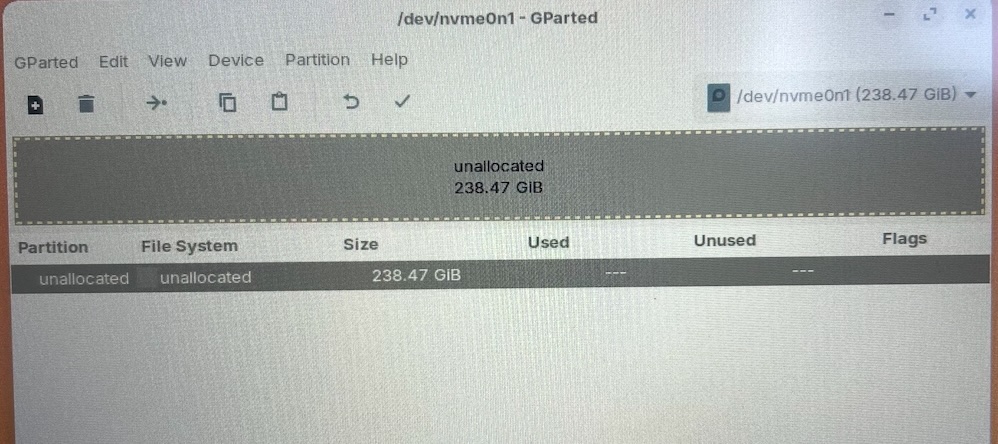
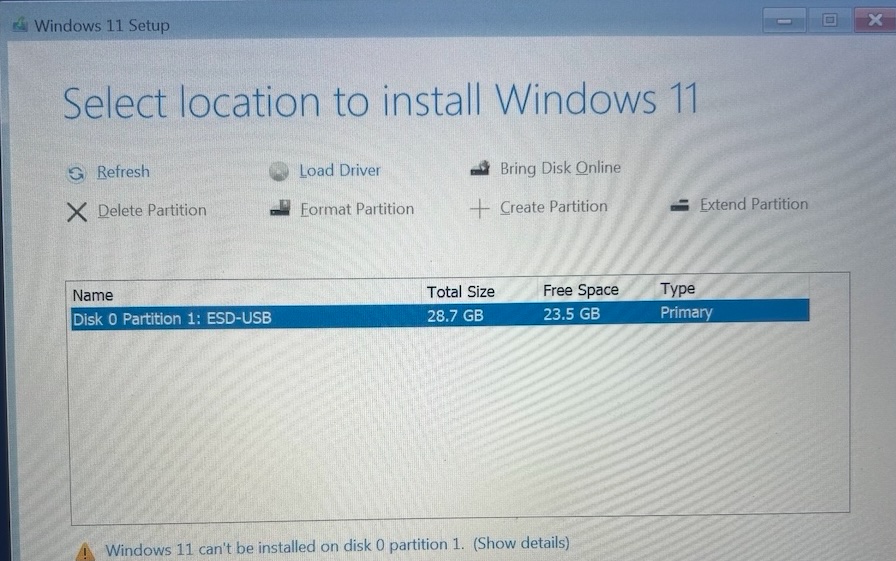
I deleted all partitions in GParted using Zorin live USB. I made sure that I applied the changes, reran windows installer - now nothing shows in the disk selection except the USB drive.
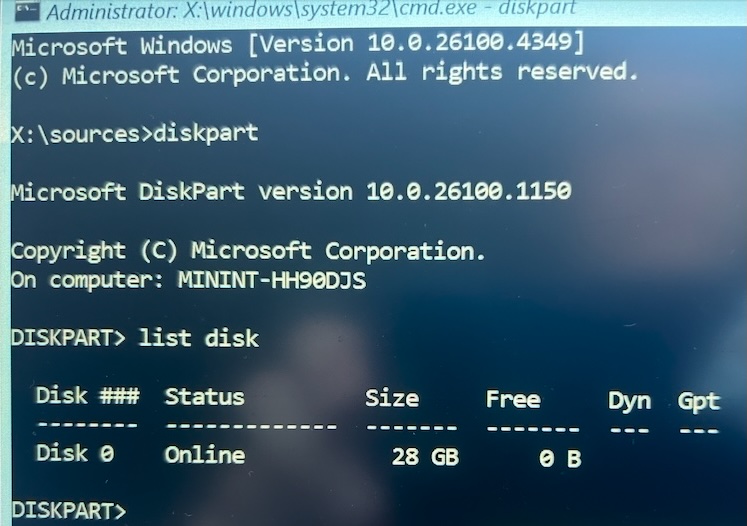
I then did SHIFT+F10 and started diskpart from the Windows command line, and again, only the USB drive is shown.
I even tried again, setting the empty space to an NTFS partition, and still Win11 not see it.
Prior to having Zorin 17 on this, the laptop had KDE Neon, prior to that Zorin 16, and prior to that (when bought), Windows 10. I don't think that any of those would have caused an issue along the way?
I went into the UEFI settings and everything is enabled. Nothing stood out as a potential for problems. It's a decent enough laptop (Lenovo), so the drive should be decent quality and a known factor for the installer? Although having said that, the installer does not recognise the trackpad, I've had to use a wired mouse.
When I run the Zorin 17 installer... it sees the NTFS drive. lol.
Currently my oh-so-clever plan B is to try to install Win10 on it - maybe the installer for that is not so prone to not seeing drives. If so I'll do an in-place upgrade to Win11.
PS - Plan C is a new laptop, which I really don't want to have to do!
Thanks, I'll grab those drivers and have another go.
PS - apologies to everyone for creating a Win11 support thread in this forum! I do appreciate all of your help though. Zorin has a great community around it
Well, thanks to a neighbour we extracted the drivers from the RSTSetup tool (from that link above) onto his PC and put them onto another USB stick but none were recognised as being suitable for the laptop by Win11.
So then I went to Lenovo's support site and downloaded their version but it's a Catch-22 situation: to get the drive recognised we need the driver, but to get the driver we need to run the tool on the target PC's drive. Which we can't, because first we need the driver! There is no -extractdrivers option in the Lenovo variant of RSTSetup so you have to run the .exe directly and it does a platform check.
An attempt with the Windows 10 installer did not work either - same problem. How can a multi-billion dollar company fail at such a basic level. Sigh. Windows is a PITA.
Anyway, thanks everyone for your thoughts/ideas/help.
Can you post a photo of your BIOS Settings?
Simply setting to AHCI should be all you need to do.
If you are intent on RST - Lenovo's drivers won't help you.
The trouble is that RST is considered Proprietary and you can only get the driver from Intel (or Microsoft) directly:
What you actually need is the driver in a .zip, not the .exe setup package.
But Intel only ships the .exe.
You must open the README and follow the instructions to extract the .zip from the .exe
Place the extracted driver on a USB stick once you have the Windows installer running and plug it in.
At the Windows Setup point of "Where do you want to install Windows," select Load Driver
Point to the USB stick, > RST Driver
This should make the NVME drive appear using RST
Sorry if I was not clear - that is what I did with the files from Intel. However, when I then went to the installer and chose load driver, no match with the Lenovo laptop was found (I know they were being read correctly as unchecking the check box for showing only compatible drivers did show the full list.)
To extract that set for the exe, I ran the program from the Win command line with -extractdrivers
I then went ot the Lenovo site, downloaded the RSTSetup version for the latop based on its serial number, but trying to run the command with that command line switch gave an error saying it did not recognise the parameter, so they must have a customised version from Intel. Trying to run the app by double clicking said it did not match the hardware. Hence the problem.
Yes, with the partition formatted as NTFS, same issue. The disk is not listed in Win11.
(Running the Zorin installer, it does find it straight away.)
Good shout re new drive vs new laptop. I really ought to have thought of that myself, but dealing with Windows is stressing me out
I'll open it up to see what it takes.
There is another thing come to my Mind. When You would install Zorin, we would suggest to turn off Secure Boot, Fast Boot and TPM in Your BIOS to avoid Issues.
When You now want install Windows 11, I would suggest to turn that Stuff in BIOS on. And then try again the Installation.
Regarding installing Windows 11 (or any Windows version), I'd suggest you watch this video
A few things to keep in mind though, I've gone from Windows to Zorin OS, but never tried the opposite. Considering Zorin OS has already been installed on your laptop, there may be some tinkering you have to do with the GNU bootloader, which this video could help you with!
Also, make sure your laptop meets Windows 11's system requirements.
However, since the reason you're trying to go back to Windows is to run MS Office suite, just so you know, Microsoft Office upto 2013 works on Ubuntu-based OSes (Zorin OS included) using Wine. You could go for this than reinstall Windows, it seems more viable to me