I am using option 1 as the manual configuration of the partitions isn't clear to me as the recommendations don't seem to match my situation with installing on the laptop that has no windows installed any more. I used Rufus to create a new Zorin boot stick.
Now the partition with the key at the side appears to be pointing to your boot stick as it says /media/zorin.
Additionally, you have no partition that is flagged a / (root file system) which Zorin needs to see in order to boot - no / no boot.
Firstly, is this an SSD or an HDD?
Personally I always go for 3 partitions when mbr is the only BIOS option - /, /home, and swap when it is HDD. No need for swap on SSD if RAM is 8 Gb or more.
So, first, create the root partition (/) - in Gb I make it 80, but GNU/Linux uses MiB - Mebibytes - you will see that in the installer when you choose the Something Else method, so 80 Gb becomes 76293 MiB (GB to MiB Conversion Gigabyte to Mebibyte Calculator)
Next I would create a 'swap area' at the end of the free space to the right of '/'. Make this equivalent to your physical RAM.
Everything in between / and swap area, format it all to Ext4 and label it /home - this is where all your data sits.
I always recommend 80 Gb for root partition following experience with other GNU/Linux distribution when I thought a 50 Gb partition would be enough, then one day it would not boot.
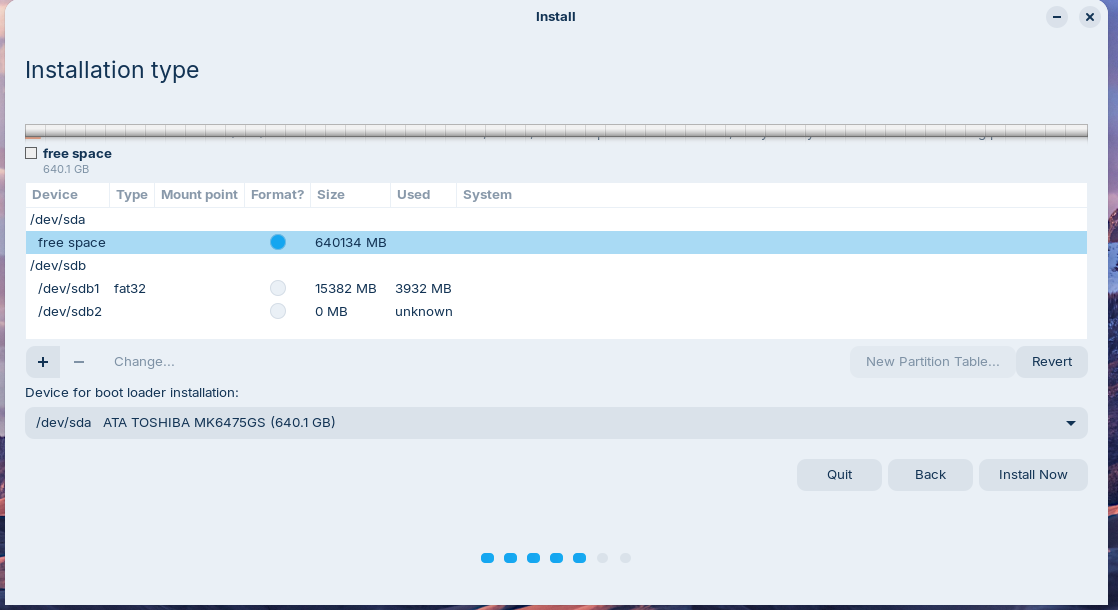
This is a screen shot of the partition table list to be built after selecting something else and clicking on new partition table. I am now able to add and remove partitions. I need some guidance as to what to specifically add and in what order as it doesn't seem to be clear to me. Sorry for the confusion. I know very little about this step.
OK, that isn't Gparted, that is the installer window.
If you click on 'Install Zorin' from the desktop you should get different choices. I recommend you check mark LVM but choose the 'Something Else' method which should then bring up GParted.
This is my layout of backup of Bookworm 12 version of PCLOS Debian as I have an EFI BIOS (I had some issues installing newer version and had to use Auto installer):
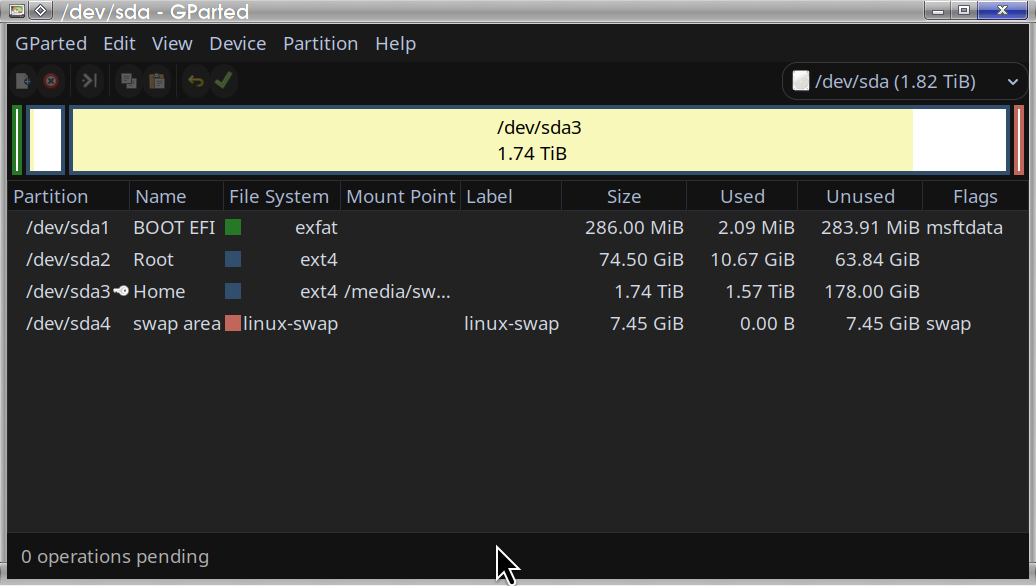
So, as you have mbr, ignore the /boot/efi partition.
You may want to create a /boot partition, formatted to Ext4 and 512 Mb in size (488 MiB) and label it as /boot, to do this click on Create.
Next create a root partition for the OS. Format it to Ext4, 76293 MiB in size and label it Root (/).
Next create a 'swap area' equivalent to the amount of physical RAM you have in your computer. You don't have to specify the file format as it does this automatically. You can create it after the root partition then move it by sliding it to the far right of the interface of GParted.
Finally create a /home partition, formatted to Ext4 FS - you don't need to specify the size as it is the free space left between / and swap area.
Next, make sure that you specify that GRUB is set to sda - not sda1.
Then click on Apply and follow the prompts to continue.
Boot Repair only works on the Install stick content and then the stick will not reboot. It basically does nothing to the files you install on the hard drive.
When you use the installer window and choose 'Something Else' It doesn't bring up GParted. It brings up the window as shown in the screenshot. That is why I am having a hard time figuring out what to enter where.
that is not my experience.
Hi @bobaz you are correct! I just ran a VM of 18.1 Core and confirm I get the same screen as you posted above, no GParted present anywhere. Looks like Team Zorin have modified GParted or created their own modified installer. Earlier versions of Zorin always used GParted. You could of course launch GParted first in live mode, create all the partitions and then point the installer to install Zorin to /.
If going with what is on offer:
OK, so still go with the 512 Mb and mark as /boot Ext4FS
Next the root (/) partition of 76293.
Next look at what free space is left. Open Calculator and enter the amount showing as free space. Next enter the amount of RAM you have - 4 Gb is 4096, 8 Gb is 8192 - yes I know it is not MiB! but you can use the conversion website if you want then deduct that amount from the free space figure so you know what number to enter when creating /home - then finally 'swap area' - then just make sure that GRUB (GRand Unified Bootloader) gets pointed to sda. Then proceed with the installation. 
18.1 will not allow me to edit partitions using GParted when booting from the flash drive. So I am stuck with trying to figure out how to use the Other selection in the installation procedure. This will allow the editing of the base partition table that is used during the installation. I will update you on the result.