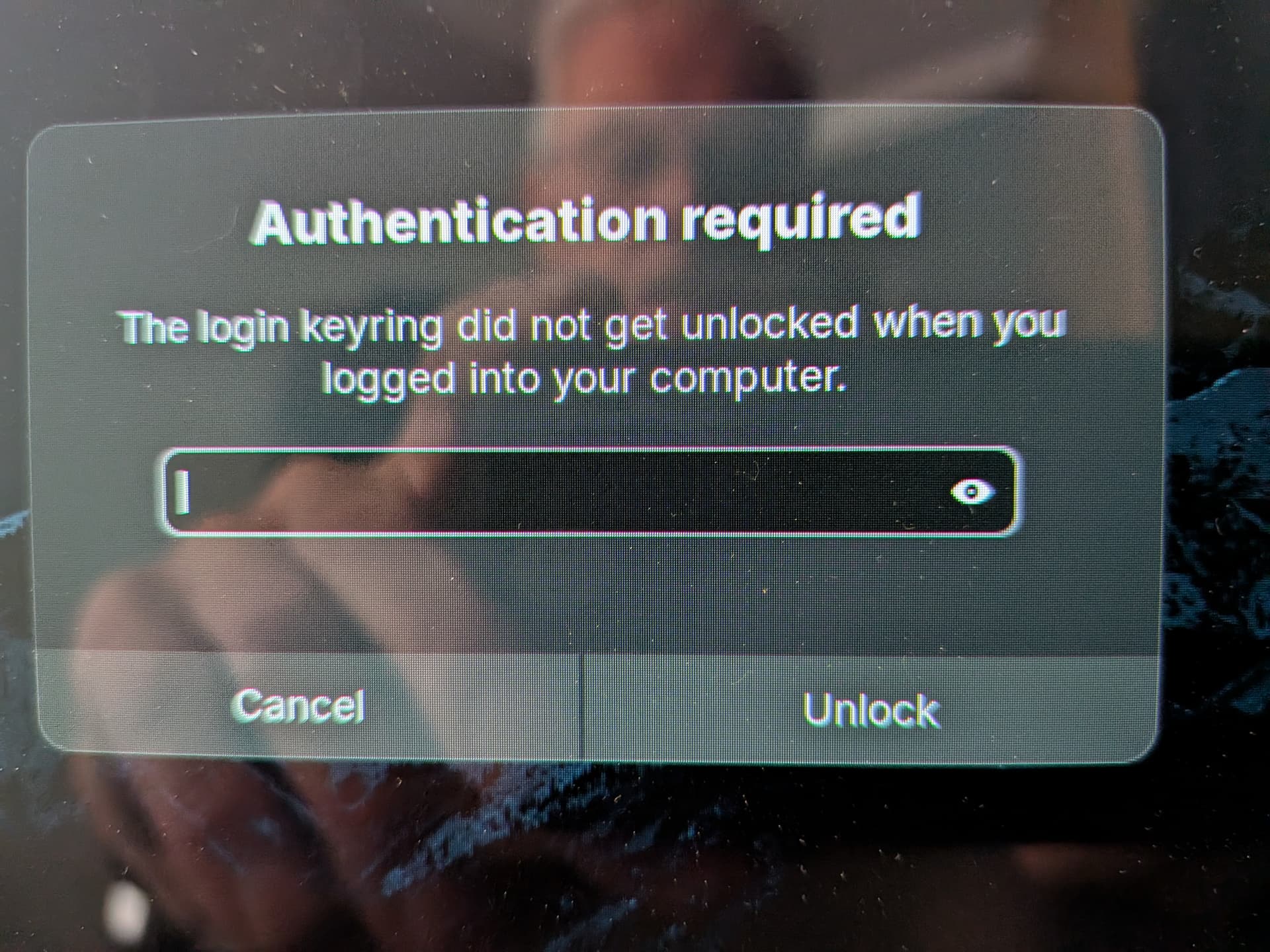
This is one thing that has bugged me from the start (Ok i just started using this OS literally 6 days ago). the fact that Zorin constantly keeps asking for my password, like I live alone and this isn't my work computer so it's not really necessary, I want the whole thing disabled, I have tried to get rid of it, sometimes I think i have succeeded, but then it comes back... Please help, thank you
Are you talking about the need to enter your login password when launching certain apps? I believe this is to do with the 'gnome-keyring'.
Brave A.I.:
" The most common cause for frequent GNOME Keyring prompts in Ubuntu 24.04 is a password mismatch between your user account and the keyring, or the use of automatic login which bypasses the password needed to unlock the keyring.
To resolve this, you can use one of the following methods:
Method 1: Synchronize Passwords (Recommended)
Ensure your keyring password matches your current user login password.
- Open Passwords and Keys (Seahorse).
- Right-click Login under Passwords and select Change Password .
- Enter your current keyring password.
- Set the New Password to match your current Ubuntu user login password.
- Click Continue to confirm.
Method 2: Disable Keyring Password (Less Secure)
If you use automatic login or prefer not to be prompted, you can remove the keyring password entirely.
- Open Passwords and Keys (Seahorse).
- Right-click Login and select Change Password .
- Enter your current password, then leave the New Password and Confirm Password fields blank .
- Click Continue twice to confirm you want to store passwords unencrypted. Note: This reduces security as stored credentials will be visible to anyone with access to your logged-in session.
Method 3: Disable Keyring Service (Advanced)
You can mask the keyring daemon to prevent it from running automatically.
- Open a terminal and run:
systemctl --user mask gnome-keyring-daemon
- Reboot your system. Warning: This may cause applications that rely on the keyring to store passwords in plaintext or fail to function correctly.
Method 4: Delete and Recreate Keyring
If the keyring is corrupted or the password is forgotten:
- Open Passwords and Keys .
- Right-click Login and select Delete .
- Log out and log back in. A new default keyring will be created, and you will be prompted to set a new password. Ensure this new password matches your user login password to prevent future prompts.
AI-generated answer. Please verify critical facts."
2 Likes
Launcing apps, installing apps and so on, yes and thank you, i'll try these
Well if its installing/removing apps thats a safety feature in most linux desktops trust me you want that...stops anyone trying to install stuff on your computer from doing so they would need your password but in general brave seems to do that all the time at startup as well and bitwarden as well.. @swarfendor437 idea will help with brave and so not but not installing/removing app and stuff ...hope that helps
1 Like
I've tried about 20 Linux distros (Zorin is the first one that persuaded me that Linux is now a viable alternative to Windows) and every one has demanded my password when I install a new app/program. As @wesoliv429 says, it's a deliberate and indispensable security feature which stops someone walking up to your laptop and installing stuff you don't want - a major security risk which is eliminated by this password requirement. It's a price well worth paying to maintain your absolute sole control over your device.
3 Likes
If the browser keeps reporting that the keychain couldn't be unlocked, it's probably because of automatic sign-in. The easiest solution is to switch to signing in with a password. That way, you'll have to sign in the first time, but you won't keep getting prompted about the keychain.
All the workarounds available to bypass the keychain prompt come at the expense of security.
At first, the frequent password prompts really annoyed me too, but now I find it easier to accept them because they’re what Linux’s high level of security is based on.
You can easily disable the password prompts after suspend by turning off the feature that locks the screen during power saving. You find it in settings, tab privacy. That makes it a bit easier.
After installing Zorin fresh, you usually install or uninstall most apps. That’s when the password prompts pile up and become annoying. Fortunately, you don’t have to do these installations every day, and in normal daily use, it’s not quite as bothersome anymore.
It is possible to set up your system without any password prompts, but this is not recommended.
If you're a bit more familiar with Linux, you might find yourself using the terminal or the Synaptic Package Manager (though it only manages apt packages) more often. With these tools, you can, for example, install multiple apps at once and only have to enter your password once - unlike in the Software Center, where each app must be installed individually and each time a password prompt is shown.
3 Likes
Got to agree with that.
The more general user session "auto-login" is also something I am happy to live with. We see boot issues where "auto-login" has been set, then user then cannot easily get to grub "Advanced features for Zorin" to select alternative kernel or recovery. Small time saved for login then becomes a longer headache and is false economy IMO.
Not necessarily. When installing you have to create a password. This password gives you root privileges, so when using the sudo command you use that password for system updates, running Synaptic Package Manager (where you can also run system updates.
I have used autologin on a VM and I realised I was using Wayland on VM of Zorin. So I logged out and it presents with the Login screen. Chose my user name, changed to xorg, then entered password to get back to the desktop. Autologin only occurs at boot time.
Like you I find the constant nagging for password annoying, I am aware of the security implications of disabling this security so I opted to install Gaze which is facial recognition software.
This can be used with inbuilt camera or any web cam. I would suggest before going this way to open the camera app to check your camera is actually working.
I followed this guide here
Within the guide is a link to download the files needed to be installed, it's quite a long list which needs to be expanded, these are the files I downloaded and installed
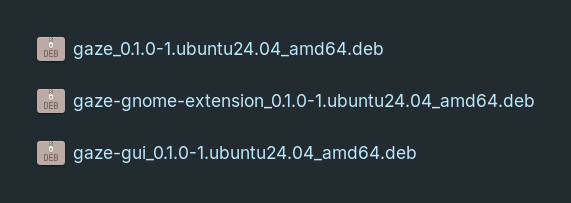
One problem I did run into was that on installing the GUI file that it only showed up in the app list once so I would suggest immediately pinning it somewhere for future use, I can only guess the reason for this is because I run Wayland. Not much of a problem because it only has to used once to enroll your face.
People talk about spoofing facial recognition with photos but on bootup or login I still get prompted for the keyring password, after that it's face ID all the way.
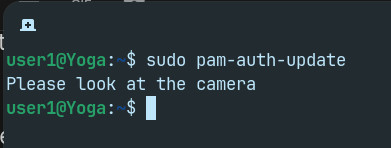
One caveat I would mention is that I dual boot with secure boot/TPM2 enabled, whether it makes a difference without those enabled I have no idea.
1 Like
Do you have changed the value of the pin priority for gaze as shown in the guide? I haven't tested it myself yet. I'm wondering if it then would work without entering a password at login.
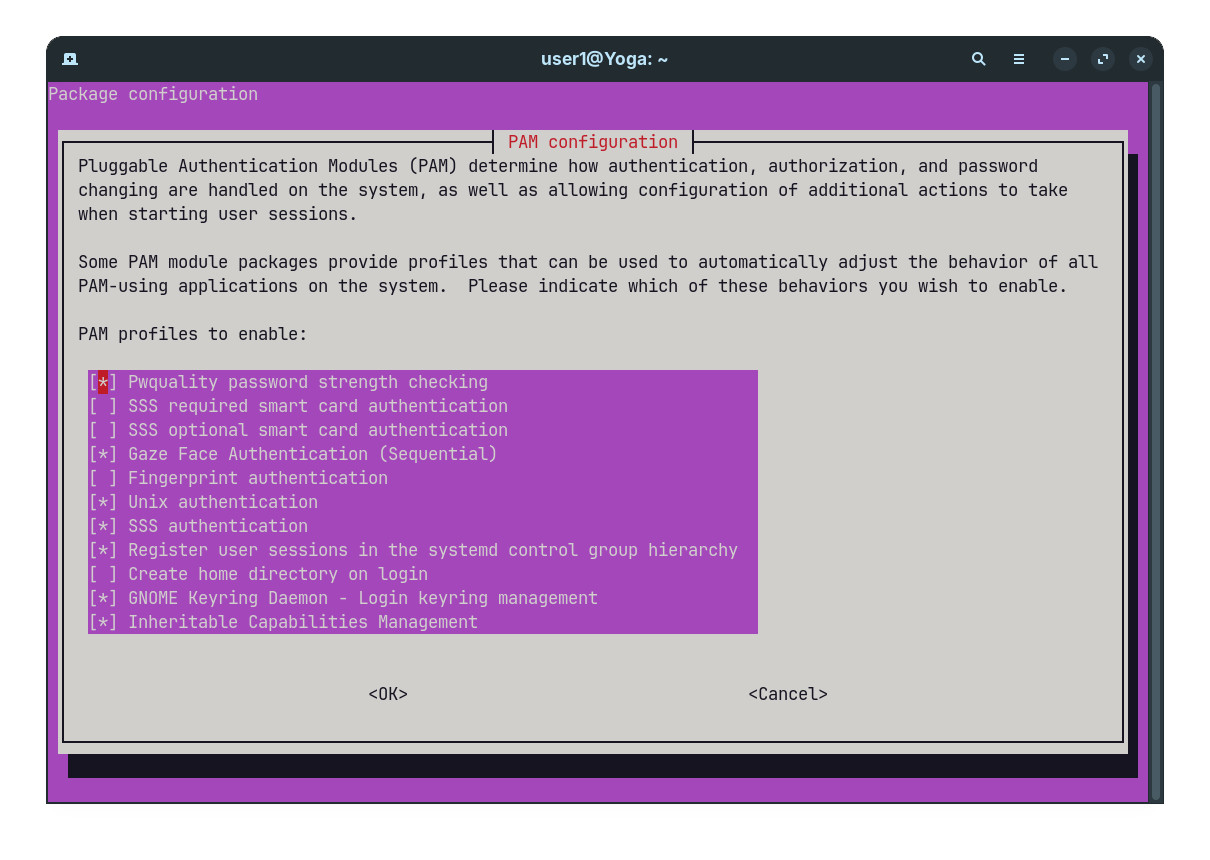
https://www.reddit.com/r/gnome/comments/1tg1hzj/gaze_facial_authentication_for_linux/
I read here that there would be an option to enable it for gdm login in the extension settings. I have no access to a laptop with camera at the moment, so I can't test it. Can you please tell me if it then works without password? I'm curious (I know, the developers don't recommend it as only authentication factor).
This all I see in extensions
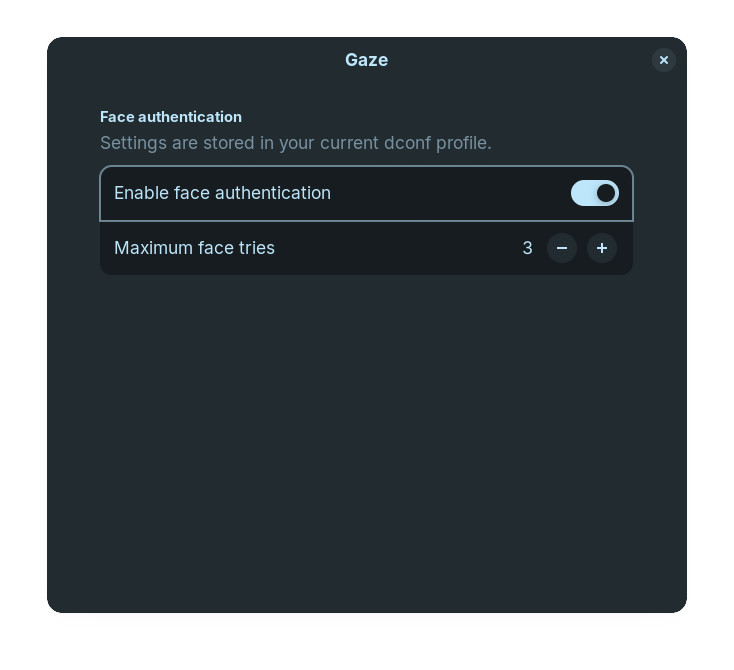
I briefly scanned that thread on Reddit, again they talk about spoofing but for that to happen people would have know the keying password to login initially which seems ideal to me.
There is no way to spoof If people can't login to the keyring first. I don't see a way around that. I'm happy that I can't use face ID unless logged in to the keyring which happens at boot or login.
At least this is the way it works for me.
1 Like