Which gnome extension do you use for the temperature?
1 Like
TempTracker; it's almost invisible on the taskbar and I haven't figured out how to make it legible. Changing the opacity on the taskbar isn't doing it for me.
You can edit that file:
~/.local/share/gnome-shell/extensions/cpu-temp@haind/stylesheet.css
Press ctrl+h in your file manager to see the hidden files.
Change line 14, 18 and 23 there. You can set any color you like. I changed the color in the screenshot in line 14 from #ffffff (which is color white) to #000000 (which is black).
With a colorpicker you can find Hexcodes for the colors you like.
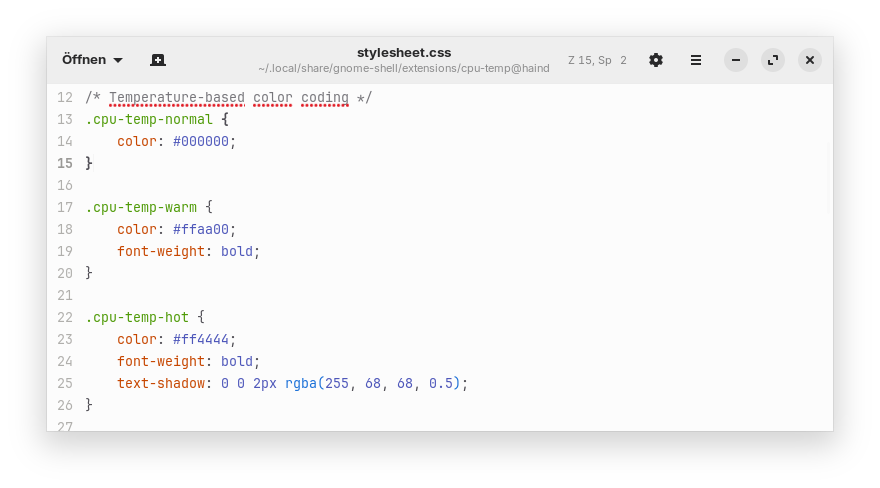
Then save the file and logout.
This custom setting can be overwritten by updates for that gnome extension. So when it is unreadable again, change it again.
That is the taskbar before I edited it:

That is my taskbar after I edited it:

1 Like
I also had this situation. I completely forbade the computer from sleeping.
-
sudo systemctl mask sleep.target suspend.target hibernate.target hybrid-sleep.target
-
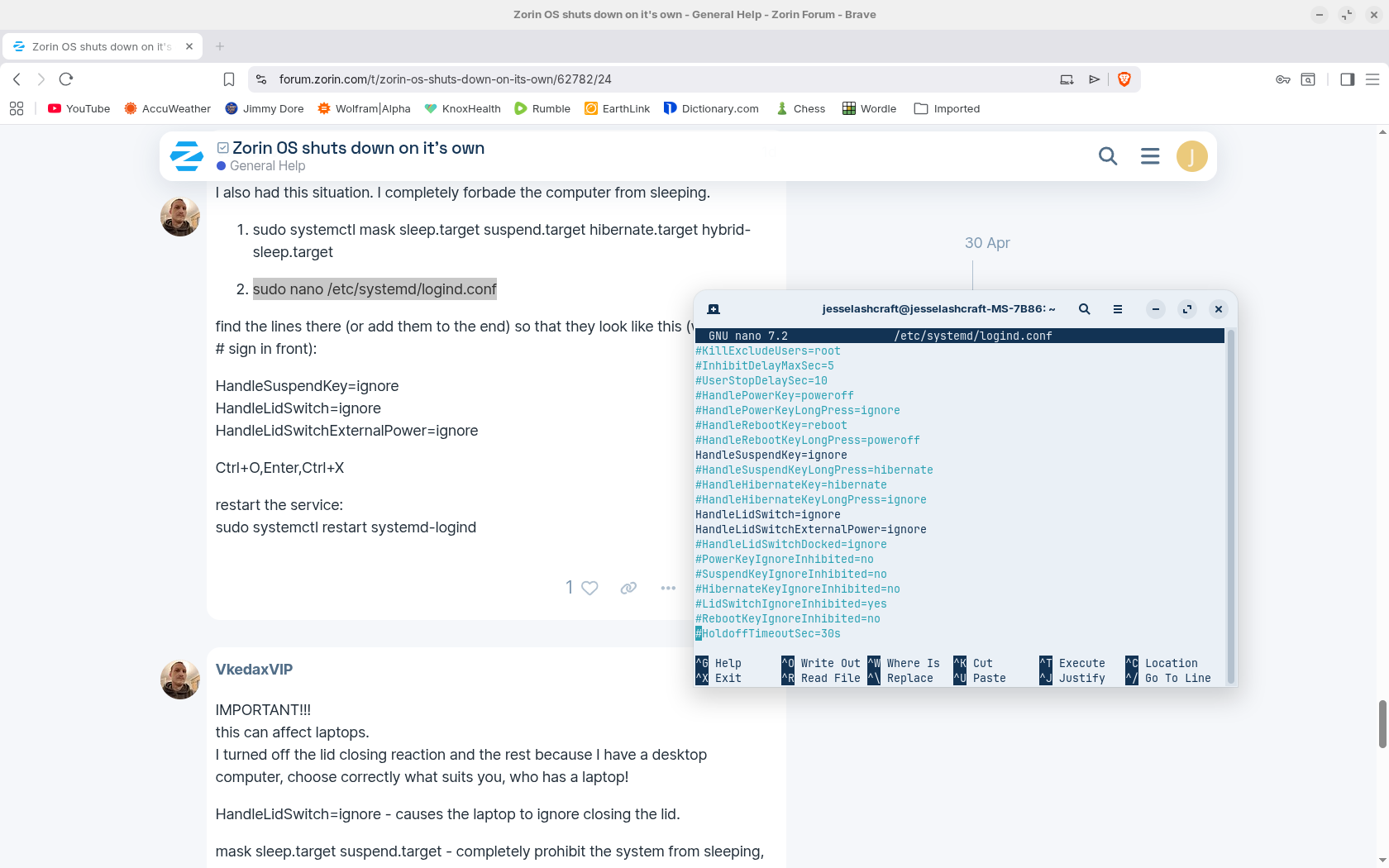
sudo nano /etc/systemd/logind.conf
find the lines there (or add them to the end) so that they look like this (without the # sign in front):
HandleSuspendKey=ignore
HandleLidSwitch=ignore
HandleLidSwitchExternalPower=ignore
Ctrl+O,Enter,Ctrl+X
restart the service:
sudo systemctl restart systemd-logind
1 Like
IMPORTANT!!!
this can affect laptops.
I turned off the lid closing reaction and the rest because I have a desktop computer, choose correctly what suits you, who has a laptop!
HandleLidSwitch=ignore - causes the laptop to ignore closing the lid.
mask sleep.target suspend.target - completely prohibit the system from sleeping, so the battery may die!!
Constant deep discharges kill the battery very quickly.
hibernate.target - Lack of Hibernation - if the laptop does not go into save mode even with 1% battery, all unsaved data may disappear!
THE ABOVE METHOD IS ONLY FOR DESKTOP COMPUTERS THAT WORK FROM A POWER SOCKET.
It doesn't even go to sleep when I press the sleep button because I disabled that button!
That did it. Thanks.
1 Like
OK, edited. This is what it looks like now. All three entries were "=suspend".
I had this computer built for me at the computer store. It's a gaming computer so it should have all the speed, memory and disk space to last me the rest of my life. I can see colored lights through the grill -
work in an otherwise black box. When I go gaming on this thing it's usually chess or solitaire so yeah, plenty capable. And I like this software. I used to use Bill Gates products. Turns out he's a perv. We are being governed by criminals and ghouls.
1 Like
That's it, now your computer will never be able to go to sleep again even when you want it to, this option is now disabled for you)
Remember, you can always return it whenever you want.
turn everything back:
- sudo systemctl unmask sleep.target suspend.target hibernate.target hybrid-sleep.target
update rules:
2. sudo systemctl daemon-reload
verify:
3. systemctl status sleep.target suspend.target
also don't forget to edit your journal:
1.sudo nano /etc/systemd/logind.conf
you can simply comment out the lines and they will be inactive:
# HandleSuspendKey=ignore
# HandleLidSwitch=ignore
# HandleLidSwitchExternalPower=ignore
Ctrl+O,Enter,Ctrl+X
restart the service:
sudo systemctl restart systemd-logind
I can’t even remember how many issues X11 has resolved at this point. Despite that, it’s still hard to believe that Wayland is the default.
3 Likes