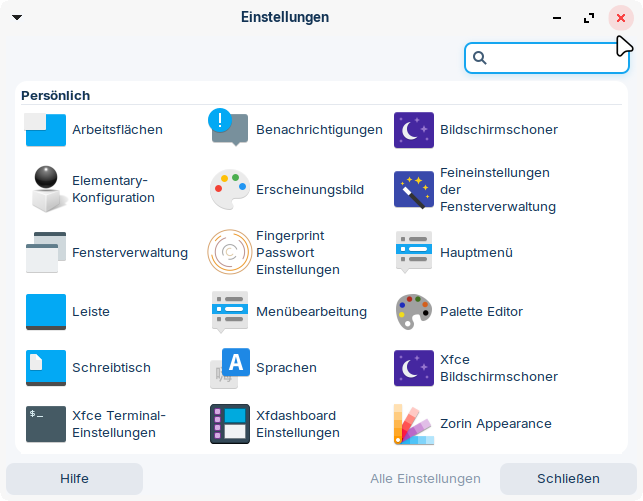
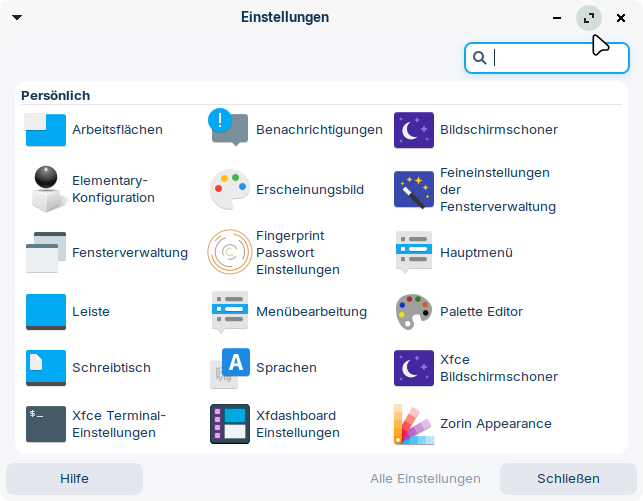
After many unsuccessful attempts yesterday, I finally managed, with kolourpoint, to insert the button screenshots into the Zenith theme. They prelighted buttons look good now. I also made a arrow button for the menu on the left side and changed the line "show app icon" in the themerc file to false.
1 Like
They look great.
When I first offered to construct a theme for you, I noted that you passed that by, despite your frustration. Sometimes, you want to learn, even if learning is hard.
And - it has achievements.
You now are more powerful and more in control than you were before.
1 Like
Yes, that's true, I was a bit torn about whether to accept your offer. On the one hand, because it's so much work; on the other hand, because I know myself and I know that I'll probably end up changing the themes again and then face the same problem - that the margins are too narrow. That's why I really wished I could change that myself!
If you keep going, it gets easier. The more you know, the more you can do.
Changing it yourself means not having to wait, not having to give constant feedback until someone else gets what you want right. Or you give in and accept what is there, not quite happy.
It means you can modify at will, even small things that started to bother you over time.
Or create unique functionality - like differentiating between active or inactive windows. You can theme toolbars, buttons and other widgets and elements in much the same way, if you want. A person can create a Color Coded workflow, using this, across a broad theme.
I have a problem with creating the menu button, e.g. menu-prelight.png.
Is there a reason why in zenith dark theme this button is only 23x24 pixels, while the other buttons in the top bar have a hight of 36 pixels? In the Zorin theme it is 26x26.
Edit: I replaced your menu button with one of the other buttons which have the correct size, and now it works.
I have a hunch now: As you didn't use the arrow button in Zorin, but the app icon for the menu, you probably didn't want the app icon to be that big - it looks better at the size you set.
How can a shade-button be shown in Zenith theme? I've created the images for the button, but the button is not displayed.
Edit: Problem solved. I removed the line
button_layout=O|HMC
from the themerc file, and now the shade-button is shown.
With this line in the themerc file the settings for changing the layout and order of the window buttons are locked.
You found a solution. You also can add the shade to that button_layout line, it is an "S"
The position matters. The | pipe is the Title - so you can move title left or right, the HMC left or right, etc, using that button_layout line.
1 Like
I've noticed that the light grey color in the Zenith theme I created isn't quite right. It's especially noticeable in the title bar. What is the hex code for the color of the Zorin Red Light theme in the title bar of active windows? I suspect that the color picker picked the color of an inactive window because it is a nuance too dark.
I made a screenshot of the title bar and then used the colorpicker of mtpaint. It shows #FAF7F6. Is that right? So far, I had set #F7F7F7.
Try #F6EEEC
I've noticed that the Zorin red light theme has a strange reddish title bar on inactive windows, and now also my Zenith theme has it, and each Zorin theme has its own shade of gray (the chosen color of the Zorin theme is mixed with the grey). So with the simplified method - which doesn't use multiple overlapping layers - there's no way to simply switch to another Zorin theme. Then the colors no longer match. Overall, I'm disappointed. The method isn’t flexible enough for all the effort it requires.
In Gnome it is so easy to get colored window borders with this Gnome extension and it works well with the Zorin theme:
You can set any color, the width of the border and the radius for the corners. The colored border is for all windows, active and inactive ones.
Isn't there something similar for XFCE or can the code be adapted for XFCE?
What I'll try next is to get the very good looking corners of Zorin appearance window into a xfwm theme. I don't like frayed corners. And I'll test what will happen when I set in /etc/environment
export GTK_CSD=1.
Edit: Wow! With this environment variable, you get windows that you can easily drag using a large invisible grip area and better looking top rounded corners. How to set also buttom round corners for all apps? Some have rounded corners at the bottom, some not.
The Zorin start menu still has frayed corners and doesn't use that csd.
Windows shading doesn't work with this setting. I really like it now. It works with other themes, too, and all are easy to drag now, and even the graphite gtk theme is better now. The 1 px border doesn't matter now, because there is an invisible grab area around the window.
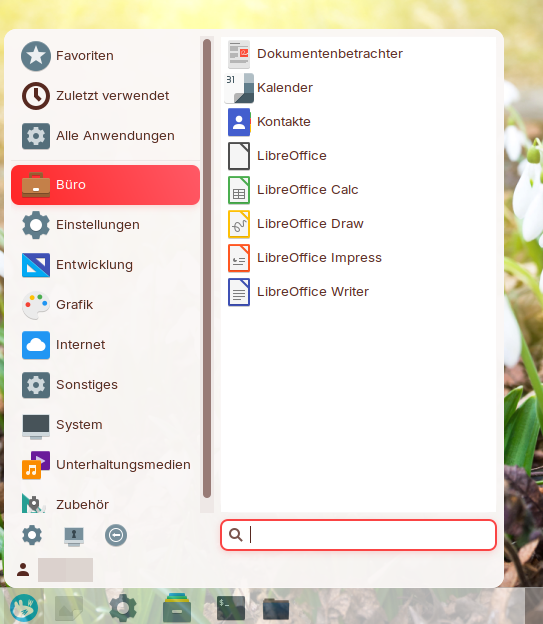
That's Whisker menu with good looking round corners:
That's Zorin menu with frayed corners:
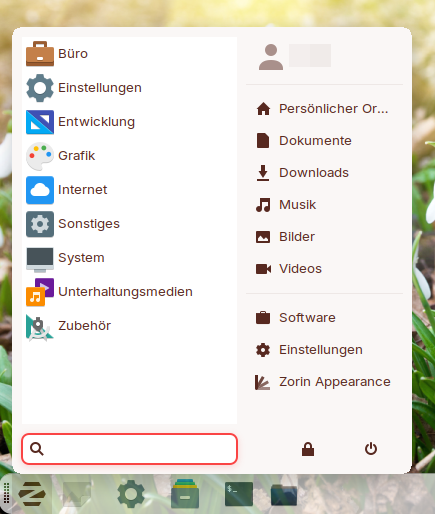
How can Zorin menu use the same corners as Whisker menu?
I tried another method to get colored borders in XFCE. This time I enabled CSD and used gtk 3.0 and gtk 4.0 .css file:
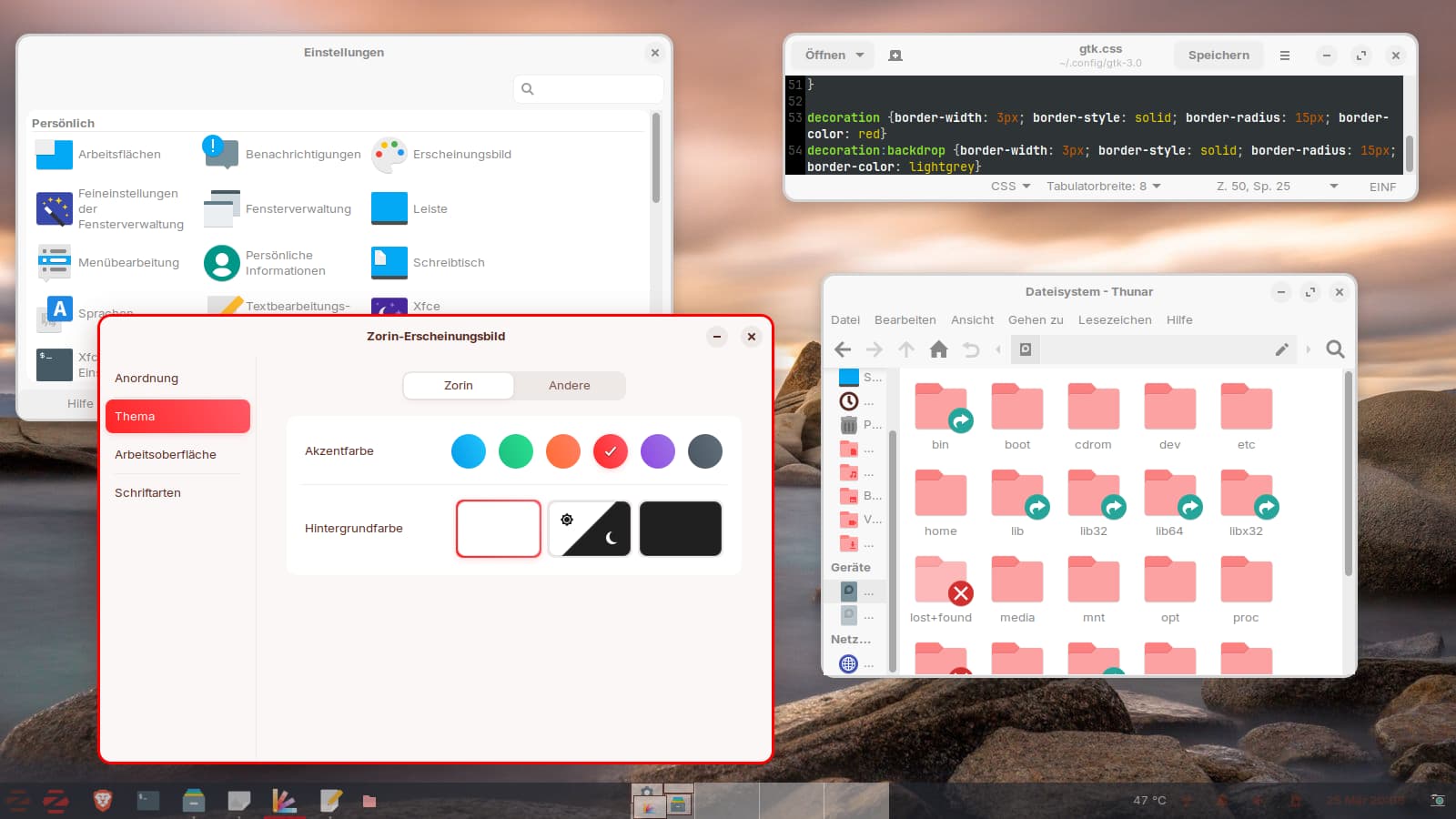
Unfortunately some apps look good, but for others (as e.g. Thunar or xfce4-terminal), the frame doesn´t fit at the bottom.
Zorin theme seems to be a bit difficult. With Jade-1 gtk theme and border radius just set for the top of the windows, I got a consistent look for many apps.
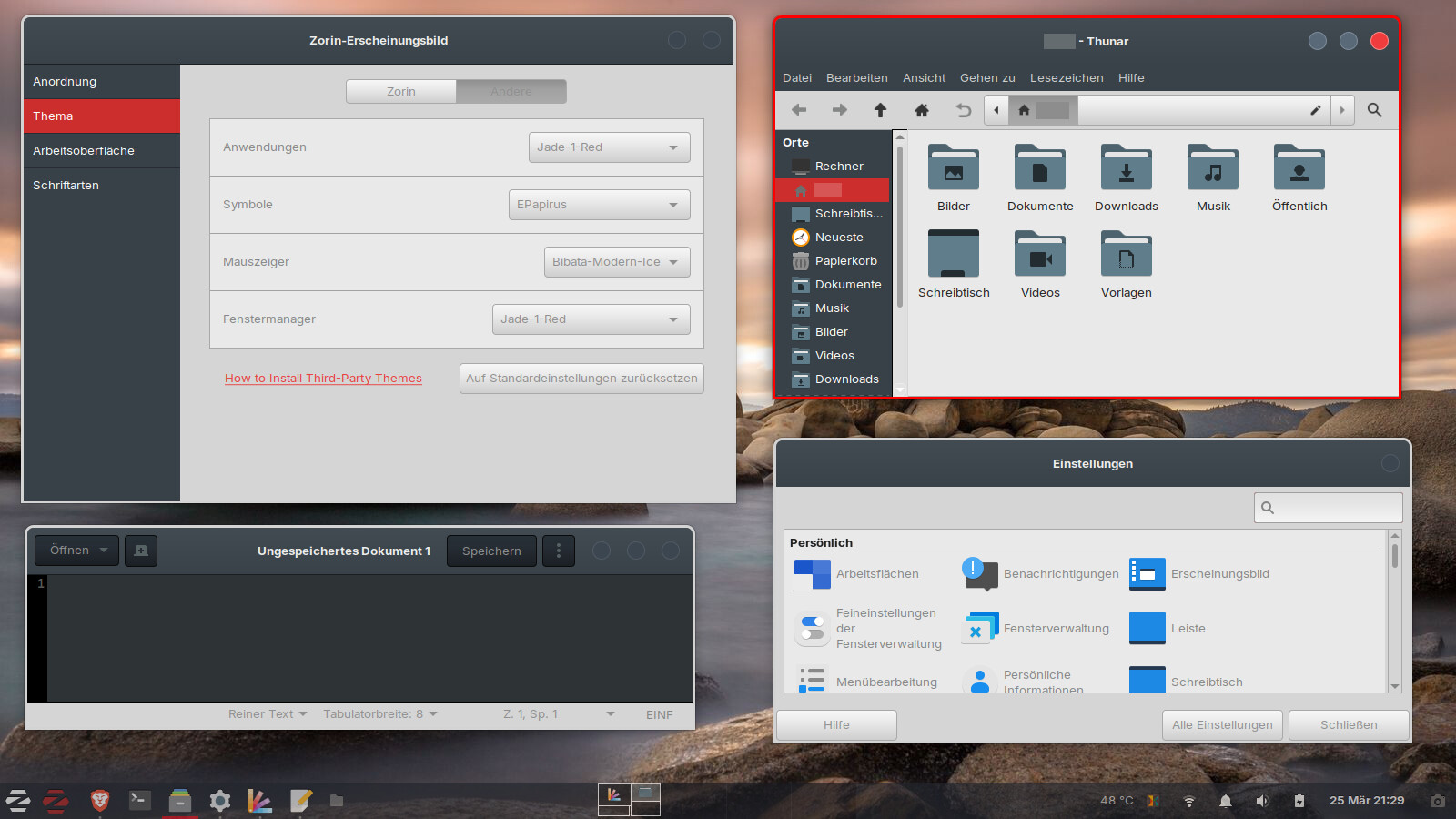
When the windows are moved to the edges of the screen, the colored borders are not visible. How can the colored frames be shown?
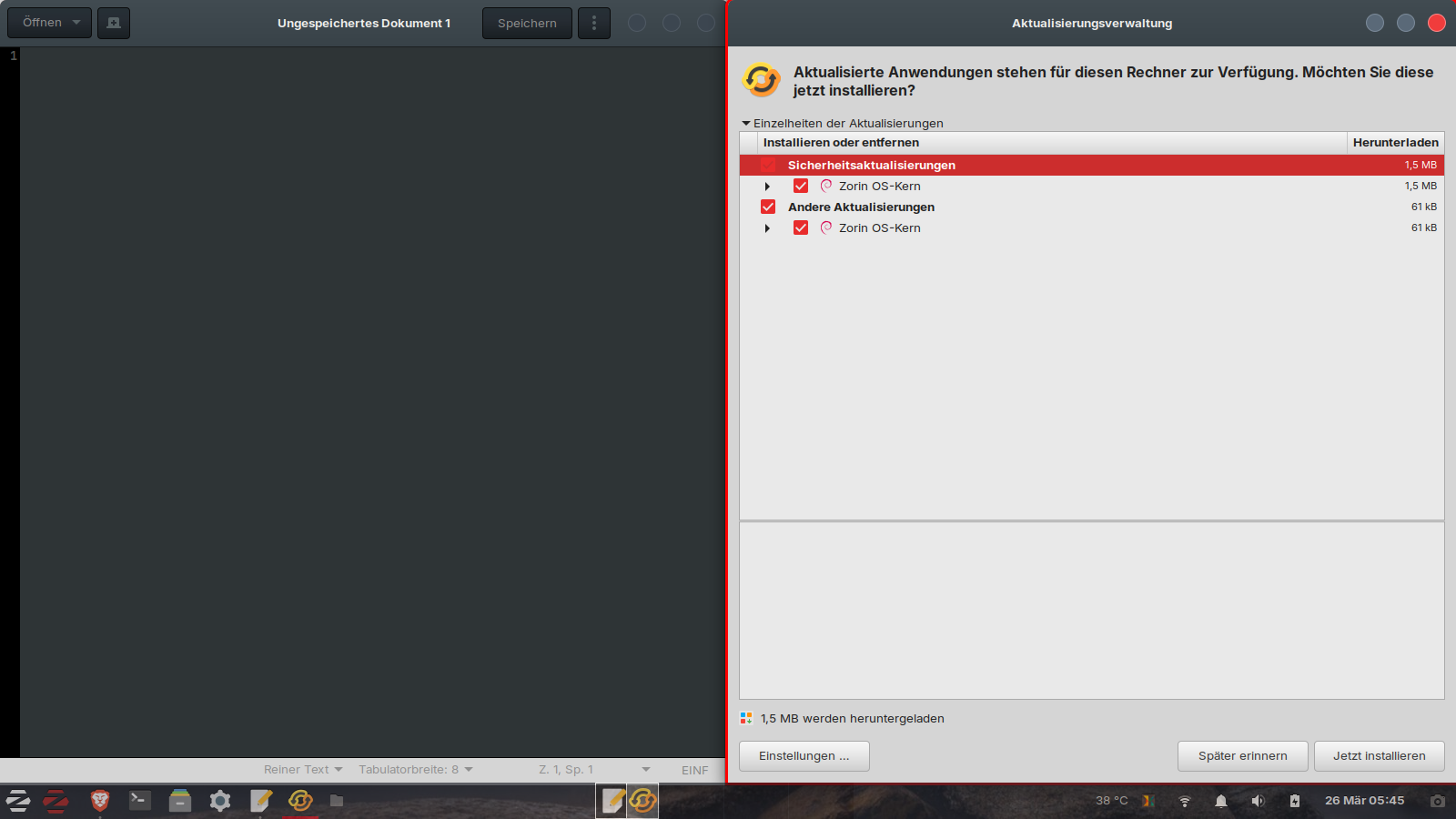
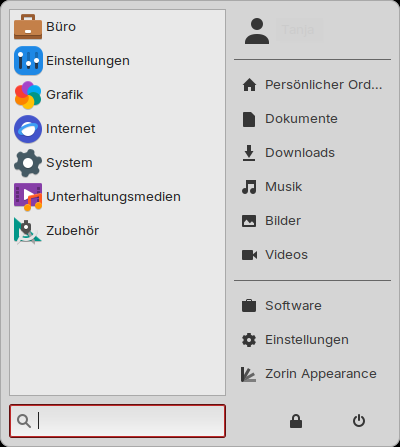
I didn´t find out how to avoid the black corners of Zorin menu with a custom theme and rounded corners (Zorin theme doesn´t have this problem). In Whisker menu I set the opacity to 99%, that helped so that Whisker menu has no such black corners. How can I set the opacity for Zorin menu? Or is there another solution?
In Window Manager Tweaks > Accessibility tab, Uncheck the option to "Hide window frame when Maximized"
First, in Window Manager Tweaks > Compositor, is "Enable Display Compositing" checked to On?
Yes, the display compositing is turned on and "Hide window frame when maximized" I turned off.
In my Zorin VM it doesn't help to show the colored frames. I'll try later on my other computer.
I made something wrong because the red frames are shown too often, e.g. when I hover the mouse over the launchers in the taskbar and the names of the apps are shown, or when I hover over the sidebar in Thunar. I'd like to set the decoration frame only for big windows. How can I do that?
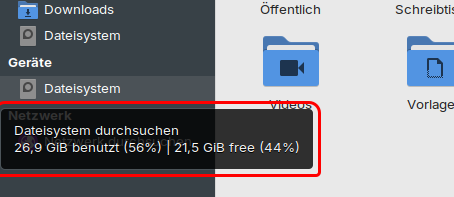
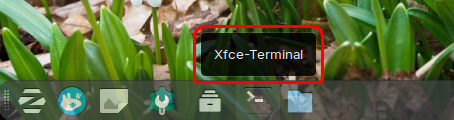
It looks like it may be set as generic Window border, which may explain if it is not appearing too, for apps that use notebook stack.
I would need to see the gtk.css to meaningfully answer - since I do not know what changes were made.
In post 72 you can see a screenshot of the .css with the lines for the decoration.
I've tweaked it a bit since then so that only the top corners are rounded and changed the radius to 10px.
Post 72 has a link for Rounded Corners Gnome Extension, but no screenshots. I looked at the surrounding posts that do contain screenshots and see 74 contains a very small snippet...
But css works on specificity and cascading order. So let's say you make a change to a class property and there is another line with that class and that property that is not changed - one must take priority.
Seeing the full file is necessary.
I don't understand what you need now. Do you mean mine gtk 3.0 .css file or the original theme?
The theme has .css files for gtk 3.0, 3.2 and 4.0 and also colCommon.css and colAccents.css files. Which one shall I post?
Both would be preferable as that allows cross referencing any changes.
Borders on pretty much every D.E. are easy. On Gnome, with CSD, it gets much harder, because Gnome Apps use different widgets to build an app (They are very inconsistent) and borders can be applied to every widget, so it is tough to get a border that gets every window or notebook stack, without also accidentally putting a border on something you do not want bordered (like the header) and miss a border on something else.