Ok, I have went over this a dozen times or more. I thought I found the issue. But I still have no luck. I have watched a video on youtube several years ago about this problem. I know others have the same problem. Just read from someone in Ubuntu Forum with the same thing. Here is the website. Utilities | Downloads | MFC-J1360DW | United States | Brother. (Driver Install Tool) Once I get into the terminal. I do cd Downloads. That is not the problem. The problem is when I type in gunzip brprinter-installer-2.2.6-0.gz then su or sudo su. I have done both. Both times it says no such file exists or something like that. Once, I got this file already exists "do you want to replace it" Did that. Thought I might get somewhere. No Luck. Now my printer does work. Took awhile but I have it working even on the WiFi. And in CUPS. That was new for me. Also, found out about a setting with NordVPN for printers. Fixed that.
because in terminal you are not in your download folder, so gunzip don't find the file.
from Brother tutorial
The tool will be downloaded into the default "Download" directory.
(The directory location varies depending on your Linux distribution.)
e.g. /home/(LoginName)/Download
You can also go into Your Downloads folder and when the File is really there, make on an empty space in the Folder a Right-Click and choose the Option ''Open in Terminal'' and then try it again.
I am not understanding the empty space in the folder and right click. I did do that. Tried to open with. But there is no option for the terminal. So, I somewhere else that I could drag the download/folder over to the terminal. Which is what I did. This is what I got.
administrator@HomeStation:~$ '/home/administrator/Downloads/linux-brprinter-installer-2.2.6-0.gz sudu su
'/home/administrator/Downloads/linux-brprinter-installer-2.2.6-0.gz su
bash: /home/administrator/Downloads/linux-brprinter-installer-2.2.6-0.gz sudu su
/home/administrator/Downloads/linux-brprinter-installer-2.2.6-0.gz: No such file or directory
administrator@HomeStation:~$
Sorry but I don't think you understand what you are doing and how to do it.
I understand you are novice and so you need some basis to use terminal. Read this
For you driver install I will try to make it simple
Open terminal and run
cd /home/administrator/Downloads/
gunzip linux-brprinter-installer-2.2.6-0.gz
sudo bash linux-brprinter-installer-2.2.6-0
The driver installation will start. Follow the installation screen directions.
When you see the message "Will you specify the DeviceURI ?",
For USB Users: Choose N(No)
For Network Users: Choose Y(Yes) and DeviceURI number.
The install process may take some time. Please wait until it is complete.
Sometimes Brother Printers don't have 64-bit drivers, which means you have to install the driver using CUPS.
Take a look at the videos I have made here:


I will show You a Picture (the Language is in german, don't be bothered by this. The highlighted Option is the Terminal-Option):
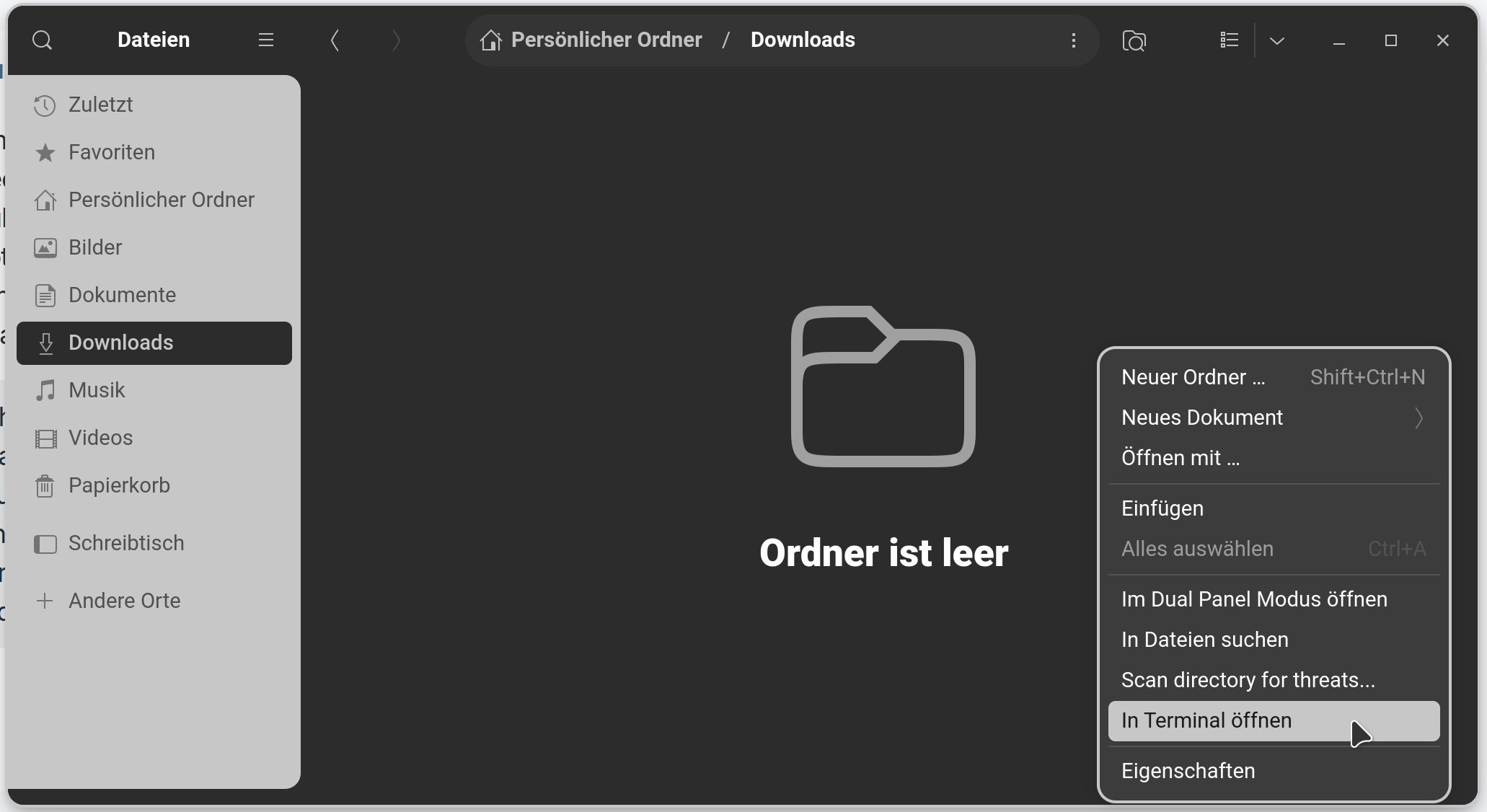
In the Windows click on an empty Space, then the Right-Click Menu appears. Abd You see: the 2nd from the Bottom is the Terminal-Option.
Ok, I have figured the "Open Terminal" out. I was trying to click on the file then right click. But on an empty space when I right click "Open Terminal" Pops up. If you could explain a bit more on the DeviceURI #. I am taking it as my wifi printer http:// # that is in website CUPS. That I had to put in to connect to the network. I looked how to find it. The only thing I can find is the 1pinfo -v nothing comes up. I was going to do the coding that you gave me. But I thought I should ask about the DeviceURL. First. I thought it would be the http://#.
Let's be clear, CUPS is for printing. There is usually a sparate download for the scanner as listed on this page:
You need the 64-bit .deb packages which can then be installed with Gdebi.
sudo apt install gdebi
then
sudo gdebi-gtk
Click on 'File' then go to download locationband install the drivers.
Sorry but i don't understand what you trying to explain
ok i get what he is saying, unless you have a server say no at the part for URL and continue on through rest of it. then restart computer making sure your printer is on and system should find it and install it. the printer that is.....as per say the scanner use the advice that @swarfendor437 suggested
Ok, I do understand about CUPS. The term DeviceURI for a network printer when I install the scanner driver. That was written out for me. Through me a little bit. I researched it and wasn't understanding. I don't want to start to install then be left hanging. I have my printer all-in-one setup on the wifi connected. I would prefer to not use a USB. I am still learning about all this setup on LInux. I know that I can't compare it to windows. But when I had my other all-in-one. I was connected to the wifi. With printing and scanning abilities.
I just found your reply (wesoliv429) about the server. I don't have a server. That out of my wheelhouse. I already said once I think. But I do have my all-in-one setup on the wifi network. I want to make sure that the printer and scanner works on the wifi network. If that makes any sense.
Yep i fully understand only reason i know about the setup screen(brother) is i own one...mine isnt wifi capable i have to use the usb cable its the Fax 4100e i to struggled at first but it works fine. it installed 2 printers but i soon discovered the bottom(2nd) was a network printer and i removed it from the printer area. i did see the driver you need at the link that was shared its a .deb file but you do need to have the usb cable pluged in to update the scanner driver once you have it pluged in just double click the downloaded driver and it should install the scanner driver then you can remove the usb cable and the scanner should work,, you may have to do a restart of zorin tho
from download site

then double click the driver you downloaded you may have to open a terminal and enter some commands after tho
total instructions that popup after the download of the scanner driver
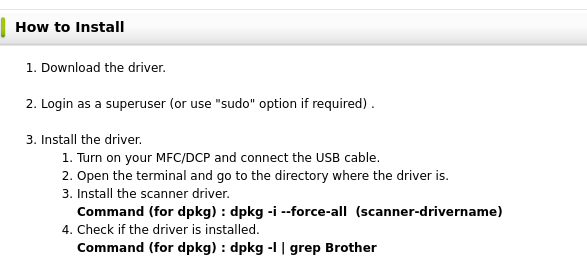
looks to me you just click the download and you will get a popup from software store to install whats needed
what poped up here
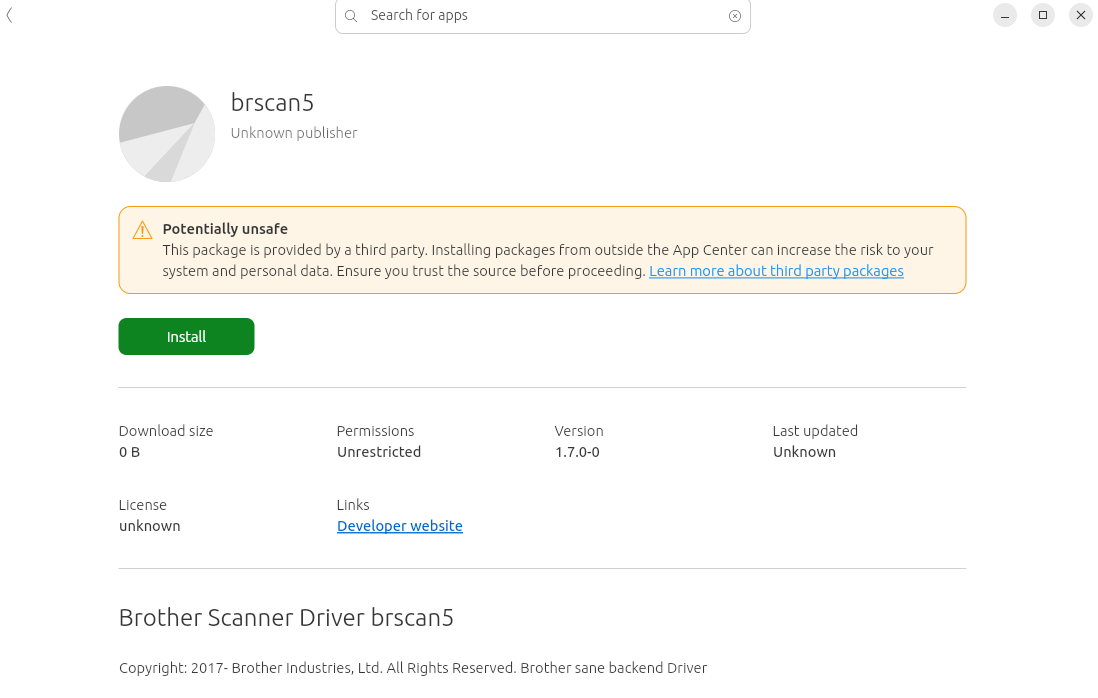
Im not currently on zorin but its same store ubuntu uses that zorin uses
Ok, I plugged in my USB for the printer. I started with the coding that (Nourpon) gave me. administrator@HomeStation:~$ cd /home/administrator/Downloads/gunzip linux-brprinter-installer-2.2.6-0.gz sudo
bash: cd: too many arguments
administrator@HomeStation:~$ home/admiminstrator/Downloads/gunzip-linux-brprinter-installer-2.2.6-.gz sudo
bash: home/admiminstrator/Downloads/gunzip-linux-brprinter-installer-2.2.6-.gz: No such file or directory
administrator@HomeStation:~$ home/adminstrator/Downloads/gunzip linux-brprinter-installer-2.2.6-0.gz sudo bash linux-brprinter-installer-2.2.6-0
bash: home/adminstrator/Downloads/gunzip: No such file or directory
administrator@HomeStation:~$
I also went into downloads and right clicked on an empty space. To open in terminal. To do the same thing. I have re-downloaded this many many times so I have it. Before trying to install it in the terminal. Ok, before someone says something. Just before I was going to send this off. I noticed linux-brprinter-2.2.6 I did not add the 2.2.6-0. I went back in and retried it again. Same thing happens.
This shows you are clearly in your Downloads directory. So the next thing I would check would be that file name: "linux-brprinter-installer-2.2.6-0"
Let's say you downloaded "linux-brprinter-installer-2.2.6-1" instead of "linux-brprinter-installer-2.2.6-0", that -1 instead of -0 is a different name to the system. It cannot reason, "Well, close enough. User probably means the -1 version..."
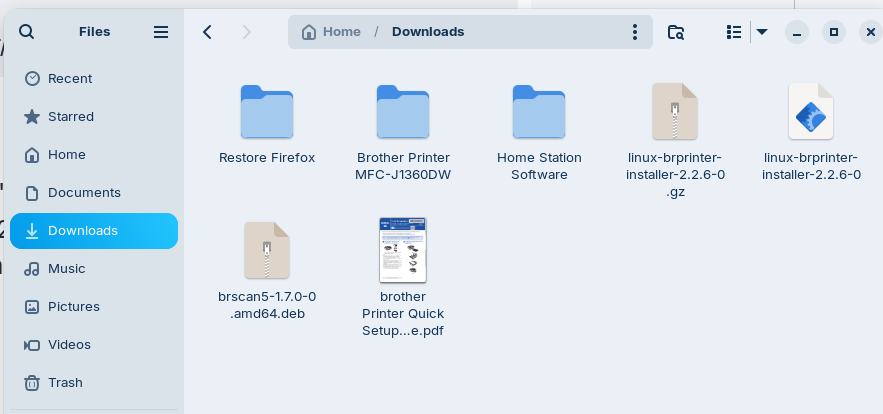
In your terminal command, is the .gz missing at the end of the file name?
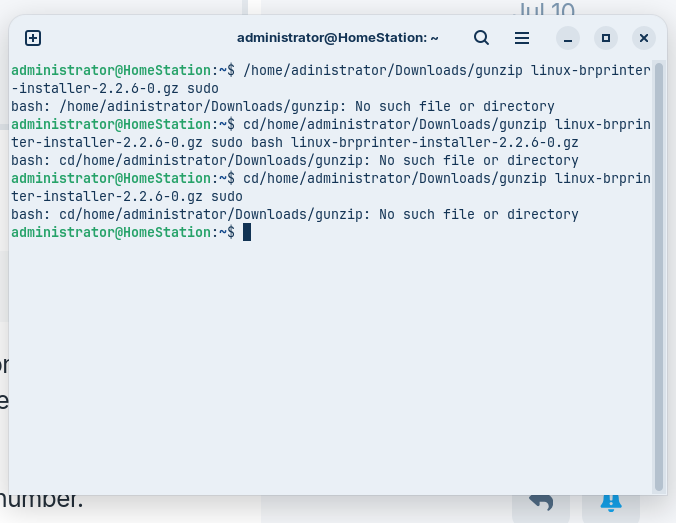
There are missing spaces between some words in the commands. Between cd and /home and .../Downloads and gunzip
What about using just:
gunzip linux-brprinter-installer-2.2.6-0.gz
Also, you may have "Extract here" in the right click context menu. If you do, you do not need to extract it using the terminal command.
Since you already opened the terminal in /home/Administrator/Downloads, you do not need to specify that full path as you are IN that path.