Ok, I am still learning about coding. I can right click on the file in downloads. And there is Extract, Extract To, and Open With. Is this what you mean?
Yep, that will do it, too.
Extract or Extract to
Once it is extracted, you can Then cd into it, or, double click that folder to open it, then Right Click an open area and open Terminal In That directory.
Then run the install command.
When it is new and unfamiliar, it seems so daunting and uncertain. After you do it a few times; it becomes familiar and makes sense.
Ok, I extracted to. Then double clicked on the file. The computer is doing something. Making noise is all. Not sure if I need wait.
Well, the double click was on the Directory it extracted to open that folder. It should have just opened that in the file manager and you would be looking at its contents.
What you are describing sounds like running a file, not opening a folder.
I tried to take screenshot. But the picture wasn't what I was seeing. It did look like it opened something next to it. But I have seen before many many times. It is from bother. Maybe some legal stuff I really don't know.
When I hover over the file. It reads /home/administrator/Downloads/linux-brprinter-installer-2.2.6-0.gz
Well, your earlier screenshot May show it is already extracted - I may have misunderstood which step you are on, here.
Scrolling up and looking at that screenshot, I see a Self Installing .deb package; brscan5-1.7.0-0 - Is this the installer for Scanner Software? Have you double clicked this to run that installer if you Need Scanner Software?
I see linux-brprinter-installer-2.2.6-0, this might be what you were trying to run earlier and why no .gz - but to run that, you would input
./linux-brprinter-installer-2.2.6-0
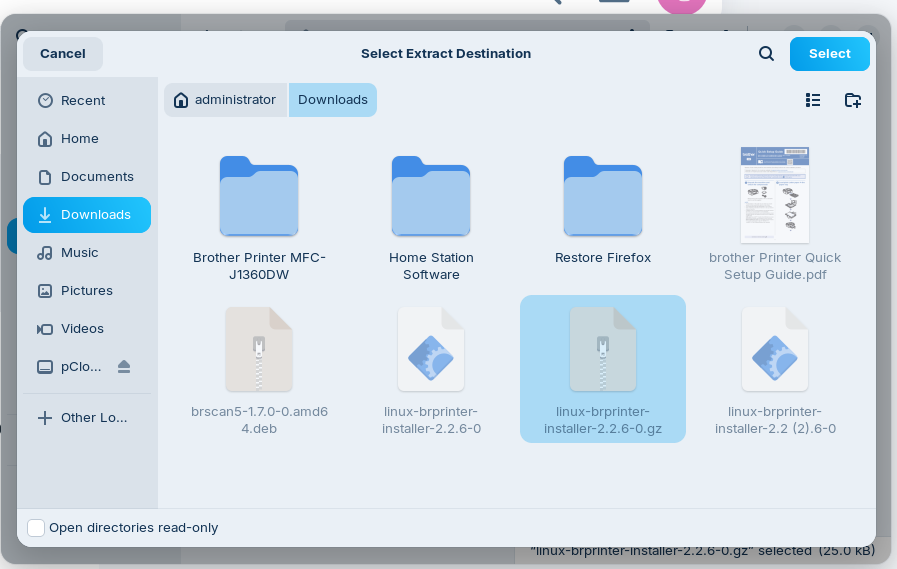
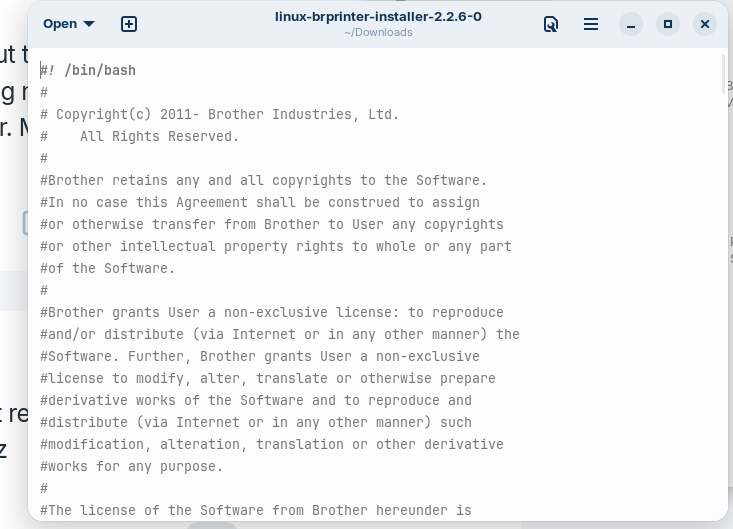
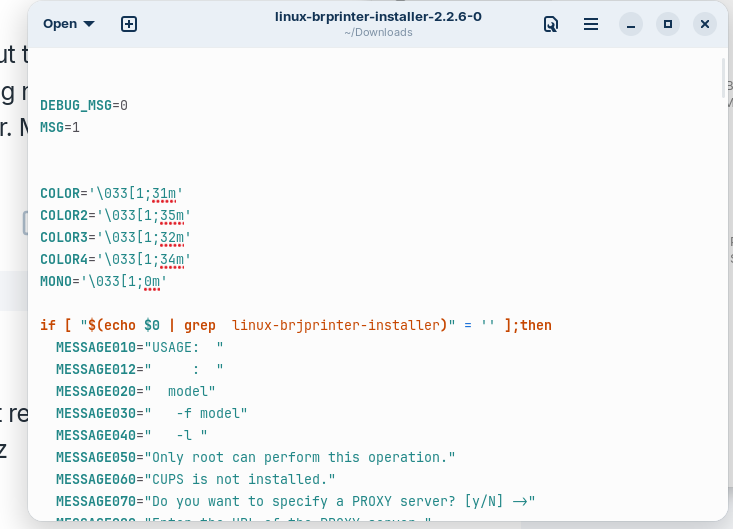
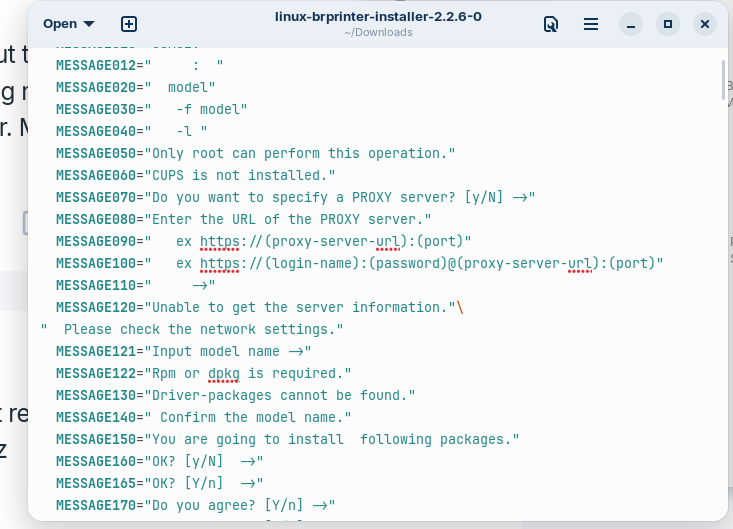
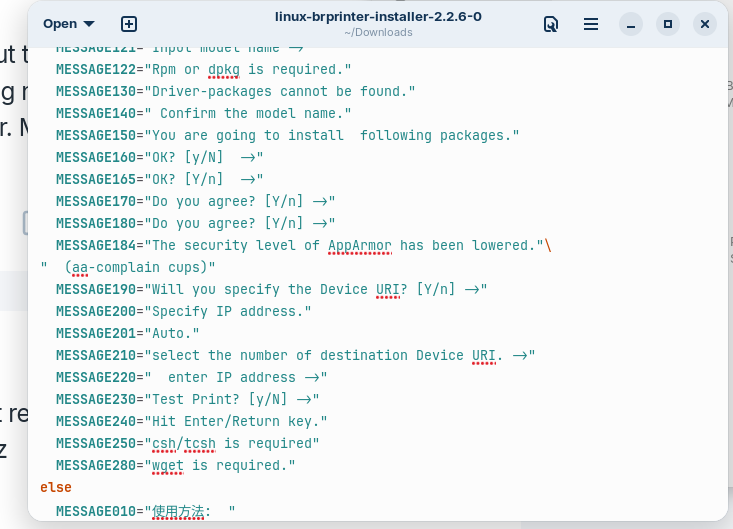
Ok, here is the download website. Everyplace/person on youtube. Said I needed to install the Driver Install Tool First. Then I would be able to double click the .deb package for the scanner. Which I think is brscan5 plus numbers. Problem was I couldn't install the Driver Utility Tool. If this makes any sense coming from a linux nebbie.
ok lets save some time here go to the link swarf posted then download this one
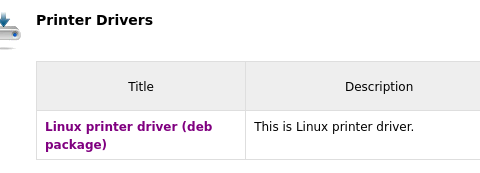
then go to download folder and double click it with printer plug in with usb you should get a popup for the software store hit install then wait for it to finish.
now for the scanner same thing in the download folder double click the scanner.deb and a popup should appear click install.
both the printer and the scanner should be installed restart computer and test both to make sure it works
Just so you know . Printer is working. Scanner was not. I already had the brscan5 installed. I uninstalled, then reinstalled. I will restart. And see. Will take a few.
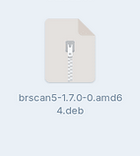
once back double click this to do the scanner in your download folder
if you did that already scanner should be installed now...I hope
1 Like
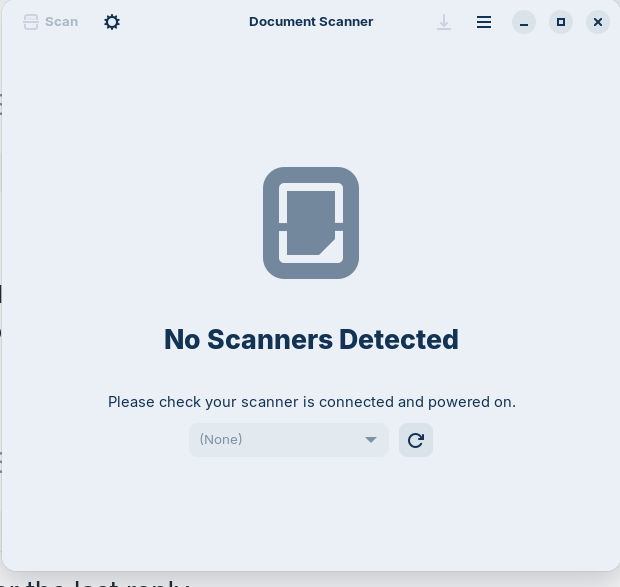
Ok, I restarted. I opened Document Scanner. Found a scanner. First Time. Scanned. Also said Document Scanner had some problems maybe not responding. I don't remember I saved it. I was going to upload it to show everybody. But I am still learning how upload on the forum. Right now the scanner works. My question is this. Someone told me to have it plugged in to the USB. I have that. I want to be able use the scanner on the WiFi connection only. Is that possibly?
ok awsome yes you should...but dont quote me you just had to install the drivers using the usb plug cant do that wirelessly so try it wirelessly and see if its possible
Configure Network Scanning: For wireless setups, you will need to register the scanner with its IP address using the brsaneconfig script in the terminal, such as brsaneconfig4 -a name=MFC-J1360DW model=MFC-J1360DW ip=YOUR_PRINTER_IP. [1]
this is AI responce proceed with caution
see what i posted above be carefull its an AI responce
This is new to me. How do I do this?
Configure Network Scanning: For wireless setups, you will need to register the scanner with its IP address using the brsaneconfig script in the terminal, such as brsaneconfig4 -a name=MFC-J1360DW model=MFC-J1360DW ip=YOUR_PRINTER_IP. [1]
this is AI responce proceed with caution
im not sure how to find the ip address to the printer/scanner maybe someone who knows this part can help ....the .[1] isnt part of the command
but the printer/scanner is working now..all that is needed is to set it up for a network to do everything wirelessly
In the printer wifi settings. Lets call it that. I was doing that while you were reading. My Printer/Scanner IP Address is. 192.168.42.11 on my WiFi.
ok then if im understanding correctly open a terminal and type
brsaneconfig4 -a name=MFC-J1360DW model=MFC-J1360DW ip=192.168.42.11
Start Scanning: Open a scanning utility like Simple Scan, Skanlite, or XSane to begin scanning documents wirelessly again this is an AI responce