Zorin switch sounded terrific when I read about it at Zorin Help site last week. So did a Ubuntu flavour I tried to instal 12 months back. Both failed at step of flashing the OS to media [using new 64GB USB - not the USB from last year's effort].
I downloaded 'balena etcher' initially; download flagged as 'corrupted' when I tried 'flashing' downloaded Zorin; likewise with Rufus. The info graphic at Zorin Help reflects that user's parameters, not those appearing in my trial process.
Issue could be user error [moi] or it is incompatible with something in my current desktop.
For [older] those would-be Linux users who aren't educatedto read code, systems operators, programmers, it may not be clear what data options mean, or how to tweak these. Yes, I'd like to try a Linux OS, but not wipe out my ageing Windows 10 [just yet].
OS in use - Windows 10 [22H2 19045.6093 c. 2020].
Maybe this is why Linux is yet to take over the internet?
For rufus, You have the Choice to use the Version for installing in Windows or the portable Version - that You don't have to install. I used that in the Past and it worked good for me.
For set up Rufus, You don't need to do much. You need:
Rufus
The ISO of the Linux System that You want use. Here the Zorin ISO.
An USB Stick (because of personal Experience, I would recommend a Stick 32GB or smaller to use the FAT32 Format)
When You have downloaded the Zorin ISO, You should check the Checksum of the ISO to be sure, that the ISO isn't damaged or corrupted. And then, You can start.
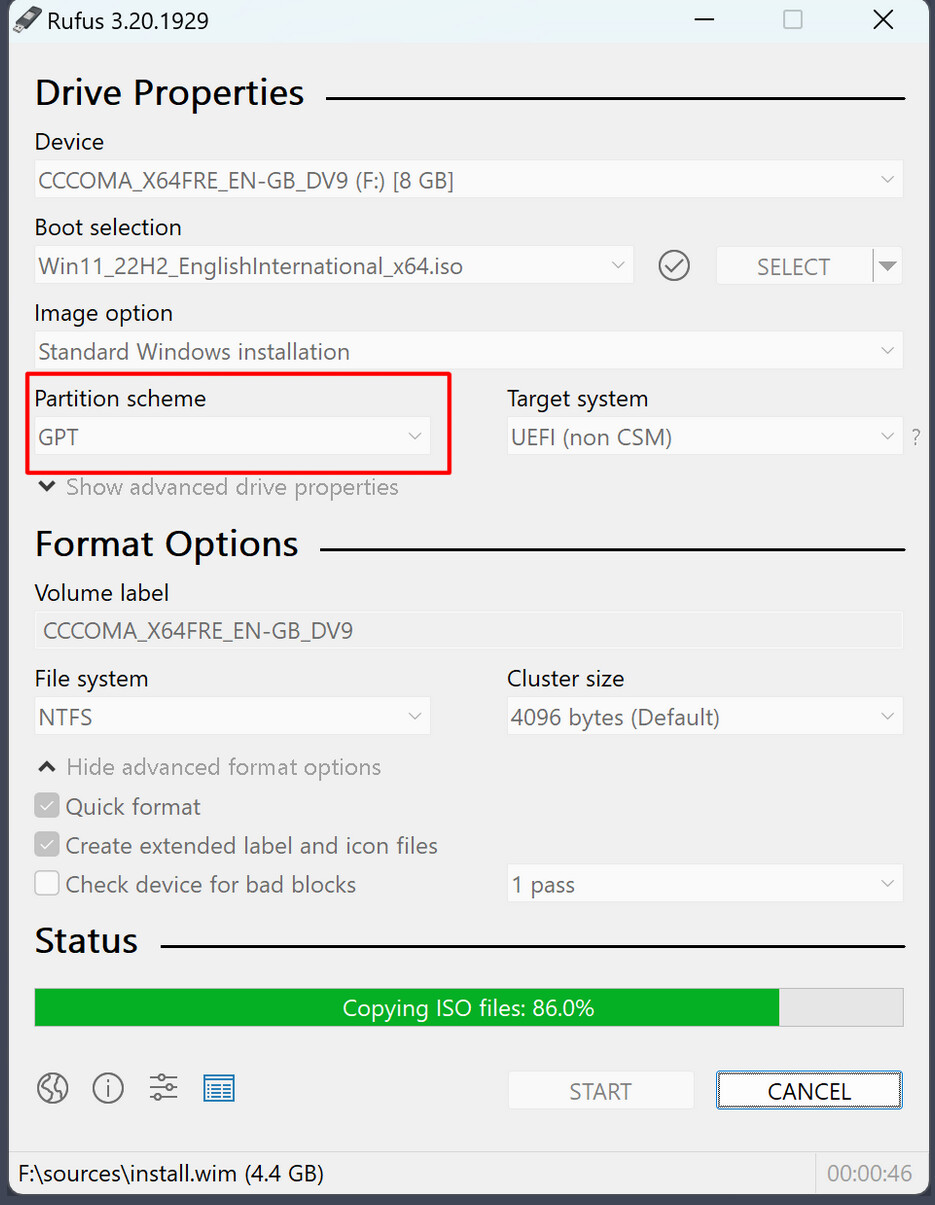
Like @Forpli arleady explained, there is the Partition Sheme what is a Point. In Rufus, You find that Option here:
Here You should look at @Forpli's Comment what to use:
The Rest of Rufus seems for me self-explaining. I mean choose the ISO and the USB Stick.
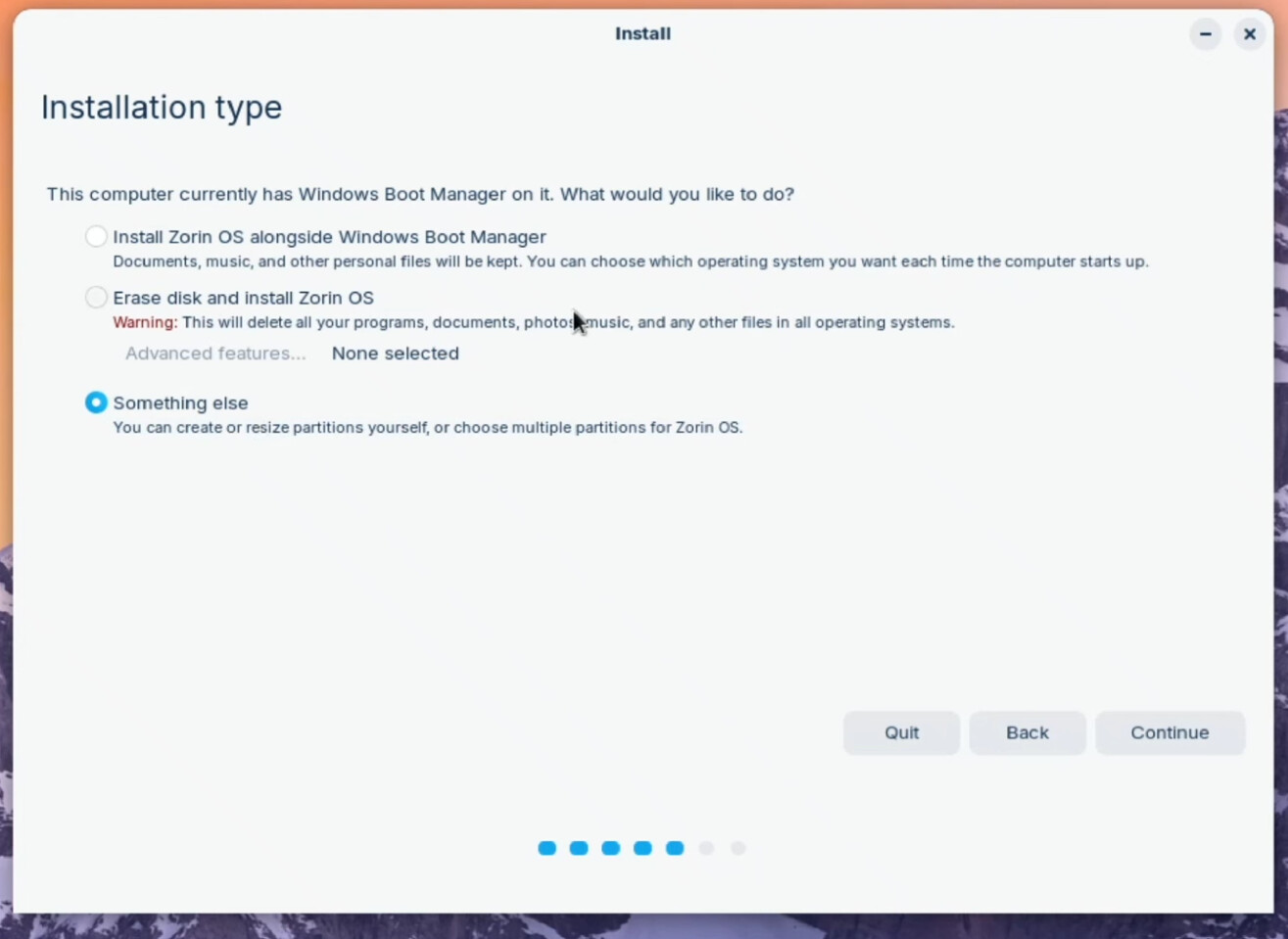
When You don't want remove Windows, this isn't a Problem, too. You could create a Dual-Boot System. When you install Zorin, you will come to a Screen, where You have to choose how You want install Zorin. When Windows is installed, it should look like this:
The first Option is the one that You should take ''Install Zorin alongside Windows ...''. That will install Zorin beneath Your Windows System. You only have to choose how much Disc Space You want use with a Toggle. The Installation makes the Installer automatically.
I had the same problem when creating a bootable USB with Rufus (I’m using Windows 8.1 32-bit). It reported a GRUB error (I don’t remember the exact message) when I tried to boot from the flash drive.
Then I used EtchDroid app on my Android phone to create the bootable USB—and it worked.
If Rufus fails, try EtchDroid. It worked for me on my Lenovo B30-40 laptop, it successfully created a linux (zorin) bootable USB.