So I've been struggling for days because while Yabridge would sync my Win VSTs, Reaper kept putting them under "Failed to scan"- and then I saw something about Flatpak apps being sandboxed & had a brainwave...
And sure enough, downloading Reaper from the website & running the .sh installer fixed that problem right up (well, almost - there's still issues but for another post ).
Unfortunately it created a new one, because while setup with JACK was apparently automatic when installing the Flatpak app (both MIDI & my audio interface worked), my newly-re-installed Reaper can't find an audio device.
My question, therefore, is: How does one go about setting up JACK for this...? I can't seem to find a control panel or whatever in Zorin
When the Flatpak Version worked better for You, You could use it and install Flatseal. This is a Program for set up Flatpak Permissions. And then You could give the Flatpak Version the Permissions.
Thank you - looks like it might work, if I can find out which permissions etc. to set in Flatseal... I've tried turning everything on for both Reaper & Bottles, but it still doesn't work that's not your fault though, the tip is good
" To configure Reaper (non-Flatpak version) to use JACK and properly identify audio devices on Linux, follow these steps:
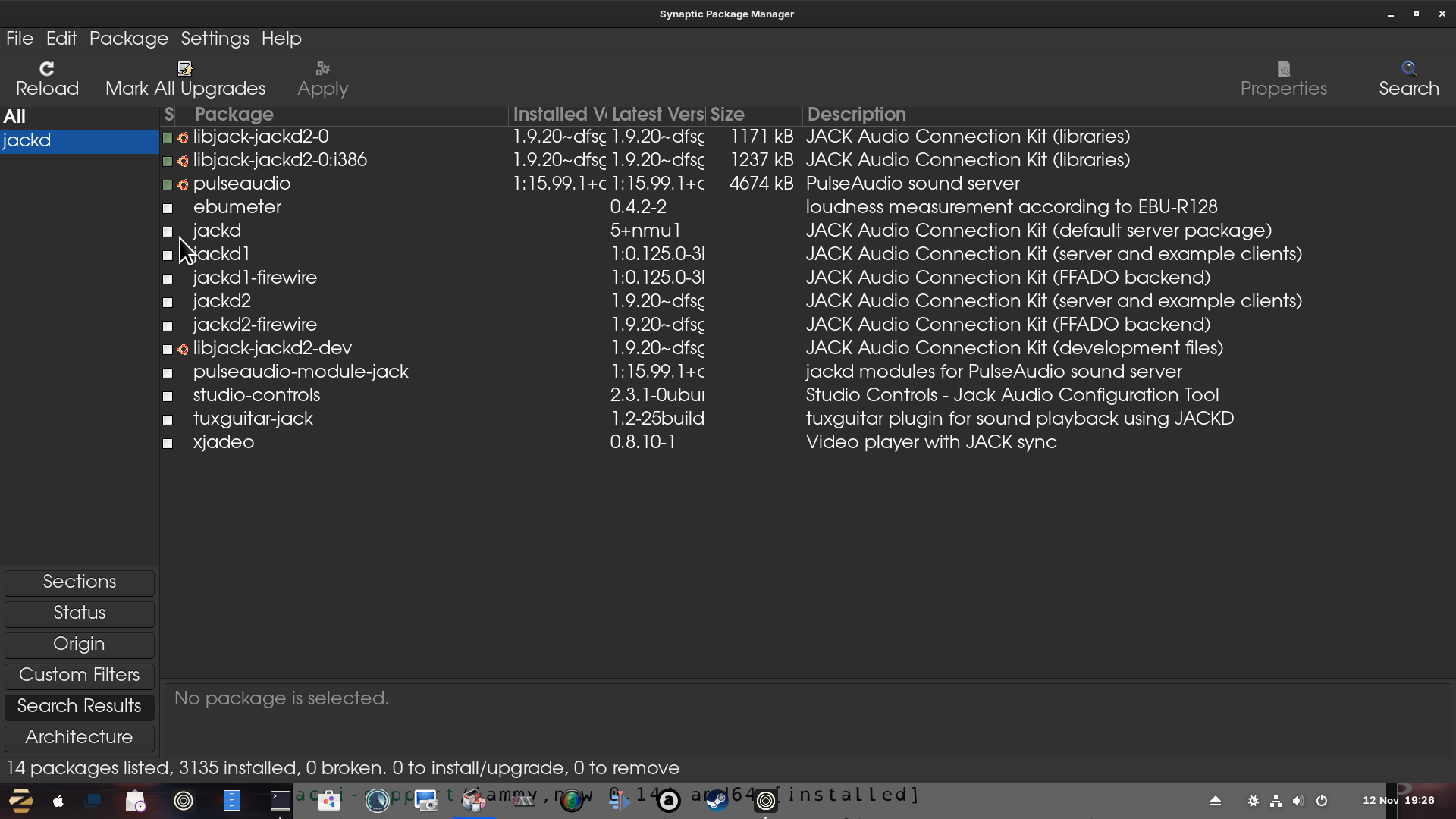
Install JACK and Required Packages: Ensure JACK is installed. On Ubuntu/Debian systems, install the jackd package and the pulseaudio-module-jack package to enable integration between PulseAudio and JACK.
This allows JACK to coexist with other audio systems and ensures proper device visibility.
Start JACK with a Compatible Backend: Use a JACK server that is compatible with your audio interface. For most modern Linux systems, pipewire-jack is recommended as it provides a more stable and integrated experience compared to traditional JACK.
You can start JACK using pipewire-jack or jackd with the ALSA driver. For example, you can start the server with pipewire-jack and then use qjackctl to manage it.
Configure Reaper's Audio Device Settings: Open Reaper's preferences (Preferences > Audio > Device ). Select JACK as the audio driver. Reaper will then attempt to connect to the running JACK server. The number of input and output channels Reaper can see is controlled by its own settings. If JACK shows more channels than Reaper, you need to manually set the number of input and output channels in Reaper's preferences under the Audio section.
For instance, if your interface shows 16 input channels in JACK, set Reaper's input channel count to 16 to make them visible. * Ensure Proper MIDI Routing (if needed): If you are using a MIDI controller, ensure it is properly routed through JACK. If your MIDI device is not appearing in Reaper's MIDI Devices list, you may need to use a2jmidid to bridge the MIDI connection from your hardware device to JACK.
Start a2jmidid after launching JACK, and your MIDI controller should then appear as a JACK MIDI device in Reaper.
Use JACK Connection Tools: Use qjackctl or a similar tool to manage your audio and MIDI connections. In qjackctl , click the "Connect" button to open the connection window. Here, you can route audio and MIDI signals between Reaper and other JACK applications (like a DAW or a synthesizer) or to your system outputs.
For example, you can connect Reaper's output ports to your audio interface's input ports to hear the audio.
Handle Plugin Visibility (Optional): If you are using LV2 plugins like Calf plugins, you can run calfjackhost to make them appear as JACK audio and MIDI devices within qjackctl , which can be beneficial for integration with Reaper.
By following these steps, Reaper should successfully connect to the JACK server, identify the correct audio devices, and allow for full routing of audio and MIDI signals.
[Footnote: to install packages it is best to make sure you have Synpatic Package Manager installed and search for each package using the search function, mark them for installation, then hit Apply in the top Bar]:
 ).
).


 that's not your fault though, the tip is good