If you want to use a custom XFWM theme in Zorin 18.1 Lite and disable the default CSD to do so, many GNOME apps will not match the theme (e.g., Thunar, GNOME Software, text editor...).
I found this project today and would like to try it out.
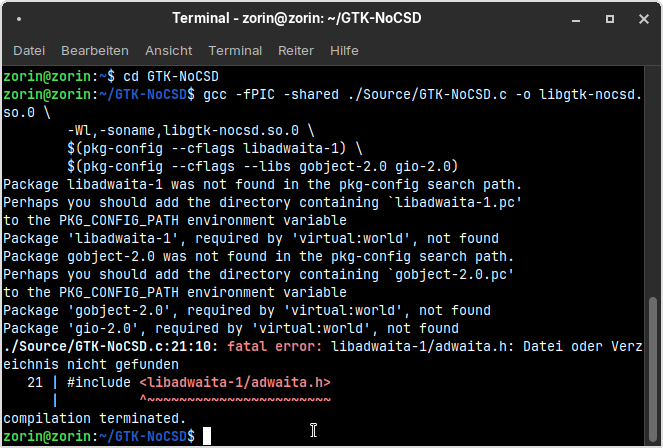
Does anyone have experience with it - is it any good, and how do you compile it? I’m getting error messages.
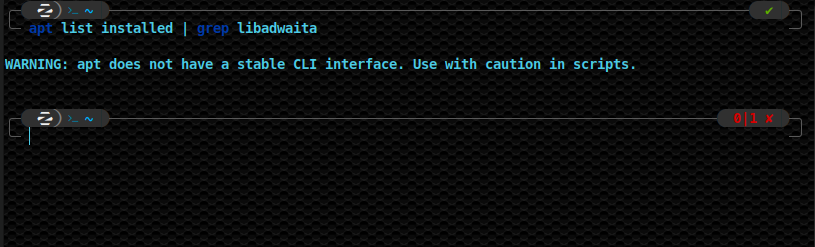
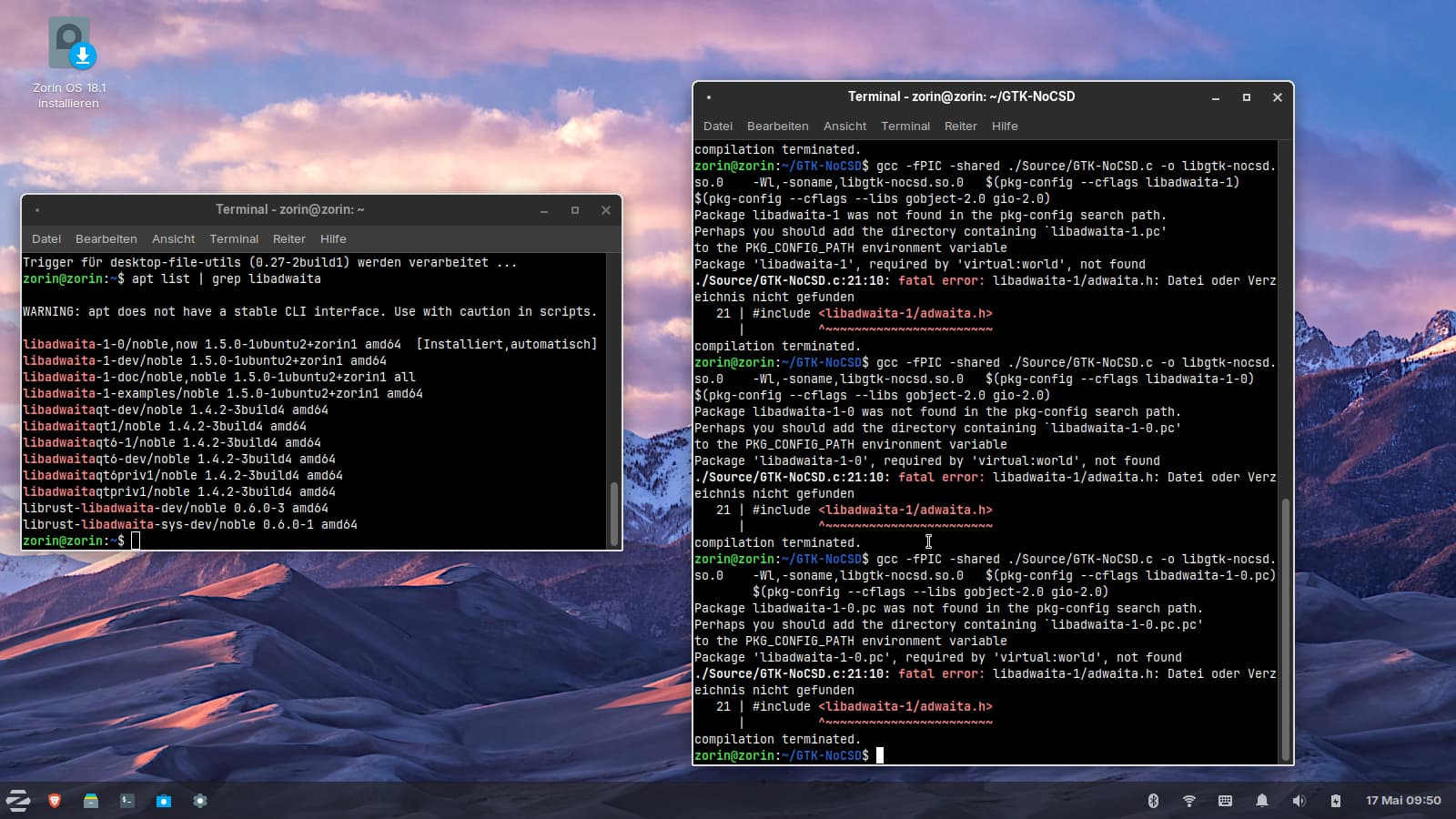
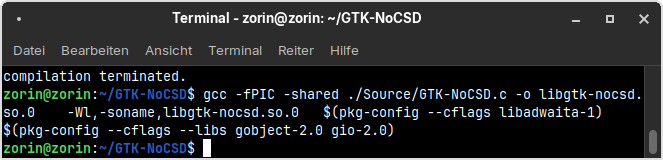
I'll try that. Until now, I took a look at synaptic and installed something with gio-2.0. Now that error message is gone, but libadwaita error is still shown, but it is installed. I tried various cflags, but didn´t help:
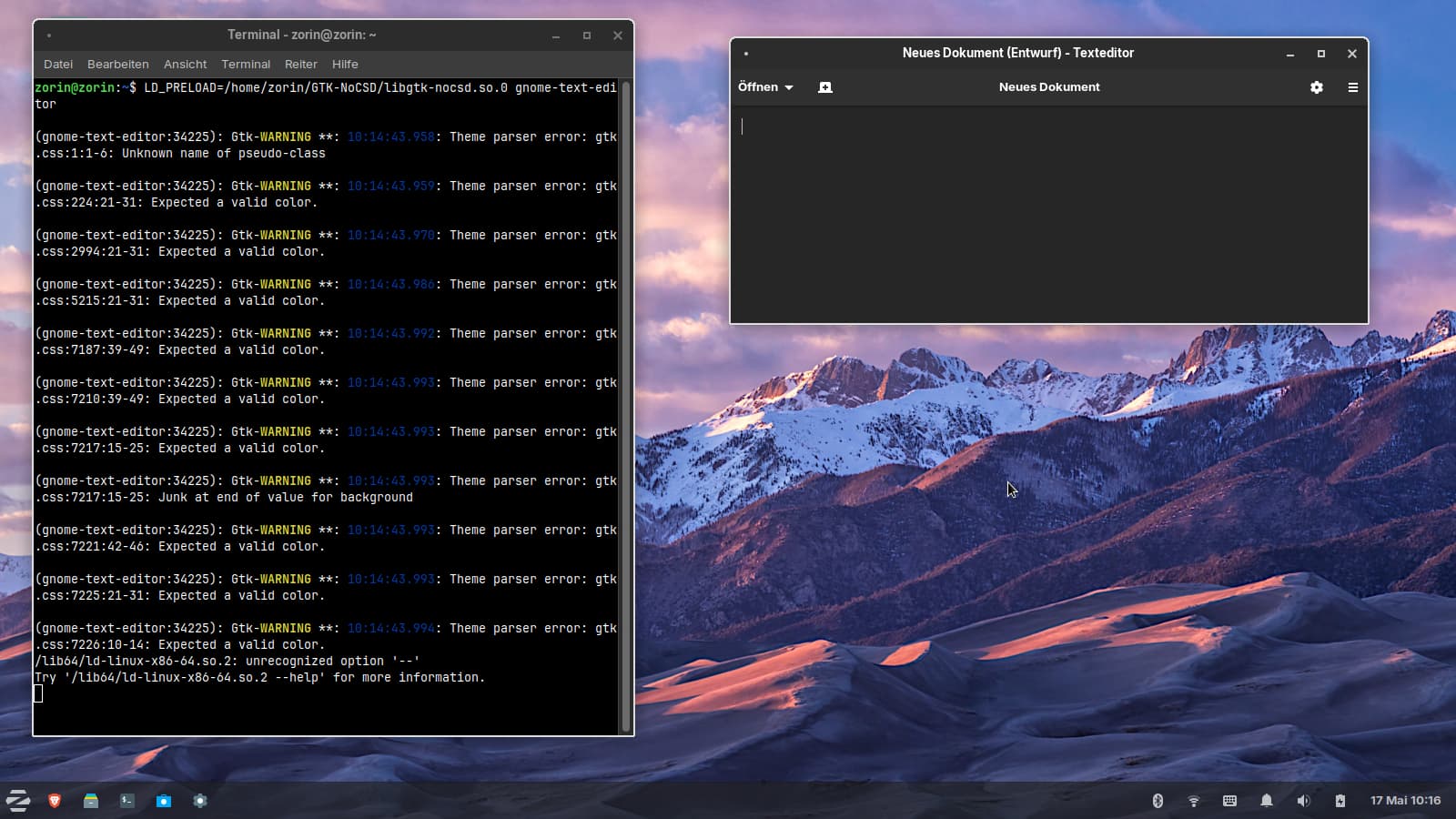
, and also gnome-calculator, gnome-disks, gnome-logs and others work with this method launched from terminal, but gnome-software still doesn´t work. I'm happy with the result for now (test was in Zorin 18.1 Light live session).
I'm not quite sure if those commands need to be added to the exec lines in the .desktop files of the apps or if an environment variable can be set and how to do that.
Edit: I tried to change the command in menu libre for an app and to add LD_PRELOAD=/home/zorin/GTK-NoCSD/libgtk-nocsd.so.0 at the beginning of the command there, but it didn't work and there was shown invalid .desktop file...not found in PATH.
I also tried to copy some lines from the setup script shown on the github site (those referring to CSD) and added some of Zorin's gnome apps, made it executable and added it to autostart, but it didn't help.
I don't understand what I have to do.
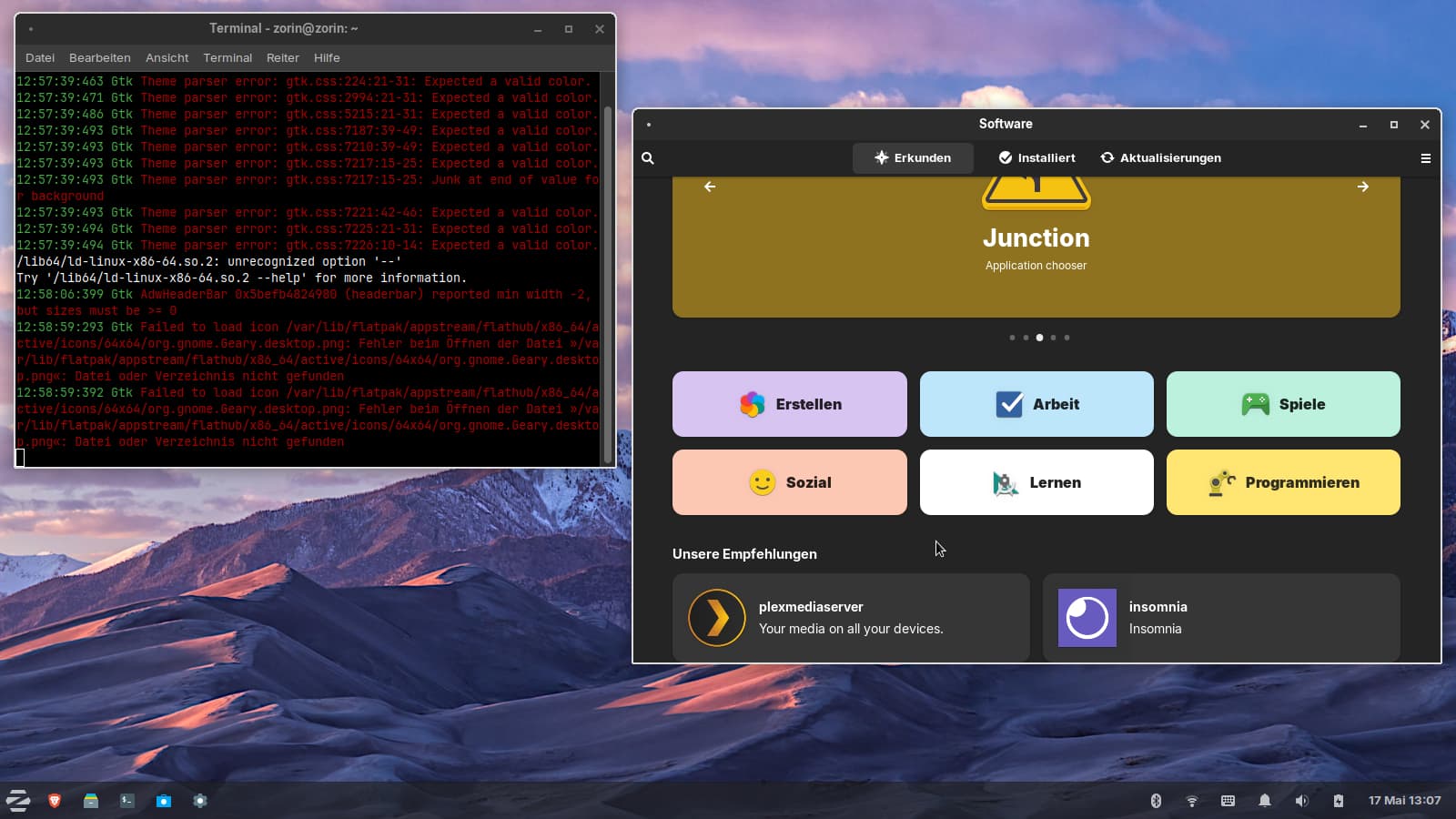
For gnome-software I tried a way which was shown on the github site: The removal of the line "DBusActivatable=true" from the gnome-software .desktop file and then tried to launch it from terminal with the LD command. A long while nothing happened and errors were shown in terminal, but then gnome-software opened with a white frame!
Now all apps open with the custom graphite xfwm theme launched from taskbar or start menu - but sometimes slower than usual.
I re-added the line DBusActivatable=true to gnome-softwar .desktop because a removal is not needed here.
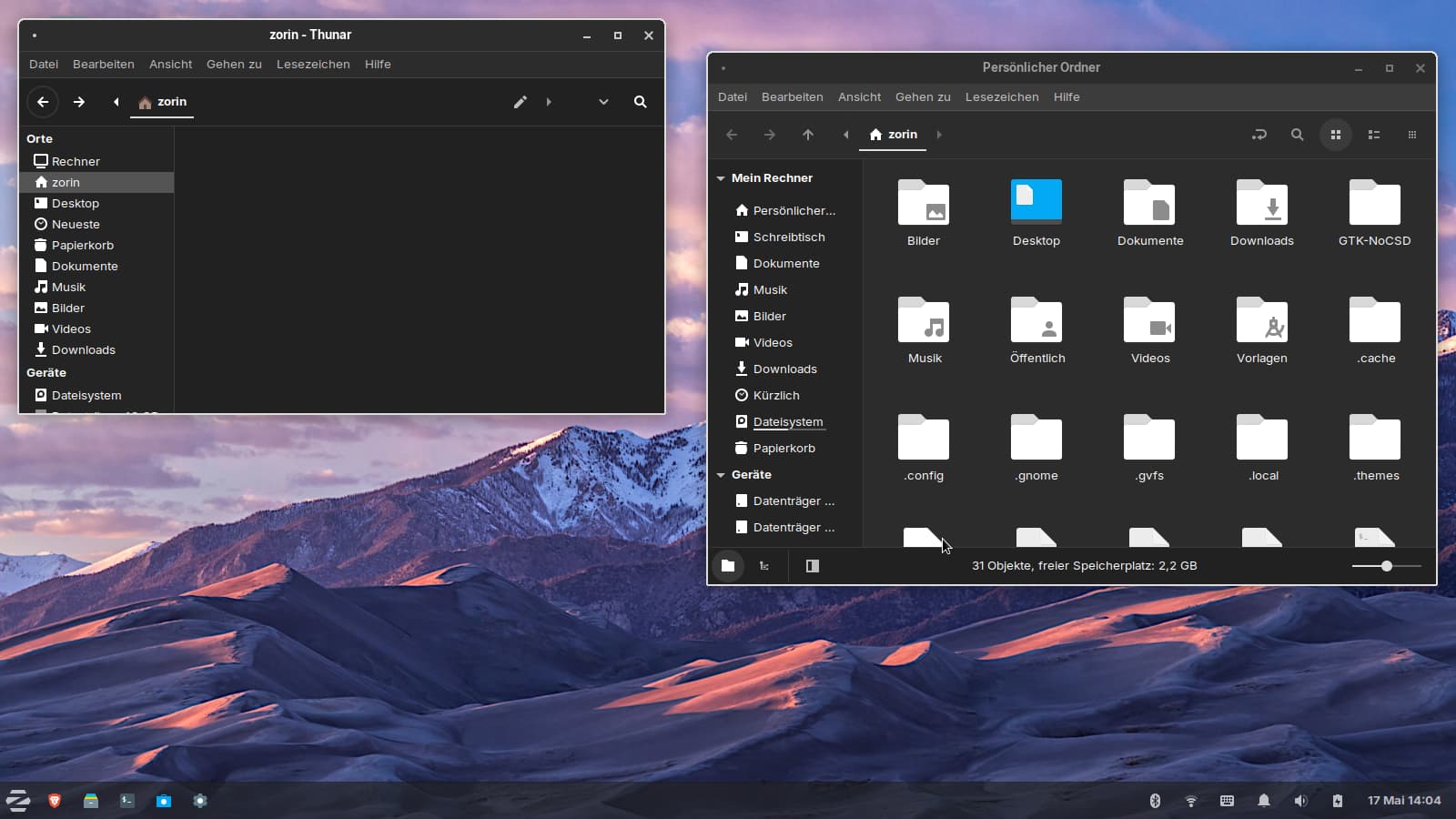
But what has happened with Thunar???
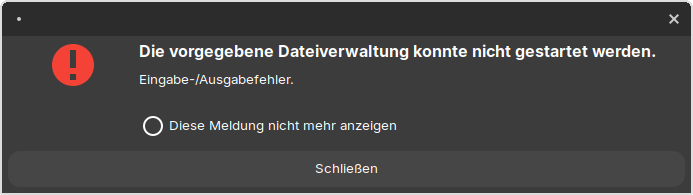
When I click in start menu on the right side on home folder, that error message appears:
Nemo which I have installed, too, works.
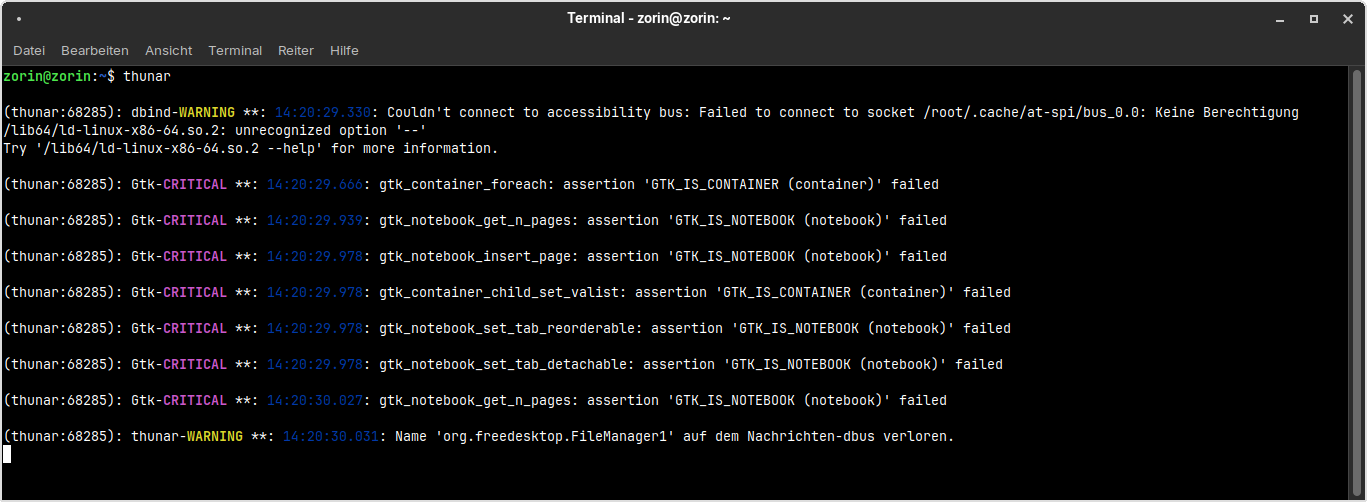
How can I repair Thunar? I tried to reinstall, but didn´t help. That is the terminal output when it is launched from terminal:
"Couldn't connect to accessibility bus: Failed to connect to socket /root/.cache/at-spi/bus_0.0: No permission
/lib64/ld-linux-x86-64.so.2: unrecognized option '--'
Try '/lib64/ld-linux-x86-64.so.2 --help' for more information."
I repeated the installation of the program in a fresh Zorin 18.1 Lite session, but again the problem with Thunar showing no folders/files (nothing at home and nothing at filesystem root) at all appeared. The user-dirs.dirs is right, I didn't change something there, and Nautilus and Nemo work normal. I set Nemo as default file manager to see if that would help, but didn't change anything in Thunar.
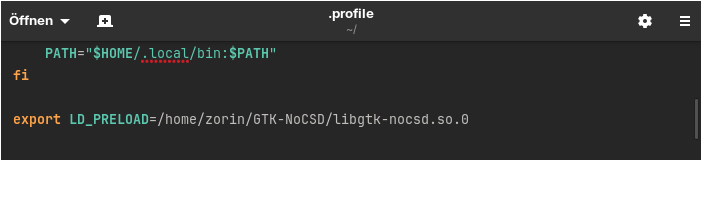
Does someone have an idea why that happens? What is wrong with that environment variable? Shall I put it elsewhere? I tried to put the line to other places as ~/.bashrc and ~/.bash_profile, then Thunar worked again, but the custom xfwm theme stopped working for all apps and the program seemed not to work then. For all other apps it is a good solution at ~/.profile, only for Thunar not.
Putting the line to /etc/environment has the same problem that Thunar doesn't work correctly then.
I noticed that thunar works and shows all folders/files when it is launched as root.
Yesterday, I had installed the gtk3-nocsd package before compiling GTK-NoCSD, because I wanted to see if it would result in a more consistent look and feel, but it failed to do so for many apps and hadn't removed the package before compiling.
It wasn’t until later that I read that gtk3-nocsd isn’t compatible with this package. That’s why I tested it today without the gtk3-nocsd package.
It was noticeable that with the compiled package, the apps that previously displayed white borders with gtk3-nocsd simply by compiling the new library (such as Thunar and Zorin Appearance) no longer did so.
Due to the issues with Thunar, I decided today to try installing gtk3-nocsd after the fact to see what would happen. I installed it and logged out - then the session crashed - I couldn’t get back to the desktop no matter what I pressed, even though some sort of desktop background image with blurry mountains was displayed.
So, back to square one. This time, I wanted to try again with a pre-installation of gtk3-nocsd, because someone on the Debian forum suggested that you could copy the new gtk-nocsd into the lib directory where gtk3-nocsd is saved and then create a link from gtk3-nocsd to the new gtk-nocsd.
I wanted to try that, but I failed because there was no right-click function to create links when the file manager was open as root, and when I tried manually via the terminal, it always said the file already existed. I still don’t understand how links work and I'm not sure if that would help here.
I've tested the program in a Zorin 18.1 Core live session, but it didn't have the same effect as in XFCE and didn't help to make the theme work for all apps. The best method in GNOME is to place an empty .libadwaita file in the gtk-4.0 themes folder.
In ubuntu 26.04 this package is in the repositories as .deb package. I hope it will soon be released as a .deb package on Codeberg.
The primary issue you are having is that GTK-NOCSD is being globally loaded in a mixed GTK3/4 environment, alongside of LibAdwaita which hijacks and injects its own hidden .css
Thunar is not broken, GVFS is not broken - and you know this because bypassing it by running it in root allows Thunar to function.
What you are experiencing is a problem I tried to overcome - but could not - due to LibAdwaita's hijacking of the system and rerouting.
My solution was more crude and rudimentary:
I ripped LibAdwaita out by its moorings and am running without its troublemaking tendancies.
What I recommend for you:
If you are inwilling to do away with LibAdwaita and patch the GTK4 apps that demand a needless and Microsoft-like control-the-user dependency on it, then use a wrapper to launch Compliant GTK applications with GTK-NOCSD individually, not globally.
e.g.: #!/bin/bash LD_PRELOAD=/home/zorin/GTK-NOCSD/libgtk-nocsd.so.0 exec gimp
That's right, I'd completely forgotten about that! That's more practical!
I'd always done it that way before, which is why I never needed the .libadwaita file for any of the Vinceliuice themes.
Today I wanted to test what the program is capable of, so I didn't set the flag and forgot...Too many other things in head...
On Codeberg there are some instructions for single apps but I don't understand them and I don't know how to create that wrapper. There is mentioned that the PATH needs to be set correctly but I don't know where the file for that is. The file ~/.bash_profile doesn't exist. In ~/.bashrc is nothing shown referring to a PATH. Shall I add the line there?
Is it possible to exclude gnome-software and thunar from the ~/.profile's environment variable and only write the wrappers for those apps (which don't work well)?
I'd like to know how such a compiled program can be uninstalled. The makefile comtains an uninstall option but running make uninstall showed many errors that the files didn't exist. I think the code or guide in the makefile is not made for the manual compilation in ~. The paths which are shown there to remove don't exist. The program is in my home directory.
I'll try that later. Yesterday I had changed the command in menu libre for thunar for testing to env LD_PRELOAD="" thunar % and thunar often had problems with launching from taskbar and didn't show the custom xfwm theme then. As the file manager is so often used, it should show the custom xfwm theme. Perhaps it is easier to switch to another file manager if you want to use that nocsd program. I'm wondering why only thunar has that problem and neither nautilus nor nemo.
I am not fully sure.
But to guess, Nemo and Nautilus are built with LibAdwaita and GTK4 all in mind. It is an active field.
Thunar, however, like Caja or others, was built for GTK2, then adapted to GTK3, now needing adapting to GTK4, Wayland and LibAdwaita, all at once.
Unfortunately, I couldn't get the wrapper to work -or it worked but Thunar not. I don't know if the file needs to be executable and where to click to launch the program -as usual by clicking on the icon or from Terminal? Thunar just won't function properly. Since you can always switch to a different file manager, it's not that big of a deal. As the program slows down the speed of launching applications in live session I'm not sure if it is worth to install it on bare-metal at the moment. Perhaps I'll try it on Xubuntu 26.04 with the .deb package.
I also tried using the 'sudo make install' command instead of compiling with gcc, and that worked too; most importantly, uninstalling with 'sudo make uninstall' worked without any error messages.
There is no guide how to uninstall the program when it was compiled with gcc.
However, Thunar still had the same problem, and I’m not sure if deleting the GTK-NoCSD folder in the home directory actually removed the program which I have used before. In any case, in the .profiles file, I had changed the path to /usr/local/lib64...
 , but text editor, gnome-software or calculator not.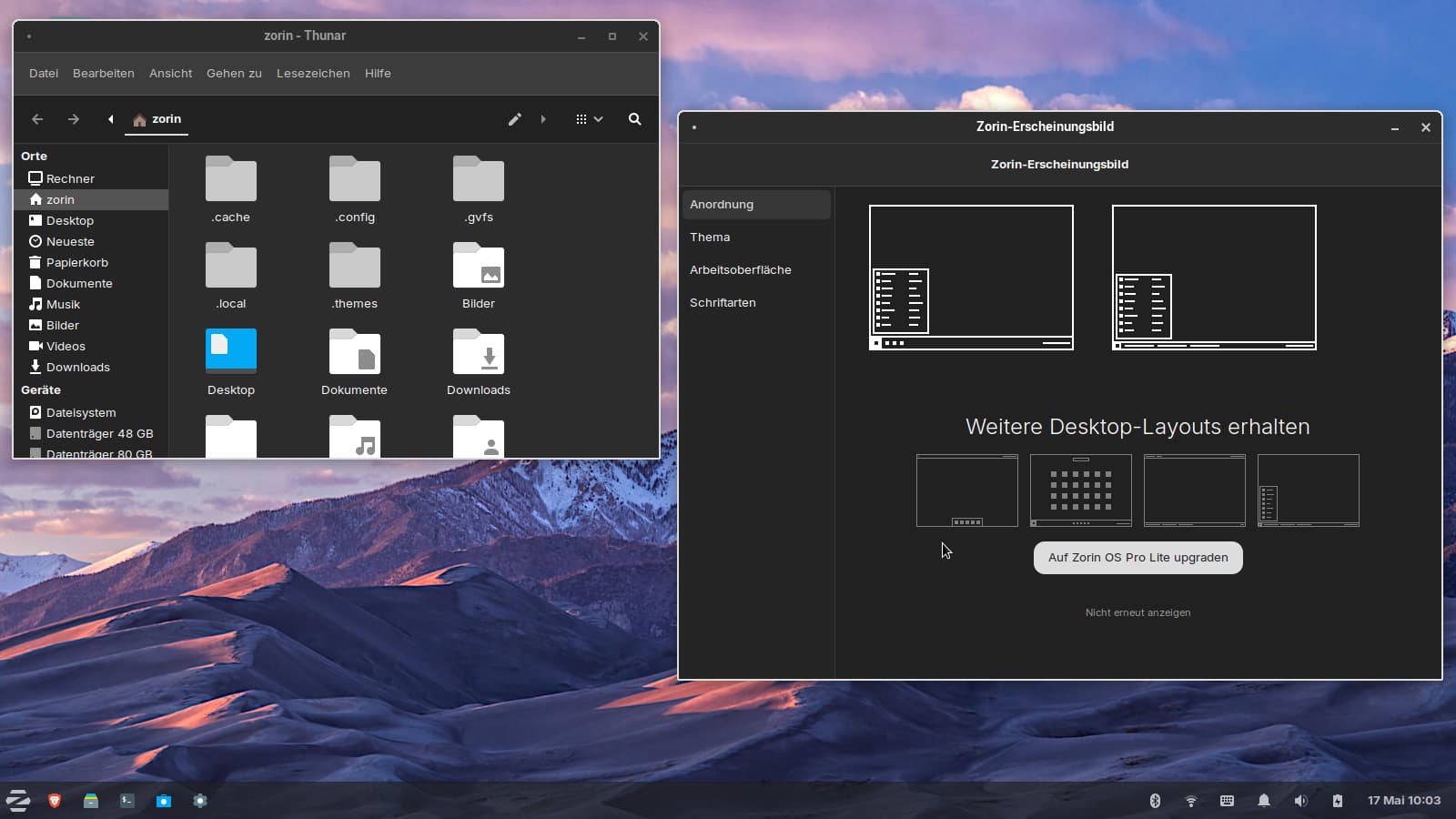

 launched from taskbar or start menu - but sometimes slower than usual.