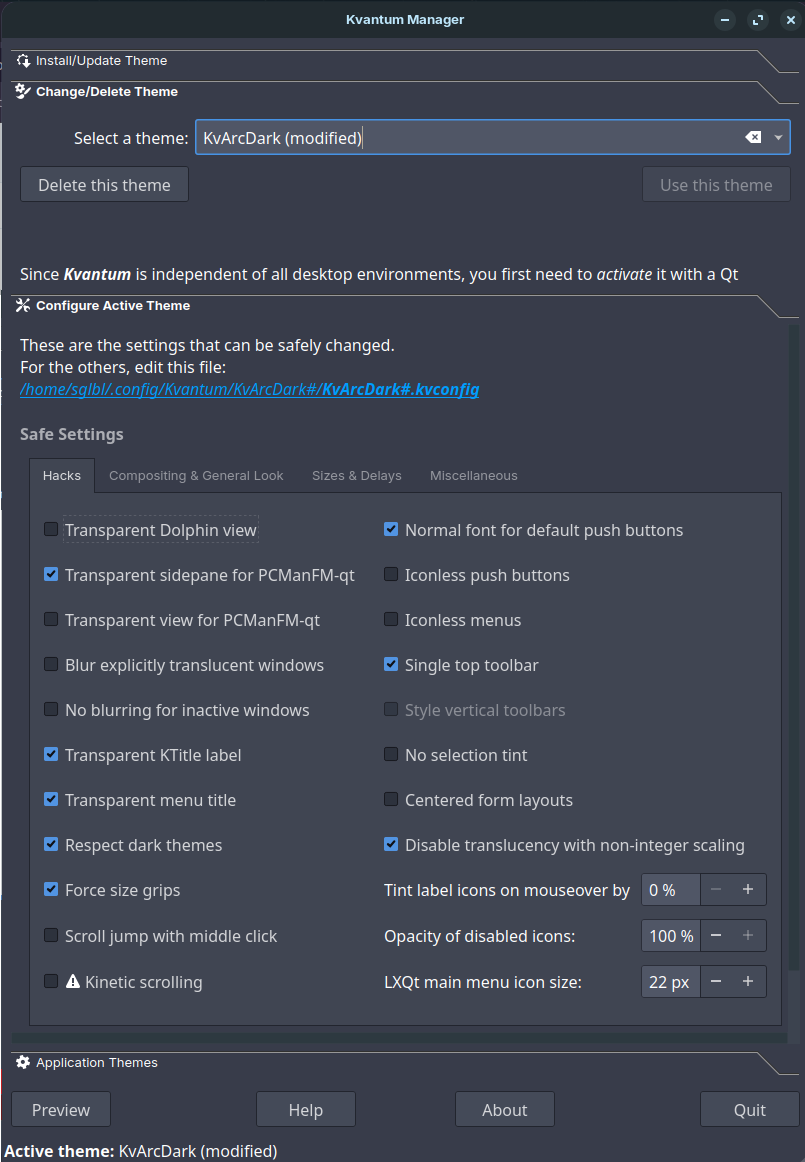
I use my customized theme with kvantum manager & arcdark theme.
If you want to try my solution:
1. Install Required Packages
sudo apt update
sudo apt install -y breeze-icon-theme qt5ct qt5-style-kvantum qt5-style-kvantum-themes
2. Set the Environment Variables Globally
To ensure apps launched from your application menu (not just the terminal) respect the custom theme, add QT_QPA_PLATFORMTHEME to /etc/environment.
echo "export QT_QPA_PLATFORMTHEME=qt5ct" | sudo tee -a /etc/environment
(You must log out and log back in for this variable to take effect).
3. Create a Custom Kvantum Theme based on ArcDark
Duplicate the ArcDark theme and inject Zorin's background color (#2D3940).
# Create custom Kvantum directory
mkdir -p ~/.config/Kvantum/KvArcDark#

# Copy the default KvArcDark theme to our custom folder
cp /usr/share/Kvantum/KvArcDark/KvArcDark.kvconfig ~/.config/Kvantum/KvArcDark#/KvArcDark#.kvconfig
cp /usr/share/Kvantum/KvArcDark/KvArcDark.svg ~/.config/Kvantum/KvArcDark#/KvArcDark#.svg

# Modify the base color to match Zorin Dark
sed -i 's/^base.color=.*/base.color=#2D3940/' ~/.config/Kvantum/KvArcDark#/KvArcDark#.kvconfig
4. Apply the Changes in the UI
-
Open Kvantum Manager from your App Menu.
-
Under "Change/Delete Theme", select KvArcDark# from the dropdown menu and click Use this theme
-
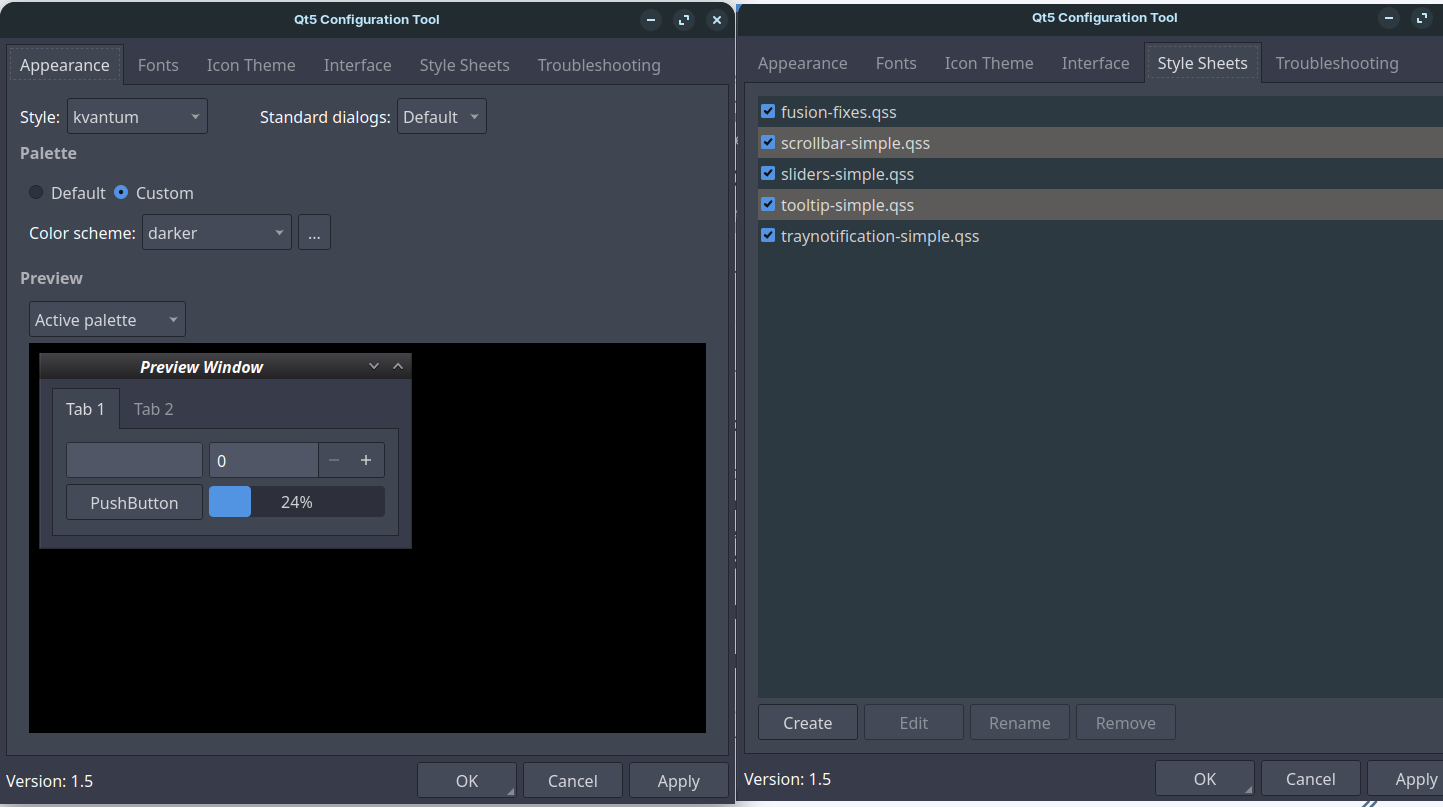
Now, open Qt5 Settings (
qt5ct) from your App Menu. -
In the Appearance tab, set these:
- Style to
kvantum. - Standard Dialogs to
default. - Palette to
custom - Color Scheme to
darker
- Style to
-
In the Style Sheets tab, activate all css files.
-
For icons, I used this script: gnulinux-config/home_icons/set_icons.sh at main · sglbl/gnulinux-config · GitHub
-
Click Apply and OK.
When you log out and log back in, Dolphin (and any other Qt application like copyq clipboard manager, kolourpaint) will have the same dark theme as Zorin OS.