Hi, I was wondering if it's possible to rename the terminal to "Command prompt" and the "Take a screenshot" to "Snipping tool" without the use of file editing through the terminal with an exception being commands or if there is an alternative way of doing it with GUI.
You can rename the terminal when you run the app alacarte (=main menu) and there go to system tools and select the terminal, then select properties. Then you can give a name you like.
It is not possible with the integrated screenshot tool because it is no separate app.
(You could install gnome-screenshot instead and set is as default application for screenshots. This could be renamed).
3 Likes
Hello,
Where you want your personal rename, in Zorin menu ?
Ok guide me step by step like you're talking to an idiot.
Ok I figured out how to go to Main Menu from trial and error and managed to change names of stuff. Now as for making gnome screenshot to the default, I haven't figured that one out....
If you like to take the screenshots with gnome-screenshot, you can e.g. create custom shortcut commands in the settings app at keyboard > shortcuts > custom shortcuts.
You can take a look at the normal keyboard shortcuts > screenshots what the names are there in your language,
You can name them as you like and then set this commands:
To take a screenshot interactive:
gnome-screenshot -i
To take a screenshot of the full screen:
gnome-screenshot
To take a screenshot of the active window:
gnome-screenshot -w
To take a screenshot of an area:
gnome-screenshot -a
You are prompted to enter the key/s you like to set. You can use the same which are shown as default for taking screenshots. Then the default keys are overwritten with your custom gnome-screenshot tool commands.
2 Likes
Ok I want to unbind the integrated snipping tool from Print screen, and then bind gnome screenshot to print screen.
1 Like
Create a new custom shortcut, set as name e.g.
Screenshot interactive
and as command
gnome-screenshot -i
then click on set keyboard shortcut and press the print key as key.
When you are asked, confirm that you want to replace the existing setting.
The screenshot tool which is launched via the quick settings of the taskbar, is not changed. So, if you want to use gnome-screenshot, launch it with your custom keyboard shortcut or via the start menu or app grid.
1 Like
Fixed it
Snipping Tool
gnome-screenshot -i
Print screen
Thanks a lot!
4 Likes
You might want to take a look at Ksnip - it uses Qt engine so not sure if it will look the same on GnomeDE which Zorin uses - it even mimics Snipping Tool with Icon and similar options:
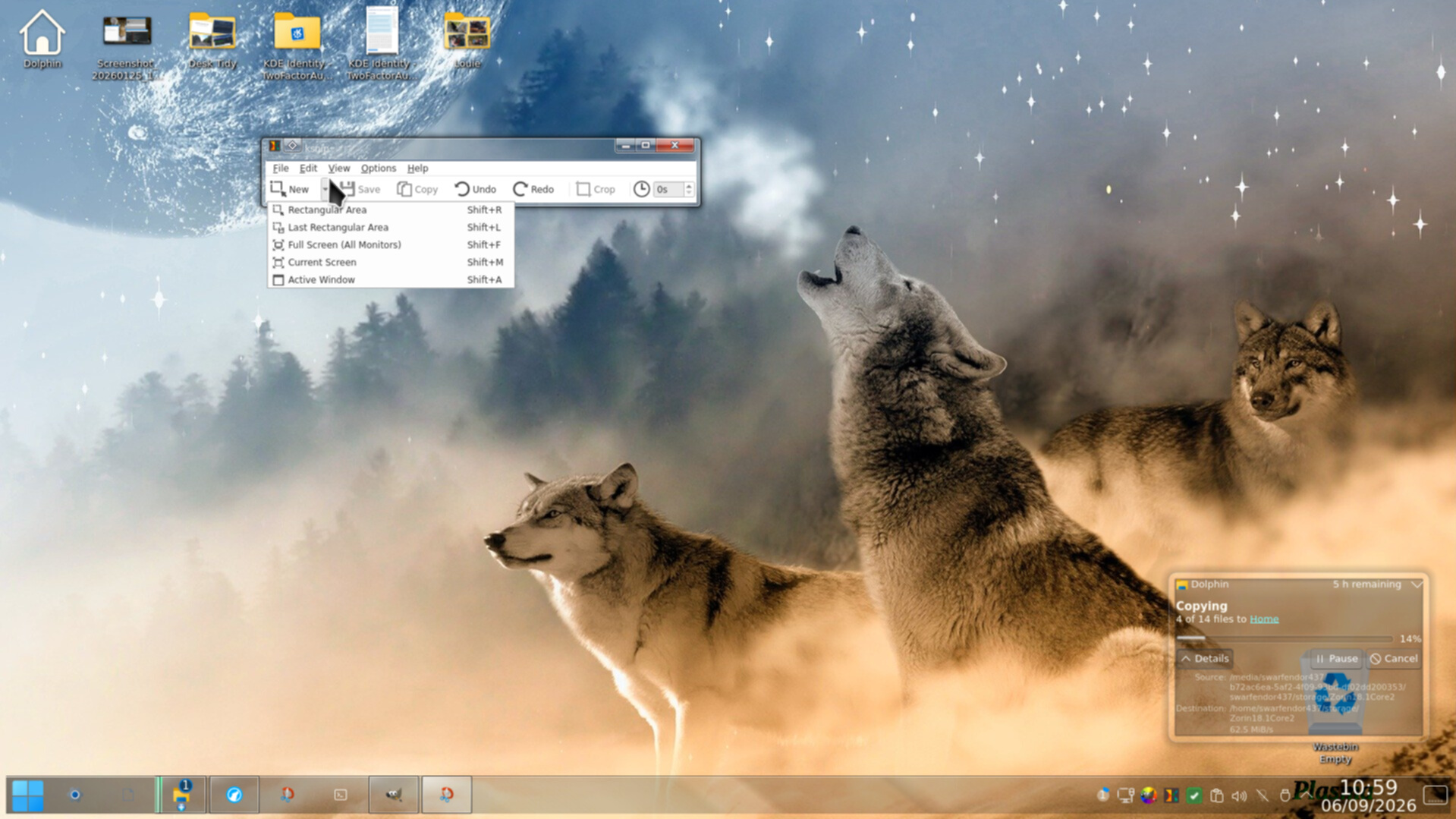
if you are really after a Windows 10 look then you might wish to consider installing 'kde-standard' as an option to login to on Zorin 18.1 Core. The hard way:
It also has a delayed timer which I don't think Snipping Tool has - useful if taking a screenshot with a menu open.
If you try other screenshot tools, it is the best to switch to Xorg before. Gnome-screenshot and the in Zorin integrated screenshot tool work fine in Xorg and Wayland, but other tools make problems in Wayland.
You can switch between Xorg and Wayland at loginscreen. Logout and at login click on your username, then a cog wheal appears at the bottom right corner. There you can switch between both.
1 Like
I haven't switched away from Xorg since the first time I was told on the forums "Try switching to Xorg, see if it fixes the random short freezing on your desktop"
Edit: Well no, that's a lie. Later down the line (as in as of late) I did try out Wayland again for a bit to see if it was something with just Xorg but no it was both desktop environments.