I don't know if something has got corrupted?
I set it up but now it wants me to go through the setup again.
I want to uninstall it and start from scratch but I don't see a uninstall option.
What is the terminal command I can use to uninstall it?
The other question would be, why did it not work the first time?
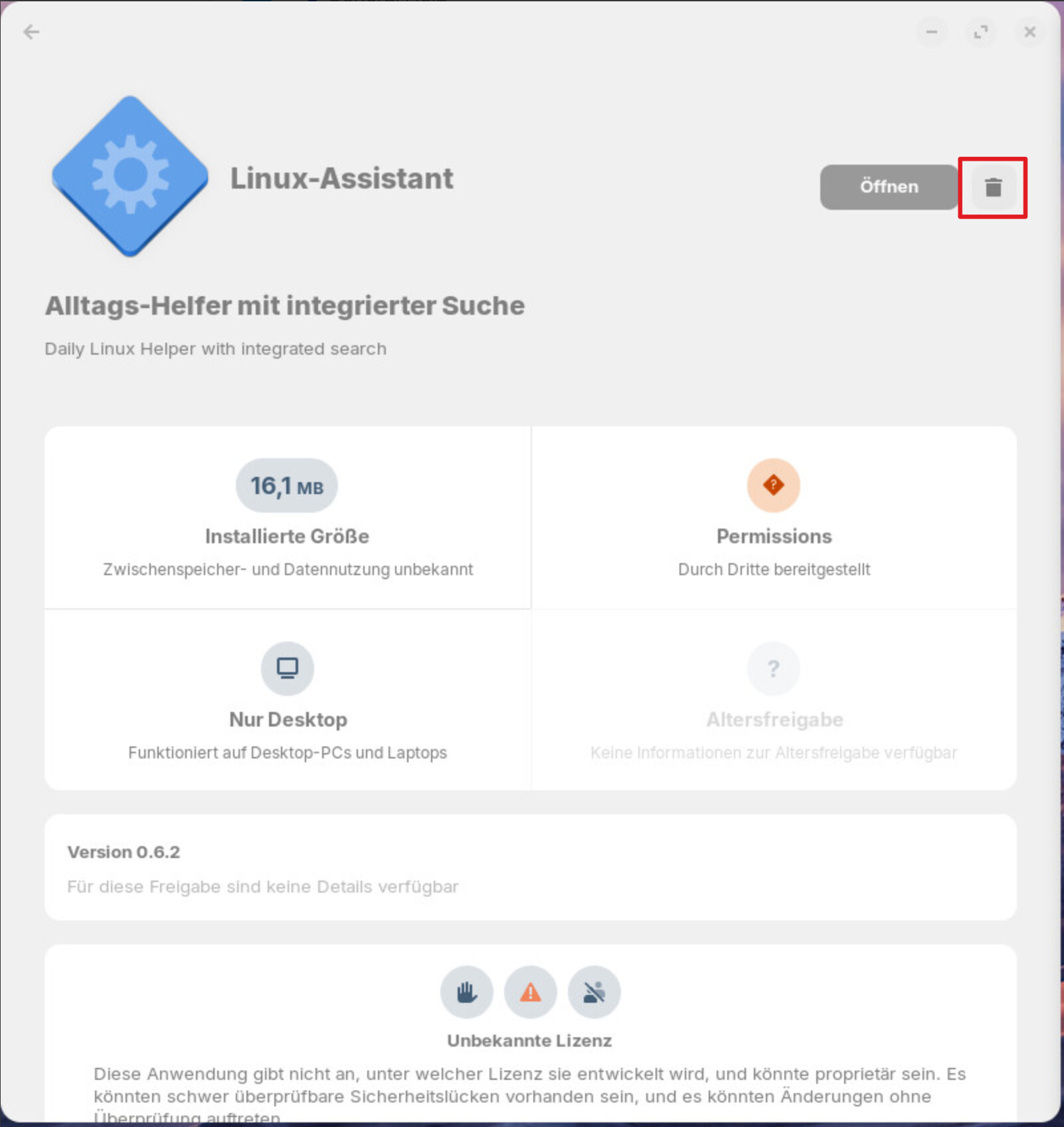
Do you have downloaded the .deb package? Then go to your Downloads folder and doubleclick on the .deb file of linuxassistent named "linux-assistent.deb". In the window whichs opens click on the trash to remove the app. I tested the installation of the app by downloading the .deb file from the webpage
https://www.linux-assistant.org/ , and it worked.
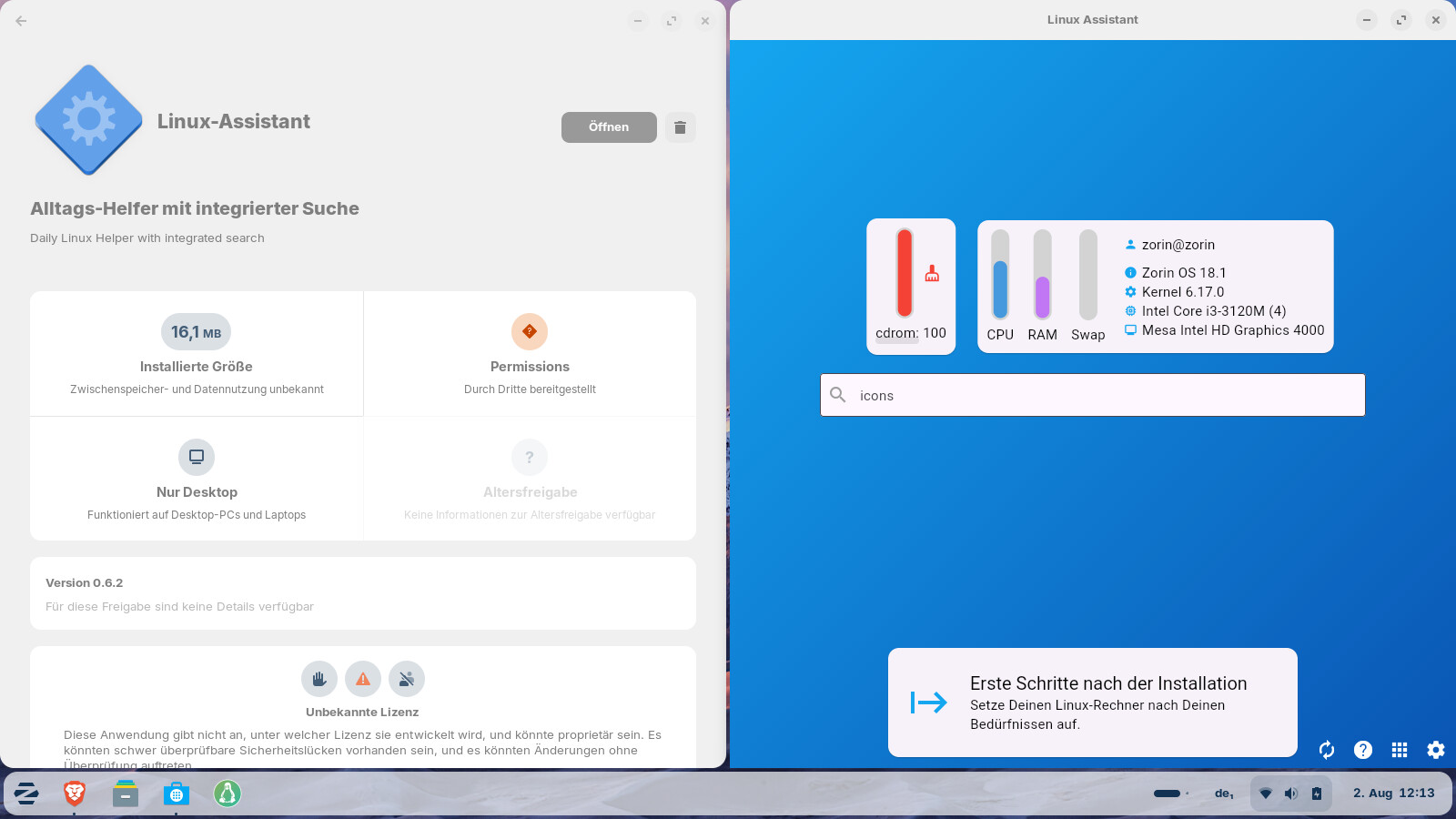
Or do you have installed it as flatpak? Flatpaks are usually shown in the software center after the installation, but .deb packages not.
But you can install/uninstall all .deb packages by double-clicking on the .deb file.
When You have downloaded the .deb File from the Website, You should be able to uninstall it with
sudo apt purge linux-assistant
I downloaded the flatpak.
Then try it with
flatpak uninstall --delete-data io.github.jean28518.Linux-Assistant
I'd recommend to try it with the .deb file instead. Flatpaks sometimes have problems with the permissions.
I noticed sometimes problems when launching the app (e.g. I selected the app in Zorin menu and it opened my minimized browser with the tab of the Zorin thread "Linux Assistant" instead;
I also had one time a display issue with the app window top bar not loaded correctly, corners missing).
I'm not entirely convinced yet that the app is that helpful. In this review are also mentioned bugs. But some features are really nice.
This is an app that will likely cause many other problems, since it essentially sets and overwrites settings, e.g. for timeshift, grub-menu and updates/ maintenance.
When you uninstall the app, the apps which are installed by the app Linux Assistant as e.g. "timeshift" or "system profiler and benchmark", are not removed. I'm not sure what's about the settings which have been made by the app. To me it seems as the commands are not undone then and the system reset as it was before the installation of the app.
I personally think the app is a bit dangerous for beginners because many commands are executed in the background, but it's not clear how to change or reset the settings once they've been set (e.g., unattended upgrades).
2 Likes
Dang i just found out about Linux Assistant, such a cool tool. I wish i had it 10 years ago  However, a brilliant tool for beginners to any distro.
2 Likes
flatpak uninstall --delete-data io.github.jean28518.Linux-Assistant
```did not workI'm wondering if it got installed in the first place.
I typed 'flatpak list' into terminal and I don't see it there.
It looks like it wasn't installed, even though I went through the setup.
There is no trash icon next to Linux Assistant. All I see is 'install' and 'flathub'. Is there a way of clearing any junk that must be still there during the install of Linux Assistant?
You could take a look at
~/.var/app/
(press ctrl+h to show the hidden files in your file manager)
to check if there is a folder of Linux Assistant. If you find one, delete it.
I'm not 100% sure what I'm doing.
~/.var/app/
Do I go to 'home' type ~/.var/app/
and then (press ctrl+h to show the hidden files in your file manager)
I did that but nothing showed.
I try the flatpak at the moment. Please wait a bit.
Yes, you can go to home in your file manager and then press ctrl+h. Then you see the .var folder and it that folder the app folder. When the flatpak of Linux Assistant is installed, you have a folder named "io.github.jean28518.Linux-Assistant" there.
If you don't have that folder, I think, the flatpak Linux Assistant is not installed. In my test on the live session, the configuration has worked, but I had disabled most of the offered things (and those ones which I had selected as brave-browser and libreoffice because they were preinstalled and I thought it wouldn't matter to set them as default, were installed anyway as flatpak (brave-browser) - grrr!
2 Likes
You could try the Program Flatsweep.

Or You try @Forpli's Description. When You open the File Manager it is by default in Your home Directory:
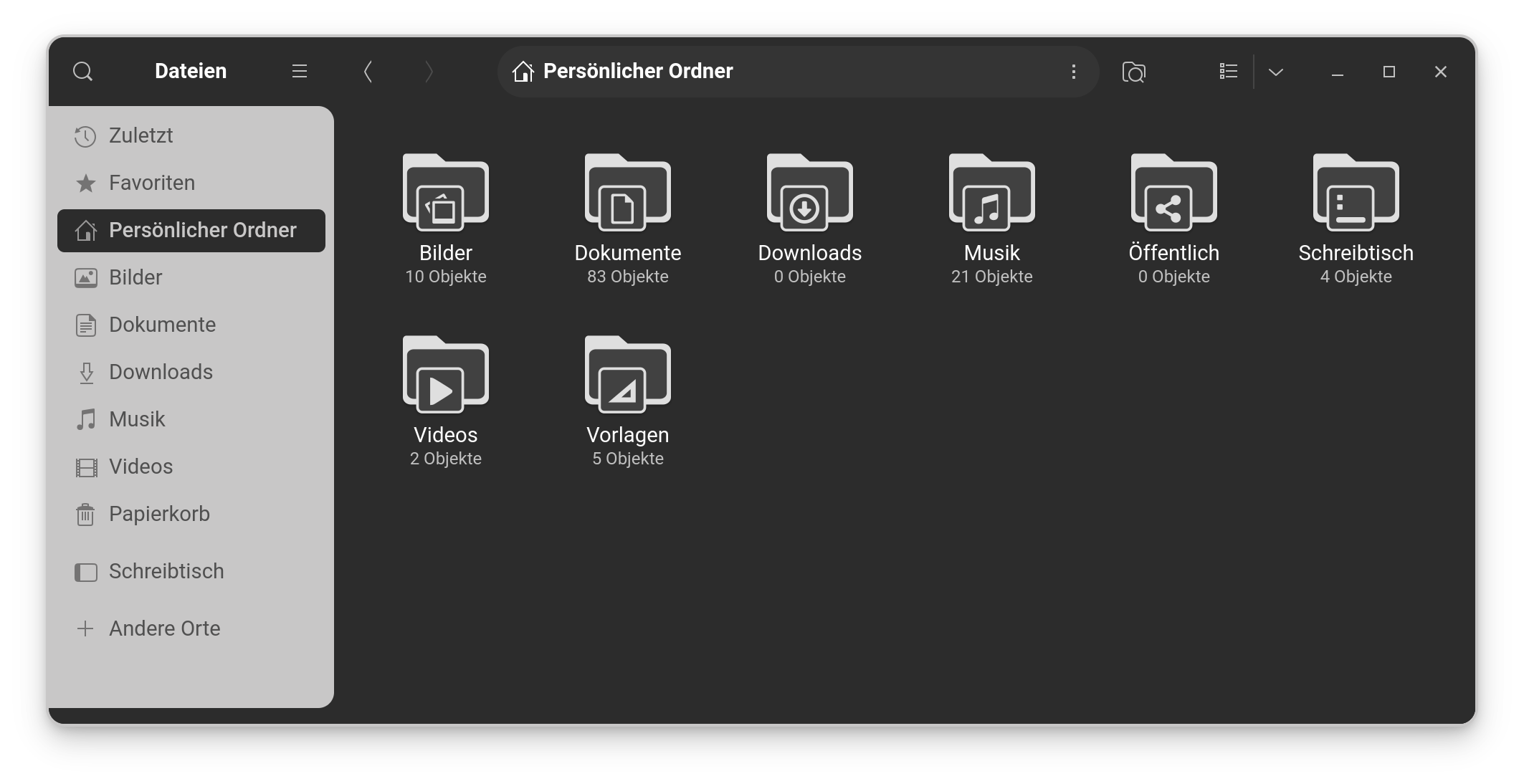
When You press ctrl+h, You get to see the hidden Files and Folders. They have a . at the Beginning of the File Name. And there is the .var Folder:
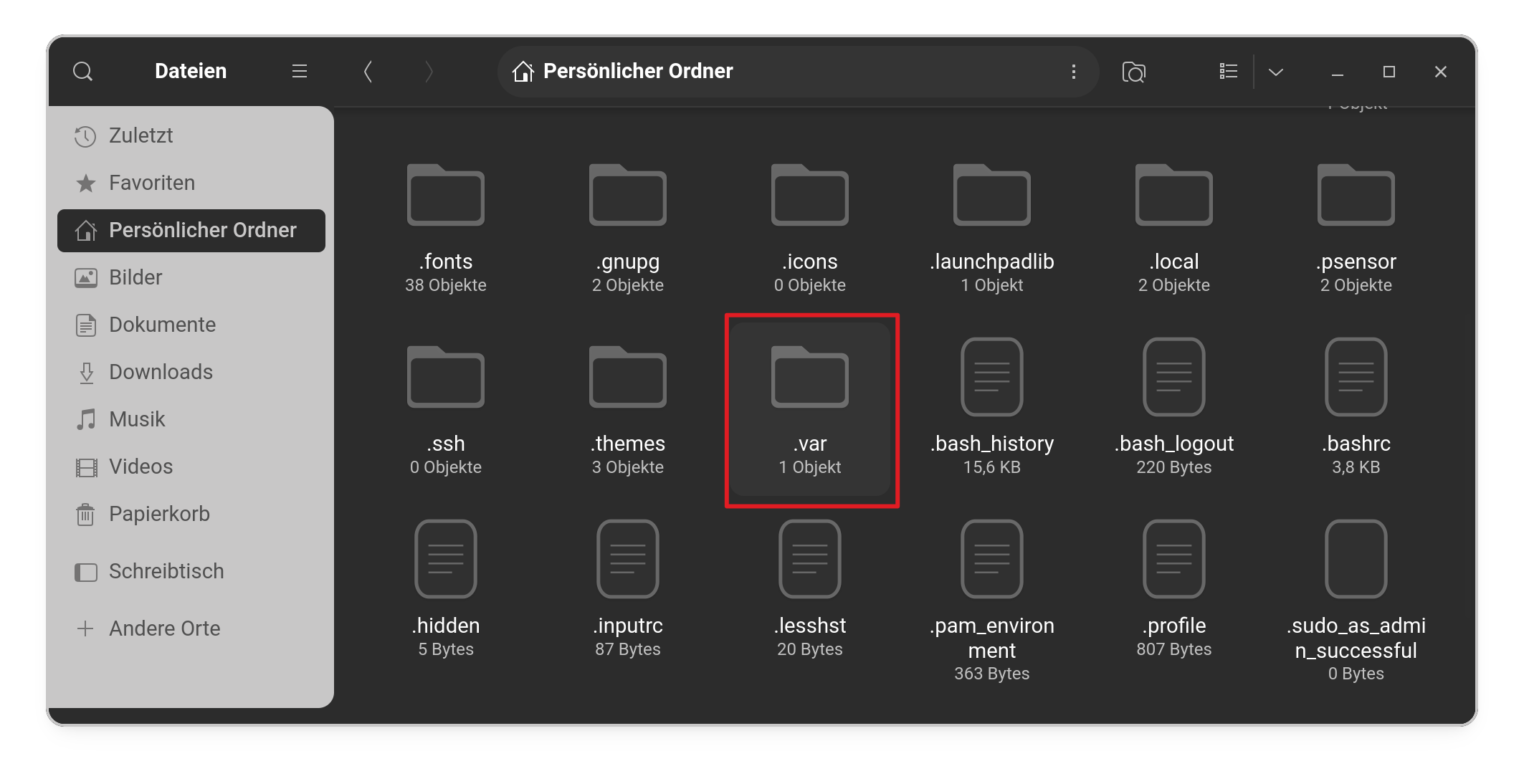
In this Folder is a Folder called apps:
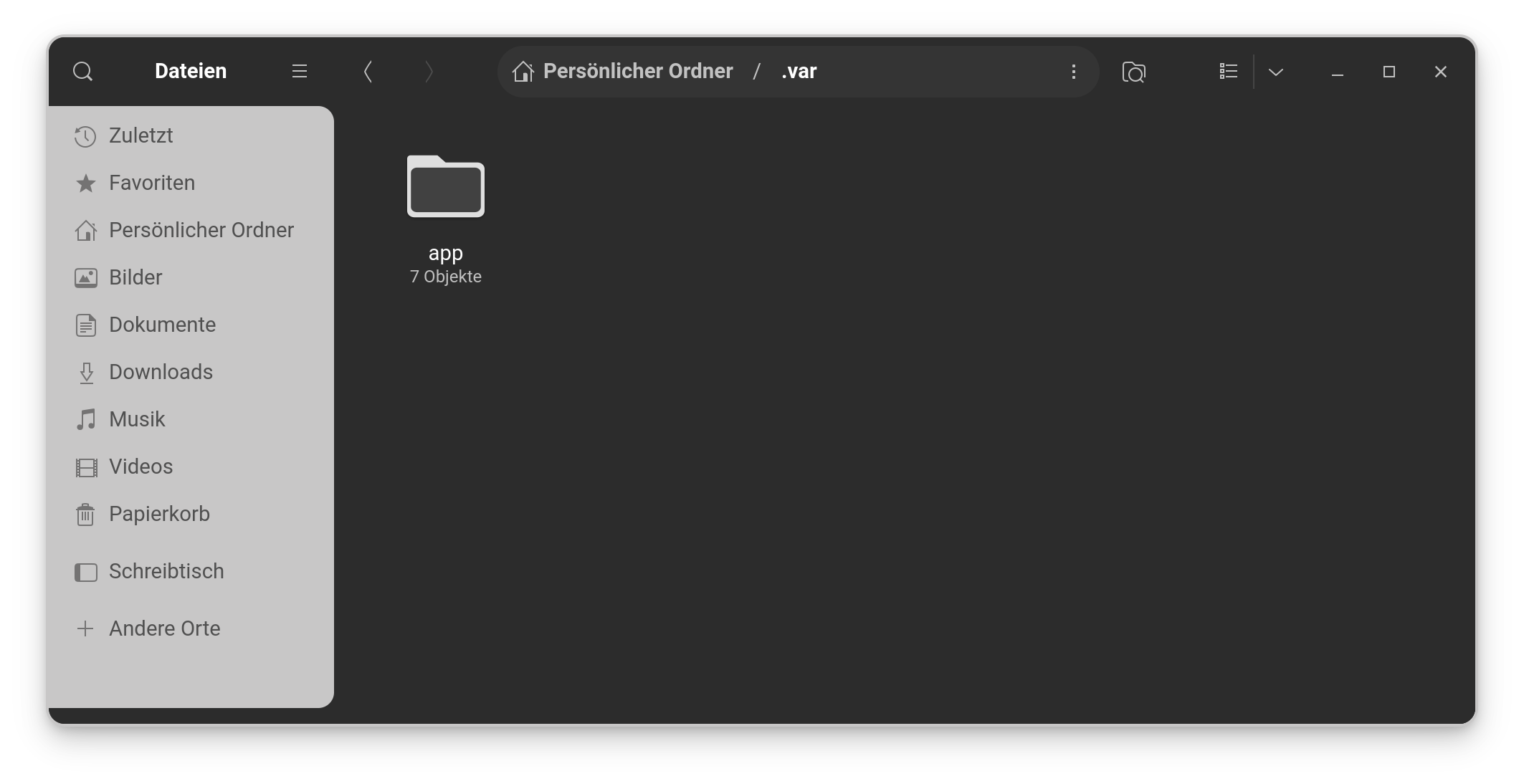
and in this Folder are the Flatpaks:
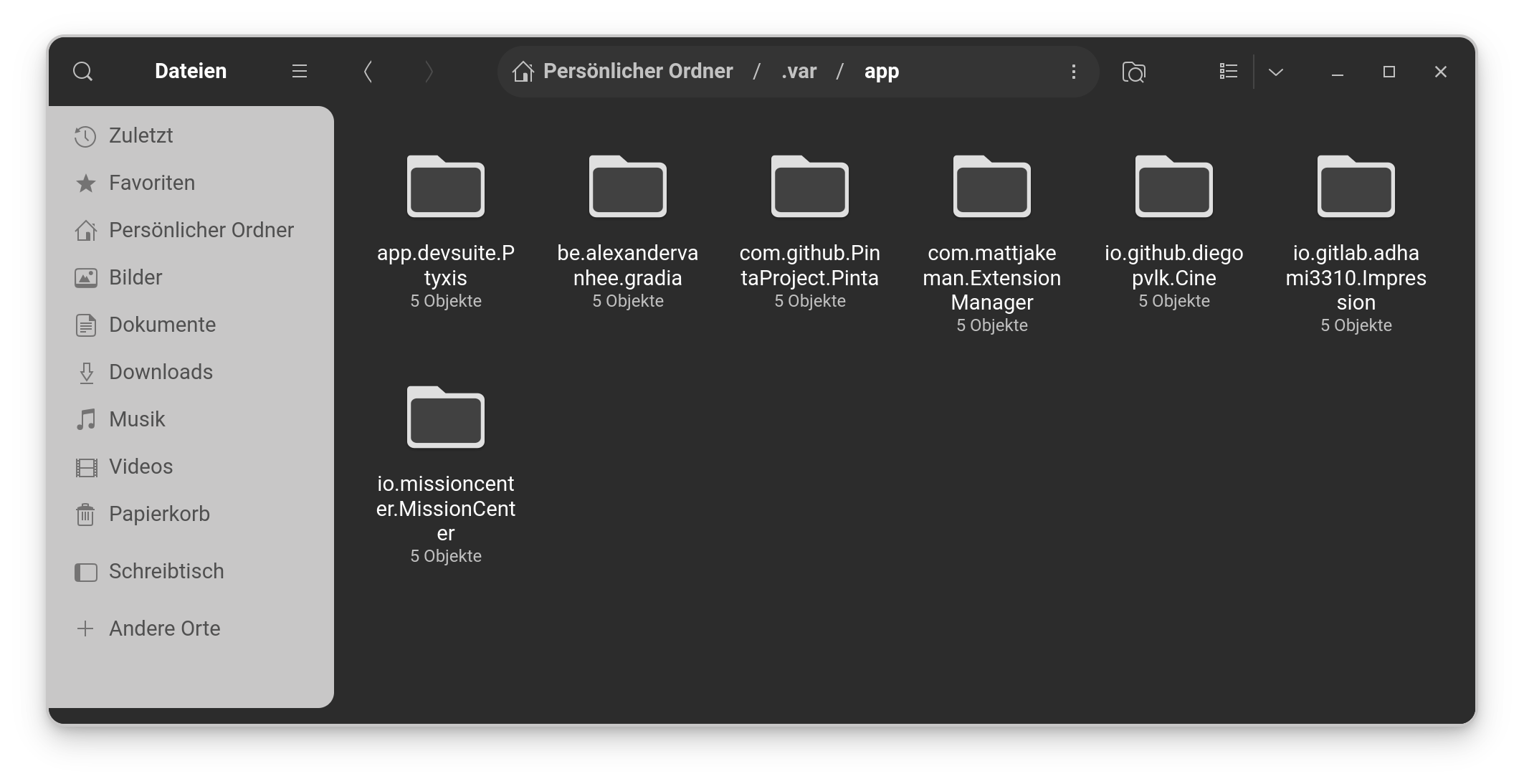
1 Like
It is completely empty, so it looks like Linux Assistant is not installed.
I did notice when clicking on 'all apps' Linux Assistant is still shown.
I can't remember if I have restarted the laptop since.
Should it disappear after a restart and if it doesn't is there a way of removing it from 'all apps'?
Rebbot is a good Idea. When it still should be there, maybe there is a .desktop Entry still existing. You could check ''Main Menu'' if there is an Entry and if yes delete it.
So it looks like it is not installed but how did this happen?
I installed the flatpak, set everything up, unless I had to click on 'save' and I forgot to do it?
Anyway, it looks like it is not installed, so that's one thing sorted.
Is it not at category system tools in main menu? On my system it was installed in this category.
Then take a look at /var/lib/flatpak/exports/share/applications if it is there.
You can remove the .desktop file with
sudo rm /var/lib/flatpak/exports/share/applications/io.github.jean28518.Linux-Assistant.desktop