Willkommen im Forum!
Um ehrlich zu sein, bin ich kein Freund von solchen Hau' ruck!-Aktionen, wo auf einmal alles schnell, schnell gehen soll. Aber ich versuch's mal einigermaßen grob abzudecken.
Erstmal wäre die Frage: Wollen Sie Windows direkt mit Zorin ersetzen oder es im Dual-Boot verwenden? Sie müssen nämlich Zorin (oder auch Linux Mint) nicht direkt installieren und Windows runterschmeißen. Das wäre zu klären.
Um jetzt einen Boot Stick zu erstellen, brauchen Sie einen USB Stick, das Zorin ISO und ein Programm zum Erstellen eines bootfähigen USB Sticks. Da Sie ja Windows haben, kann ich Rufus empfehlen. In Vorbereitung sollten Sie prüfen, ob Secure boot und Fast Boot im BIOS deaktiviert sind, ob ihr BIOS im UEFI der Legacy Mode aktiv ist (wird gleich noch wichtig) und in Windows Fast Start-Up deaktivieren. Und wenn Sie die Zorin ISO runtergeladen haben, vergessen Sie nicht die Checksumme zu verifizieren. Und was ein Back Up angeht: Natürlich legen Sie ein BackUp an. Wie Sie das machen, bleibt Ihnen überlassen. Aber bitte eines nicht vergessen: Wenn Sie ein BackUp-Program verwenden, muss es auch Linux kompatibel sein.
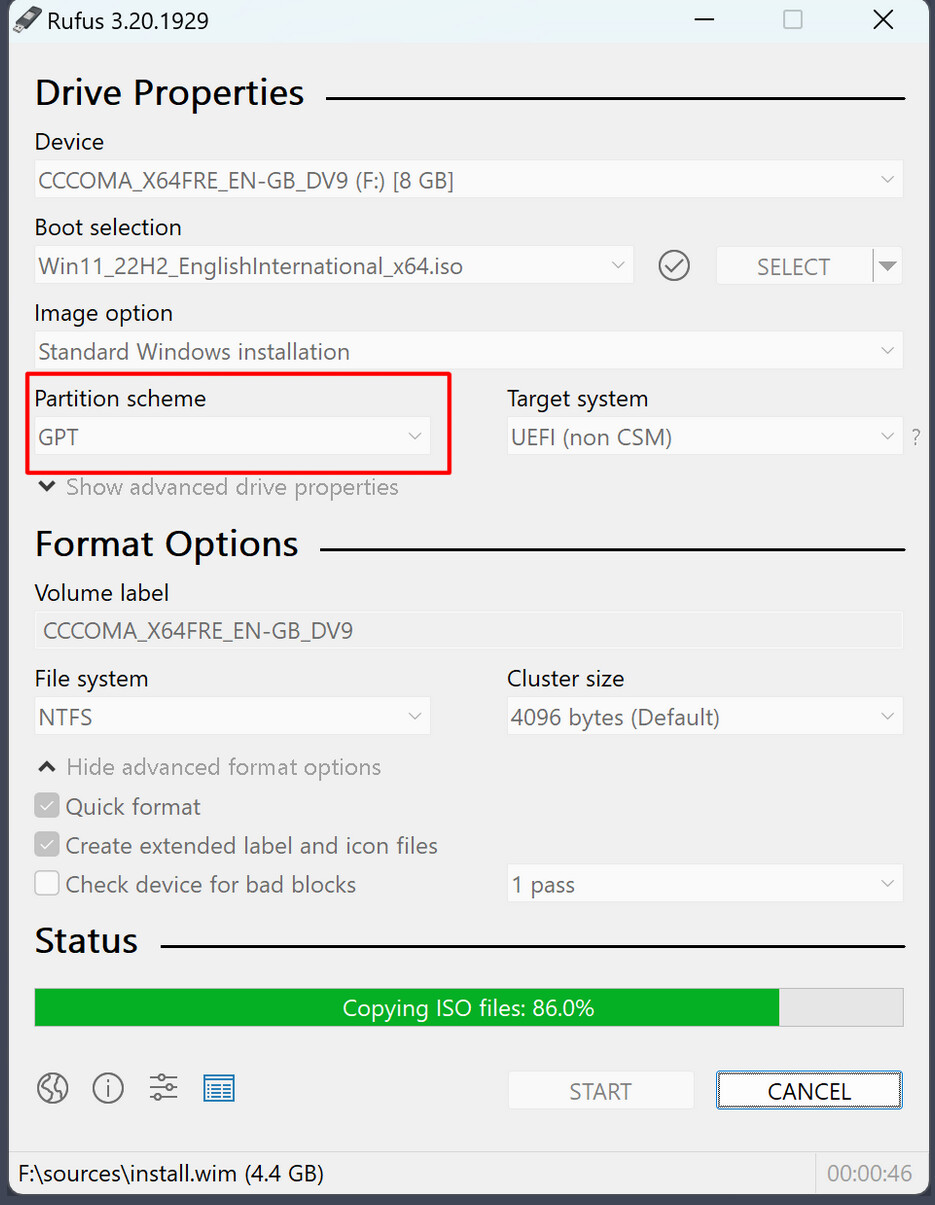
Wenn Sie nun den Bootstick mittels Rufus erstellen sollten, gibt es da etwas worauf Sie achten sollten: das Partitionsschema. Wenn Ihr BIOS in UEFI läuft, nehmen Sie GPT und wenn es in Legacy läauft, nutzen sie MBR. Die Option finden sie hier:
So, wenn Sie dann den Bootstick erstellt haben, starten Sie ihn. Sie haben dann 2 Möglichkeiten:
- Zorin ausprobieren
- Zorin installieren
Ich würde ja die erste Variante zum Test empfehlen; da sehen Sie, ob Ihre Hardware läuft, WLan funktioniert und ihr Drucker läuft. Wenn Sie es drauf ankommen lassen wollen, können Sie es natürlich auch direkt installieren. Und jetzt kommen wir zu dem Punkt zurück: Wollen Sie ein Dual-Boot System haben? Da Sie Windows installiert haben, sollten Sie solch einen Installationsbildschirm sehen:
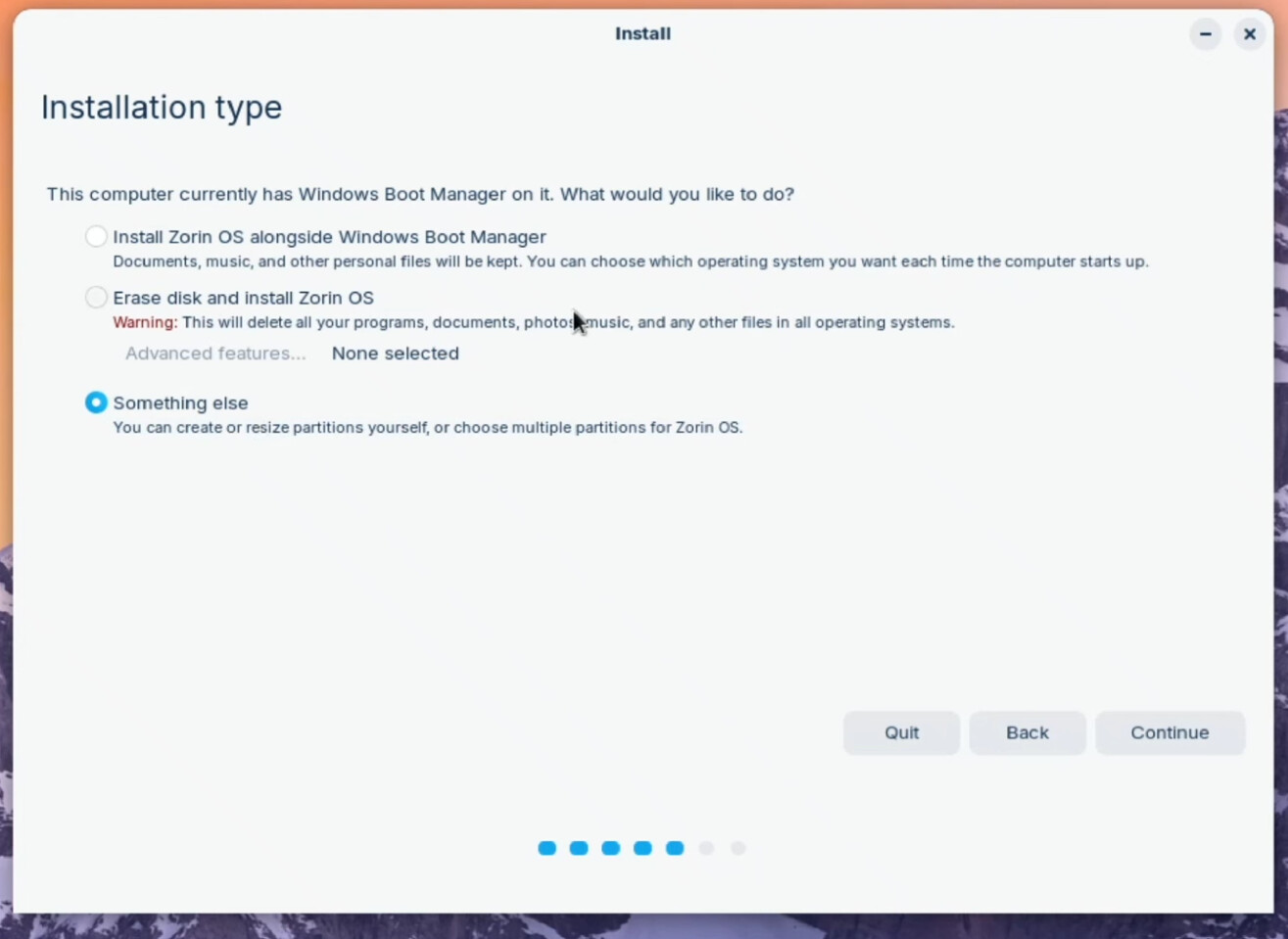
Vorausgesetzt, dass Sie nur eine Festplatte haben, sind nur die ersten beiden Optionen wichtig. Bei der ersten Option wird Zorin neben Windows installiert. Sie würden im nächsten Schritt auswählen wieviel Speicherplatz Sie für Windows verwenden wollen und den Rest macht der Installer. Wollen Sie Windows direkt ersetzen, wählen Sie die 2. Option. Diese löscht die Festplatte inkl. aller Daten und installiert Zorin. Ich würde auch empfehlen die Installation ohne Internetverbindung durchzuführen, um eventuell auftretende Probleme bei der Installation von Updates und Treiber aus dem Weg zu gehen.
Nach der Installation werden Sie zu einem Neustart aufgefordert. Danach kommt ein schwarzer Bildschirm, der sagt, dass Sie das Installationsmedium (also den USB Stick) entfernen und dann Enter drücken sollen. Erst jetzt entfernen sie den USB Stick, nicht früher!
Wenn Sie dann nachdem Neustart am Login Bildschirm ankommen, können Sie gleich noch etwas erledigen: sollten Sie eine Nvidia oder Intel Grafikkarte benutzen, wechseln Sie besser zu X11/Xorg. Clicken Sie dazu auf Ihr Profil, sodass das Passwortfeld erscheint; das muss erschienen sein! Wenn es erschienen ist, sollten Sie in der unteren rechten Ecke ein Zahnrad Icon sehen. Clicken Sie drauf und wählen Sie die Option ''Zorin Desktop on Xorg''. Und dann loggen Sie sich ein. Dann wäre das erledigt.
VLC können Sie auch in Zorin verwenden. Installieren Sie es einfach im Software Center oder - wenn Sie es mal probieren wollen - im Terminal mit dem Befehl sudo apt install vlc und als Browser ist Brave vorinstalliert; das ist auch ein Chromium-basierter Browser. Den könnten sie als Alternative nutzen oder sich Chrome installieren. Für Bildbearbeitung gibt es Gimp oder Inkscape falls Sie das mal probieren wollen. Als Office Paket ist LibreOffice vorinstalliert. Wenn sie aber unbedingt Ihre Windows Software weiter nutzen wollen, können Sie das auch tun. dazu können Sie den Windows App Support von Zorin installieren. Bei Ihrem Drucker müssten sie sehen, ob der durch das System unterstützt wird oder ob sie vom Hersteller Linux-kompatible Treiber bekommen können.
Noch ein Hinweis zur Installation von Software: Bei Zorin gibt es 4 Paketformate für Programme:
-
APT (.deb)
Das ist das so genannte native Paketformat. Damit sollte es am wenigsten Probleme geben. Die Vesionen sind meist nicht auf dem neusten Stand (bekommen aber natürlich Sicherheits-Updates), aber sollten stabil laufen. -
Flatpak
Das ist eine weiter Möglichkeit Programme zu installieren. Der Unterschied ist, dass diese isoliert laufen; sie haben nur beschränkten Zugriff auf das System. Das ist ein sicherheitsaspekt, kann aber auch zu Problemen führen, wenn nötige Zugriffe nicht erfolgen können. Das müsste man nachträglich einstellen. -
Snap
Das ist auch ein isoliertes Modell - das kommt allerdings von Canonical, den Entwicklern von Ubuntu (der Basis von Zorin OS). Das unterliegt denselben Beschränkungen wie Flatpak. Außerdem kann es Performance-Probleme mit den Programmen geben - kann, nicht muss.
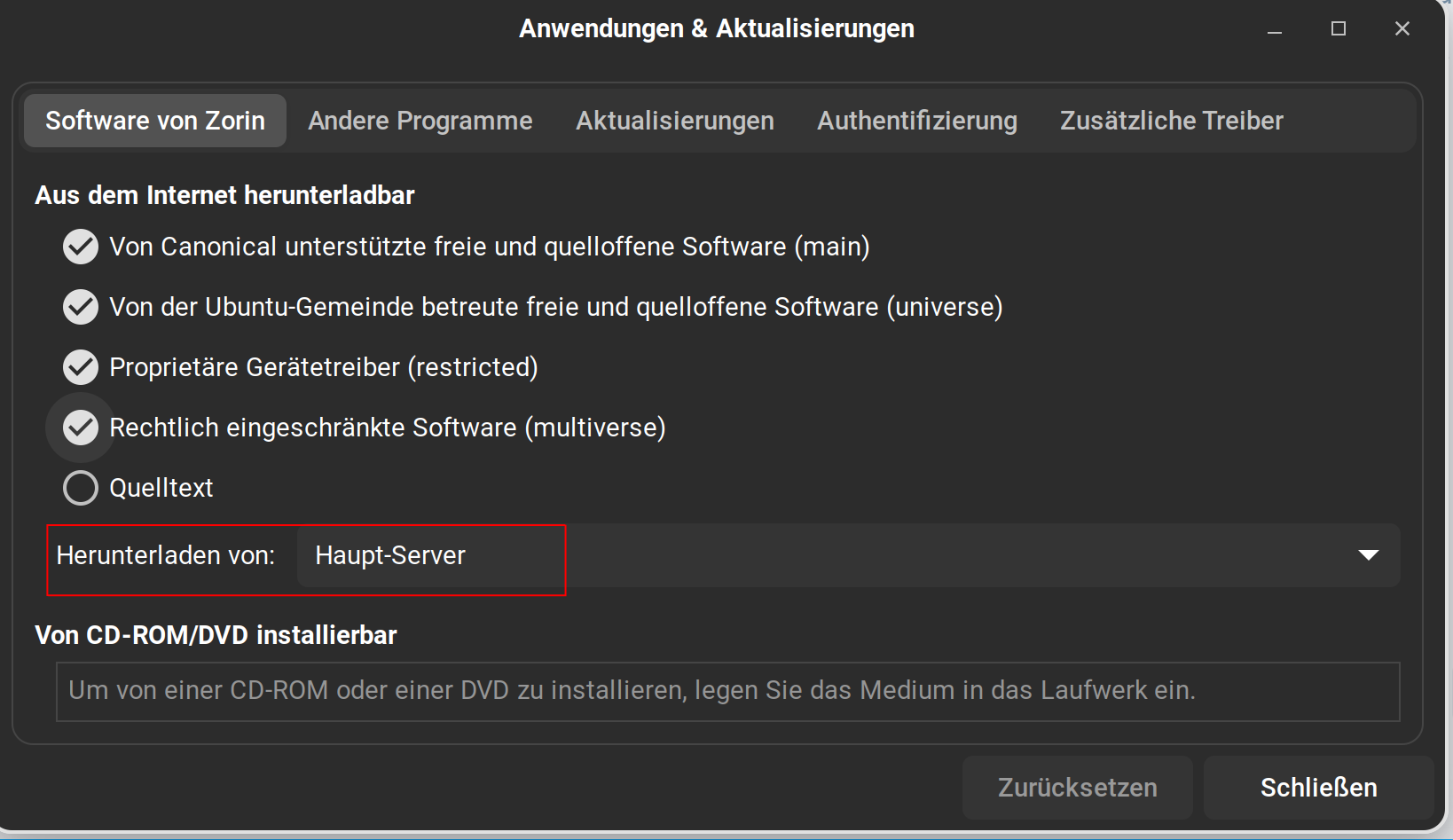
Nach der Installation sollten Sie das System aktualisieren. Wenn sie sich für ein Dual-Boot system entschieden haben, müssten Sie noch die Zeit mit Windows synchronisieren. In ''Anwendungen & Aktualisierungen'' sollten Sie im ersten Tab ''Software von Zorin'' als Quelle ''Hauptserver'' wählen:
Beim Tab ''Zusätzliche Treiber'' können Sie nach Treibern schauen, bspw. für eine vorhandene Nvidia Grafikkarte.
Um abschließend noch eines zusagen: Linux ist nicht Windows. Man kann durch das Layout und graphische Benutzeroberflächen den Umstieg erleichtern, ja. Aber es ist nunmal ein anderes System. Und da werden Dinge anders gemacht. Da muss man sich drauf einlassen und sich dran gewöhnen. Das braucht etwas Zeit und Eingewöhnung.
EDIT: Forgot to translate. Here in English:
Welcome to the forum!
To be honest, I'm not a fan of this kind of “quick and dirty” approach, where everything has to be done quickly. But I'll try to give you a rough idea.
First of all, the question is: Do you want to replace Windows directly with Zorin or use it in a dual boot? You don't have to install Zorin (or even Linux Mint) directly and then throw Windows down. This needs to be clarified.
To create a boot stick now, you need a USB stick, the Zorin ISO and a program to create a bootable USB stick. Since you have Windows, I can recommend Rufus. In preparation, you should check whether Secure boot and Fast Boot are deactivated in the BIOS, whether your BIOS is set to Legacy Mode in the UEFI (this will be important in a moment) and deactivate Fast Start-Up in Windows. And if you have downloaded the Zorin ISO, don't forget to verify the checksum. And as far as a backup is concerned: Of course you create a backup. How you do this is up to you. But please don't forget one thing: If you use a backup program, it must also be Linux compatible.
If you should now create the boot stick using Rufus, there is something you should pay attention to: the partition scheme. If your BIOS runs in UEFI, use GPT and if it runs in legacy, use MBR. You can find the option here:
[See Picture above]
Once you have created the boot stick, start it. You then have 2 options:
- Try out Zorin
- Install Zorin
I would recommend the first option as a test; you can see whether your hardware is running, WLAN is working and your printer is working. If you want to take your chances, you can of course also install it directly. And now we come back to the point: Do you want to have a dual-boot system? Since you have Windows installed, you should see such an installation screen:
[See Picture above]
Provided that you only have one hard disk, only the first two options are important. With the first option, Zorin will be installed alongside Windows. In the next step you would select how much disk space you want to use for Windows and the installer will do the rest. If you want to replace Windows directly, select the 2nd option. This deletes the hard disk including all data and installs Zorin. I would also recommend carrying out the installation without an Internet connection to avoid any problems that may occur when installing updates and drivers.
After the installation, you will be prompted to restart. You will then see a black screen telling you to remove the installation medium (i.e. the USB stick) and then press Enter. Only now do you remove the USB stick, not before!
When you arrive at the login screen after restarting, you can do something else right away: if you are using an Nvidia or Intel graphics card, it is better to switch to X11/Xorg. Click on your profile so that the password field appears; it must have appeared! When it has appeared, you should see a cogwheel icon in the bottom right corner. Click on it and select the option ‘'Zorin Desktop on Xorg’'. And then log in. Then that's it.
You can also use VLC in Zorin. Simply install it in the Software Center or - if you want to give it a try - in the terminal with the command sudo apt install vlc and Brave is pre-installed as a browser; this is also a Chromium-based browser. You could use this as an alternative or install Chrome. For image editing there is Gimp or Inkscape if you want to try that. LibreOffice is pre-installed as an office package. However, if you absolutely want to continue using your Windows software, you can also do this by installing the Windows App Support from Zorin. For your printer, you should check whether it is supported by the system or whether you can get Linux-compatible drivers from the manufacturer.
Another note on installing software: Zorin has 4 package formats for programs:
-
APT (.deb)
This is the so-called native package format. This should cause the fewest problems. The versions are usually not up to date (but of course get security updates), but should run stably. -
Flatpak
This is another option for installing programs. The difference is that they run in isolation; they only have limited access to the system. This is a security aspect, but can also lead to problems if the necessary access cannot take place. This would have to be set subsequently. -
Snap
This is also an isolated model - but it comes from Canonical, the developers of Ubuntu (the basis of Zorin OS). It is subject to the same restrictions as Flatpak. There may also be performance problems with the programs - may or may not.
After installation, you should update the system. If you have opted for a dual-boot system, you still need to synchronize the time with Windows. In ‘'Applications & Updates’' you should select ‘'Main server’' as the source in the first tab ‘'Software from Zorin’':
[See Picture above]
Under the ‘'Additional drivers’' tab, you can look for drivers, e.g. for an existing Nvidia graphics card.
To conclude: Linux is not Windows. The layout and graphical user interfaces can make the transition easier, yes. But it is a different system. And things are done differently. You have to get involved and get used to it. That takes some time and getting used to.