I have a few internal drives, and when I boot Zorin, some of them are mounted, and one specific one isn't mounted, and due to lack of knowledge, I have a round-about way to get the drive mounted so I can access it.
I suspect there is a better way to do this, and hoping that someone can help me set it up.
Here's what I'm currently doing (feel free to laugh at me):
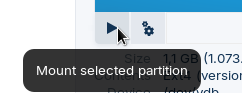
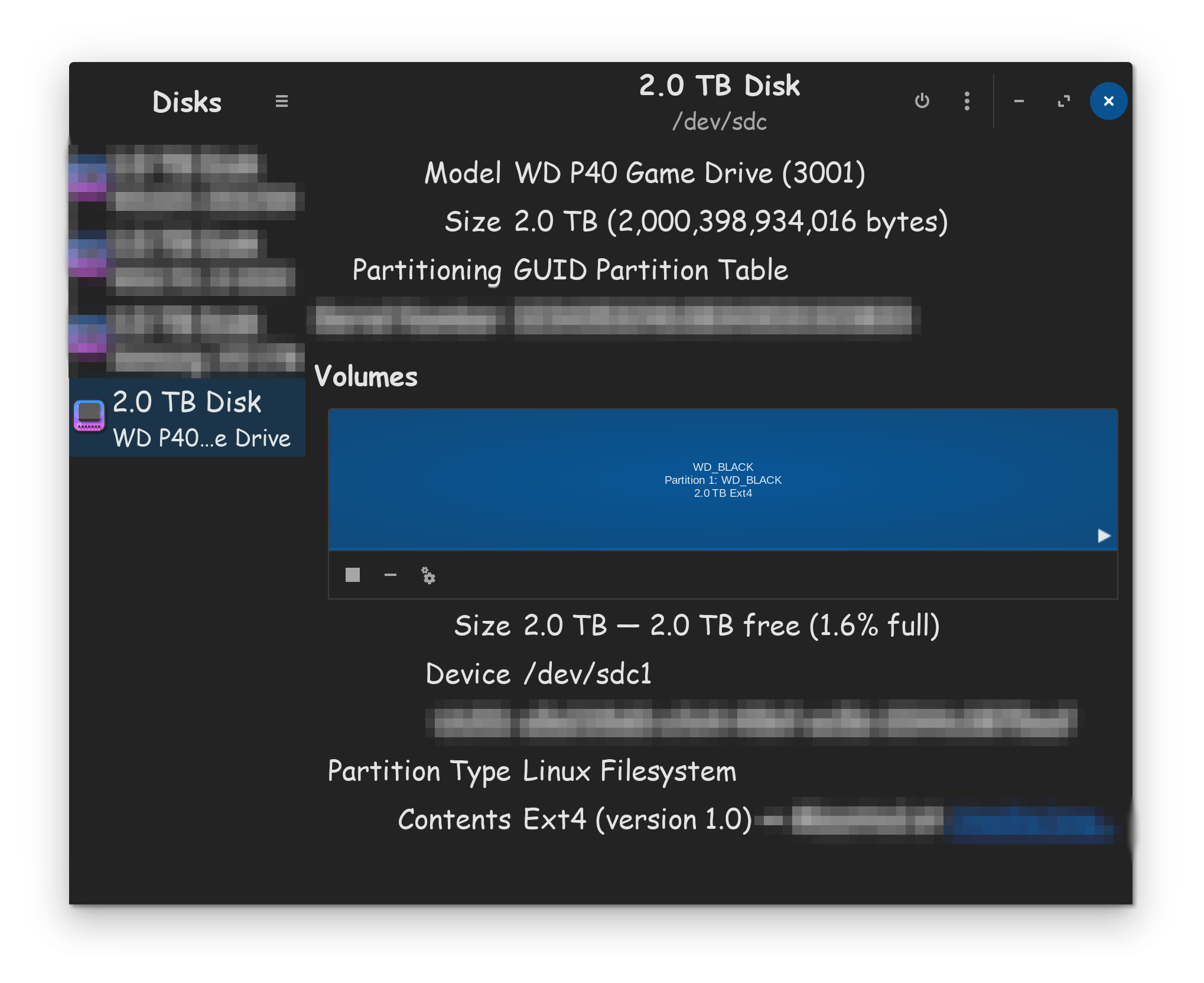
To mount the drive manually you can go into Disks, select the drive, and then click on the little "play" icon:
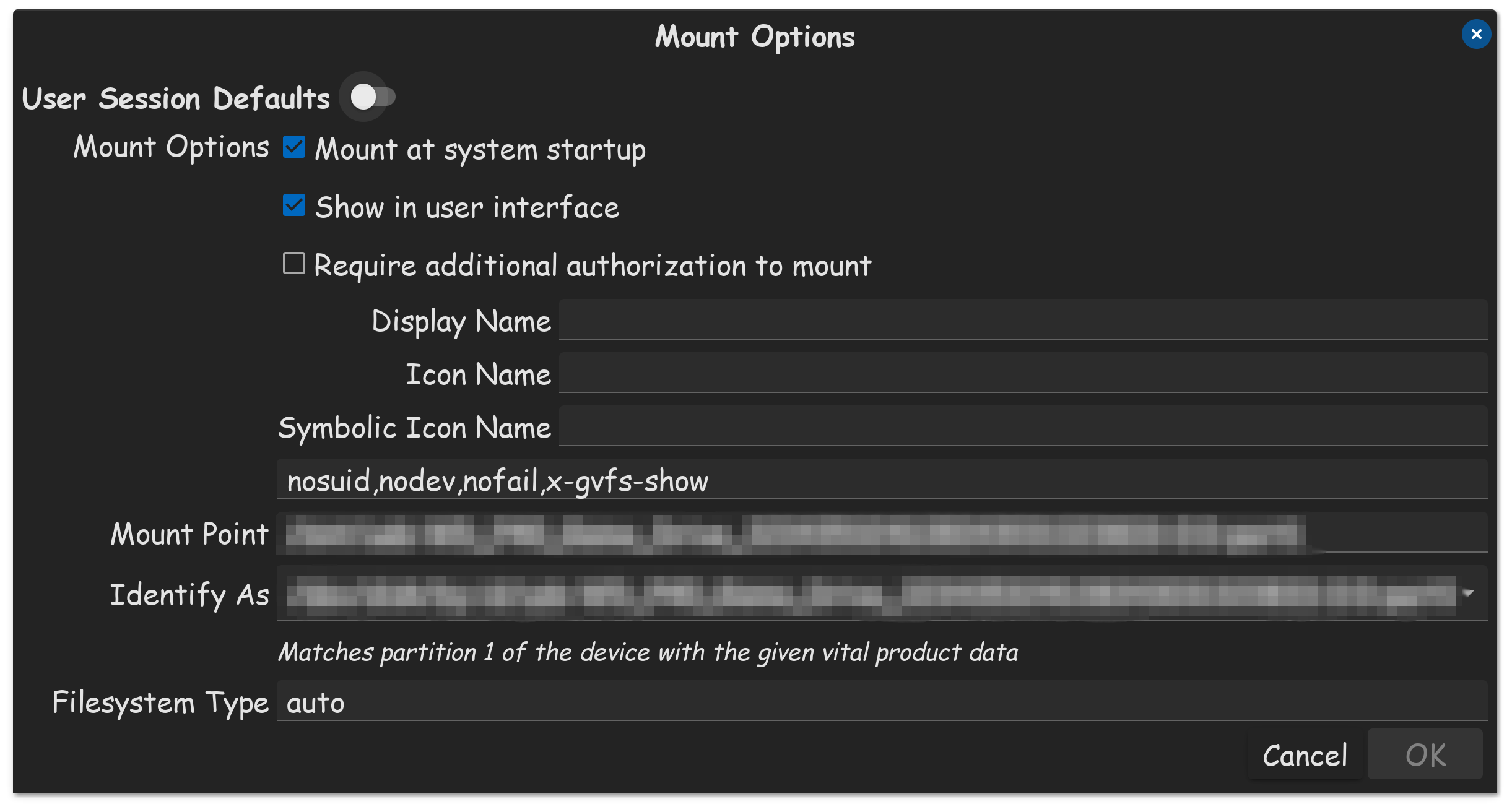
While you're here, click the other button and select "Edit Mount Options", where you have a toggle to mount the drive on boot.
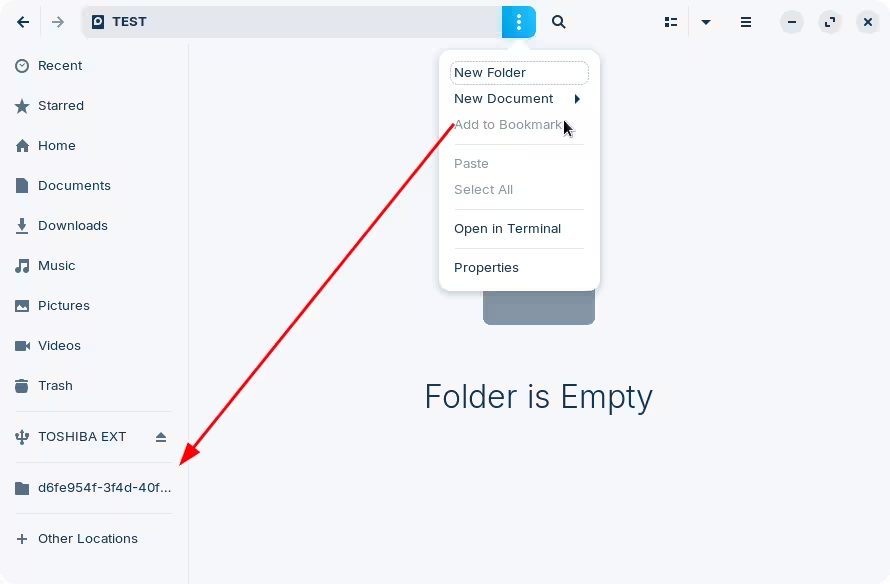
Unfortunately, however, the default file manager will not show an entry on the sidebar for any internal drives. Only those that can be "ejected", like SD Cards or USB drives. I believe newer versions will address this but we'll have to wait and see.
In the meantime, you have two options:
Mount the drive, access its contents through the file manager and create a bookmark which will be visible in the sidebar.
Here you can see that there's a difference between the external drive that I have plugged in, and this bookmark. It should also be obvious that this bookmark has a randomly generated name... that's for another reason that we can tackle later if you want, as it requires jumping through a couple of hoops.
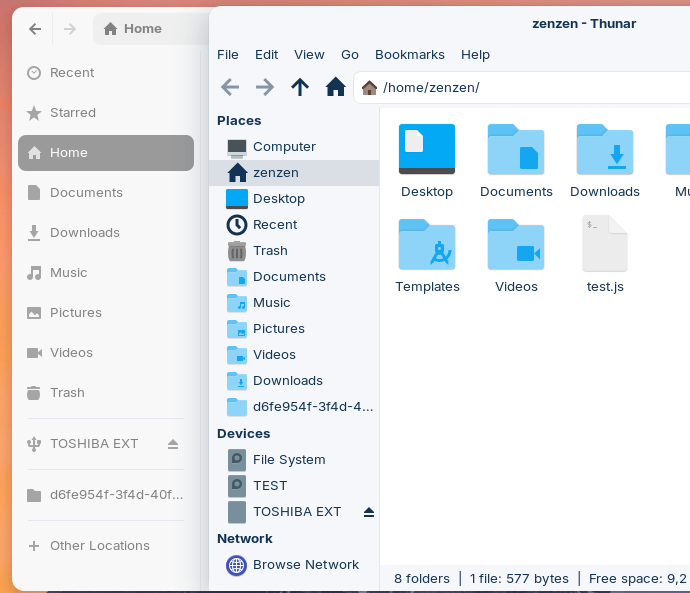
Install another file manager. Thunar or Nemo are good options, where the drive will show on the sidebar even if it's an internal drive:
Here you can see side by side how it looks in Thunar right out of the box, including the correct name of my internal drive, which I've called TEST, instead of the random string.
Thanks! For me this worked. The drive was already mounted, but by another user (root maybe?). So I unmounted it (clicking the square icon on the disk manager), and then the play button to mount it again, and mounted it under my user account.