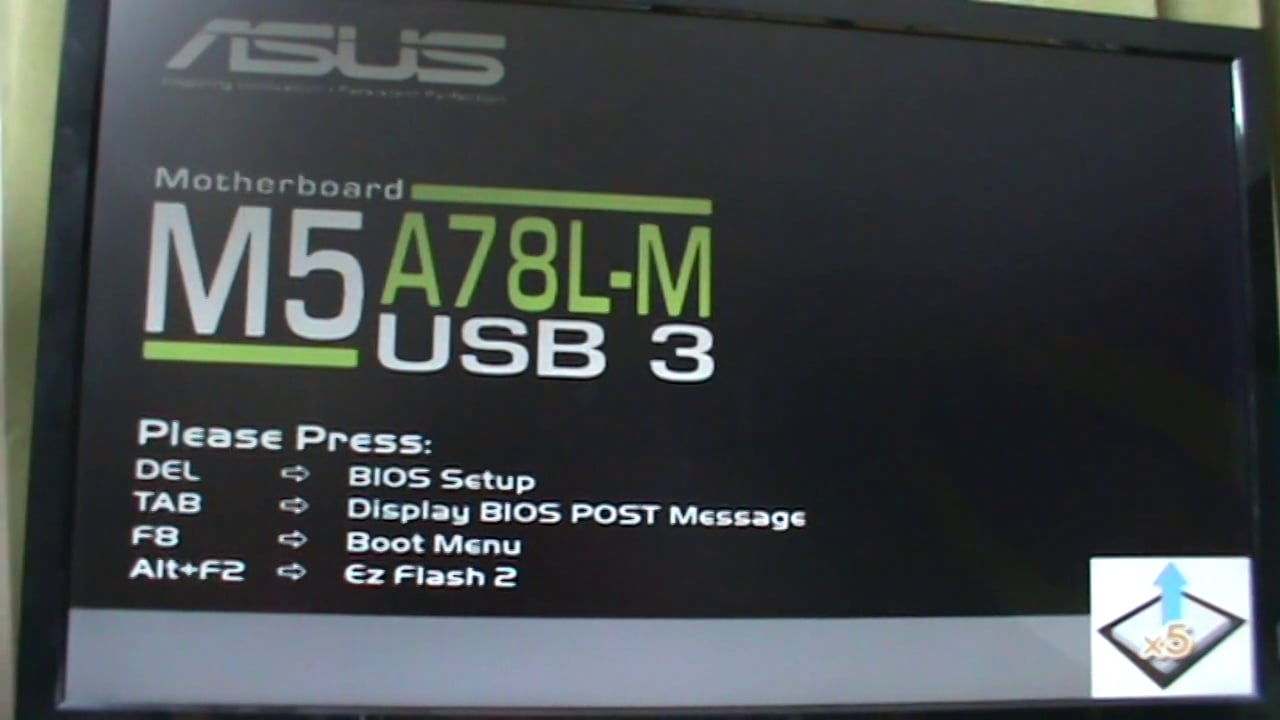
Ah, interesting. So, Your BIOS is indeed in Legacy Mode and You need MBR Sheme for the Bootstick. But interesting that Your Drive has a GPT Sheme.
From personal experience I have found Ventoy to be good for installs. I would advise using the something else method and use Gparted to create the partitions. You could try this:
-
Create a /boot partition formatted to FAT32 o 286.102294922 MiB (= 300 Mb (MiB = MebiBytes, Linux does not use MegaBytes)
-
Create a Primary partition formatted to Ext4 FS of 80 Gb and label it (GB to MiB Conversion Gigabyte to Mebibyte Calculator)
-
Create an extended partition to the right of '/'. At the END of the extended partition create a 'swap' partition = to double the amount of your physical RAM (in Mib). You don't need to specify FS as GParted does this automatically.
-
Everything to the left of your swap area create '/home' partition formatted to Ext4 FS.
Ok... Is Gparted something in Linux? Do I boot the demo from the USB, then do these things to the hard drive? Or do I do this in windows?
You should be able to run Gparted from your ZorinOS boot USB.
As it has been revealed that your BIOS is Legacy mode, do check that your ZorinOS boot USB is prepared for Legacy MBR (not GPT) as mentioned by Ponce-De-Leon above. Rufus offers setting of either MBR or GPT, so look out for that.
1 Like
Yes, GParted is a Linux Partitioning Tool. In Zorin Live Mode, You can find it. Search in the Seachbar in the Zorin Startmen.
@Dave190 If you want to know more about Gparted. See: GParted -- A free application for graphically managing disk device partitions
I had a few other things come up that delayed this...
Anyway, I got Ventoy, and it installed, ran it, it named the USB Ventoy, and put no files on it. What's next? or I am missing something.
Once you have created Ventoy stick you simply drag the Zorin .iso to the Ventoy stick. What Ventoy does is create a small partition with its menu bootloader and MOK utility if needing to enroll EFI keys. The second partition allows you to have many different isos should you wish to try out a different distribution, bearing in mind that not all distributions work in live (try) mode.
When you boot and you only have Zorin present, it should just list it.
One last point, if you do have UEFI enabled on your machine you would need to boot into the BIOS for the boot menu and choose Ventoy with EFI.
Ok, that worked. The installer booted on the machine, installed Zorin... But when I reboot, the PC hangs with just the _ cursor in the upper left corner, same as with the Rufus version. Nuts.
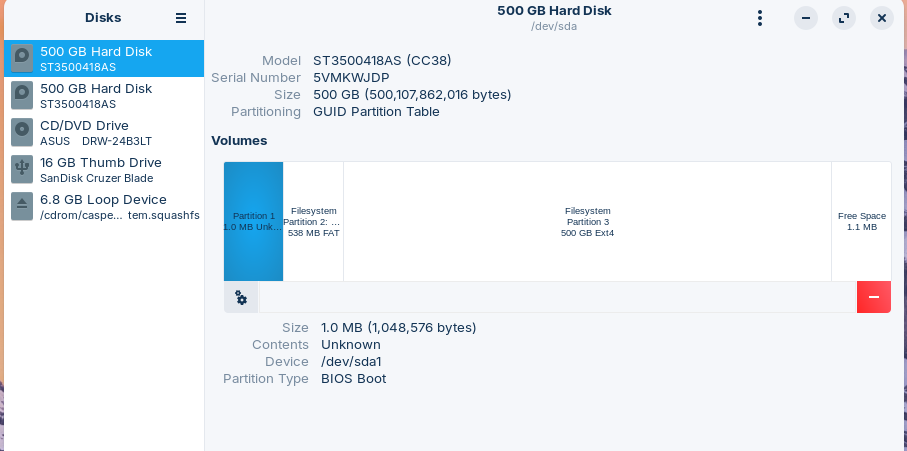
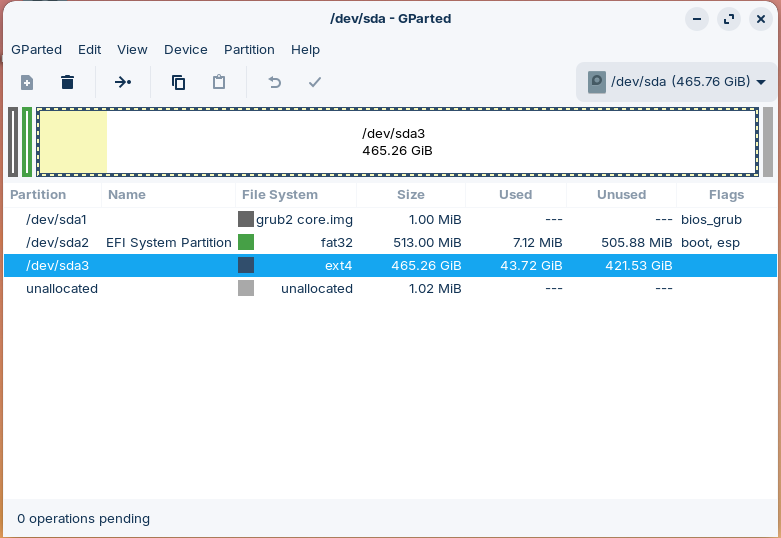
Hi, I spotted the error straight away in the GParted screenshot. sda 3 has not got the flag of '/' for the root file system - the bootloader will be looking to see where '/' is and the flag is missing. Click on the 'Edit' funcition and see if you can change the flag.
On my OS I have mount points, so I am wondering if you need to edit FSTAB?
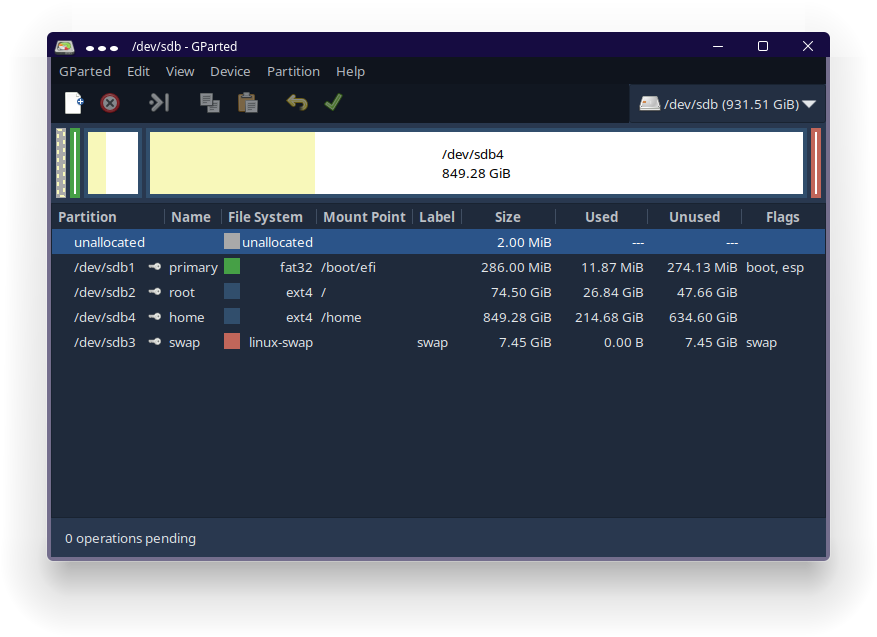
To assign a mount point, you must use the Linux installer (e.g., during Linux installation) or manually configure /etc/fstab after installation.
" If your system won’t boot after editing /etc/fstab , you can recover by booting from a live USB or CD and mounting your root partition to edit the file.
Use a live USB/CD:
- Boot from a Linux live USB (e.g., Ubuntu, Linux Mint, or any distribution).
- Open a terminal and identify your root partition using
lsblkorsudo fdisk -l. - Mount your root partition (e.g.,
/dev/sda2) to a temporary directory:
[In your case '/dev/sda3']
sudo mkdir /mnt/root
sudo mount /dev/sda3 /mnt/root
- Navigate to the mounted filesystem and edit the
/etc/fstabfile:
sudo nano /mnt/root/etc/fstab
- Fix the issue : Comment out or correct the problematic line (e.g., add
#at the start of the line). - Save the file (
Ctrl+O,Enter,Ctrl+Xin nano). - Unmount and reboot:
sudo umount /mnt/root
sudo reboot
Alternative: Recovery mode (if accessible):
- At the GRUB menu, select Advanced options → Recovery mode .
- Drop to a root shell.
- Remount the root filesystem as read-write:
mount -o remount,rw /
- Edit
/etc/fstabwithnanoorvim:
nano /etc/fstab
- Save and exit, then reboot.
Note : Always use UUIDs instead of device names (
/dev/sda1) in/etc/fstabto avoid boot issues due to device name changes. Useblkidto find correct UUIDs.
AI-generated answer. Please verify critical facts."
To see how you do it during installation, this is an old video of mine but still relevant (approximately 37 minutes in):
or take a look here (3 minutes 38 seconds in) using the entire drive to let the installer automatically create necessary partitions:
I went into gparted. clicked the sda3 line. The edit tab on the top row only has 3 grayed out options. Right click on sda3 brings up a menu with several choices, manage flags is one. It has several options, but nothing that tells me it will put a / ... ?
Hi, GParted won't do it - it does not look at mount points, it only displays them.
You need to boot off your live media that you used to install Zorin with and edit the entry for sda3 in fstab:
" To edit /etc/fstab using live media (like a live USB or live CD), follow these steps:
Mount your Linux partition :
- Boot from the live media.
- Open a terminal and identify your system partition using
sudo blkid. - Mount the partition to a directory (e.g.,
/mnt) usingsudo mount /dev/sdXY /mnt, replacingsdXYwith your actual root partition (e.g.,/dev/sda1).
Edit the fstab file :
- Use a text editor with root privileges. For example:
sudo nano /mnt/etc/fstab(for Nano)sudo gedit /mnt/etc/fstab(for Gedit, if available)sudo pluma /mnt/etc/fstab(for Pluma)
- Make your changes (e.g., fix incorrect entries, comment out problematic lines with
#). - Save and exit the editor.
Unmount and reboot :
- After saving, unmount the partition with
sudo umount /mnt. - Reboot the system and remove the live media.
Important : Ensure the partition is mounted in read-write mode . If you encounter write errors, verify the mount command and use
sudo mount -o remount,rw /mntif needed. Always double-check UUIDs and mount points to avoid boot issues.
AI-generated answer. Please verify critical facts."
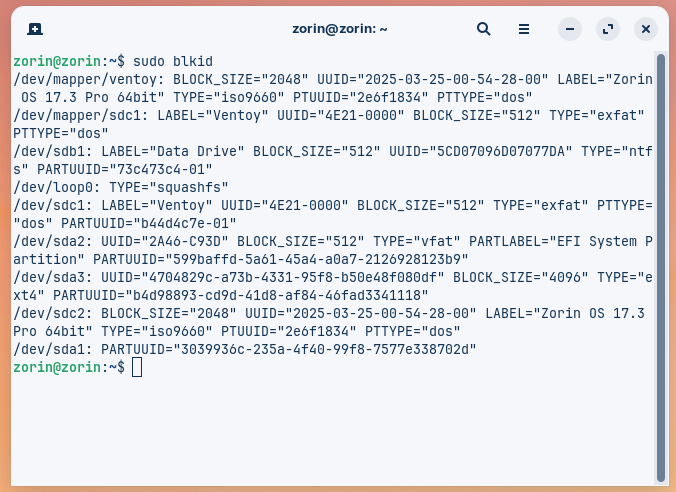
The above is what sudo blkid gave me.
I'm not sure what all that is.
The computer has 2 SATA 500GB drives.
Well the line starting "/dev/sda3" is where '/' has to be assigned to.
So
sudo mount /dev/sda3 /mnt
then
sudo nano /mnt/etc/fstab
Check to see what is in the fstab file and post back what it says.
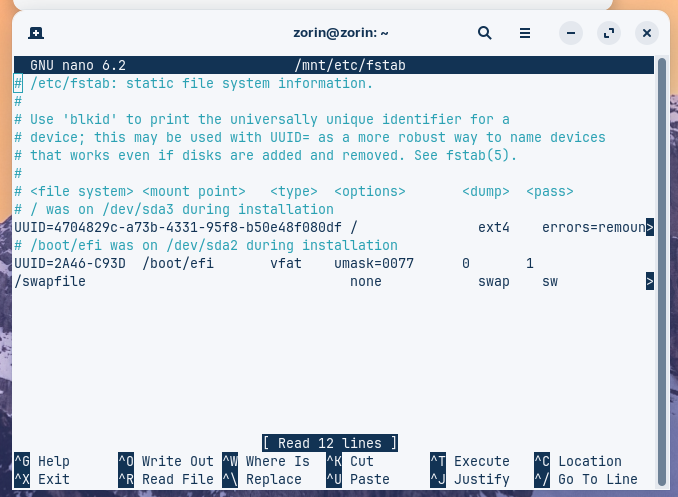
OK. So it says "errors".
You need to now follow the advice in that important note at the bottom of the previous post about ebabling rw (read-write) of that partition then run the fstab command again. Personally I would do a fresh installation.
Going back to your original post it looks like your PC doesn't support UEFI based on that BIOS screenshot. I would therefore forget about creating an EFI partition. If you have no data, first I would boot into live mode and start the installer.
If you don't want to have a separate /home partition, choose the first option of "Erase everything on the drive and install Zorin".
If you want to do a manual partition layout, choose "Something else method".
First create a new partition table once GParted launches after you have selected the "Something else" method.
Next, create a /boot partition of 512 Mb (488.28125 MiB) (GNU/Linux uses MiB = MebiBytes, not MegaBytes), formatted to Ext4 and label it '/boot' (without the single quotes throughout this guide).
Second create an 80 Gb (76293.9453125 MiB) partition , formatted to Ext4 and label it '/' and make it 'Primary' not 'Logical'.
If you are installing to an SSD and you have 8 Gb RAM or more you don't need a 'swap area' partition.
If you are installing to a mechanical drive (HDD), then create a swap area double the amount of physical RAM present so for 4 Gb RAM double it to 8 Gb (7629.39453125 MiB) (GB to MiB Conversion Gigabyte to Mebibyte Calculator)
The swap area should be at the end of whatever space is left after creating the 'root' file system ('/'), so you could first make the remaining space swap area and then shrink it to the right so it matches 7629.39453125 MiB in size. You don't have to choose a File System for swap area, it does this automatically.
Finally, whatever is left, Format to Ext4 and label it '/home'. This can be a 'Primary' partition too.
Lastly at the bottom of GParted screen, ensure that GRUB is placed on 'sda' (not on any numbered sda).
Then proceed with the installation.
This topic was automatically closed 90 days after the last reply. New replies are no longer allowed.