If you unplug the drive (make sure you're not using it), do you still have that directory created under /media/tom? The one with the long random characters.
It's an internal HD
You could use it as a Datagrave. So, You put Stuff like Music and Pictures on it. so, this Stuff doesn't fill Your limited primary Driver.
Or You take the Drive out of Your Machine, then buy a Case for the Drive and then use it as an external Drive to copy and safe Data.
3 Likes
What should I do about that?
Did you modify anything else inside of Disks to make the mount automatically, perhaps
Should I set it to mount or not?
That's how all this sorry tale started - I was going to copy data to it, then found it wouldn't let me.
I really don't want more than one external drive - it's just I don't like wasting such a big disk. If I installed it as an external drive, would this avoid this problem? If yes, why the problem with just the internal drive? The external drive I use for backups works with no problem for Rescuezilla, Picabackup and Deja Dup. Is there a difference between internal and external drives? This external drive has a different file format to the other (ex4)
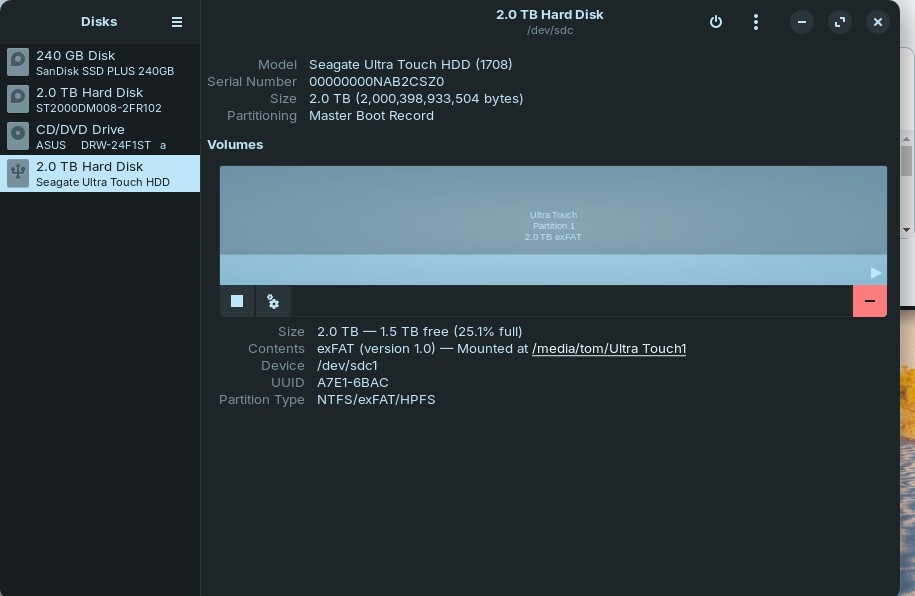
[A further question is why it insists on Ultra Touch1, when I only want Ultra Touch!]
Edit. The external drive also has no problem with Lucky Backup, though it gives itself a folder called "tom" that I never asked for
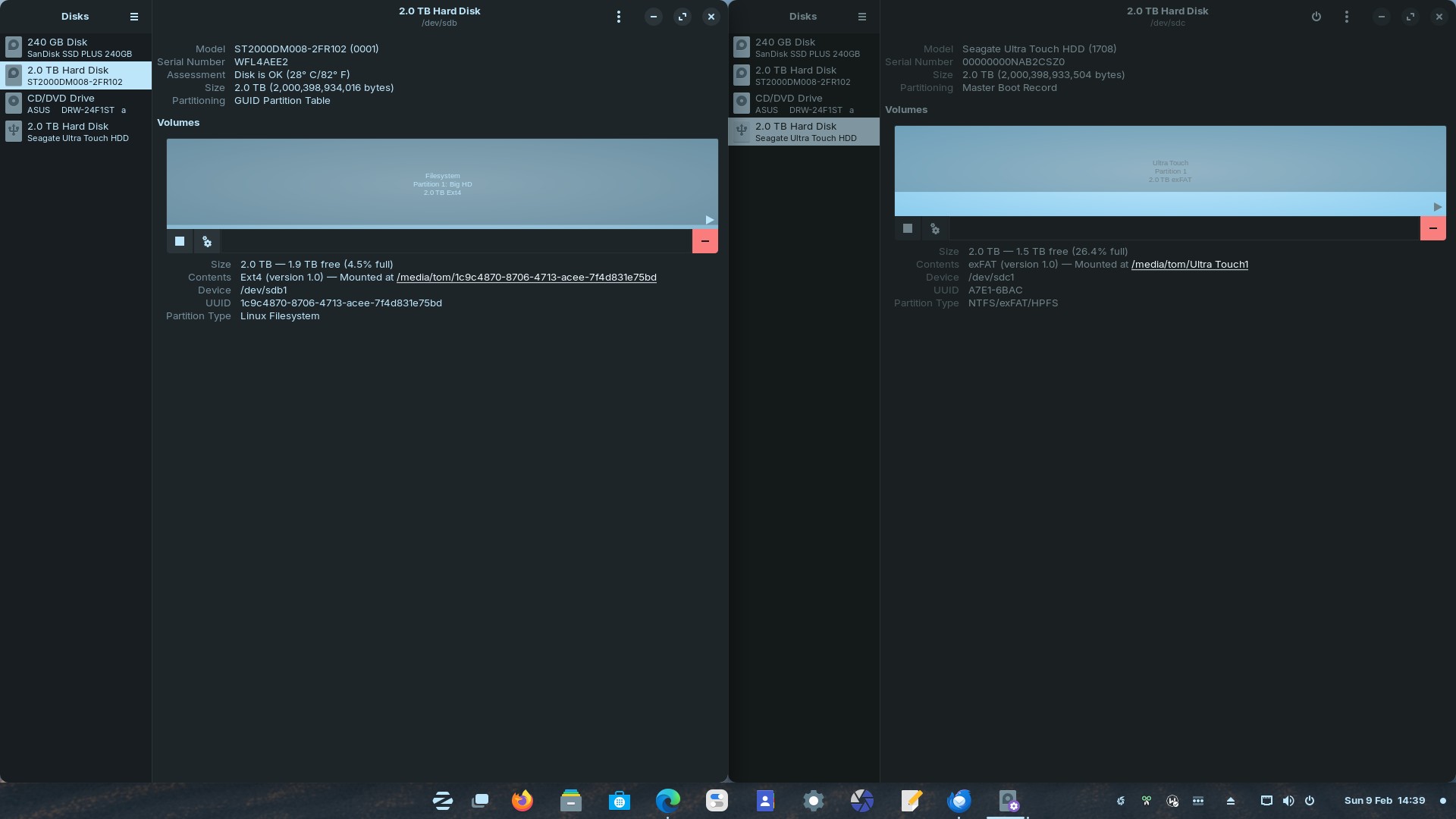
Ah, I see. Then, what I think happened is simply that this folder was created once by the system, as root. All you have to do is what was advised earlier by @swarfendor437 and change the ownership of that directory:
sudo chown -R tom: /media/tom/1c9c4870-8706-4713-acee-yf4d831e75bd
My concern with doing the same if this were an external drive was that you would have to run this command every single time you reboot or unplugged it. But, this makes things much easier.
As for what to use it for, I would recommend external files of all sorts: movies, books, etc. Leave the system data to the system partition, and everything else for your own files.
1 Like
Did I do this right? It says it doesn't exist
tom@OldMesh:~$ sudo chown -R tom: /media/tom/1c9c4870-8706-4713-acee-yf4d831e75bd
[sudo] password for tom:
chown: cannot access '/media/tom/1c9c4870-8706-4713-acee-yf4d831e75bd': No such file or directory
tom@OldMesh:~$
Ah! A trick reply! y" is "7"
Is this right? Just sits flashing
tom@OldMesh:~$ sudo chown -R tom: /media/tom/1c9c4870-8706-4713-acee-7f4d831e75bd
[sudo] password for tom:
Mmm that looks correct, yes. Try to type it out instead of copy paste. You don't need to type the whole thing, once you get to this:
sudo chown -R tom: /media/tom/
press Tab twice. That should autocomplete the rest or offer you some options.
1 Like
I was worried about the spacing and that I'd miss a space or add one.
The Tab method gives this
tom@OldMesh:~$ sudo chown -R tom: /media/tom/
1c9c4870-8706-4713-acee-7f4d831e75bd/ Ultra Touch/
tom@OldMesh:~$ sudo chown -R tom: /media/tom/
Linking to my post on Lucky backup misbehaving (see that post), since doing this change above, the backup is now putting a "tom" directory on the 2 GB internal HD by itself and backing up, so looks like you sorted it!!.
I don't like just doing what you people say without understanding, as I won't learn. Could you explain exactly what each part of that command meant?
Well, I've moved the solution to @swarfendor437's reply which explains every step taken.
Basically, every file has a set of permissions that specify who can do what. In your case, because the drive was internal, it was probably detected during the installation by the system and at that moment, since your user account didn't yet exist, was assigned to the root user. This basically prevented you from writing files in that location.
The reason I wanted to dig further into this was because I though this was an external drive. Whether a drive is internal or external makes no difference whatsoever — a drive is just a drive — but it does change how the system handles it. When an external drive is plugged in, the system understands that whoever is currently logged in will be using it, and as such the ownership of that location is assigned automatically to that user.
So I did make you dance around a little more than necessary because I thought that there was something strange going here. Sometimes, you see this type of issues with Windows-formatted drives as well.
In any case, all that was needed was to permanently adjust the ownership of the drive location to your own user with the command chown (change owner. The -R` parameter means "recursively assign ownership of every file inside of this location".
3 Likes
So the command changed ownership of the whole drive - I thought I was going to have to change permissions on every file I wanted to copy over! Much simpler.
I seem to run into an awful lot of problems - is it just me?
tom@OldMesh:~$ id
uid=1000(tom) gid=1000(tom) groups=1000(tom),4(adm),24(cdrom),27(sudo),30(dip),46(plugdev),125(lpadmin),137(sambashare)
tom@OldMesh:~$
What does all of this mean? Are my user and group names "tom"?
If so, what is all the rest and what are the numbers in front of the brackets?
Your user is Tom, 1 group is Tom but the rest are groups in the system, sometimes you need to be a member of a group for certain functions.
1 Like
But WHY was this necessary? Or was it just magic?
They tend to pile up rather quickly... is not just you, it happened to all of us at one point, and still does.
Usernames are just like phone numbers: a numeric value that is difficult to remember so we give it names like "zenzen", "tom" or "root" to remember them. Groups are exactly the same. Some of these groups are already created, like "adm" or "lpadmin", and are doing stuff in the background without you needing to intervene.
As I explained, the ownership of this drive was assigned to the root user. Had this been an external drive that you plug and unplug, the location would've been created for your user on the fly and none of this would've been a problem. But because the installer found a second drive already plugged in, it probably created this location automatically. But your user didn't even exist at the time, so it used the root user account.
1 Like
That makes sense - thanks. Maybe the developers might take this into account for the future? It's not unusual to have 2 internal drives
Got that now, thanks. What's the 1000 got to do with anything
By convention, user accounts meant to be used by humans start at 1000.
1 Like
Apologies if I missed this (it's a long thread and I came to it late), but I'm mentioning it in case someone in the future has the same issue and is command line averse. If you need to take wholesale ownership of a partition, you can do so in Disks by clicking the settings icon on a partition and choosing "Take Ownership..."
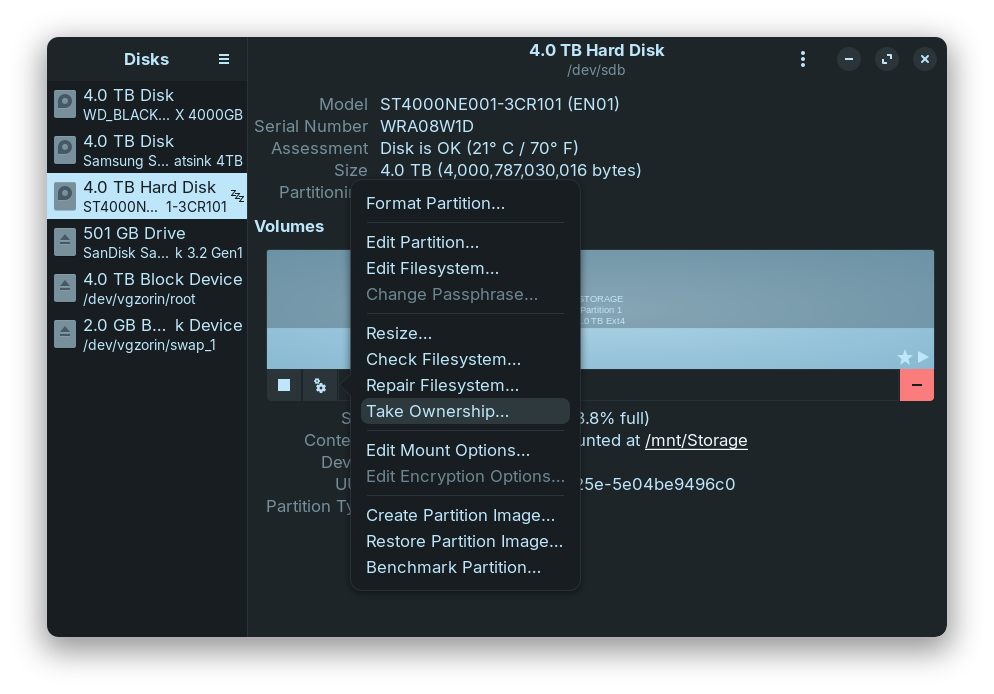
I know Tombar is fond of the CLI, but this is another option to reinforce the claims we tend to make that people don't have to use the terminal.
3 Likes