Please note that the Zorin OS 17 to 18 upgrade path is currently in testing, so it may cause stability issues or breakages. This unfortunately appears to have happened on systems affected by the "Oh no! Something went wrong" error.
We are currently working to find the source of this particular issue and resolve it before the full launch of the stable upgrade path (expected in the next few weeks).
However, the following step-by-step workaround should repair systems affected by this error:
Restart your computer. If you're unable to access the power options in Zorin OS, you can restart the system manually either by:
Holding down the Alt+Print Screen keys while tapping the R+E+I+S+U+B keys individually (Recommended).
Pressing and holding the computer's power button until it switches off (Fallback to this if the above method doesn't work for you).
When your computer switches back on, you should see the boot selection menu with the options to boot Zorin OS or your other installed operating systems (if any). If this menu doesn't appear automatically on your computer, press the Esc key at start-up to show the boot menu.
Use the up/down arrow keys to select "Advanced options" under the "Zorin" option and press the Enter key to navigate into it.
Select the highest "(recovery mode)" option in the list and press the Enter key.
After the loading process completes, you should see a purple screen with a text-based menu. Use your down arrow key to select the "network" option in this list and press the Enter key.
When prompted with a "Yes" or "No" question, keep the highlight on the "Yes" option and press the Enter key again.
After it finishes loading the network option, it should return to the purple menu screen. From here, use the down arrow key to select the "root" option in this list and press the Enter key.
Press the Enter key again when prompted at the bottom of the screen.
When you see the text prompt, enter the following command before pressing the Enter key:
apt update
Next, enter this command:
apt dist-upgrade
During this package upgrade process, you may be prompted whether you wish to proceed with modifying a system configuration file. At this prompt, press the "Y" key and then Enter to continue.
After the system finishes installing the package updates, please enter these two commands:
apt reinstall zorin-os-desktop
apt autoremove
Finally, enter this command to restart your computer:
reboot
You should now be able to boot into your upgraded Zorin OS 18 system normally.
The workaround didn't work on the first attempt on mine - went through the whole process and booted back to the Oops screen, followed by frozen start up apps. Am waiting for further ideas from the Zorins.
PS The good news is that upgrade of 17 Core to 18 Core was successful on my laptop, though very slow on installing the upgrades (step 4).
Now back to 17 Pro to 18 Pro
I tried to press Esc while booting my laptop (HP Elitebook), but it goes to System Bios and does not give me Zorin Advanced Options.
I was able to install Zorin Lite (XFCE) one by ssh and I can login to Zorin Lite, but I will like to recover my Zorin Desktop, if it is possible at all.
If I use the installation media, I cannot fix too.
Any suggestions on how can I either advance options to follow the suggestions of @AZorin above?
even i got the WSOD (white screen of death ) after the upgrade and just came across the steps to recover from that.
I'll try it on my testing machine and will post the output
Could you please let us know if your computer has a discrete graphics card (like NVIDIA or AMD Radeon)?
If so, could you also let us know the model number of your graphics card?
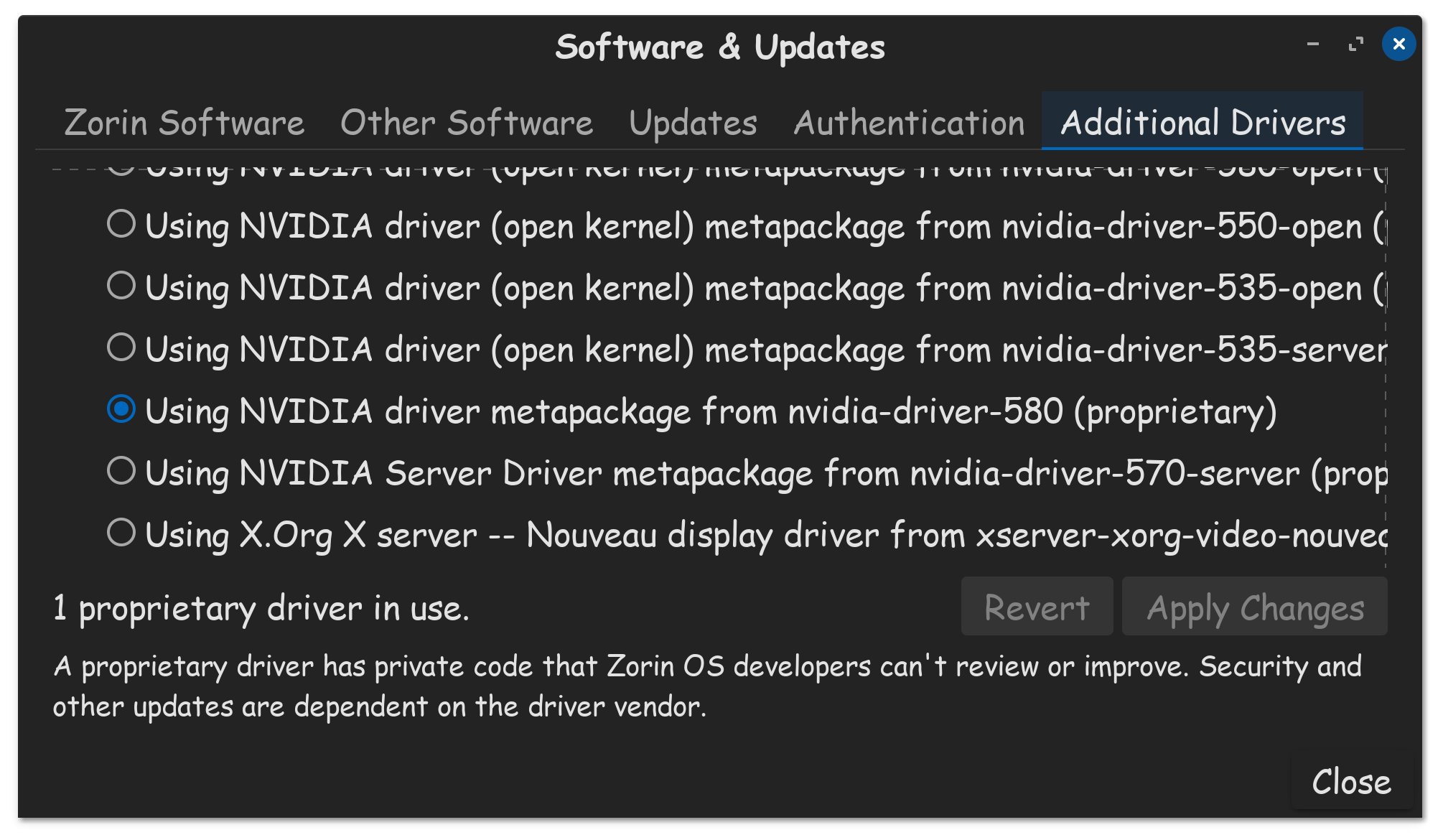
If your graphics card is by NVIDIA, could you also let us know what version of the NVIDIA drivers you're using (such as 535, 570, or 580)? You should be able to find this out by opening the Additional Drivers selection dialog.
This information would help us to find the source of this issue and resolve it for this upgrade path.
While debugging this "Oh no! Something went wrong" error, we narrowed down the source of the issue: it looks like the current version of the proprietary NVIDIA 580 driver packages cause this error to happen.
Older versions of the proprietary NVIDIA drivers (like 570 and 535) worked fine in our testing, so the upgrade process doesn't result in this error when they're installed. As such, we suspect that there's a regression in the latest proprietary NVIDIA 580 driver that's causing this error, which we hope will be fixed upstream in the near future.
In the meantime, we've since changed the upgrade configs to first automatically remove all NVIDIA 580 driver packages from the system (if present) before performing the Zorin OS 17 to 18 upgrade. This change has been active for at least the past week.
Once the upgrade completes, the user should see a notification to re-install the NVIDIA drivers some time (approx. 5 minutes) after they first log into their newly-upgraded system.
You only can install these drivers when you have a modern nvidia card.
Without an nvidia card no nvidia drivers will be shown at additional drivers.
And the 580 driver is a new one which doesn't support old nvidia cards.
Not as far as I know, but I was wanting to check, as I thought it was being suggested that this was causing the Oops messages when trying to update. Since I had these messages, that would mean that was not the reason in my case
When You don't have an Nvidia Card and didn't installed Zorin with Nvidia Drivers or installed them later, this Driver-related Thing doesn't count for You.



 ) after the upgrade and just came across the steps to recover from that.