When I installed Zorin 18 core, it did not see my Win 10 OS,so i removed my Windows drive and installed Zorin to a fresh SSD. Then I reconnected my Windows drive. That worked out OK, but I have to boot to BIOS setup to select which drive I boot to.
What is an easy, reliable way to set up a boot manager?
1 Like
Take a look at this thread:
You need to enable os_prober to detect Windows and then update grub.
1 Like
Welcome to the Forum!
When in Zorin, try in the Terminal (one command at a Time):
sudo os-prober
sudo update-grub
Post the Output of it here please.
1 Like
I would suggest that choosing which OS to run at the 'bios boot list' is the better option, as opposed to the grub menu, which in time could be screwed up by a windows update.
cheers CD
1 Like
This will not happen here, as separate bootloaders exist.
2 Likes
rocky-linux@rockylinux-H370HD3:~$ sudo os-prober
[sudo] password for rocky-linux:
rocky-linux@rockylinux-H370HD3:~$ sudo update-grub
Sourcing file `/etc/default/grub'
Generating grub configuration file ...
Found theme: /usr/share/grub/themes/zorin/theme.txt
Found linux image: /boot/vmlinuz-6.14.0-35-generic
Found initrd image: /boot/initrd.img-6.14.0-35-generic
Found linux image: /boot/vmlinuz-6.14.0-33-generic
Found initrd image: /boot/initrd.img-6.14.0-33-generic
Warning: os-prober will not be executed to detect other bootable partitions.
Systems on them will not be added to the GRUB boot configuration.
Check GRUB_DISABLE_OS_PROBER documentation entry.
Adding boot menu entry for UEFI Firmware Settings ...
done
rocky-linux@rockylinux-H370HD3:~$
1 Like
Sorry to respond so slowly. I was having a hard time learning my new environment. It is getting easier.
1 Like
OS prober is disabled by default. You need first to enable os-prober by editing the /etc/default/grub file and adding
GRUB_DISABLE_OS_PROBER=false
and then run sudo update-grub
as described in the linked thread.
1 Like
We should try it with changing that. Open the Terminal and type:
sudo nano /etc/default/grub
In the opening Window, You see a white Textblock:

Add there at the Ende the Line:
GRUB_DISABLE_OS_PROBER=false so that it looks like this:

Then press ctrl+o to save the Change, Enter to confirm and ctrl+x to exit and get back to the normal Terminal Overview. There type sudo update-grub to make the Changes affect. Don't forget that!
1 Like
It did not work. PC boots to Windows unless I go to bios setup.
rocky-linux@rockylinux-H370HD3:~$ sudo os-prober
[sudo] password for rocky-linux:
rocky-linux@rockylinux-H370HD3:~$ sudo update-grub
Sourcing file `/etc/default/grub'
Generating grub configuration file ...
Found theme: /usr/share/grub/themes/zorin/theme.txt
Found linux image: /boot/vmlinuz-6.14.0-35-generic
Found initrd image: /boot/initrd.img-6.14.0-35-generic
Found linux image: /boot/vmlinuz-6.14.0-33-generic
Found initrd image: /boot/initrd.img-6.14.0-33-generic
Warning: os-prober will be executed to detect other bootable partitions.
Its output will be used to detect bootable binaries on them and create new boot entries.
Adding boot menu entry for UEFI Firmware Settings ...
done
rocky-linux@rockylinux-H370HD3:~$
1 Like
It looks right here that os-prober is enabled now.
But Windows is not detected - there is no output when you run os-prober.
Is your grub menu displayed when you boot into Zorin?
If not, change it by editing the same /etc/default/grub
file and change "hidden" to "menu" and then update grub.
Also make sure that fast startup in the energy settings of Windows is disabled.
1 Like
Please share the output of:
sudo efibootmgr
and
cat /etc/fstab
1 Like
rocky-linux@rockylinux-H370HD3:~$ sudo efibootmgr
[sudo] password for rocky-linux:
BootCurrent: 0001
Timeout: 1 seconds
BootOrder: 0004,0003,0001,0000
Boot0000* Windows Boot Manager VenHw(99e275e7-75a0-4b37-a2e6-c5385e6c00cb)57494e444f5753000100000088000000780000004200430044004f0042004a004500430054003d007b00390064006500610038003600320063002d0035006300640064002d0034006500370030002d0061006300630031002d006600330032006200330034003400640034003700390035007d00000000000100000010000000040000007fff0400
Boot0001* Zorin OS HD(1,GPT,cf0b4f30-e05e-4b82-bab1-f14554cb3a42,0x800,0x100000)/File(\EFI\UBUNTU\SHIMX64.EFI)
Boot0003* Hard Drive BBS(HD,,0x0)0000474f00004e4fb5000000010000006f00530061006d00730075006e006700200053005300440020003800350030002000450056004f0020003500300030004700420000000501090002000000007fff040002010c00d041030a0000000001010600001703120a000000ffff00007fff040001043e00ef47642dc93ba041ac194d51d01b4ce6330053003300520046004e004a00300032003900300036003500350020005200200020002000200000007fff04000000424f00004e4fb5000000010000006f00530061006d00730075006e006700200053005300440020003800360030002000450056004f0020003200350030004700420000000501090002000000007fff040002010c00d041030a0000000001010600001703120a000100ffff00007fff040001043e00ef47642dc93ba041ac194d51d01b4ce6330053004800590058004e004b00300034003900380032003000370020004500200020002000200000007fff04000000424f00004e4fa7000000010000006f0053005400310030003000300044004d003000310030002d0032004500500031003000320000000501090002000000007fff040002010c00d041030a0000000001010600001703120a000300ffff00007fff040001043e00ef47642dc93ba041ac194d51d01b4ce620002000200020002000200020002000200020002000200039005a005200410038004d004e00370000007fff04000000424f00004e4f9700000001000000530053006500610067006100740065002000420055005000200053006c0069006d00200053004c002000300033003000320000000501090002000000007fff040002010c00d041030a000000000101060000140305060014007fff040001042600ef47642dc93ba041ac194d51d01b4ce64e00410037003800470053004500300000007fff04000000424f
Boot0004* CD/DVD Drive BBS(CDROM,,0x0)0000474f00004e4fa30000000100000057004d0065006d006f0072006500780020004400560044002b002d00520041004d0020003500310030004c002000760031004d0057005300370000000501090003000000007fff040002010c00d041030a000000000101060000140305060007007fff040001042a00ef47642dc93ba041ac194d51d01b4ce6300036003100340030003100310037003000350000007fff04000000424f00004e4fb7000000010000006b0048004c002d00440054002d0053005400440056004400520041004d00200053005000380030004e004200380030002000520046003000320000000501090003000000007fff040002010c00d041030a000000000101060000140305060009007fff040001043e00ef47642dc93ba041ac194d51d01b4ce64d00300032004f00350046004200310035003100370020002000200020002000200020002000200000007fff04000000424f
rocky-linux@rockylinux-H370HD3:~$ cat /etc/fstab
/etc/fstab: static file system information.
Use 'blkid' to print the universally unique identifier for a
device; this may be used with UUID= as a more robust way to name devices
that works even if disks are added and removed. See fstab(5).
/ was on /dev/sda2 during installation
UUID=d889fc56-29d2-447d-908e-cda046605768 / ext4 errors=remount-ro 0 1
/boot/efi was on /dev/sda1 during installation
UUID=18F3-9172 /boot/efi vfat umask=0077 0 1
/swapfile none swap sw 0 0
First make sure Fast Startup is disabled inside your Windows OS.
Then try to reorder this boot order with:
sudo efibootmgr -o 0001,0000,0004,0003
Reboot and this time Zorin should boot by default. If it fails then you may have to reorder the boot entries from your BIOS and put Ubuntu(Zorin) option at the top of the boot order list.
Now coming to the part os-prober isn't detecting the Windows boot entry.
This is a bit strange to me, it should list the Windows boot entry otherwise updating the grub won't add it's entry. Maybe we need to manually place the files in the right place.
But before that, after making the above changes and making sure Zorin is booting by default, try again the os-prober command if it lists the Windows boot entry then follow Ponce-De-Leon's instructions from the above post.
If it still doesn't work then boot from the live USB, select Try Zorin and then launch the Boot repair tool and start the repair process.
- In my Bios, there are 2 places to change boot order: boot option and BDD order. Right now it is set so Zorin boots first and that works. I have to go to BIOS if I want Windows. But no Grub menu.
- The Boot order only put 0001 first. 0000 is still at the end and won't move. BootOrder: 0001,0003,0004,0000.
- As per my 1st post, the Zorin installer said it saw no other OS, which is why I removed my Win OS drive and installed because I wanted to make sure the Win drive was safe.
- Fast boot on Bios is disabled, fast startup in Windows is disabled.
- While in BIOS i notice my clock is 5 hrs ahead. I correct it but later it is 5 hours ahead again. Can you get a virus in the BIOS, and is that my problem?
- GRUB_TIMEOUT_STYLE=menu
- GRUB_DISABLE_OS_PROBER=false
- I set the GRUB_TIMEOUT=20. Now I see a menu on bootup, which I assume is the GRUB menu. But there is no entry for Windows.
- Boot repair gave me this: GPT detected. Please create a BIOS-Boot partition (>1MB, unformatted filesystem, bios_grub flag). This can be performed via tools such as Gparted. Then try again.
Alternatively, you can retry after activating the [Separate /boot/efi partition:] option.
What else can be done to get the Windows OS recognized by Zorin?
Don’t worry about the 5 hour time difference for now. It is because Linux sets the real time clock to universal time and then applies your time zone to set local time. Windows sets both to local time. It’s only an issue if you are switching back and forth and is an easy fix anyway. Get your grub menu working right first.
I think your last bullet in the terminal printout is giving you two choices to fix the grub issue. Normally you’d have both system boot managers in the same efi partition but you have them on separate drives. This is what the instructions about os prober were trying (unsuccessfully so far) to work around. OS prober is not something I’m familiar with so wait for the others who are helping you to suggest next steps.
It won't be an issue if you have them on separate drives.
I guess your installation happened in UEFI gpt mode while your BIOS is in legacy mode. Otherwise there is no needed for the bios_grub partition.
Your Windows is installed under Legacy mode with MBR. And as Zorin is installed in GPT, it's not detecting the Windows boot entry. First boot to Windows and launch the msinfo tool, look for the information BIOS mode. If it's legacy then Windows drive probably have MBR partitioning which doesn't have/require an efi partition.
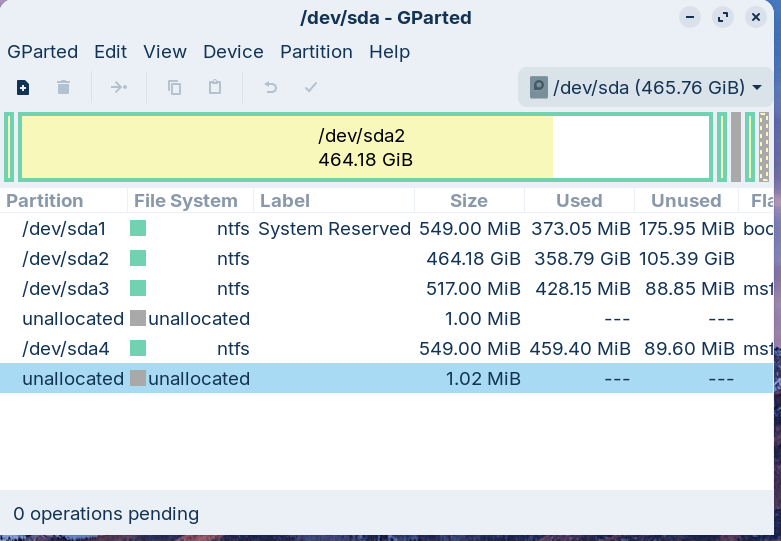
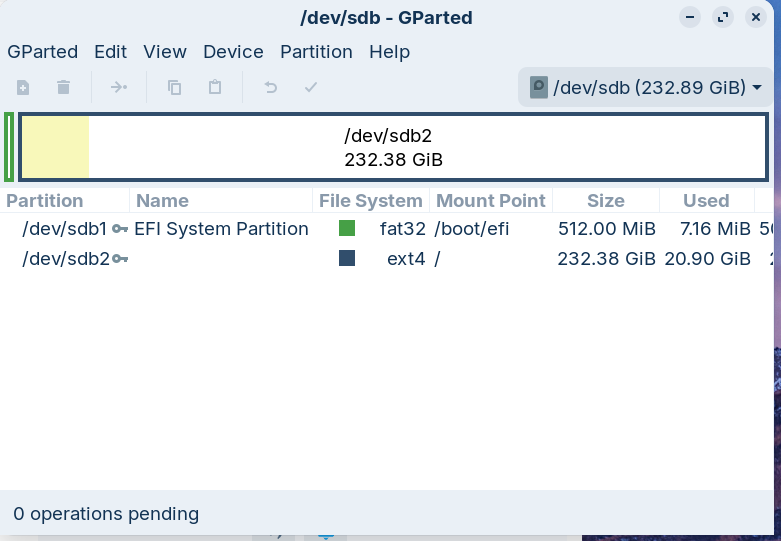
And from Zorin share your partion layouts for both the drives. You can take screenshots from the gparted tool and use the following command:
sudo fdisk -l
Once confirmed this the case of MBR and GPT mismatch then you may try converting Zorin's grub efi to MBR:
Edit:
In your case sdXn=sdb2 and sdX=sdb
1 Like