I read that 'Zram -generator' is the one to install instead of just 'Zram'?
You can install it on Zorin 18 with the Command:
sudo apt install systemd-zram-generator
Here is an Ubuntu Manpage for the Noble Version:
I read your link to Ubuntu Manpages but didn't understand most of it.
I've installed zram-generator.
I need a step by step guide on how to get this to work correctly.
My laptop has 6GB of RAM.
How can I get zram-generator to help?
There is a tutorial from Manjaro Forum
I'm new to Linux and did come across this before but I don't think I can follow the instructions as they won't work with Zorin OS as it is Debian? I might be wrong.
Zorin is Debian
I think you can use many steps of the guide, but the pacman command
sudo pacman -Syu zram-generator should be replaced and adapted for Zorin..
Edit:
You can skip that part - you've already installed the zram generator, after all when you have entered the command which Ponce-De-Leon has given.
1 Like
I made a tutorial inspired by this site
Installation Steps
- Install the ZRAM Generator Package
Use the package manager for your distribution to install thesystemd-zram-generator.
- For Debian/Ubuntu:
sudo apt update
sudo apt install systemd-zram-generator
Configuration
Create Configuration File
- Edit the Configuration File
Create or edit the/etc/systemd/zram-generator.conffile to define your zram settings. Example configuration:
[zram0]
zram-size = ram * 0.5
compression-algorithm = zstd
swap-priority = 100
zram-size: Defines the size of the zram device. You can set it as a fraction of RAM or a fixed size.compression-algorithm: Choose the compression method (e.g.,zstd,lz4).swap-priority: Sets the priority for the swap device.
Reload and Start ZRAM
- Reload Systemd Daemon
After editing the configuration, reload the systemd daemon to apply changes:
sudo systemctl daemon-reload
- Start the ZRAM Service
Start the zram setup service:
sudo systemctl start systemd-zram-setup@zram0.service
Verification
Check ZRAM Status
- Use the following commands to verify that the zram device is active:
swapon --show
sudo zramctl
4 Likes
[zram0]
zram-size = ram * 0.5
compression-algorithm = zstd
swap-priority = 100
I'm not sure what I should change these to for the best results.
I have 6GB of RAM.
1 Like
Why do You want use that?
1 Like
Use what: zram-generator itself or zram in general?
I can make a tutorial with what I read, but as I don't use it. I don't know the best parameters for you...
Both.
Hopefully someone else can help.
1 Like
6 Gigs of RAM is a bit low, these days. Especially if using Gnome.
Sadly, neither swap nor zram provides a simple and easy fix.
The values you posted can be used as they are.
Swap Priority is simply the swappiness value. The highest is 100 and the lowest is 0 - most users go for the 60 swappiness value.
A value of 100 is set in the example you posted because if the user is adding zram, they are hoping to make use of too little RAM and set a more aggressive value.
The zram-size value sets how much additional RAM you are simulating. If you make it an absurdly large value, that fails because you are not using actual RAM. Simulating RAM operates by writing some portions of RAM to your Hard Drive, using that Hard Drive Space as additional RAM (memory).
Hard Drive read/write, even on SSD is much slower than RAM. So if the value is
too high, you commit data that should be using Fast RAM speeds onto Slow Hard Drive.
Keeping that number as low as possible allows the Lowest Priority commits to be written or read from the hard drive. This shows less slowing or sluggishness than assigning a high RAM value.
And all of the above brings us to the crux of the issue:
This does not add any RAM.
It can help to reduce low RAM problems a bit. Using ZRAM compresses some data so that it needs less memory, using Swap allows some memory to be written to your hard drive instead of filling RAM.
Neither add the actual speed and full range of Random Access Memory.
What I recommend is:
[zram0]
zram-size = ram * 0.5
compression-algorithm = zstd
swap-priority = 60
This is a safe and functional range that effectively makes use of quick stashing of memory, without overloading anything.
Keep in mind if using an SSD, this will add to the read/write cycles of the SSD and lower its lifetime slightly.
The real solution is: Upgrade your RAM. If that is physically not possible, nor is replacing the computer, then using a Less RAM intensive Operating System or Desktop environment will serve you much better than zram or swap.
5 Likes
Does this look correct? I followed your instructions but changed 'swap priority = 60':
NAME TYPE SIZE USED PRIO
/swapfile file 2G 0B -1
/dev/zram0 partition 2.8G 288K 100
NAME ALGORITHM DISKSIZE DATA COMPR TOTAL STREAMS MOUNTPOINT
/dev/zram0 lzo-rle 2.8G 292K 36.1K 340K [SWAP]
I've read that Zorin OS includes a legacy package named zram-config, which runs an older shell script at boot time, which stops my zram- generator config settings from being used.
Not sure what will be best:
Uninstall zram-generator and leave the older shell script to do its thing, or remove the conflicting Zorin package?
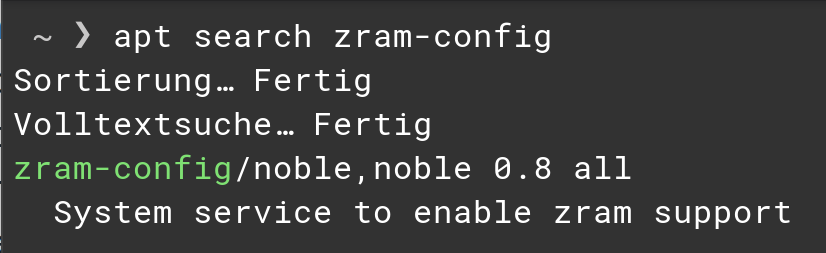
I'm not getting very far with zram-generator.
I thought it would help my low 6GB of RAM.
If this is not the case should I remove zram-generator?
What would I use in the terminal to do this?
I just had a look at 'system monitor' and looking at 'memory' what is the 'swap' section about?
Is this similar to zram-generator?