The css file can only effect a change on a widget - it cannot insert a widget. That widget (gtkinfobar) was removed in Nautilus.
I can think of some workarounds.
One is to create a Root Theme and a User theme. In the root one, change some other widget; like headerbar.titlebar or .sidebar - whatever you like, to have a different color to show you are in root.
That way if you elevate to root, when the root instance of Nautilus uses that root theme - it shows up.
The other ideas I can think of are more environment and injection variable - which are less elegant than using a system theme to relay information. I mean... that is what the theme and styling are for: Accessibility and improving workflow.
They are not about Brand Image.
and set this command to open thunar as root from the current location: pkexec env DISPLAY=$DISPLAY XAUTHORITY=$XAUTHORITY dbus-launch thunar %f
I tried replacing thunar with nautilus, but that doesn't work.
At the moment I have set the command pkexec nautilus for nautilus, that works, but then nautilus does not open at the location where I am, but in root's home directory.
How can I change the command so that nautilus opens the current directory/folder as root?
Nautilus will ignore the %f if it does not have a target directory.
I am not sure a single launch command will work, since you need to specify if you are targeting a file or a directory, and if no argument is given, how it will fallback. If no argument, it will launch in Root home, rather than your current directory.
You might try:
Zorin 17.3 lite with Zorin (gnome) desktop running on XOrg. I've just shut down the notebook and am calling it a day. I'll have another look tomorrow. Thanks for your help!
I'm wondering if the command at the github example "Open a terminal as root in a specific folder" maybe can be adapted so that not also a terminal is opened, or if dbus-x11 is needed.
The message about a file not existing only meant that it checked if you had a -er-user configuration file for access. Since you do not, it relayed that none exists.
Have you yet run
sudo apt install nautilus-admin
killall nautilus
Then launched Nautilus to check if the Right Click context menu includes "open as admin" for directories and "Edit as admin" for files?
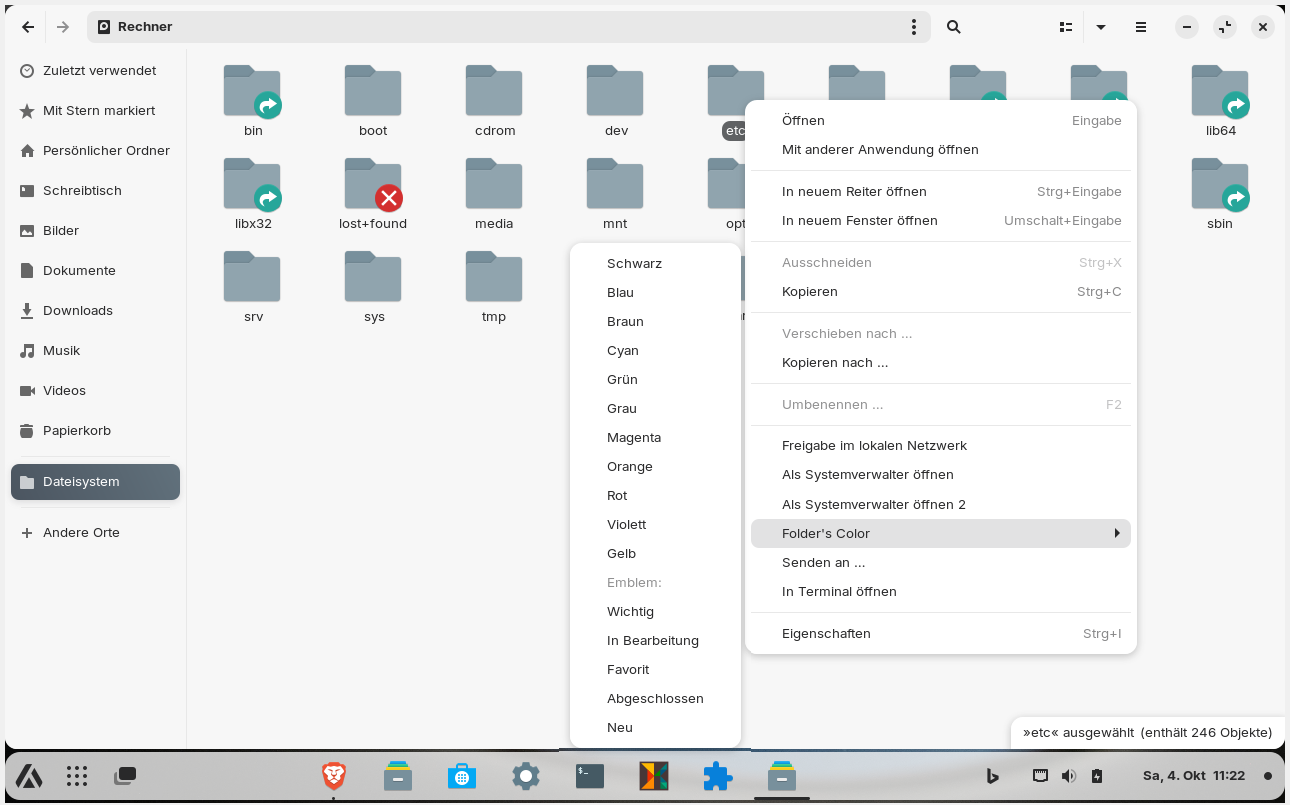
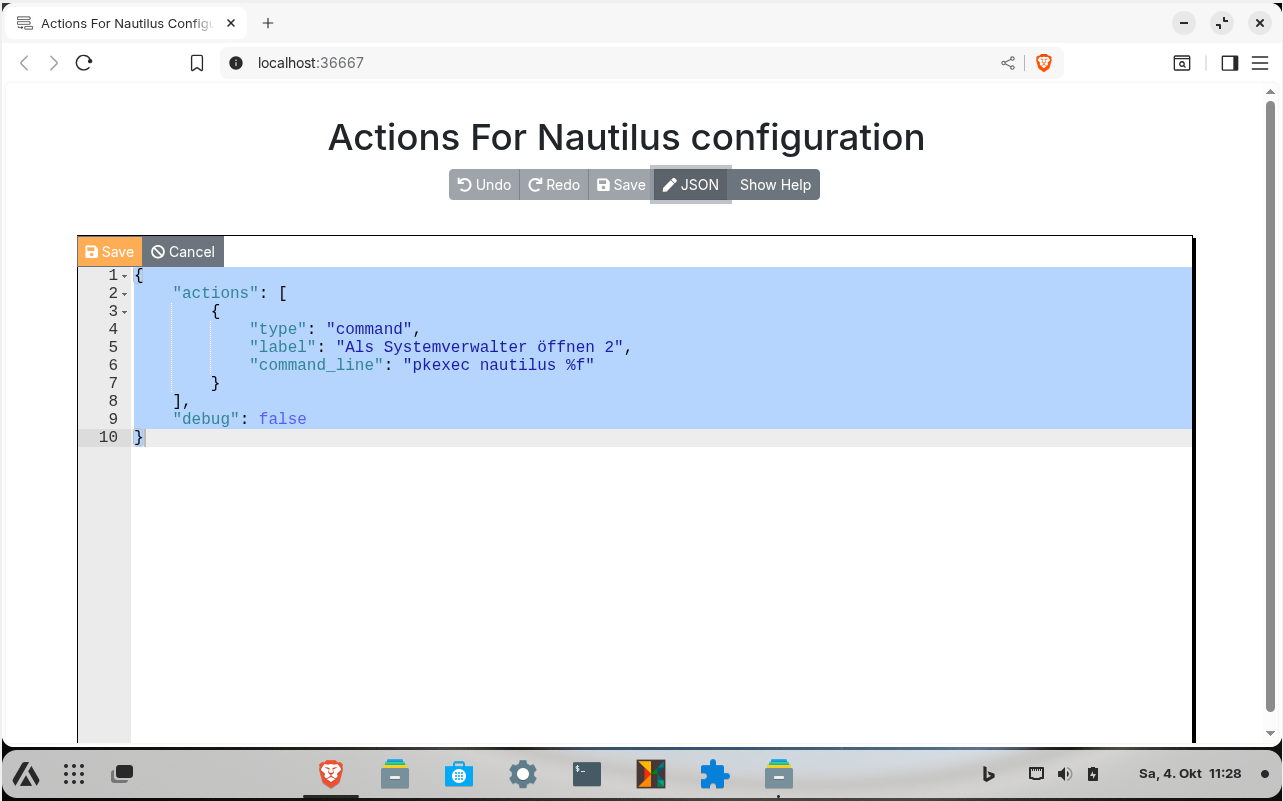
It is installed and I can choose it in my context menu (I have two entries there: open as admin, that is the default one of gnome, and open as admin 2, which is my json). But it uses gvfsd and I don't like it because there are further password requests when I want to edit files or switch to another file that needs root rights and open it. Thunar and nemo don't show this behavior when I use the integrated open as admin function. So they use other authentication services and I want to find out if I can use them in nautilus, too. I like to explore that.
Ah!. Yes, you had mentioned this already. I needed to catch up in the thread...
Off the top of my head, I am not sure of a neat solution; I would need to look into it further. But, what I do know is that Thunar is User Forgiving in the direct call whereas Nautilus is quite strict.
This strictness is about controlling the end user due to the presumption that most users cannot handle access to Root. But it is easy to act on simply by labeling it as a Security Feature. It cannot be simply bypassed without patching Nautilus, compiling it and then installing your compiled version. Instead, you could write a script that handles Nautilus as admin. But, that too, I would need to look into...
I think I'm close to nautilus behaving like the other filemanagers. The only thing missing is a small change to make it so that nautilus does not start in its home directory if you are already in the directory of the file you want to edit. It doesn't matter if there is no (simple) solution for this. I enjoy exploring it.
However, since it is so complicated, I would advise the vast majority of users not to do my steps and save themselves the trouble, but to switch to nemo instead.
It seems to me that many moderators/experienced users here don't use nautilus because out of the box it doesn't offer the same features as other file managers.
I'm not sure if I've already tried with pkexec nautilus %f
and will test this.
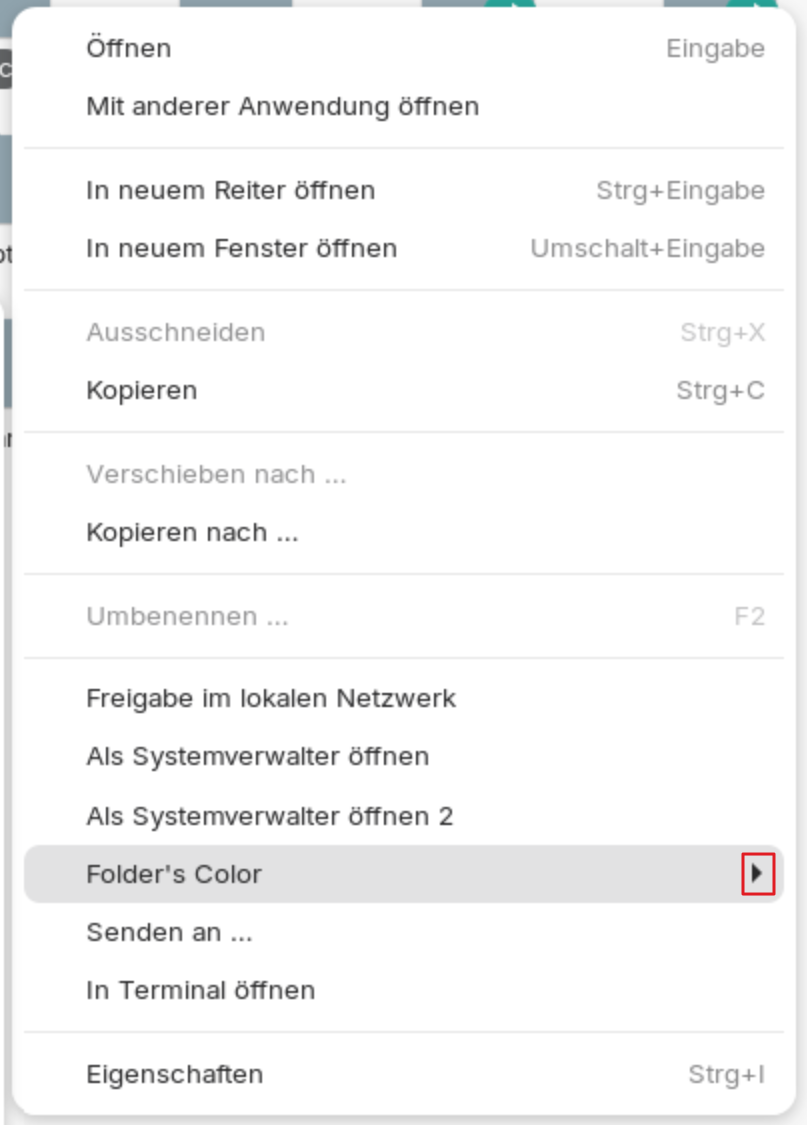
I have an entry in my context menu of nautilus and I don´t know where it comes from. How do I get rid of "Folder´s Color"? Nothing happens when I select it. I think it was contained in the json configuration examples but I deleted all except of my own created action and this one is still there. It is not shown in JSON file.
Looks I've missed quite a few messages, but I'm glad you got it sorted out.
This comes from folder-color package, you can just uninstall it:
sudo apt remove folder-color
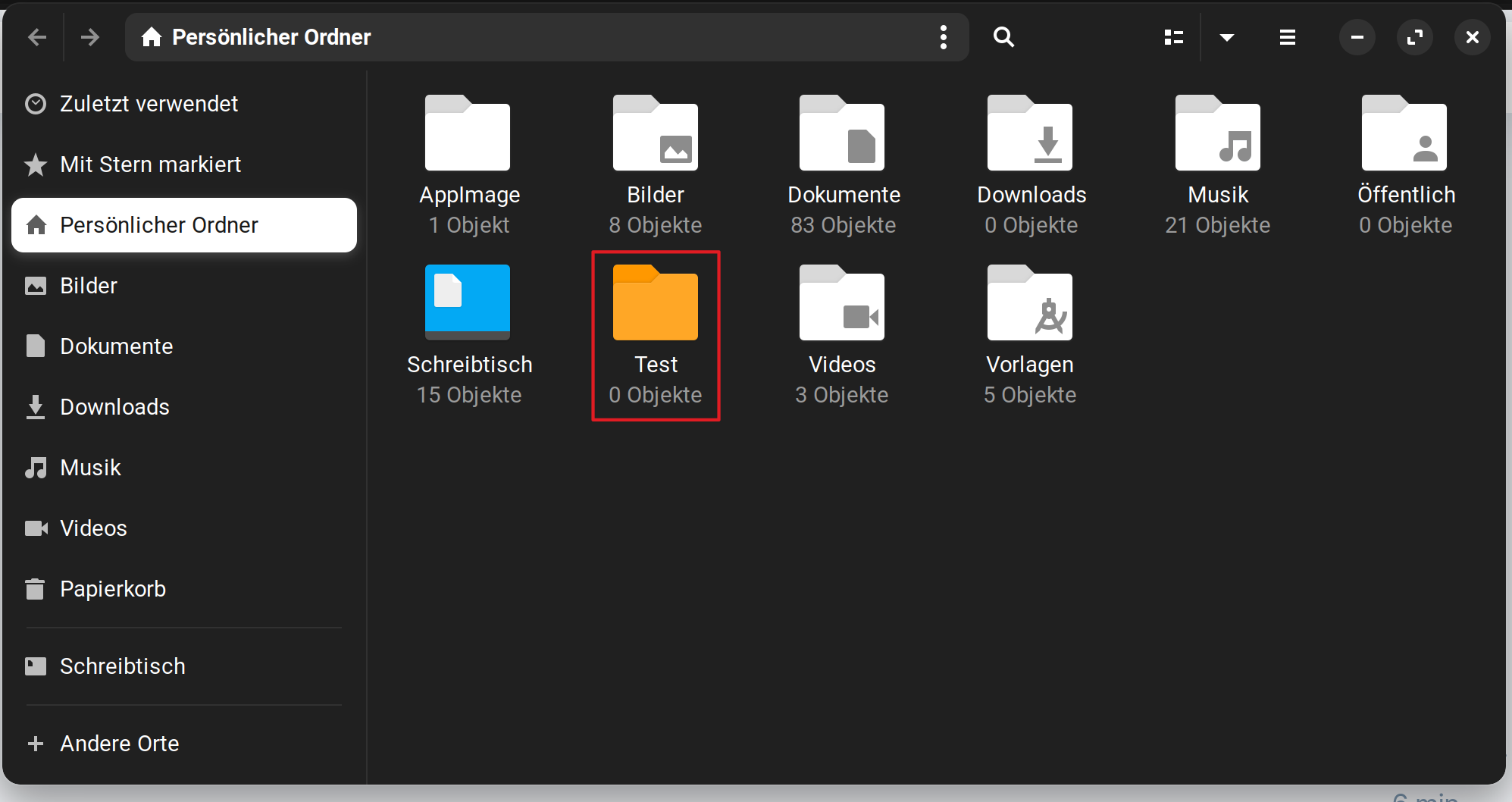
I suspect the reason nothing happens is because of the language. This doesn't actually change the color of the folder, it just picks an image file to use instead of the default icon theme. I don't think those are translated to every language and it probably can't find the correct file in German. Try with Cyan or Orange, as those are the same, do they work?