Maybe something from this they are some awesome.
Good morning all 6am and all is well coming to you from my XFCE4 screen .... first time firing it up on opening the laptop .... and I'm glad because I can now take screen shots without having to switch between XFCE and Gnome ....
The tool bar I was referring to has I believe 6 icons that appear to be pinned to the middle of the screen don't want to get rid of them as they are handy ... would post a picture but for problem 1 below ... when that is solved I will ...
Just a few problems now ....
- Can't split my screen using Super Key (I assume is Win Key) and left and right arrows ...
- Can't find any software store like in Gnome is there a software store to choose various programs can't seem to find it ...
This is xfce4-panel. You can right click it, slide over to the Panel > Panel preferences and this will open a pop up dialog.
https://docs.xfce.org/xfce/xfce4-panel/start
You can resize the panel - have it stay as it is or cover the whole bottom length of the screen.
You can add items for monitoring, access, launchers... you can position them However You Want Them to Be. You can use separators that can expand or not expand - which push items to where you want them to be. You can make them transparent and invisible or make them stand out.
xfce4-panel is not limited to just edges... though it is less often a person has one mid screen. I have seen it done. This person sized the panel into a Square that occupied the Upper left of their screen and held Every App they wanted to launch as a launcher.
alt+F8 - then drag. You can also set up and use super+arrow keys
You can still launch gnome-software with the App menu. Just search "Software" - it is in the system category on the menu. Or alt+F2 to open the Instant Launcher and enter gnome-software to launch it.
alt+F3 opens the xfce app-finder, as well.
1 Like
I found and installed the software store ... thanks now I can make some better software choices ...
Can't use alt+F8 as my keyboard uses the FN key to access the F keys .... how do I set up to use the super+arrow keys ... I went back to Gnome but didn't see anything under the keyboard section because the super key and arrows worked there just not here ... I also checked the keyboard choices here on XFCE and although it listed a lot of Logitech K380 was not one of them ... this is a Bluetooth keyboard ....
The default choice on here is a Generic 105 key PC (Intl)
Settings > Keyboard > application shortcuts. There, you can set a new shortcut to existing functions or make new ones entirely.
1 Like
Yes I found that earlier but I couldn't find anything in the shortcut command that even remotely resembled changing a key on my keyboard and there is a whole slew of commands listed when I click on the folder of commands ... I tried typing Super with both left and right keys but that didn't work ....
Guess I'll look around tomorrow ... did go on-line and found info saying that XFCE doesn't play nice with super key ... in fact I had copied a long article for you to check out to verify if it was true or not ... but now my LibreWriter won't ask where I want to save my file to when I hit the X in the top right hand corner like it used to .... it just closes ...
Librewriter is not desktop dependent - it should operate the same way on XFCE, Gnome, LXDE...
Do you mean keymapping?
1 Like
Yes I believe I did something to mess it up ... just trying to find out what
I believe you call it that ... what it used to do was if you held the Win (super) key and pressed either the left or right key the screen would split vertically and you could have two different screens that you could work in .... I love this feature and used it all the time in both Win and Gnome ... but when I try it here it does nothing .... if I use the Super key and hit P I get the display screen .... so I guess the Super key works .... but in going through the key mapping keys it only shows that key combination Super+P using Super Key ....
Please open settings manager then navigate to
Window Manager > Keyboard tab
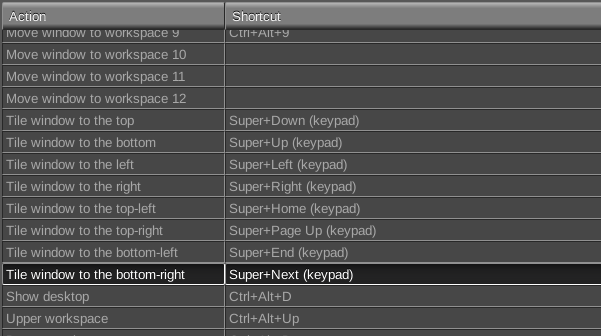
On mine, it directs to the arrows on Numpad, not to the arrow keys.
1 Like
OK from the "Tile window to the top down" to "Tile window to the bottom-right" I have nothing under shortcut ....
What if you select "reset to defaults?"
1 Like
Nothing .... nada
well...
sudo apt install -y xubuntu-desktop
Log out, ensure your login as before on the menu at the upper right and log in. Head back to Window manager > Keyboard tab and check...
1 Like
Hummmm ... got an error code when I downloaded the command ....
E: Sub-process /usr/bin/dpkg returned an error code (1)
Did you have a failed installation earlier?
sudo dpkg --configure -a
sudo apt --fix-broken install
1 Like
This is the only other error I saw
dpkg: error processing archive /tmp/apt-dpkg-install-ULNpvD/102-xubuntu-
default-settings_20.04.4_all.deb (--unpack):
trying to overwrite '/etc/skel/.config/libreoffice/4/user/registrymodifications.xcu', which is also in package zorin-os-default-settin
What did
sudo dpkg --configure -a
sudo apt --fix-broken install
Yield?
1 Like
Do I need to run those to commands or look for them in the original command ....
Run them.
1 Like
First one ..... dpkg: error processing package xubuntu-core (--configure):
dependency problems - leaving unconfigured
Errors were encountered while processing:
xubuntu-core
xubuntu-desktop
mike@mike-ROG-Strix-G731GT-G731GT:~
2nd one .....
dpkg: error processing archive /var/cache/apt/archives/xubuntu-default-settings_20.04.4_all.deb (--unpack):
trying to overwrite '/etc/skel/.config/libreoffice/4/user/registrymodifications.xcu', which is also in package zorin-os-default-settin
gs 16.3
Errors were encountered while processing:
/var/cache/apt/archives/xubuntu-default-settings_20.04.4_all.deb
E: Sub-process /usr/bin/dpkg returned an error code (1)
mike@mike-ROG-Strix-G731GT-G731GT:~$