I'm new with all the linux stuff. I tried to install Zorin OS 18 on an old HP notebook (Windows 8, maybe 13 years old). The notebook was still working before but not in use actively.
I tried the installation several times but somehow it always stucks.
Following the installation manual on the zorin website (Install Zorin OS - Zorin Help) I get up to point 4 in the last chapter without problems: Following the on-screen instructions.
By the first time I tried I already chosed the option "Delete hardweare" - instead installing it besides the old windows os. Later I had some problems with the installation and I broke up the process.
I tried it again several times - now not having any original operating system on the notebook - and it didn't work either.
By following the on-screen instructions I get several time until the point where you start the installation. I often had warnings concerning the partitioning which I did not understand When the installation starts, first everything seems to work, but after some time it kind of get stuck. After several broking up (after about half an hour) and start again I tried just waiting but after about 12 hours the installation was completely stuck.
I already disabled "Secure Boot" and I chosed "Try or install Zorin OS" (without NVIDIA), because I read somewhere that this could take longer.
What am I doing wrong? Should I maybe try an older Zorin version? Or a Lite version?
Hi @else and welcome to the forum!
With 'old' computers there is a chance that they have a 32-bits processor, which is not supported by the latest versions of Zorin (System Requirements - Zorin Help + 32-bit Version of Zorin OS - Zorin Help). Could you check if it is 32-bits or 64-bits?
(see this thread for more info if that is indeed your problem).
Do you have an UEFI or legacy BIOS? If you have an UEFI, choose GPT as partition scheme when you create the Zorin bootstick, and when you have a legacy BIOS, choose MBR as partition scheme.
Here are some tips what to do before the installation:
How much RAM do you have? With 8 GiB or less RAM I'd recommend Zorin lite.
Try to install Zorin offline without connection to internet and don't install updates and drivers or other software during installation.
That's fine I think, you should be able to check the processor architecture (32 or 64 bits) somewhere in the Bios? As for checking if it's UEFI vs legacy BIOS, from the BIOS, I'm not sure how you can do that but maybe @Forpli will know.
If you have the Possibility to use a Windows PC, I would suggest - if the Offline Installation doesn't work - to try with Rufus instead of BalenaEtcher. With this, You can actively choose the Partition Sheme:
Which nvidia card do you have? For older nvidia cards Zorin 18 doesn't support the proprietary nvidia (legacy) driver, so it is better to stay at Zorin 17 which will be supported until 2027 if you want to use the proprietary nvidia driver and not the nouveau driver.
Looking at the hardware information (which i coud access with the zorin test version - yey ) I'm not sure if I have an NVIDIA chip in it. I thought there was an sticker being lost. About the graphics it simply says Intel HD Graphics 2500 (IVB GT1).
And it has an 64-bit processor
Thanks. I tried but it still does not work. I get again this error:
"The attempt to mount an file system with type vfat in SCS12 (0,0,0) partition #1 (sda) at/boot/efi failed"
In this Rufus I was not able to create a Persistent partion size. Might this be the problem?
It's a HP Pavilion 17 Notbook PC.
Product Number F8S02EA#UUZ
Serial Number 5CD4110TNQ
It has only a 4GB RAM. And 500 GB HDD.
Maybe I should make the partitioning manually? But I don't really know how to do this. I read something about it here: Für Linux nötige Partitionen – Linux-Bibel
It says I need:
"/" with the system ext4 with around 20 GB
SWAP: I planned with 8 GB
"/home" - I actually didn't understand what's the diffrent between this and "/"
/efi: size around 300-500 MB, system fat32
How do I have to do this? What's about the last 471.5 GB? Are they part of the /home?
You don't need the Persistence. you can let it on 0. Persistence is for the Case, You use the System in Live Mode and You make Changes like Updates or Configurations. With Persistence, it will be saved. Without Persistence, it goes back to Standard on the Stick when You turn it off.
Sorry, if it might irritated You because it is on the Picture. The Picture was only for showing the Partition Sheme Option in the red marked Area.
You can try it with creating the Partitions manually if You want. To do that, chooses during the Installation the Option ''Something elses''. Then You get an Overview where You can create the Partitons. To keep it simple, it would be enough to create 2 Partitons:
A so-called EFI-Partition with 300mb formatted in FAT32.
For the whole Rest of the Drive You choose the Mounting Point / and format it to ext4.
 When the installation starts, first everything seems to work, but after some time it kind of get stuck. After several broking up (after about half an hour) and start again I tried just waiting but after about 12 hours the installation was completely stuck.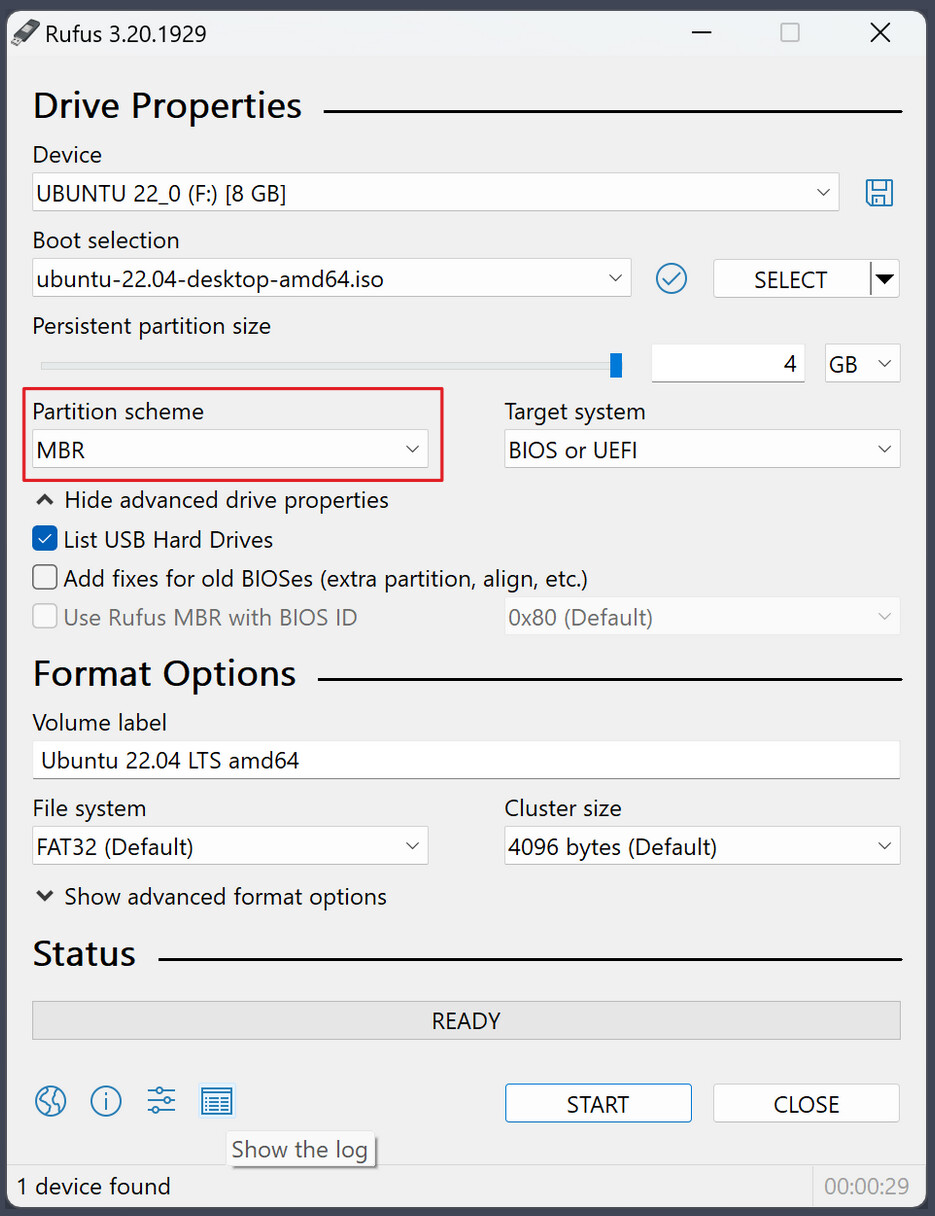
 ) I'm not sure if I have an NVIDIA chip in it. I thought there was an sticker being lost. About the graphics it simply says Intel HD Graphics 2500 (IVB GT1).