Here's a breakdown of what went wrong and what I did to fix it:
Why DKMS Was Failing
Root Cause:
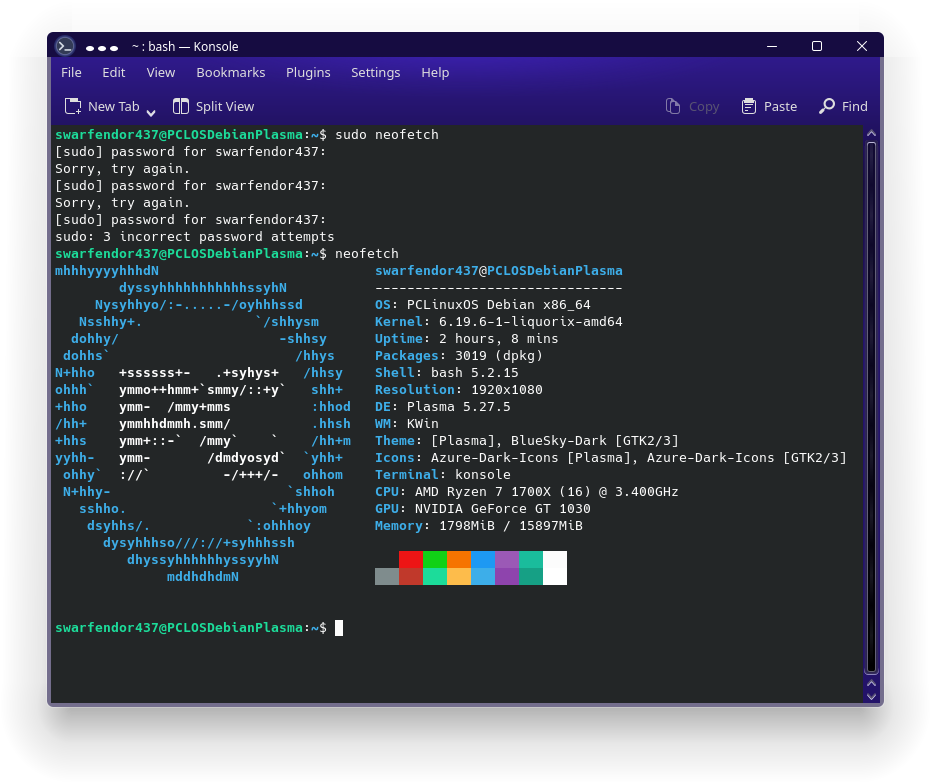
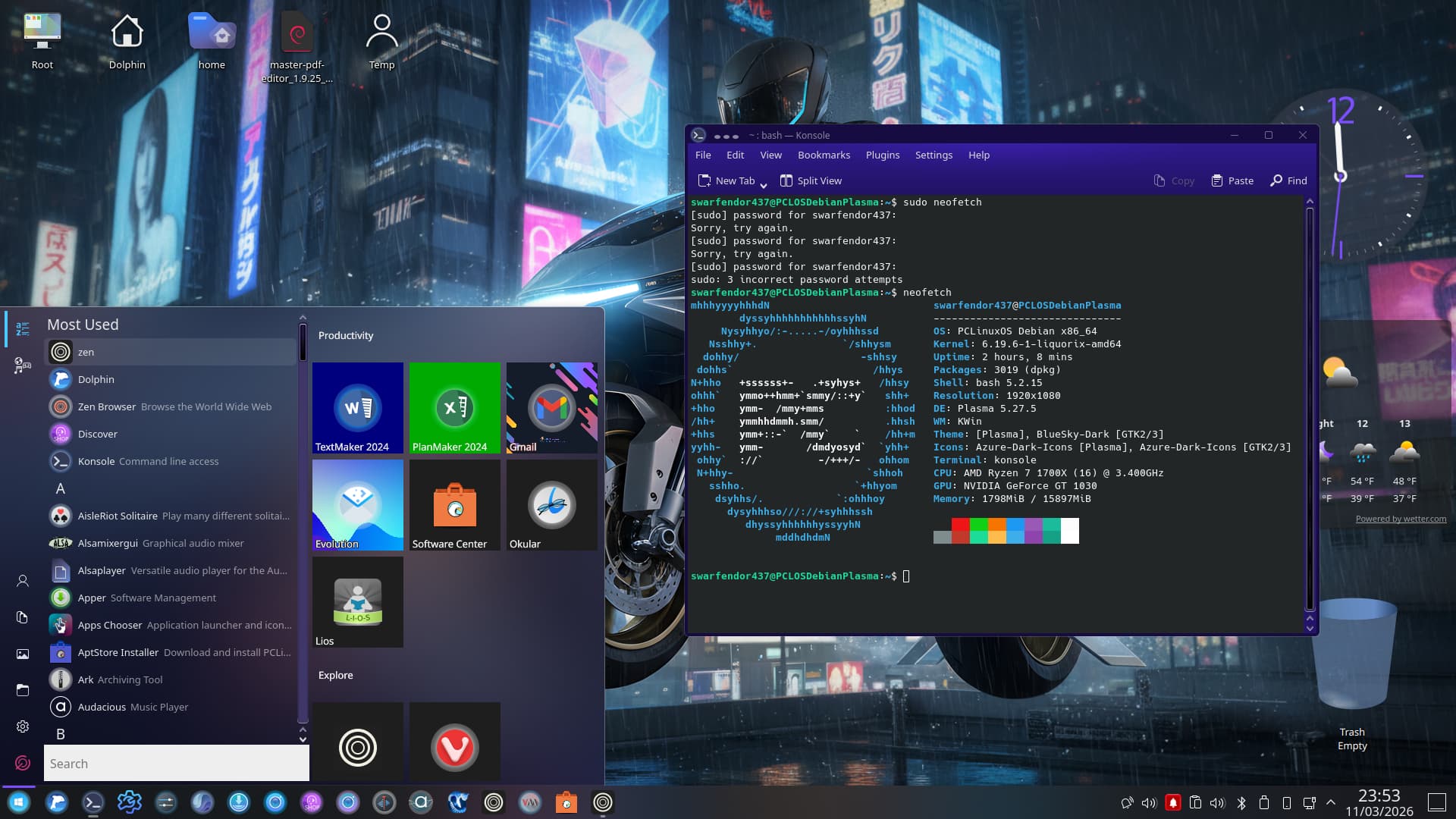
nvidia-dkms failed because the Liquorix kernel (6.19.6) was being used, but:
NVIDIA DKMS modules are not built against Liquorix kernels.
Liquorix uses different compiler (GCC) versions than standard Ubuntu/Zorin kernels.
This causes a kernel header mismatch, and DKMS refuses to build unless IGNORE_CC_MISMATCH=1 is set.
Even though you were running the generic kernel (6.17.0-14), the package tried to build for all available kernels, including Liquorix — which failed and blocked configuration.
Correct Steps to Fix
Remove all NVIDIA packages:
sudo apt purge nvidiaNVIDIA
Clean up DKMS state:
sudo rm -rf /var/lib/dkms/nvidia
Reinstall headers and open driver:
sudo apt install linux-headers-$(uname -r)
sudo apt install nvidia-driver-580-open
Reboot and verify:
nvidia-smi
Key Takeaway
Avoid mixing Liquorix kernel with NVIDIA DKMS unless you set IGNORE_CC_MISMATCH=1. For stable GPU support, stick to generic kernels and open drivers (nvidia-driver-XXX-open).
So ... it works now? If not, I would suggest at this Point think about a fresh Install of Zorin. And if you only want use Your Nvidia Graphics, You should look in your BIOS if you can set up Primary Graphics Output or something similar and set it to PCIe or something to disable iGPU or integrated Graphics.
i do remember having a GCC error and was able to update it to version 13 was highest at time not sure what version is highest now looks like 15.2 now but 14 is highest to use on ubuntu 24.04 which is what 18 is based on
These steps also work for Kernel 6:17 and it wouldn't surprise me for other versions above 17.
DKMS was creating errors because Nvidia is not known to write them so it had to be cleared out and modifications made in the GRUB package allowed the device to write and be acknowledged in the kernel.
OK, for clarity are you using Liquorix or a mainline kernel?
I don't want to add anything to the unofficial manual that mentions something such as the Liquorix kernel when it was not part of the solution. I can't get my head round the fix so it needs to be clear without bringing other elements.
@StarXStone , would you be happy to create a tutorial and post it in the Tutorial & Guide's section? I could then either copy the contents or post a link to your tutorial which might be neater. Cheers.
he is using the liquorix kernel at last time we talked thats .. he may have...not sure reverted to 6.17 thats in zorin his last pics posted showed the 6.19.6 liquorix kernel
Here's a breakdown of what went wrong and what I did to fix it:
Why DKMS Was Failing
Root Cause:
nvidia-dkms failed because the Liquorix kernel (6.19.6) was being used, but:
NVIDIA DKMS modules are not built against Liquorix kernels.
Liquorix uses different compiler (GCC) versions than standard Ubuntu/Zorin kernels.
This causes a kernel header mismatch, and DKMS refuses to build unless IGNORE_CC_MISMATCH=1 is set.
Even though you were running the generic kernel (6.17.0-14), the package tried to build for all available kernels, including Liquorix — which failed and blocked configuration.
Correct Steps to Fix:
You will need to mod your GRUB if the situation continues to fail by adding >your Nvidia device< after the splash configuration
sudo nano /etc/default/grub
Locate this line:
GRUB_CMDLINE_LINUX_DEFAULT="quiet splash"
Add nvidia-drm.modeset=1 after splash so that the line looks like this:
GRUB_CMDLINE_LINUX_DEFAULT="quiet splash nvidia-drm.modeset=1"
Then close terminal and reopen it to input:
sudo update-grun
Remove all NVIDIA packages:
sudo apt purge nvidia NVIDIA
Clean up DKMS state:
sudo rm -rf /var/lib/dkms/nvidia
Reinstall headers and open driver:
sudo apt install linux-headers-$(uname -r)
sudo apt install nvidia-driver-580-open
Reboot and verify:
nvidia-smi
Key Takeaway
Avoid mixing Liquorix kernel with NVIDIA DKMS unless you set IGNORE_CC_MISMATCH=1. For stable GPU support, stick to generic kernels and open drivers (nvidia-driver-XXX-open).
If you continue getting DKMS package errors it's because the default processes was writing the packages and need to be cleaned out COMPLETELY!
Follow the above steps FULLY and you shouldn't have any trouble
If it continues to give DKMS errors during any of these steps use:
sudo apt purge nvidia && sudo apt autoremove --purge -y
sudo apt auto clean
sudo rm -rf /var/lib/DKMS/nvidia/
sudo dpkg --purge $(dpkg -1 | grep nvidia | awk '{print $2}') 2>/dev/null || true
Reinstall dependacies:
sudo apt update
sudo apt install dkms build-essential linux-headers-$(u name -r) libglvnd-dev libegl1 libegl1 libegles1 -y
Then you go back to the top and skip the GRUB edit and install Nvidia 580 -open drivers
autoinstall DKMS>update initramfs -u>update grub after nvidia installs
sudo reboot and you should see your driver in the about section of settings
Okay, I apologize but I just found out that Zorin 18 build supports only outdated nvidia drivers when it needs 580 open but it only supports up to driver 535 which is below the minimum of 550. So it can't write DKMS on 18 but it can for 17 and the unofficial 19
(I'm actually not sure why 17 is more updated to support modern drivers but 18 isn't. It explains why the Ubuntu was crashing on boot flash).
The only thing I can think of is 17 has been used more and therefore had continued support and maybe 18 is less developed??? I don't know and I hope that's not taken as an insult m I'm just spit balling what could be the issue.
Some users say 18 works after using UMD>switching to x11 (obviously)>nvidia driver 580 open through additional drivers>avoid kernel updates after 6.14 as the bottom of my tutorial mirrors
So it's the kernel configuration that's the main issue to nvidia drivers not installing correctly
Tell you what. I'm going to spend some time with my daughter on 6.19 because she's been waiting very patiently for me to play Minecraft with her. If you give me a day or two, I'll hit the grind and try to install Nvidia 5060 on 18. Sound like a deal ?
From what I have gleaned about Ubuntu 24.04 there was a big issue with the kernel around the time of the release, but it wasn't 6.17 at that stage. I suspect that 6.17 has some bugs in it but I would not know where to look.
I will definitely look into it. I feel kinda silly because I didn't include Steam install in my tutorial since if you have 5060 you aren't most likely just going to play retro gaming.
To obtain 32x bit arc for Steam to launch in OpenGL use:
sudo apt install libnvidia-gl-580:i386
[sudo apt install libnvidia-gl-580:i386] (or whichever driver your Nvidia is on place after gl-)
then reboot
You should be able to launch and run Steam now
Hey, wanted you to know, I didn't forget about the request for ZorinOS 18. I have limited Internet and have to use the public library once it's out but I have everything set up to mimic what I did for the other versions and will be doing the same on a fresh installation of Zorin 18 so there are now contaminants. I should only need to follow the steps I posted in the tutorial and if there is something different I will make note of it and resubmit it with pics if needed. Lastly, I want to thank everyone for responding and I look forward to taking a photo of Zorin 18 showing my Nvidia rtx 5060 in the About tab!
Yeah, I tried that before and Nvidia-smi doesn't do anything. If I don't do the steps in a specific order Zorin 18 crashes. I can't just install the drives, I have to modify the boot and the driver package or the boot crashes and I have to install another ZorinOS boot
I tried this method twice on 6.17 and I'm honestly shocked 6.18 won't work with Nvidia 5060. Before someone else says it, I was getting 6.18 instances but everytime I received one it crashed on boot up and I found out it was an incompatibility issue with the driver. So, yes... Unfortunately I cannot claim ZorinOS 6.18 works with Nvidia as I originally thought.
As I stated, I have tried this twice and anyone else with a 5060 should follow these steps carefully. It's actually very easy once you follow them over the various factors I did that caused more problems than they were worth:
Grab a flash boot using bfetcher of ZorinOS
Install Zorin from flash (the option without modern graphics)
HAVE AN INTERNET CONNECTION and finish the boot installation process <-this was where I was getting most of my struggles because I have limited Internet
BEFORE you do >anything< else on your new instance you need to make sure Secure Boot is off in bios - Switchable Graphics is on - Xorg Zorin Desktop is chosen on e you click on your sign on name and click the cog at the lower right hand corner - hit the windows key and type term to find terminal - type
[sudo apt install nvidia-driver-580-open nvidia-settings]
let that install and reboot.
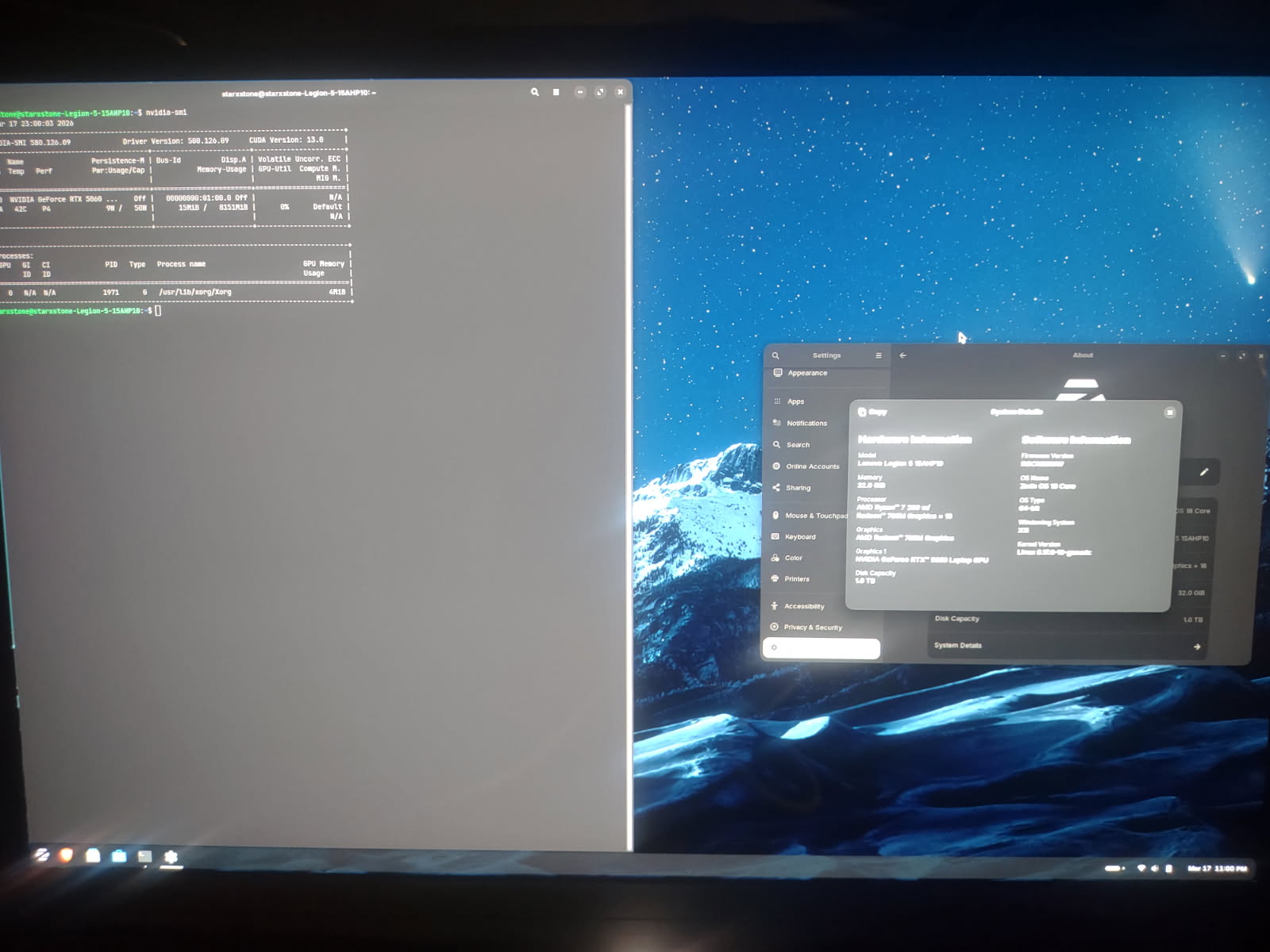
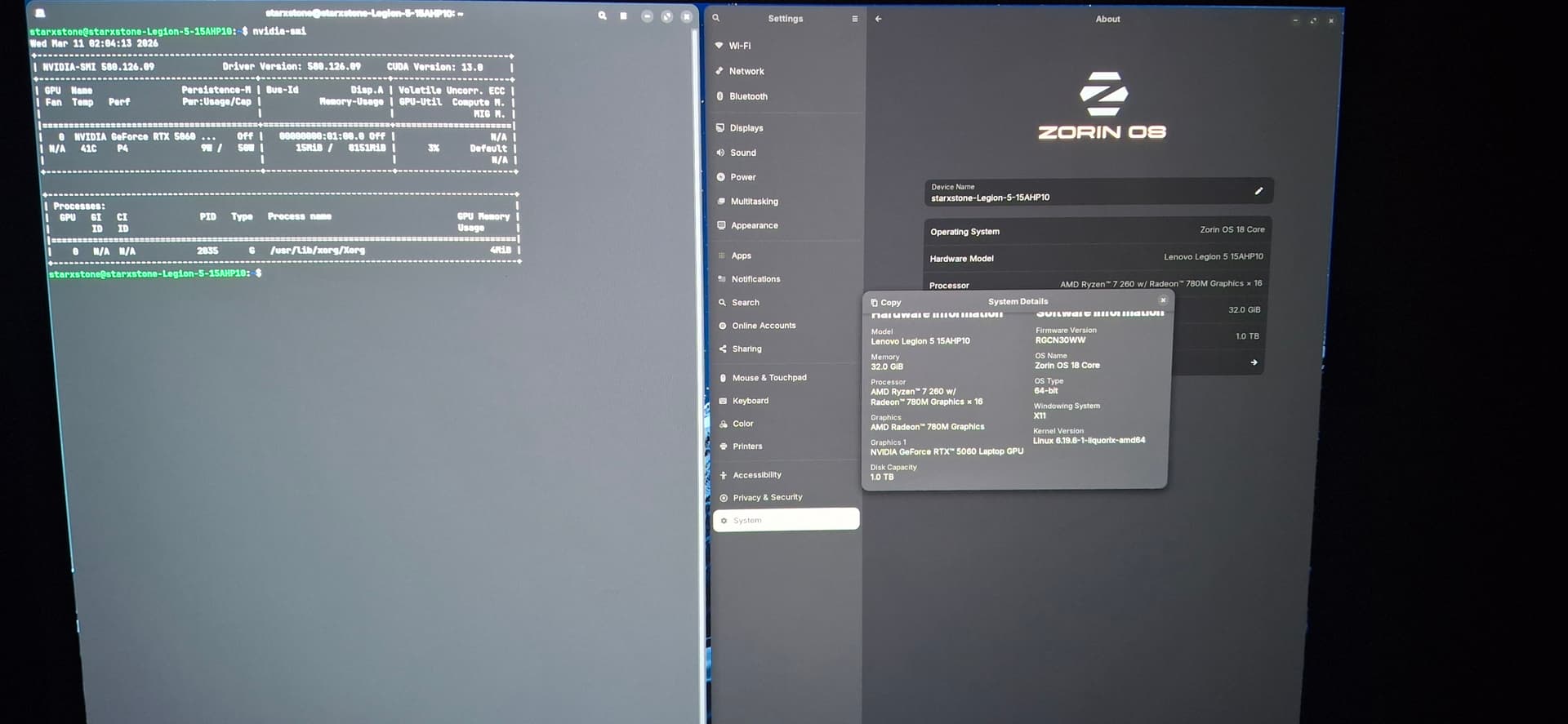
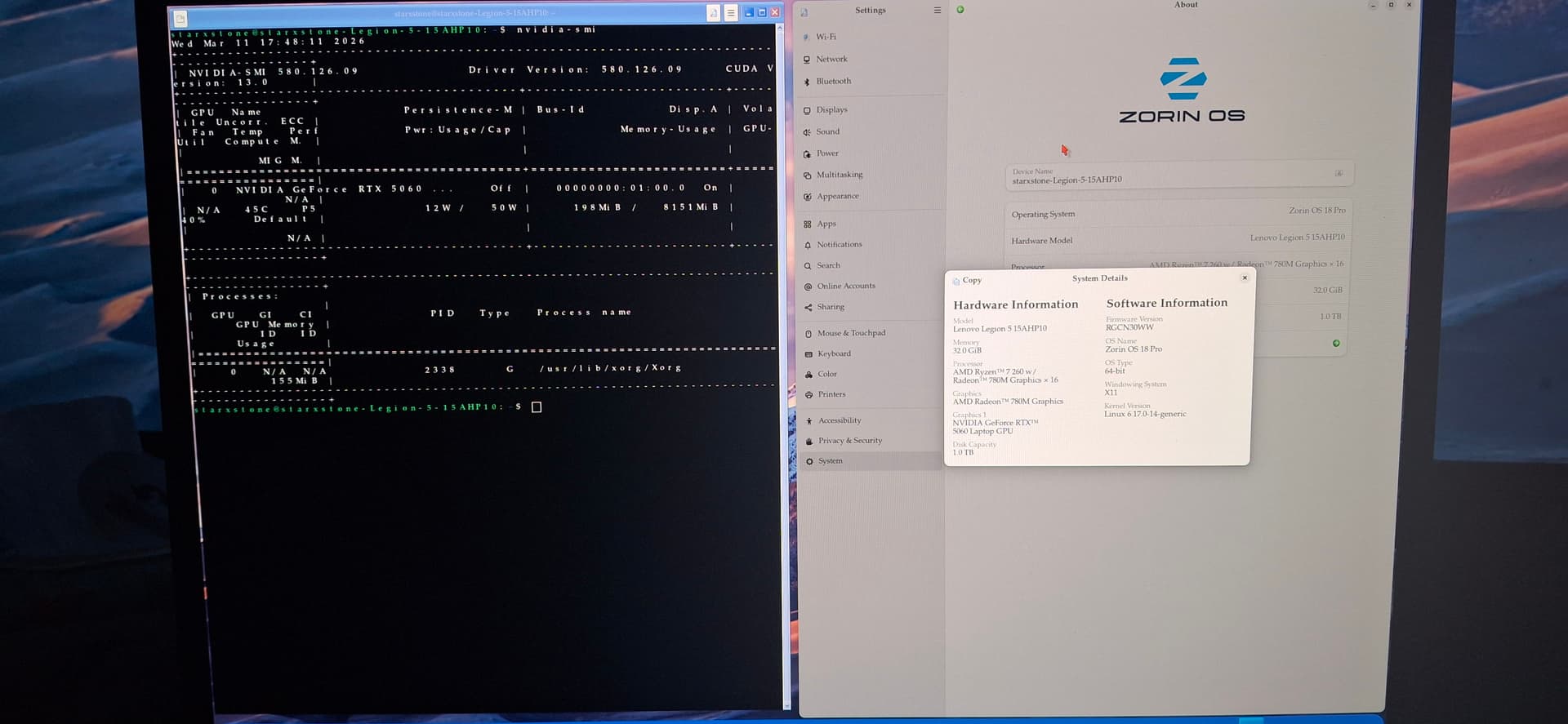
Verify with Nvidia-smi in the terminal after reboot and login.
If you followed everything directly to u should match my screenshot here:
 ?
?