Did You take a Look in the Settings of the Extension?
On another Place is a Step-by-Step Guide for it:
This may be above my level of knowledge. I am a Linux novice.
Okay, then let's see if I can explain it. So, You already have installed the Extension.
Open the File Manager and click on the Hamburger Menu and there activate the ''Show hidden Files'' Option to get to the .config Folder:

In this Folder create a Folder called d2da if it shouldn't already exist:

Then go in this Folder and create there another Folder called icons and a File called icons.json (to create it, create a .txt File and rename it to icons.json without the .txt File Ending):

Now go to Your Icon Theme and take the Icon that You have showed above and copy it in the icons Folder in d2da. The Icon, You should find under names like view-app-grid, show-apps-icon or start-here. You maybe have to search a bit.
When You have found it, copy it to the icons Folder in d2da. Then open the icons.json File with Text Editor. There You put in the Following:
{
  "icons": {
     "view-app-grid-symbolic": "icons/Icon-Name.svg",
  }
}
Replace Icon-Name with the Filename of the copied Icon that You want use. Then save the File. Close everything and reboot.
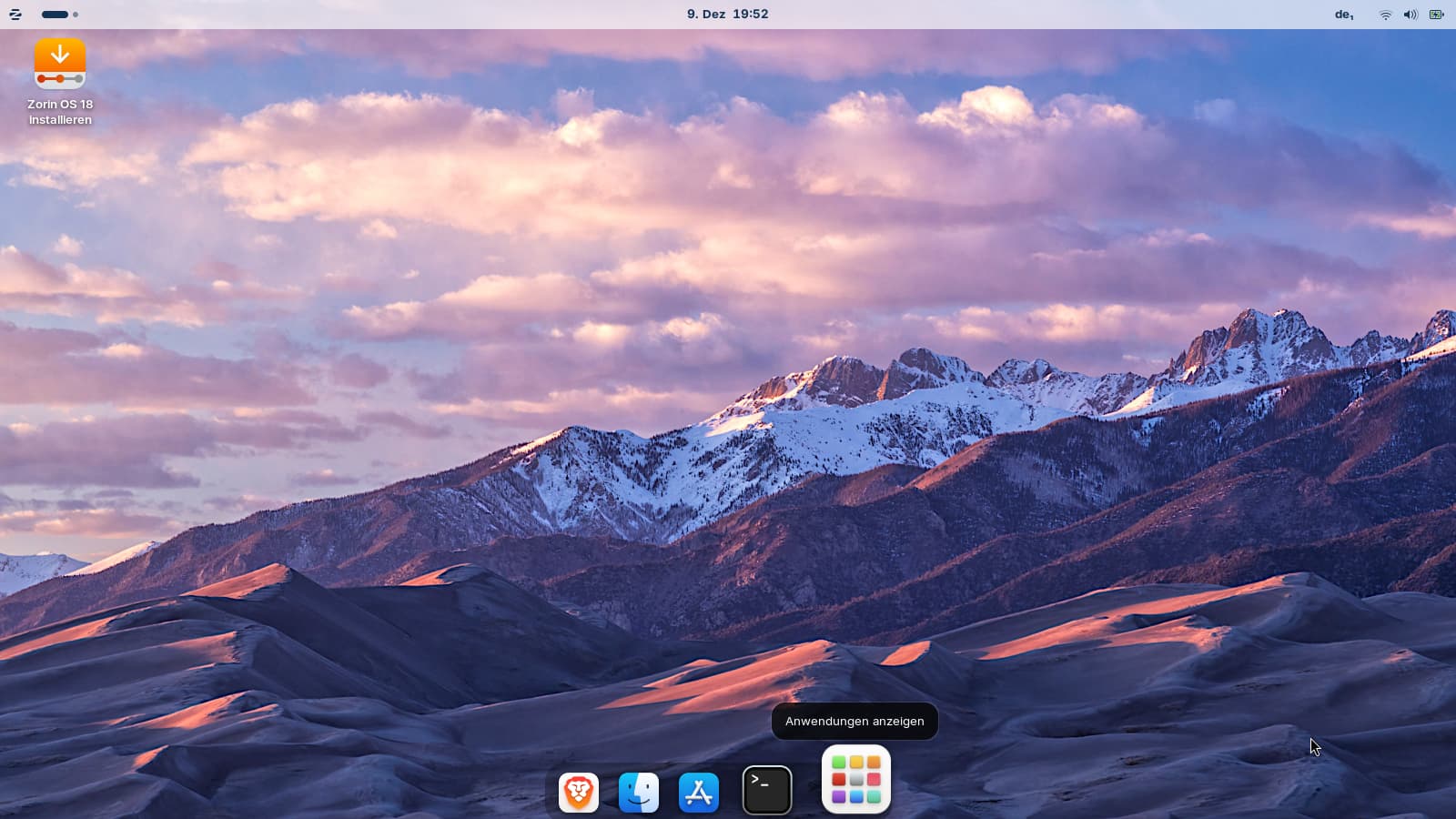
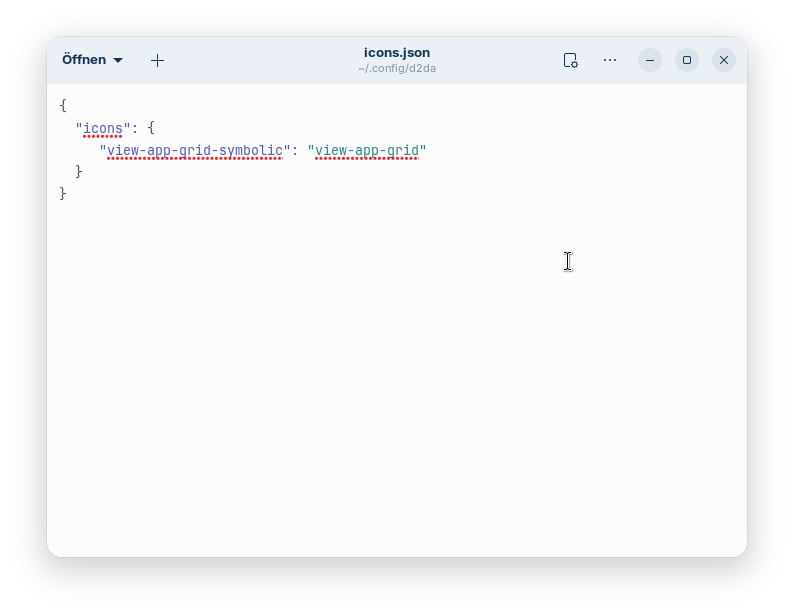
Now I got it. That is the json file you need to create. I didn´t move the icon, only created the file at ~/.config/d2da/icons.json
First I created an empty folder in ~/.config, named it "d2da", and in this d2da folder I created an empty text file which I renamed "icons.json". In the icons.json file I wrote the text above and saved it.
It was difficult to find the icon of the app. I didn´t find it among the many icons until Ponce-De-Leon helped. But you don´t need to search it, you can just create the json file. The icon was at (I used the WhiteSur-light theme) ~/.local/share/icons/WhiteSur-light/apps/scalable
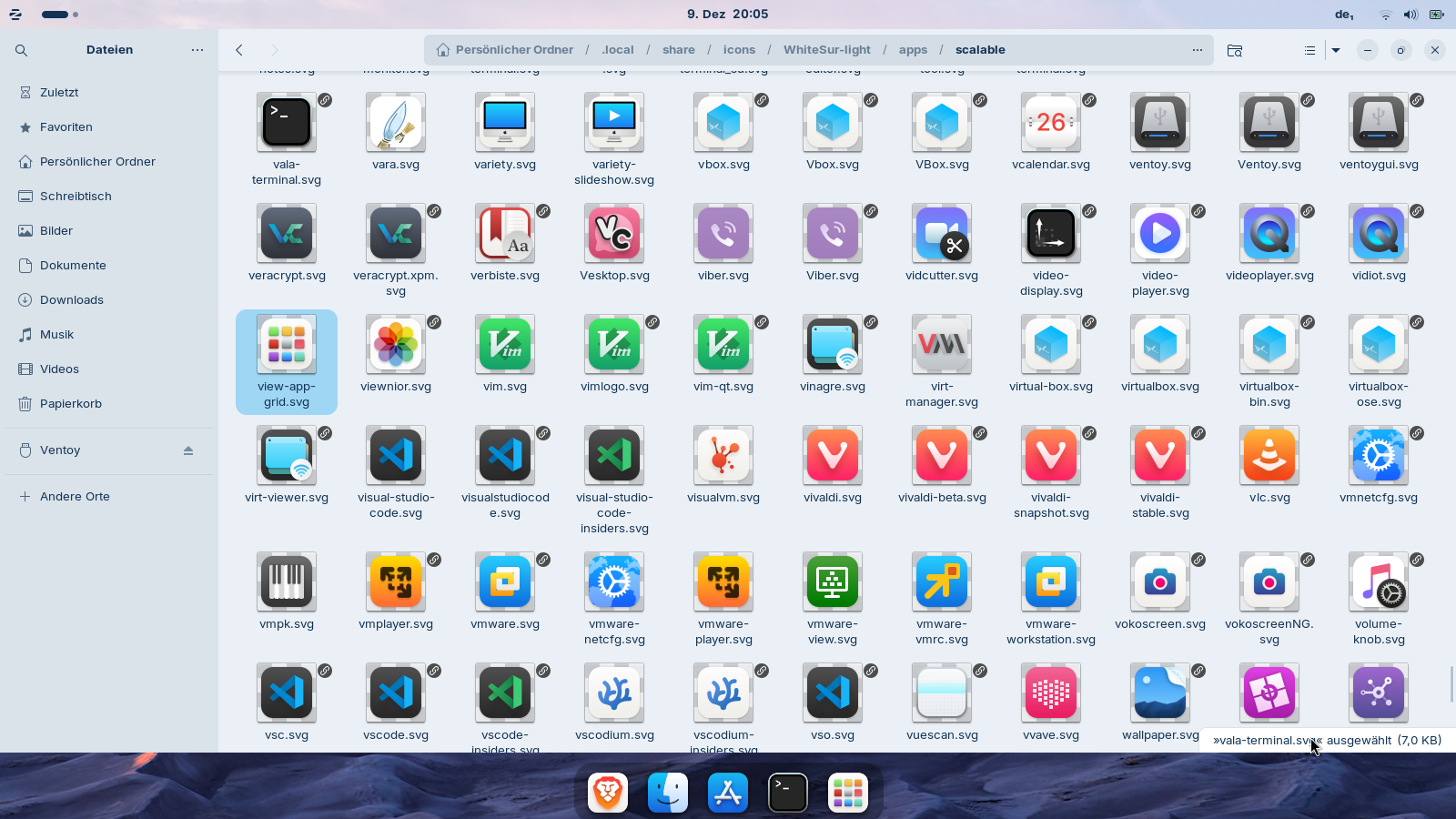
After the file is created, log out and then login again. It doesn't matter whether you use the light theme or dark theme, the name in the json file is the same.
Thank you, I will try this tomorrow and let you know how I get on.
Best regards
1 Like
Hi @Forpli
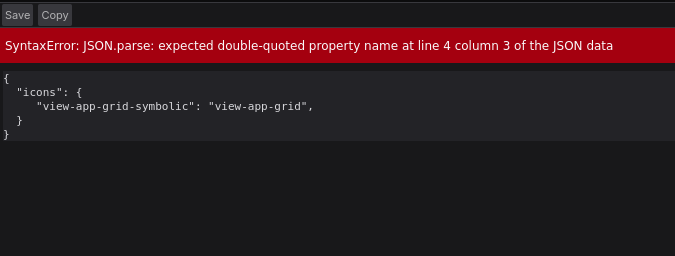
I have tried what you have suggested and recived the following after saving the icons.json txt file.
I have also tried to locate the view-app-grid.svg file in local/share/icons/ and i do not have an icons folder:
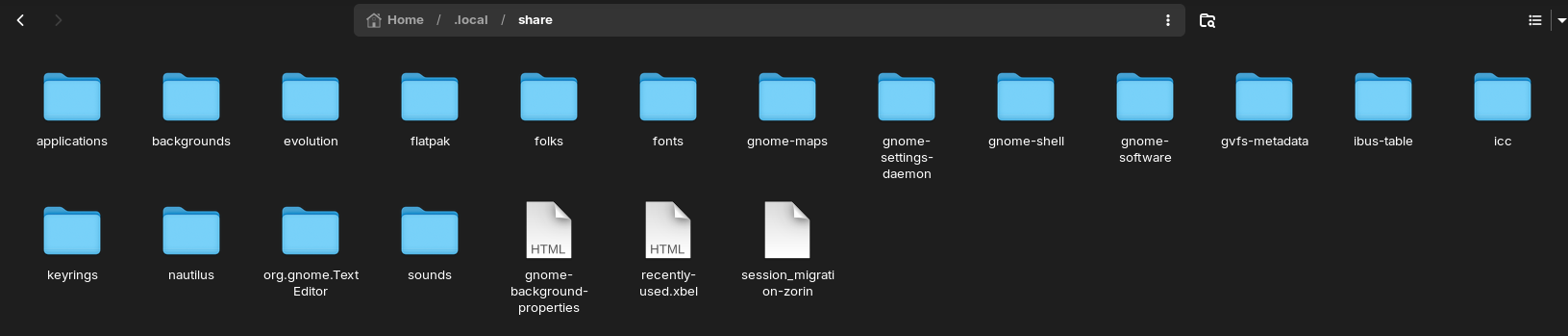
However in Home/icons I have the following folder:

Best regards
I didn't enter a comma (,)
after "view-app-grid". Remove it, maybe it causes the error.
Did you save the theme yourself and not with the installer script? The default place where the installer script saves the icon theme is at ~/.local/share/icons.
If you have installed it yourself or changed the place where it should be saved, it may be at
/usr/share/icons or ~/.icons
After removing the comma and saving the file, I logged out and logged back in. No change to the icon. I opened the icons.json file:
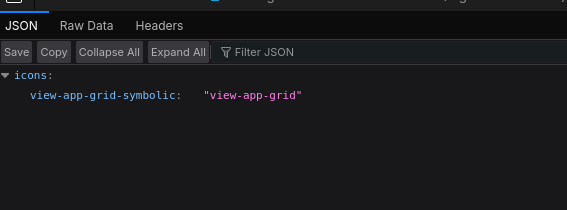
I followed the instructions you sent to me previously. Below is what I have found, I have checked the folders but cannot find the view-app=grid.svg

Here is the path:

Best regards
Ah, now I understand. You don't use White Sur but Cupertino.
I haven't found it yet, go to folder apps and then to 128, there are many icons.
Hi @Forpli
I have checked that folder and I cannot find the icon.
Hi @Forpli
Would you advise I download the white sur icons, install and select?
Best regards,
I've been searching for a long time now and just can't find it. I've also looked through other folders, but without success. Sorry. If you find an icon that you like, you can also set any other one. Just enter the name in the Json file behind the = (in my example without the file extension .png, .svg or similar).
Or you can download the White Sur icon theme and try that. The instructions are correct for White Sur.
Yes, if I were you I would download the White Sur icon theme.
I've just noticed that the guide I linked you about installing Mac themes has not used the Withe Sur icon theme, only the Withe Sur gtk theme.
Downloading a theme doesn't need much time, but searching for an icon among thousands...My head is spinning from all the searching.
Hi @Forpli
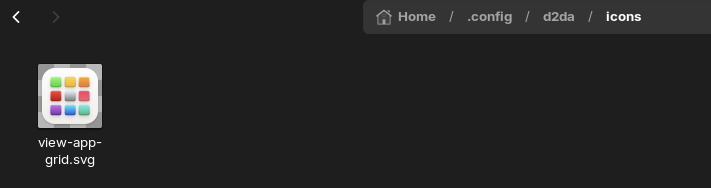
I downloaded the white sur icons and located the view-app-grid.svg icon and copied it to the icons folder in d2da/icons as @Ponce-De-Leon suggested:
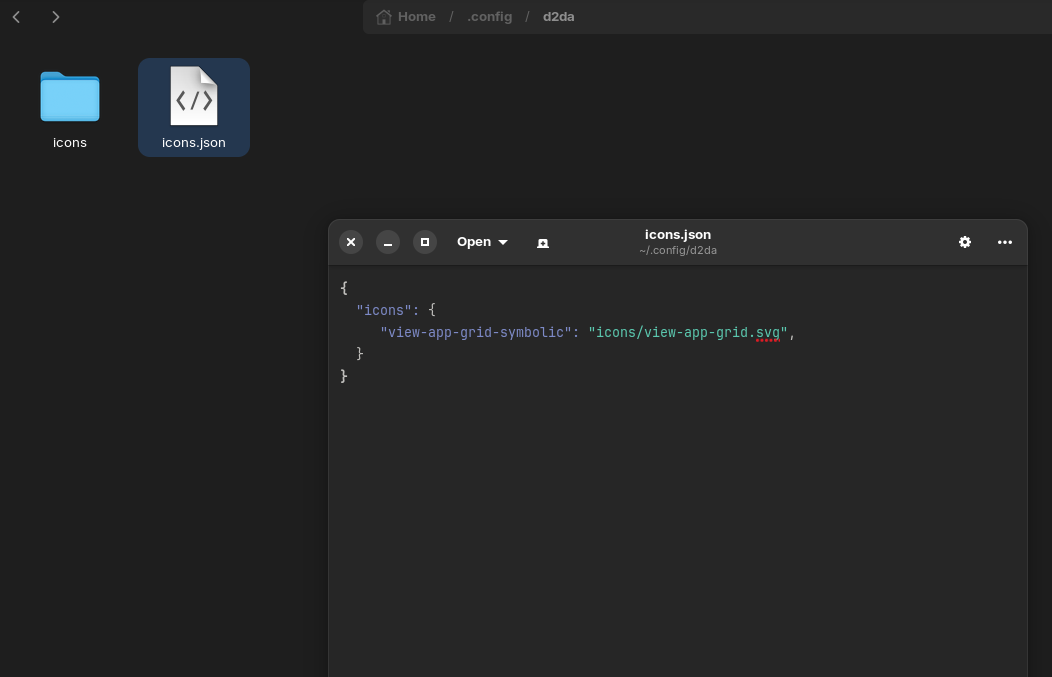
I then copied the following into the icons.json file, changed the icon name to view-app-grid.svg. Saved the changes and restarted my Mac. This has not fixed the situation.
I have just got to remember how to install the white sur icon pack
I haven't tried that method yet, only as I described above without moving the icon. That worked for me.
I extracted the white sur icon pack and copied it to .local/share/icons (I had to create the icons folder). In zorin appearance, theme it is not showing as an option to select. what have I done wrong?

I apologise for taking up so much of your time.
I'd suggest using this icon set. It's one of the most complete out there and its style is very similar to macOS icons
Icons: Colloid icon theme - Gnome-look.org
Theme: Colloid gtk theme - Gnome-look.org
Sometimes it helps to logout and login again.
Or you doubleclick on the downloaded and extracted icon theme in your download folder to open it (called "WhiteSur-Icon-theme-master"), then right click on a empty space and select "open terminal here", then enter in terminal
./install.sh