Hello! I’m using Zorin 17.3 Core and I’ve been having issues connecting to Wifi since a few days ago.
The option to connect to Wifi no longer comes up on the taskbar or under the Network settings. This happened in between me putting my computer on standby to go do something else and then coming back to it later. Shutting it down and restarting it resolved the problem initially, but that eventually stopped working. I started it up with Secure Boot disabled and that worked once, during which time I managed to install the latest version of Zorin.
I’m apprehensive about copying commands from older forum threads into the terminal without knowing what they do. It’s probably clear that I’m not a qualified Linux user – I just didn’t want to buy a new computer, and Zorin has been a gummy but functional alternative up until now. I’m sure a lot of that gumminess comes from me not configuring everything properly, which again goes back to the commands. I would appreciate any help at all in Sudowoodoing the Labubus so that I can be connected back up again lol.
I no longer have Windows installed, and Fast Boot is still enabled as far as I can aware. The most I’ve been able to figure out how to do is disable Secure Boot on startup.
I was due for a software update around the time this started happening.
I don’t know how to figure that out, unfortunately. I use an 11-year-old laptop, so it will be whatever was in there at the time of purchase. Sorry for not providing any information about this before – I wasn’t sure how relevant it would be.
Please make sure that any feature akin to "fast boot" in your BIOS is disabled, as this limits the hardware available to the OS during boot and is known to cause issues with wifi devices on linux. The exact way to get into your BIOS or what the feature is called depends entirely on what laptop / motherboard you have, but this guide should help:
2. acer-wmi
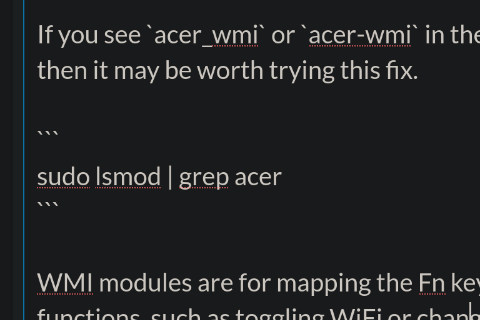
I have also seen mention of an Acer kernel module that can block certain WiFi drivers, even on machines from other brands like ASUS and HP. If you see acer_wmi or acer-wmi in the output of the following command then it may be worth trying this fix.
sudo lsmod | grep acer
WMI modules are for mapping the Fn keys on laptop keyboards to system functions, such as toggling WiFi or changing screen brightness. If the chosen WMI for your keyboard is broken or the wrong one - such as acer-wmi on a Dell or HP laptop - this somehow causes the WiFi driver to fail / be blocked in the system.
When asking for help, if the above troubleshooting steps didn't solve your issue, please provide as much detail as possible so the people trying to help you have a better starting point. This makes it more likely for people to spot specific problems and causes, hopefully enabling quicker and more accurate replies. At the very least it helps people search online for things specific to your situation, and lets them know what not to suggest because you've already tried it.
For example:
What version of Zorin are you using?
Did you use the "try Zorin" option before installing, and if so did WiFi work then?
Is this a new install that never had WiFi connectivity, or have you been using Zorin a while and suddenly WiFi stopped working?
Do you see settings for WiFi but it just can't detect or connect to your network, or is there only wired networking showing as an option?
What WiFi hardware is in your computer? E.g. model of USB adaptor, model of motherboard / laptop if integrated WiFi chip, etc.
Include the output of the following commands to identify your WiFi hardware and what driver Zorin is trying to use for it:
If integrated WiFi: lspci
If a USB adaptor: lsusb
rfkill list all
sudo lshw -C network
Note: When including the output of commands in forum posts, it should be placed inside code blocks to make it easily readable. Code blocks are created by typing three backticks ``` above and below the command output, like this:
I’m not sure how useful this is to all of you, but I managed to achieve a different outcome by entering the Boot Menu on start up, hitting enter on the ‘Lan’ option, pressing the delete key and then waiting for the wall of text screen to finish. I did all of this without any logic behind it, but it seems to have put the Bluetooth and Aeroplane Mode icons back on the taskbar. I can now enable bluetooth and it does seem to be detecting other devices. It’s still not picking up on Wifi at all and I’m not sure if I can achieve this same outcome consistently yet.