The installation flash drives I create on my desktop PC are not recognized on other PCs or laptops. Why is this? I tried several programs, including Ventoy, and simply no other computer recognizes the USB drive. Zorin 17 pró.
Check the integrity of your downloaded .iso file.
Rufus (if you use a Windows PC for creating the stick) and ventoy are good tools to create the bootstick. Make sure you set the right partition scheme: When you have a UEFI choose gpt and when you have a legacy BIOS choose MBR in Rufus.
Disable secure boot and fast boot in your BIOS and if you want to make a dualboot also disable fast startup in Windows.
Insert the bootstick before booting and set it at first position of boot order.
Here are some help sites:
As you have purchased Zorin pro you can send a help request to the Zorin team when you have difficulties with installation:
2 Likes
Do you mean that the USB doesn't show up in the booting process?
If yes, you need to press the appropriate keyboard key to get to our bios boot selection.
Cheers CD
1 Like
Thank you all for your help. I will download Zorin OS again and follow all the steps indicated. Have a great week, everyone!
1 Like
Welcome to the Forum!
If the USB Stick is 32GB or smaller, choose FAT32 to format the Drive. When You are on Lunx beneath Ventoy, there are Tools like Popsicle, Impression (I use that and it works fine for me) or MultiWriter.
For Windows, I would recommend Rufus like @Forpli did.
1 Like
I followed all the instructions and it worked. The problem was the boot mode selection (EFI or CSM) which, for disks formatted in Linux, must be selected as EFI & CSM. I was able to install it on my notebook normally.
On the PC, Zorin OS recognizes my Wi-Fi card, but it doesn't appear in the taskbar, so I have to manually access it in live mode to connect. Once installed, it doesn't recognize it. It's a Fenvi T119 that used to work fine, but now it's not recognized by the system.
Do you mean Fenvi T919?
What is the output of
sudo lshw -C network
in terminal? Please post it here.
This card seems to use broadcom drivers. Take a look at Software&Updates > Additional drivers if there is offered a wifi driver.
2 Likes
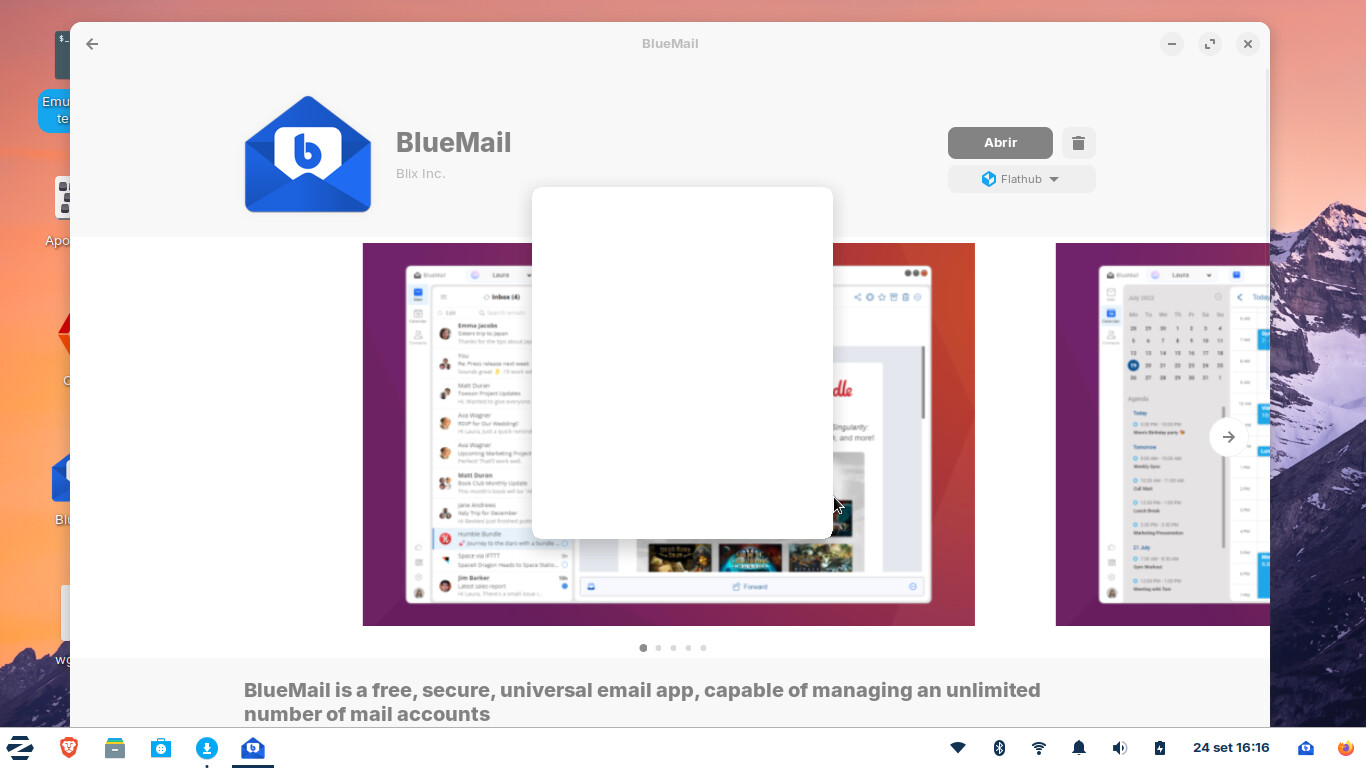
My board is a broadcom, I already managed to solve, the problem now is the bluemail that does not open at all in version 17 of zorin.
yes! is Fenvi t919!
Bluemail is officially distributed for Linux only as .rpm (which is not suitable for Zorin) and snap package, unfortunately not as .deb or apt package.
The flatpak version comes from unofficial sources.
You could try to uninstall the flatpak and then install the snap version. There are often several package formats in the software manager. Click on the arrow and select snap for Bluemail.
However, snaps are the most difficult and controversial packages to manage under Zorin. Many users, myself included, do not use them at all. I would not advise you to use them - but for this program it is probably the best solution as it is the installation method recommended by the developers.
Maybe you may want to look for another email client that supports native package formats (Zorin packages or .deb) that are better integrated into the system and run more smoothly.
When you choose a flatpak package, also install flatseal and in flatseal set the permissions for this program to grant access to all users/system files because flatpaks (as snaps) run sandboxed and are separated from the system.
So you could also try to keep the flatpak of Bluemail, install flatseal and set the permissions for filesystem. Enable all user files there (maybe you also need the system files).
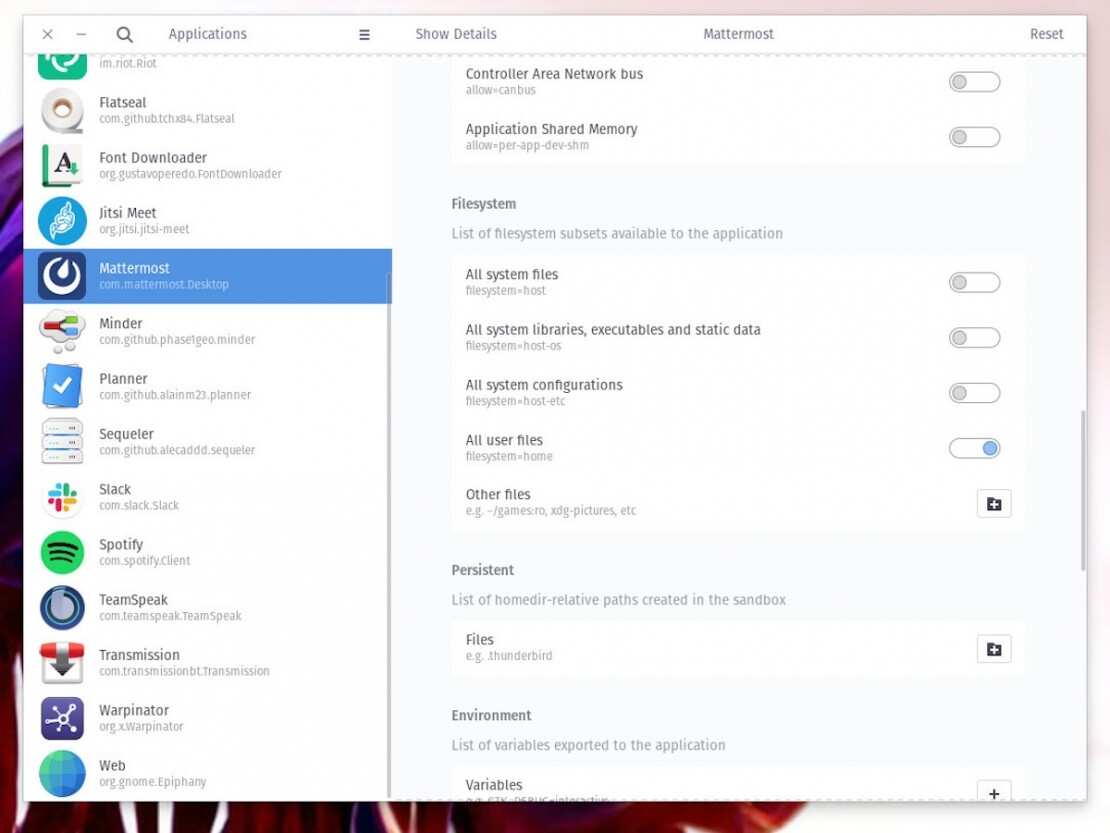
[picture from techrepublic - choose Bluemail as app on the left side in flatseal]
1 Like
You could convert the .rpm package to .deb using alien.
sudo apt install alien
then
sudo alien [name of .rpm package]
Then use Gdebi to install it.
2 Likes
That sounds good Swarfendor, thanks for the tip! I didn't know that it is possible to convert .rpm to .deb.
zorincore, after converting you can also install the .deb file by doubleclicking on the file or you enter in terminal
sudo dpkg -i package-name.deb
(replace package-name.deb with your filename)
You can also convert and install the .rpm package in one step by using this command
sudo alien -i package-name.rpm
(replace package-name.rpm with the filename of your Bluemail rpm package, as far as I can see it should be
sudo alien -i BlueMail.rpm
This is the site to download the .rpm package. Click on >Download .rpm there:
The disadvantage is that packages installed in this way usually do not receive automatic updates and when newer versions are released, the new file must be downloaded manually from the website and the old one removed.
But there is a good chance that this package will cause them less worry and work better on your system.
1 Like
It doesn't always work. And for users of .rpm (Red Hat Package Manager) files, they can convert .deb to .rpm with a package called worm.
Just to add, I learned this during the time I was using Open SuSE 9.3 Professional, my first paid for GNU/Linux. Cost me £43 pounds back in the day.
1 Like
This topic was automatically closed 90 days after the last reply. New replies are no longer allowed.